

Where to find this: Payments → Transactions
Find an ACH payment that is still processing
Open Payments → Transactions and select Processing to see bank transfers that have not settled. Parents see a bank-payment processing message while they wait. Product access and purchase automations run after the payment is confirmed. A processing payment is not a completed purchase or a reason to pay again. If the transfer has settled but access is missing, contact support with the transaction details.What the Transactions page shows
The Transactions dashboard displays every payment event in your coaching business:- One-time purchases
- Subscription charges
- Refunds issued
- Failed payments
- Revenue totals
In organizations with several groups, Transactions shows only the current group’s records, and the totals include only that group’s sales. If some rows couldn’t be checked, a notice says so.
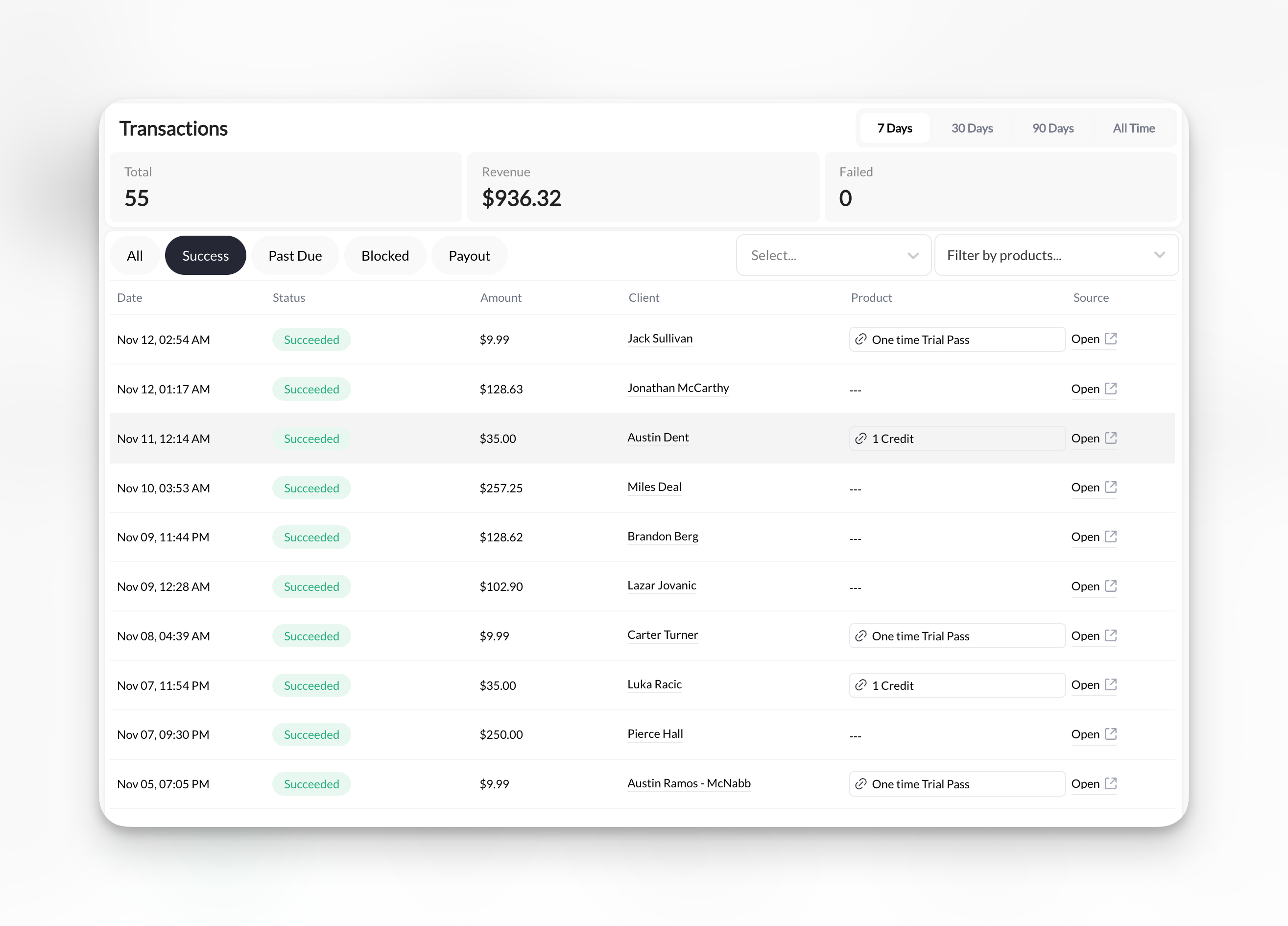
Transaction list columns
Each transaction displays:
Click any transaction row to view complete details. The list loads more rows as you scroll; a Load more button appears only when the list is too short to scroll.
Membership rows with no charge yet say why instead of reading as collected money: Trial ends [date], Scheduled with Starts [date], Cancels [date] or Canceled, with a muted amount and No charge yet or No charge. These rows add $0 to Revenue.
Transaction source types
The Source column tells you how a transaction was created:“Admin” does not mean the admin was charged. It means an admin created the transaction manually without a Stripe payment. This is normal for comped access, free trials granted by the coach, or manual adjustments.
Transaction status types
Succeeded (green)- Payment completed successfully
- Money received in Stripe account
- Client has access/credits
- Payment declined or unsuccessful
- No money received
- Client has no access/credits
- Shows the amount of money being sent from your Stripe ccount to your bank account
- Money returned to client
- Shows as separate refund transaction
- Original transaction remains visible
- Amount Stripe takes from your account per transaction
- Usually displayed when transaction wasn’t completed
- Ex: User goes through checkout but doesn’t complete the process
Filter and search transactions
Filter by status:- All transactions
- Succeeded only
- Past Due only
- Blocked only
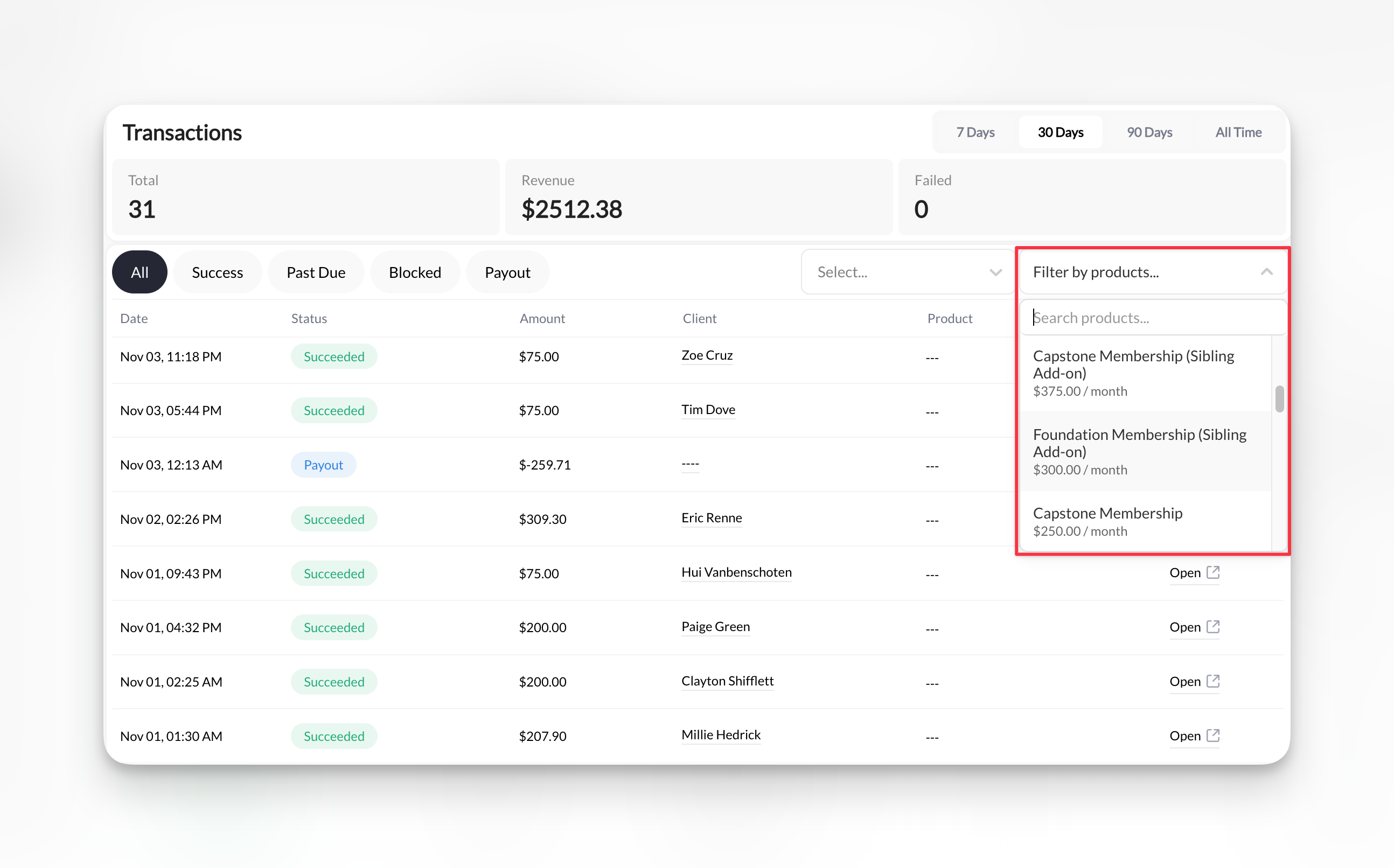
Revenue metrics
Top of page displays key metrics: Total Revenue- Counts only money actually collected
- Includes one-time and subscription payments, and cash, check and other purchases marked paid
- Canceled memberships marked No charge add $0, though each row still shows its own amount
- A payment linked to two purchase records is counted once
- Today
- This week
- This month
- Custom date range
Revenue metrics reflect the selected date range and product filter. When you filter by status, the cards are labeled Totals: all statuses, because they still count every status, not just the rows shown.
Missing transactions?
If a payment you see in Stripe isn’t listed, click Missing transactions? to resync. The dialog says “Resync started. New transactions can take a few minutes to appear.” or that everything is up to date. The last totals stay on screen with “Updating totals” while they recount. If the resync fails, the dialog stays open with Try again.View transaction details
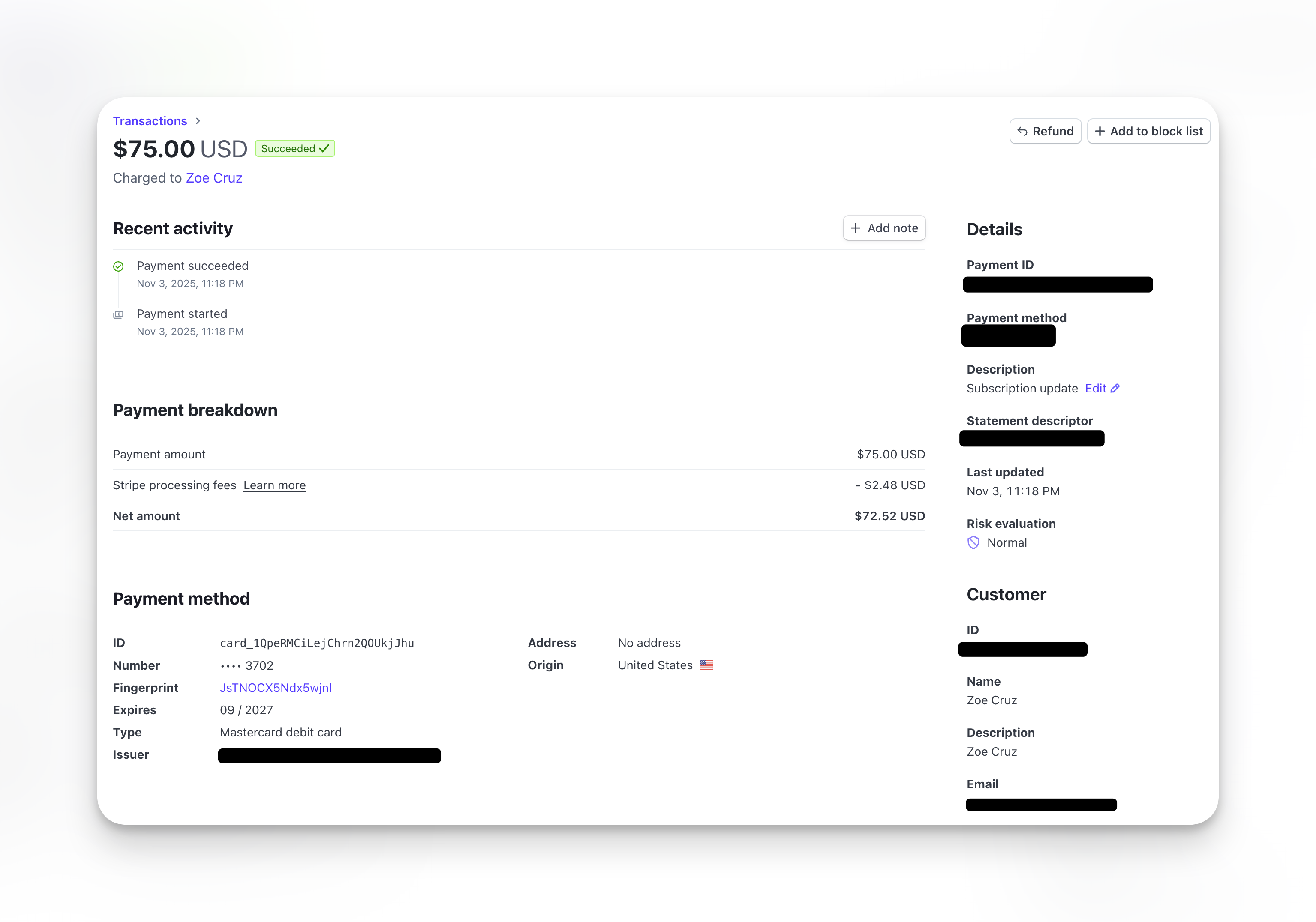
Click Open under the Source column of the transaction to view on Stripe: Transaction information:- Transaction ID
- Date and time
- Payment method (last 4 of card)
- Stripe charge ID
- Client name
- Email address
- Payment method on file
- Product name
- Price charged
- Subtotal
- Processing fees
- Net amount received
- Stripe fee breakdown
- Issue refund (if not already refunded)
Understanding transaction flow
1
Client initiates purchase
Client books session, subscribes, or completes form with payment.
2
Payment processes
Stripe charges client’s card. Transaction appears in Transactions list with “Pending” status briefly.
3
Transaction completes
Status updates to “Succeeded” or “Failed” within seconds.
4
Access granted
If succeeded: Client receives credits or access. Confirmation email sent.If failed: No access granted. Client must retry payment.
5
Transaction recorded
Permanent record remains in Transactions list. Syncs with Stripe Dashboard.
Common transaction scenarios
Finding specific client payment
Finding specific client payment
Steps:
- Go to Client page
- Use search box to enter client name or email
- Click their profile
- Click Transaction Tab
- Verify amount, date, and product
Calculating revenue
Calculating revenue
Steps:
- Filter by date range (7 days, 30 days, 90 days, All Time)
- Note Total Revenue metric at top
Tracking failed payments
Tracking failed payments
Steps:
- Filter by Status: Blocked
- Review list of unsuccessful charges
- Click transactions to see failure reasons
- Take recovery action for each
Transactions vs. Stripe Dashboard
CoachIQ Transactions page:- Shows payments related to CoachIQ products
- Links to client profiles
- Integrated with your business context
- Shows ALL Stripe charges (including non-CoachIQ)
- More detailed fee breakdowns
- Advanced filtering options
- Financial reports and analytics
- Payout information
Both show the same transactions but with different context. Use CoachIQ for day-to-day business, Stripe for detailed financial analysis.
Troubleshooting transaction issues
Transaction shows in Stripe but not CoachIQ
Transaction shows in Stripe but not CoachIQ
Possible causes:
- Transaction not linked to CoachIQ product
- Sync delay (use Missing transactions? to resync, then wait a few minutes)
- Manual Stripe charge (not through CoachIQ)
Client says they paid but no transaction appears
Client says they paid but no transaction appears
Troubleshooting:
- Verify client email address (may be under different account)
- Check Failed transactions (payment may have declined)
- Check Stripe Dashboard for manual charges
- Verify client completed full checkout process
What does 'Admin' mean in the Source column?
What does 'Admin' mean in the Source column?
Admin means the transaction was created manually by an admin — there is no Stripe charge linked to it. This happens when:
- You manually grant a client access or a free trial from the dashboard
- A Stripe ID was removed from a subscription manually
Transaction amount doesn't match product price
Transaction amount doesn't match product price
Possible reasons:
- Processing fees added to charge
- Coupon or discount applied
- Partial refund issued
- Custom pricing used