

Where to find this: Settings → Payments, which holds Billing (what you pay CoachIQ) and Stripe (the account that processes your clients’ payments).
Billing
Manage the payment method on file for your CoachIQ subscription, view invoices, and download receipts.
Update your card on file
1
Open Billing
Open Settings → Payments → Billing in the organization whose CoachIQ plan you want to manage. An accepted Admin can update billing; this is not restricted to the owner.
2
Add a new card
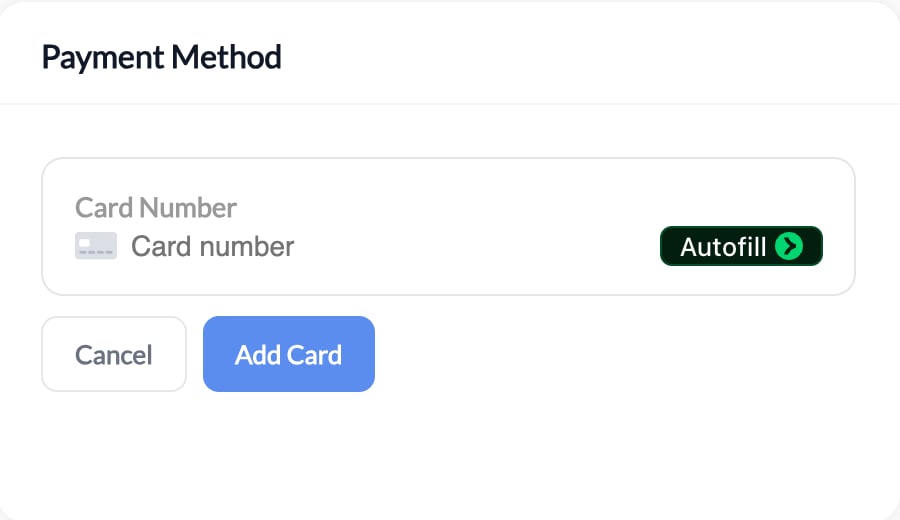
Under Payment Method, click + Add a card (or + Add another card when a card is already saved). Enter the required card details and click Add Card. Leave this screen open until the save succeeds.
3
Set as default
Click Set as Default next to the new card. After setting the new card as default, remove the old card if needed. You cannot remove the only saved card. If a save, default change, or removal fails, read the displayed error and retry. Saving a card does not by itself pay an overdue invoice.
Check your replacement card
- Confirm the new card appears in Payment Method.
- Set it as the default and confirm that the default indicator moves to it.
- Remove the old card only after the replacement is saved and selected.
- If an invoice is overdue, complete the payment retry as well. A saved card and a paid invoice are separate results.
View and download invoices
Below your cards, Billing History lists every past invoice with its billing date, status, amount, and the card it was charged to. Click any invoice to view or download it as a PDF for your records. The Subscriptions block shows your active CoachIQ plan and any add-ons, such as a Personalized App, with the card each one bills to.Restore access after a failed payment
When your organization’s CoachIQ membership payment fails, staff may see a billing screen instead of the admin platform, including during an existing session.- Admins: use the billing screen to retry payment with a saved card or add a new card and complete payment. Access returns after payment succeeds. Adding a card alone does not restore access.
- Coaches: ask an organization Admin to resolve billing. The screen explains that an Admin needs to act.
- No active membership: Admins see Choose a plan; Coaches are asked to have an Admin activate the membership.
Your connected Stripe account
Use Settings → Stripe to view connected-account identity, payment and payout health, and which Stripe products are also configured in CoachIQ. Product management stays in Payments → Products. The former Products/Invoices tabs on Stripe settings have been replaced by the focused integration view. See Connect and manage Stripe and accepted payment methods.Common questions
What if my subscription payment fails?
What if my subscription payment fails?
Use the billing screen to complete the failed payment. Access can be restricted until payment succeeds; saving a replacement card alone does not clear the overdue payment.
Can I pay by bank account instead of card?
Can I pay by bank account instead of card?
Not currently. CoachIQ subscriptions support credit and debit cards only.
Where do I manage the Stripe connection?
Where do I manage the Stripe connection?
Open Settings → Stripe, or choose Stripe in Settings → Connections. An Admin can connect the account if it is not connected.
Related articles
Setting Up Payments
Connect Stripe and start accepting payments
Stripe Dashboard
What to check in Stripe itself