

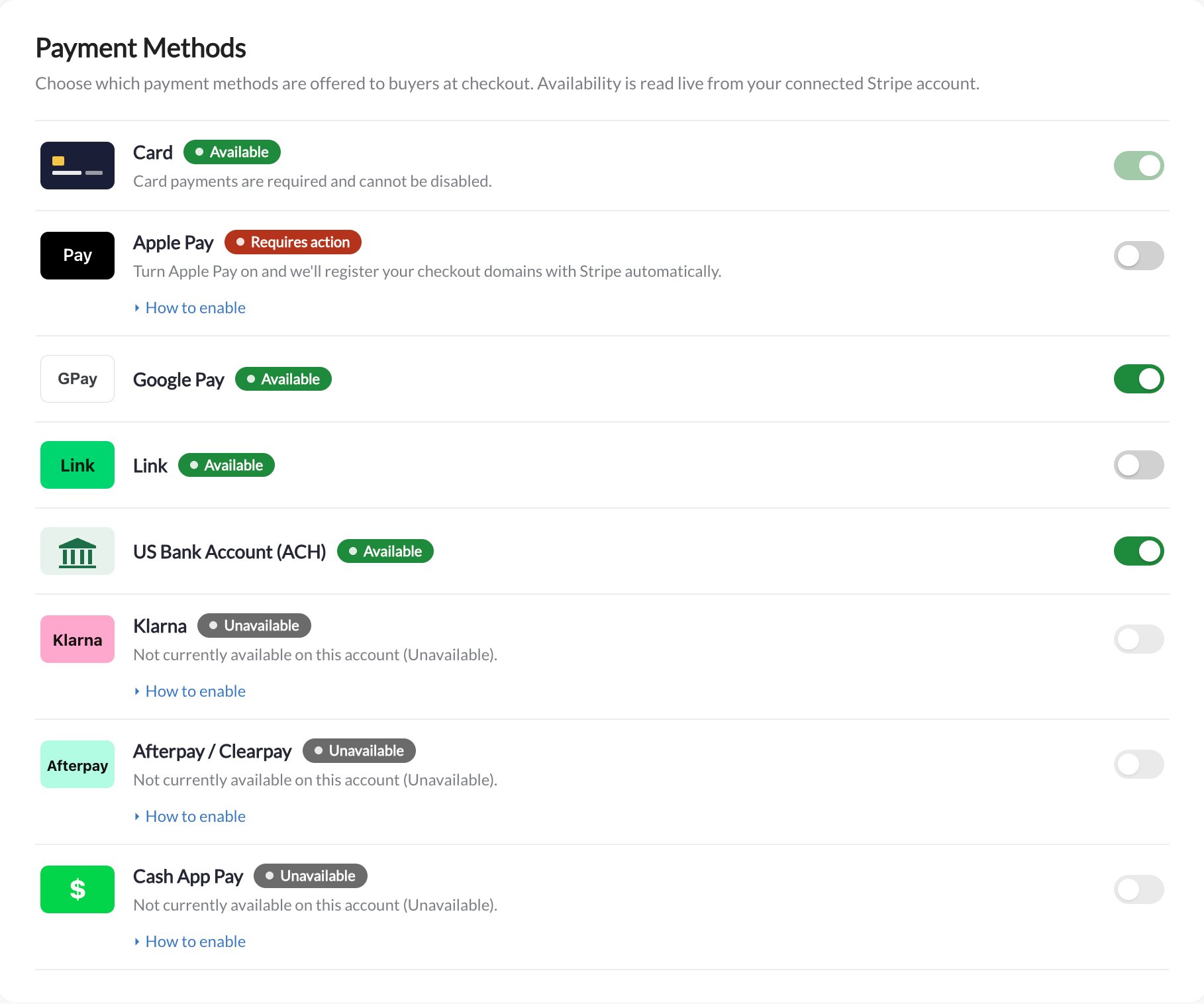
Read the status before changing a method
For bank (ACH) payments, How to enable explains what to expect: a bank payment takes 3–5 business days to clear, shows as Processing in the meantime, and is complete only once it reaches Succeeded.
For example, Link is available but switched off in the screenshot. Card is required and cannot be switched off. Your account’s available methods can differ from this example.
If you see Connect Stripe to configure payment methods, connect your account through Stripe settings first.
Change an available method
- Open Payment Methods in the correct organization.
- Enable or disable an available optional method, such as Link.
- Reopen the page to confirm your choice remains saved.