

Where to find Media Hub: Dashboard → Content → Media Hub tab
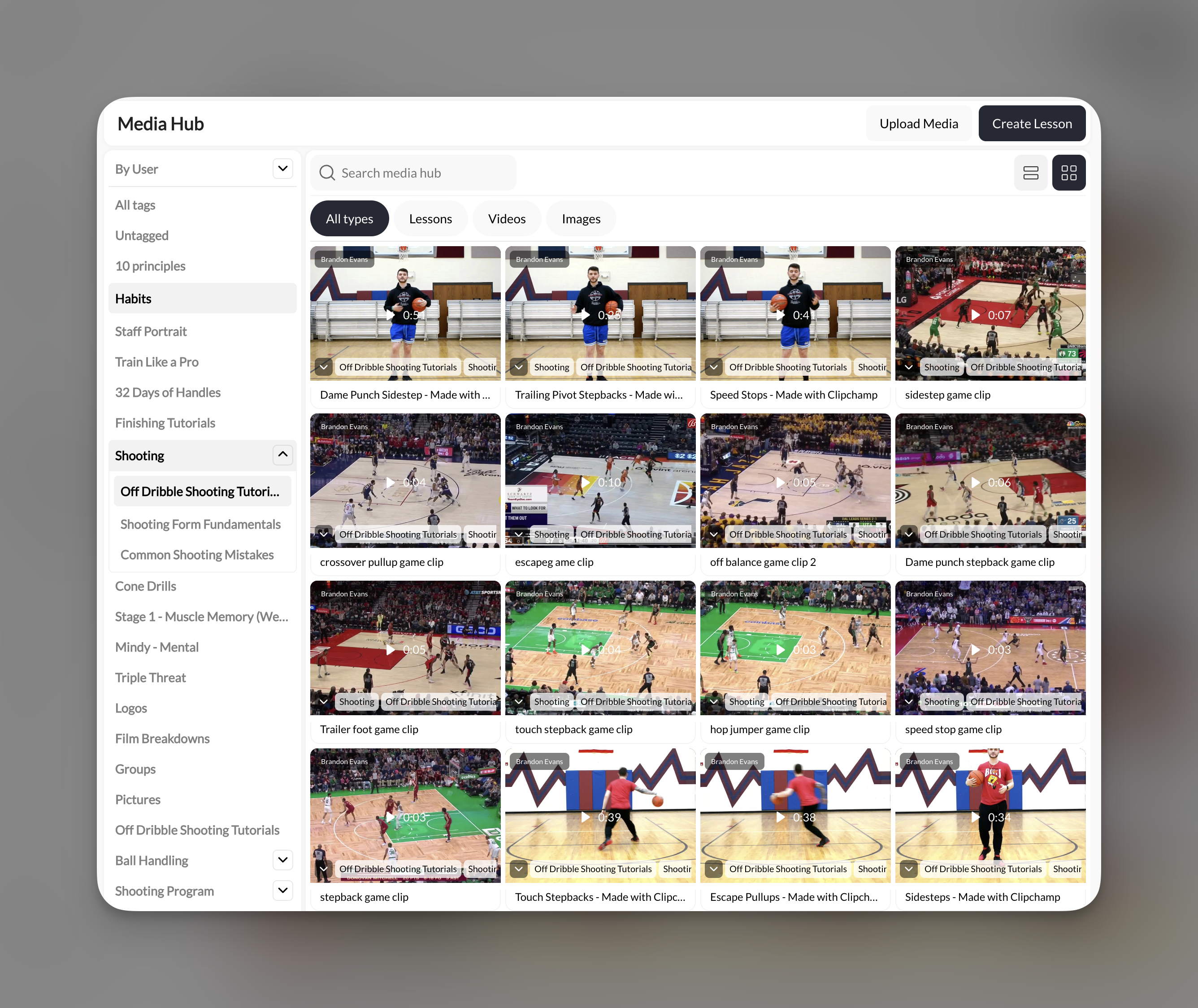
Uploading media
1
Open Media Hub
Navigate to Content from the main navigation, then select the Media Hub tab.
2
Click Upload Media
Click the Upload Media button in the top right corner. Select one or more files from your computer.
3
Wait for processing
Files upload and process automatically. Videos may take a moment depending on size. Once complete, they appear in your media grid.
Follow the file-type and size checks shown by the upload method you use. Imports through the CoachIQ AI connection have their own supported formats and limits; see Import a file with AI.
Files without an in-app preview
Some files cannot be previewed inside CoachIQ. The details view shows the file name and type with Download File instead of an unsupported preview. Use that control to open the original in an appropriate app.Organize media with ChatGPT or Claude
Once connected to CoachIQ, your assistant can find, rename, and tag media, import supported files from a public link, and attach media to a program step or lesson slide. See AI workflows for copyable prompts and the limits of usage checks. A usage lookup does not include every possible place a file has been used, including sent Inbox messages.Organizing with tags
Tags are how you keep your media library manageable as it grows. You can create nested tags to build a structured hierarchy. Example tag structure for a basketball coach:- Drills → Shooting → Layups
- Drills → Shooting → Free Throws
- Drills → Ball Handling
- Game Film → 2025 Season
1
Select media to tag
Click on a media item to open it, or select multiple items using the checkboxes.
2
Add or create tags
Use the tag selector to apply existing tags or type a new tag name to create one. Nest tags using the arrow syntax (e.g., “Drills → Shooting”).
Filtering and finding media
Use the controls at the top of Media Hub to find what you need:
You can also use the search bar to find media by name.
Using media in lessons and programs
Media you upload here is available throughout CoachIQ:- In the Lesson Builder — Add media as slides in your interactive lessons
- In the Program Builder — Add standalone videos or images directly to program chapters
- On your Website — Pull images and videos into website sections
When you add media to a lesson or program, it references the original file in Media Hub. Updating or replacing the file in Media Hub updates it everywhere it’s used.
Managing your media library
Bulk actions — Select multiple items to tag, delete, or download in bulk. Replacing media — Click on any media item to open its details, where you can replace the file while keeping the same tags and references. Downloading — Select media items and use the download option to save copies to your computer.Before deleting a file you have sent
If selected media is attached to sent Inbox messages, the delete confirmation shows how many messages will lose it and warns that recipients are affected. This applies to both single-file and bulk deletion. Review that warning before choosing Delete anyway. If a conversation shows Attachment no longer available, the shared file may have been deleted. If you still have the original, upload it again and send a new message with the attachment. Re-uploading does not restore the old message attachment. See Message attachments.Next steps
Creating Interactive Lessons
Turn your media into engaging, swipeable lessons athletes tap through.
Building Programs
Package lessons and media into structured programs athletes can access.
Video Analysis
Record and annotate video feedback for your athletes.
Content Overview
Learn how Media Hub, Lessons, and Programs work together.
Related articles
Lesson Elements Guide
Learn how each lesson element uses your media to create interactive experiences.
Sharing & Selling Programs
Configure pricing and access for programs that use your media.
Content in the Athlete Portal
Manage how athletes discover and access your content in the app.
Understanding Products
Create payment products to monetize programs built from your media.