

Where to find this: Tools → Automations → + New Automation
What You’re Building
Step-by-Step Instructions
1
Open the Automation Builder
From your dashboard, navigate to Automations and click Create Automation.You’ll see a blank canvas with a prompt to choose your trigger.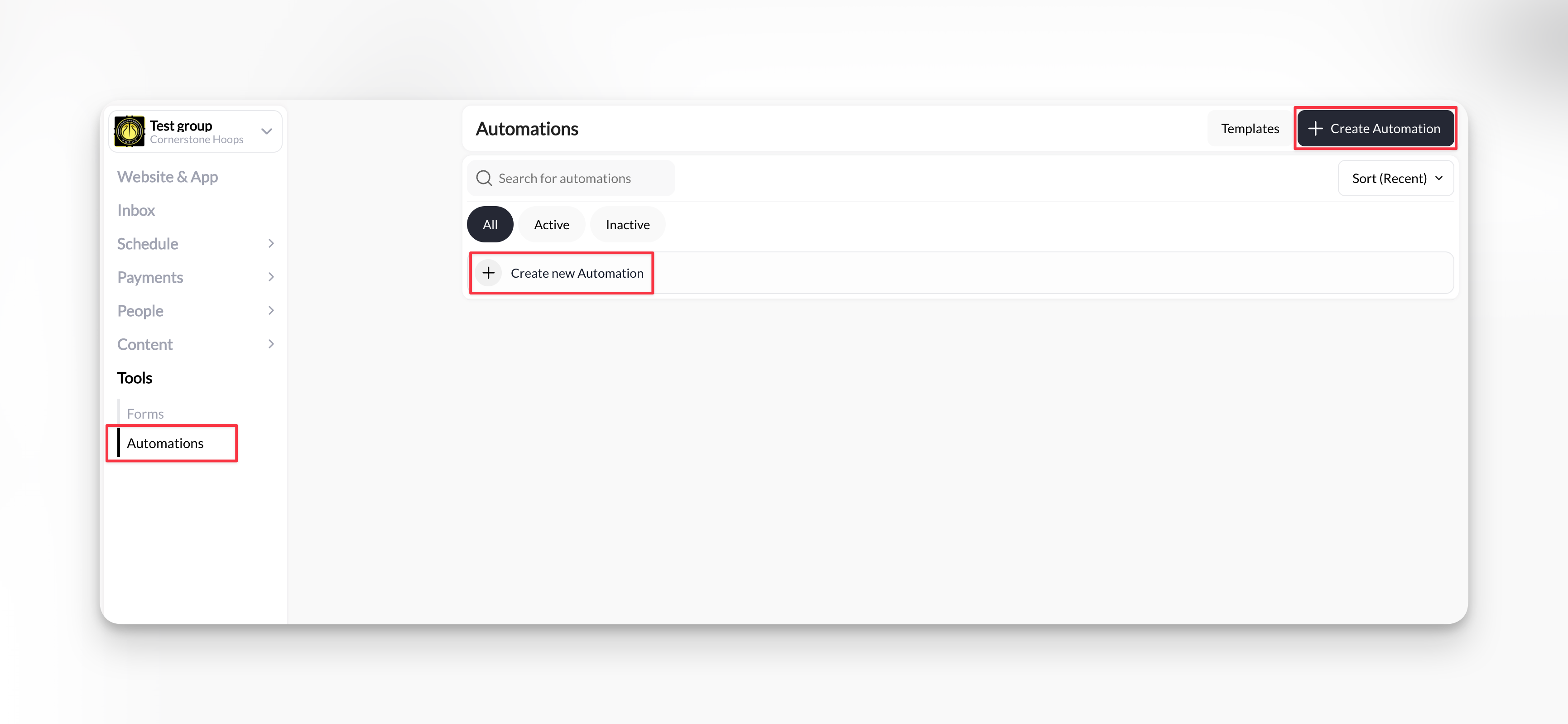
2
Choose Your Trigger
Click Select Trigger and choose New Purchase.This trigger fires whenever someone buys any product—memberships, credit packs, camps, or one-time sessions.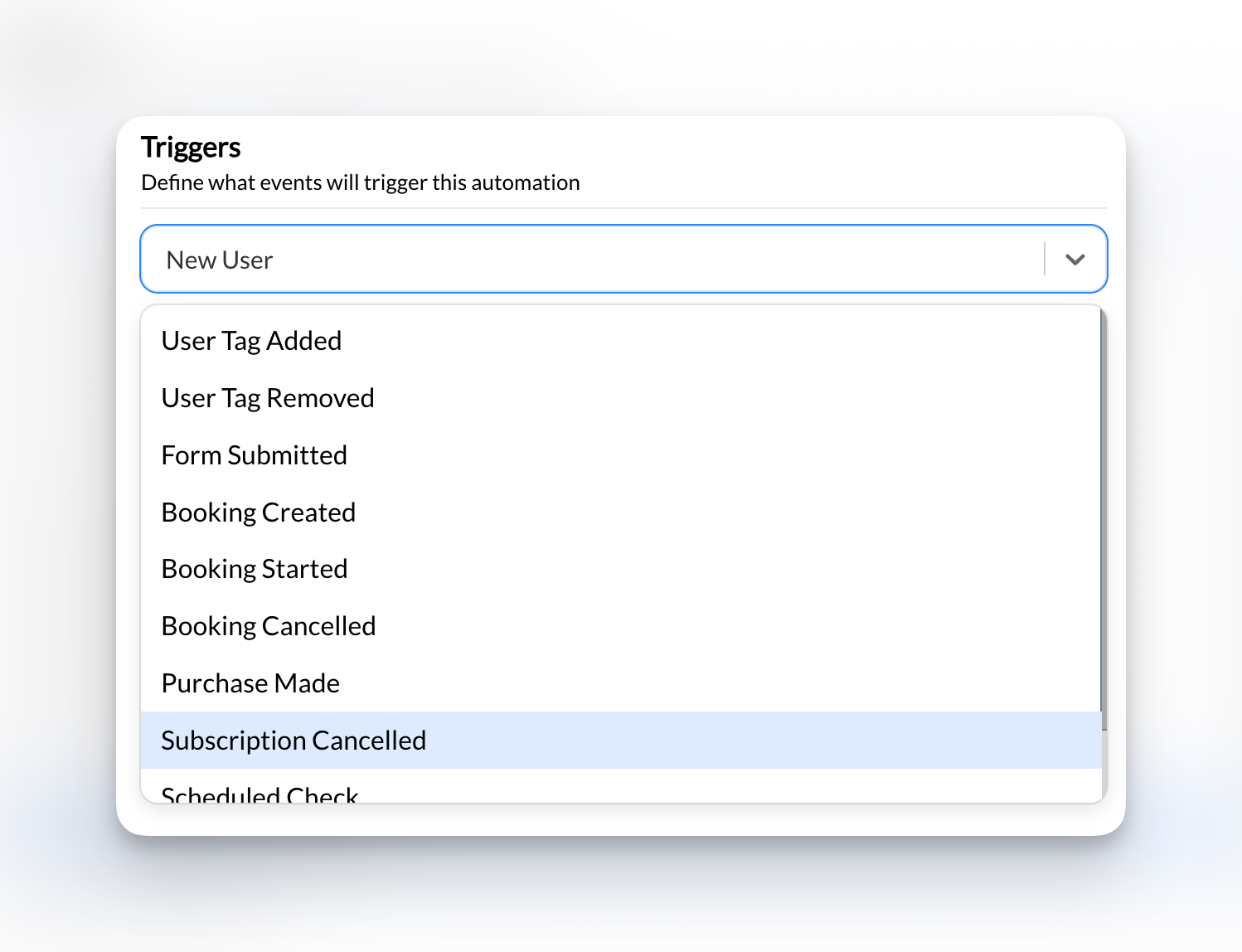
3
Add a Condition
We only want this automation to run for new members, not every purchase. Let’s add a filter.Click Add Condition and select Is a subscription.Now this automation will only fire when someone purchases a subscription product—not one-time buys like camps or drop-in sessions.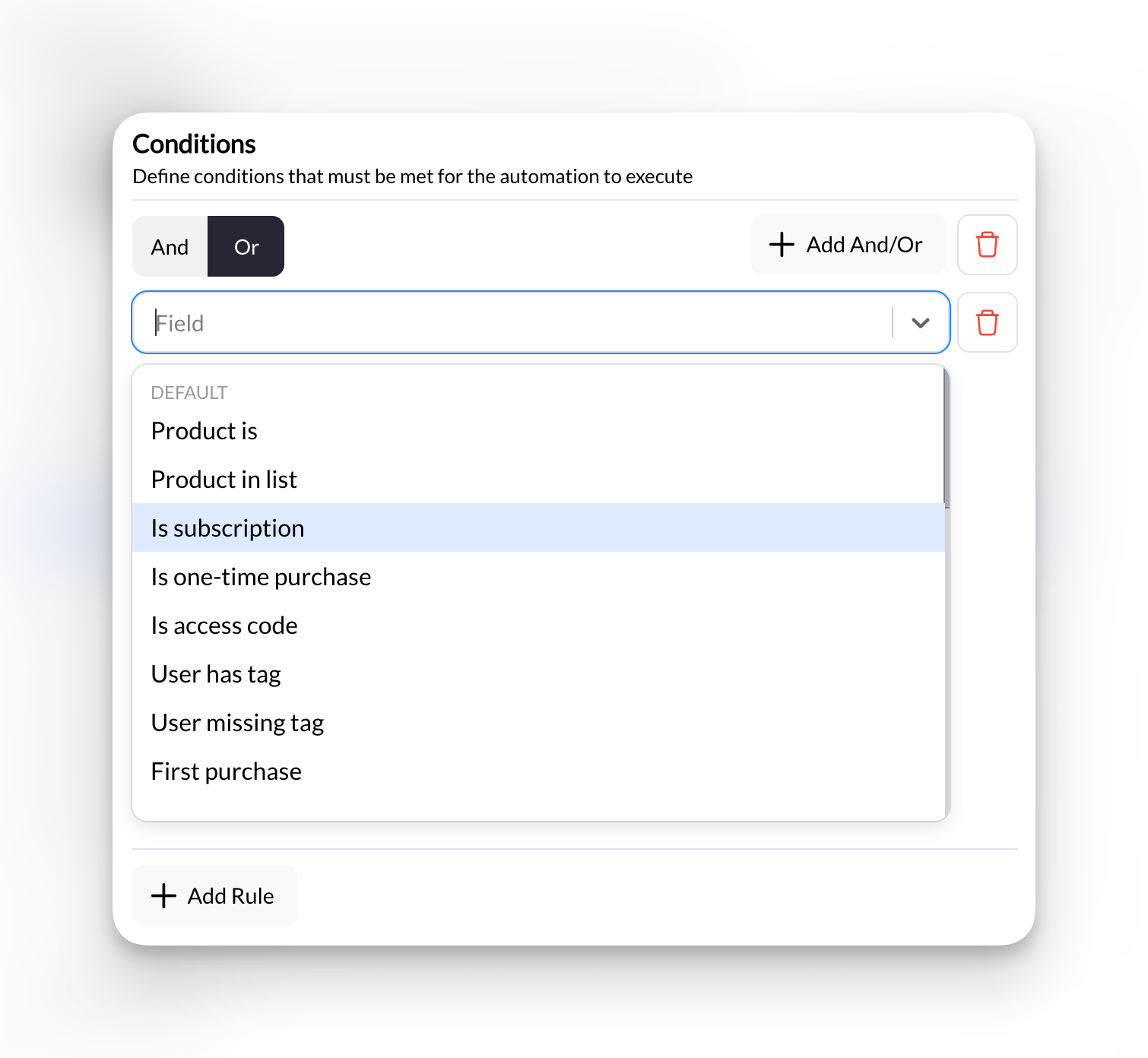
4
Add Your First Action — Send Email
Click Add Action and select Send an Email.Fill in the fields: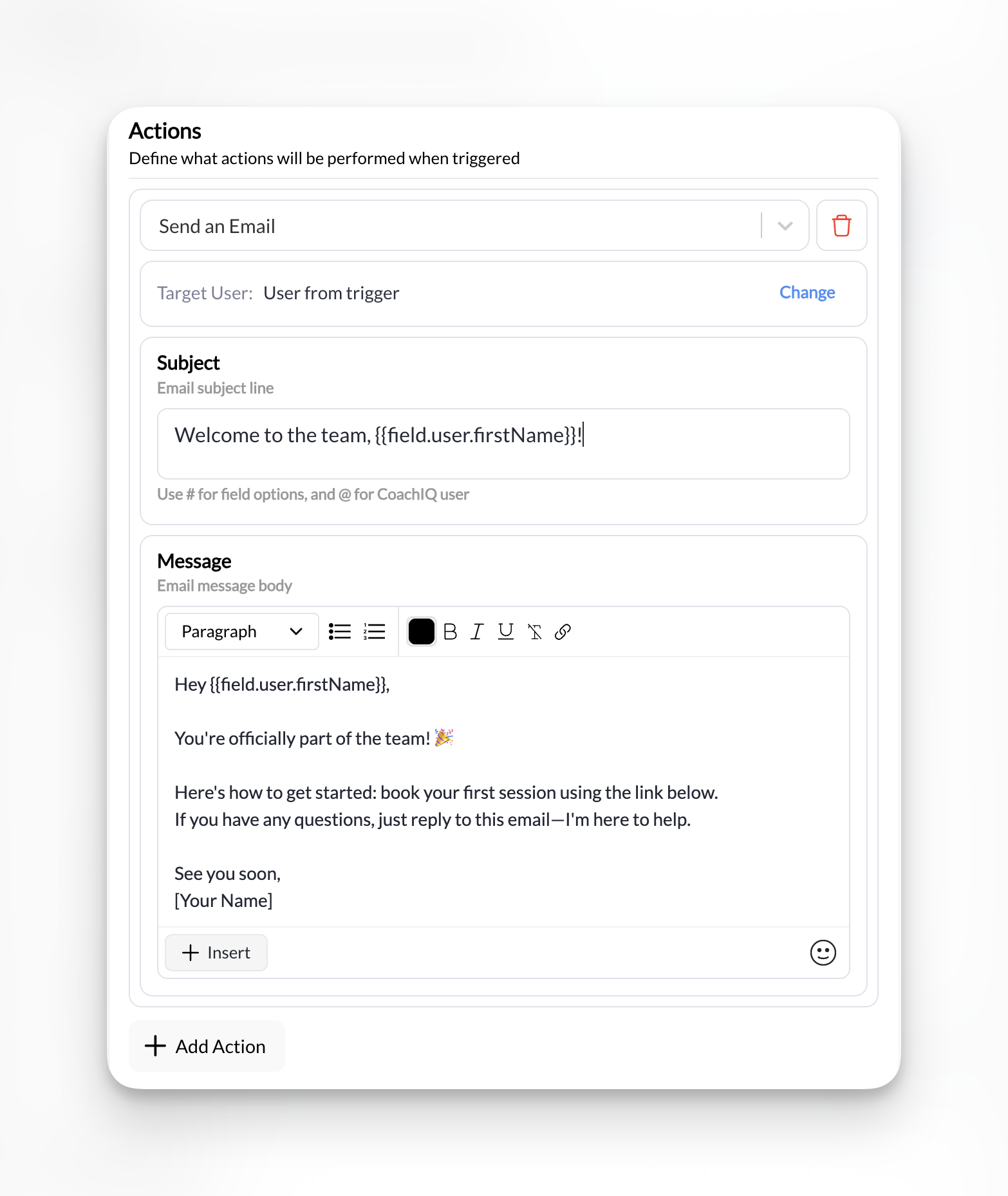
Here’s a welcome email you can copy and paste:
Dynamic fields like
@User.FirstName automatically insert each member’s actual name. Your email stays personal without extra work.5
Add a Second Action — Add Tag
Let’s also tag new members so you can target them with future automations.Click Add Action and select Add a Tag to a User.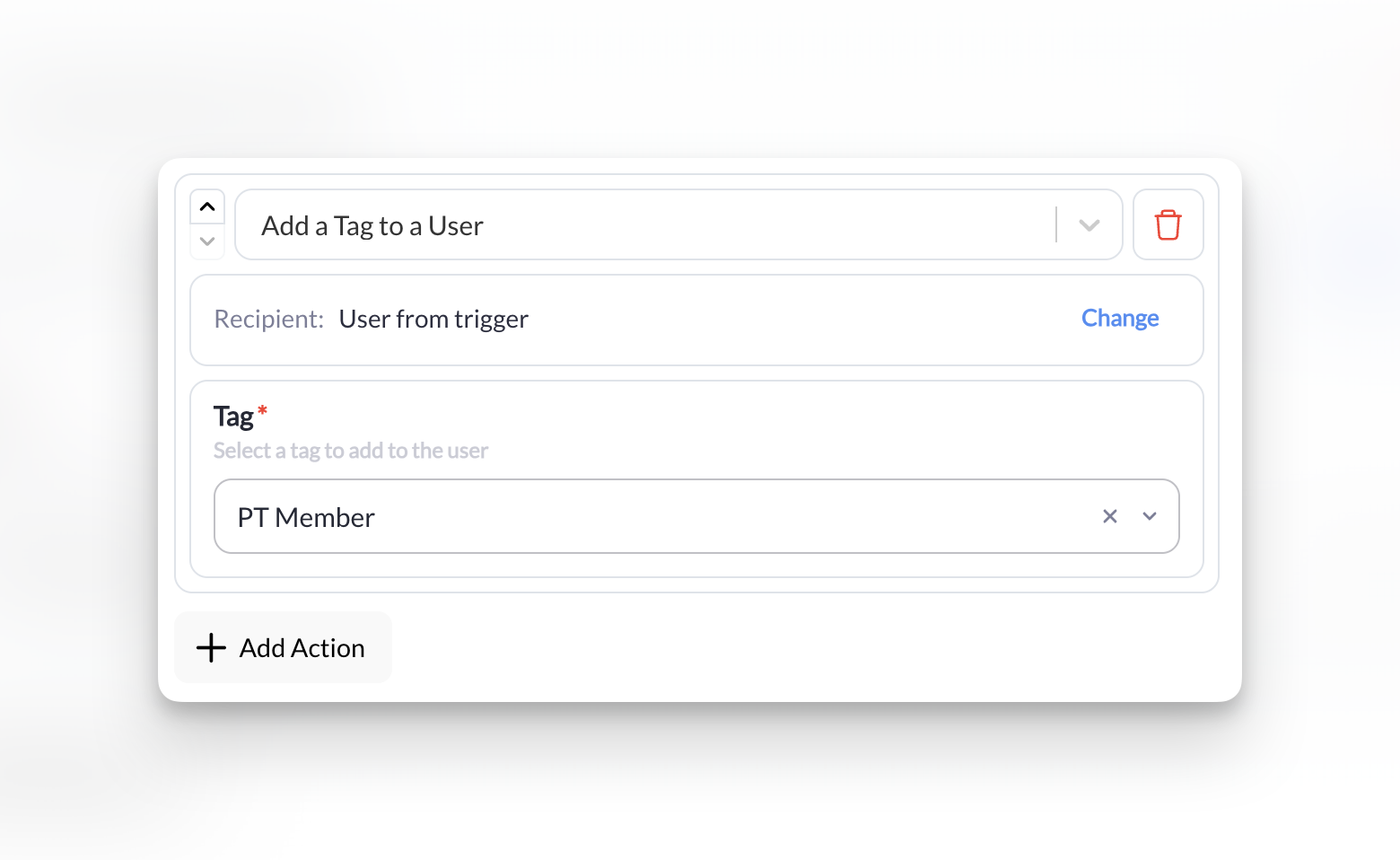
Now every new subscriber automatically gets tagged, making it easy to send announcements or check engagement later.
6
Name and Activate
Give your automation a clear name like New Member Welcome.Click Save and toggle the automation ON.
That’s it! Your automation is now live. The next person who purchases a subscription will automatically receive your welcome email and get tagged as an Active Member.
Verify It’s Working
A few ways to confirm your automation is running:- Check the automation log: Most automations show a history of recent runs
- Make a test purchase: Use a test account to subscribe and see if the email arrives
- Wait for your next signup: You’ll see it appear in the automation history
What You Just Learned
You now understand the three building blocks of every automation:- Triggers start automations when something happens (a purchase, booking, form submission)
- Conditions filter who it applies to (only subscriptions, only first-time buyers)
- Actions are what CoachIQ does automatically (send messages, add tags, manage credits)
What’s Next?
Automation Playbook
Browse ready-to-use automations for trial conversions, member retention, credit reminders, and more.
Scheduled Automations
Learn how to run automations on a schedule—like weekly check-ins for inactive members or credit expiration alerts.
Related articles
Forms Overview
Build forms that trigger automations on submission
Creating Your First Scheduler
Set up the sessions your automations will reference
Inbox Overview
Where automated emails and in-app messages are delivered
Tags and Filters
Organize members with tags that automations can add or remove