

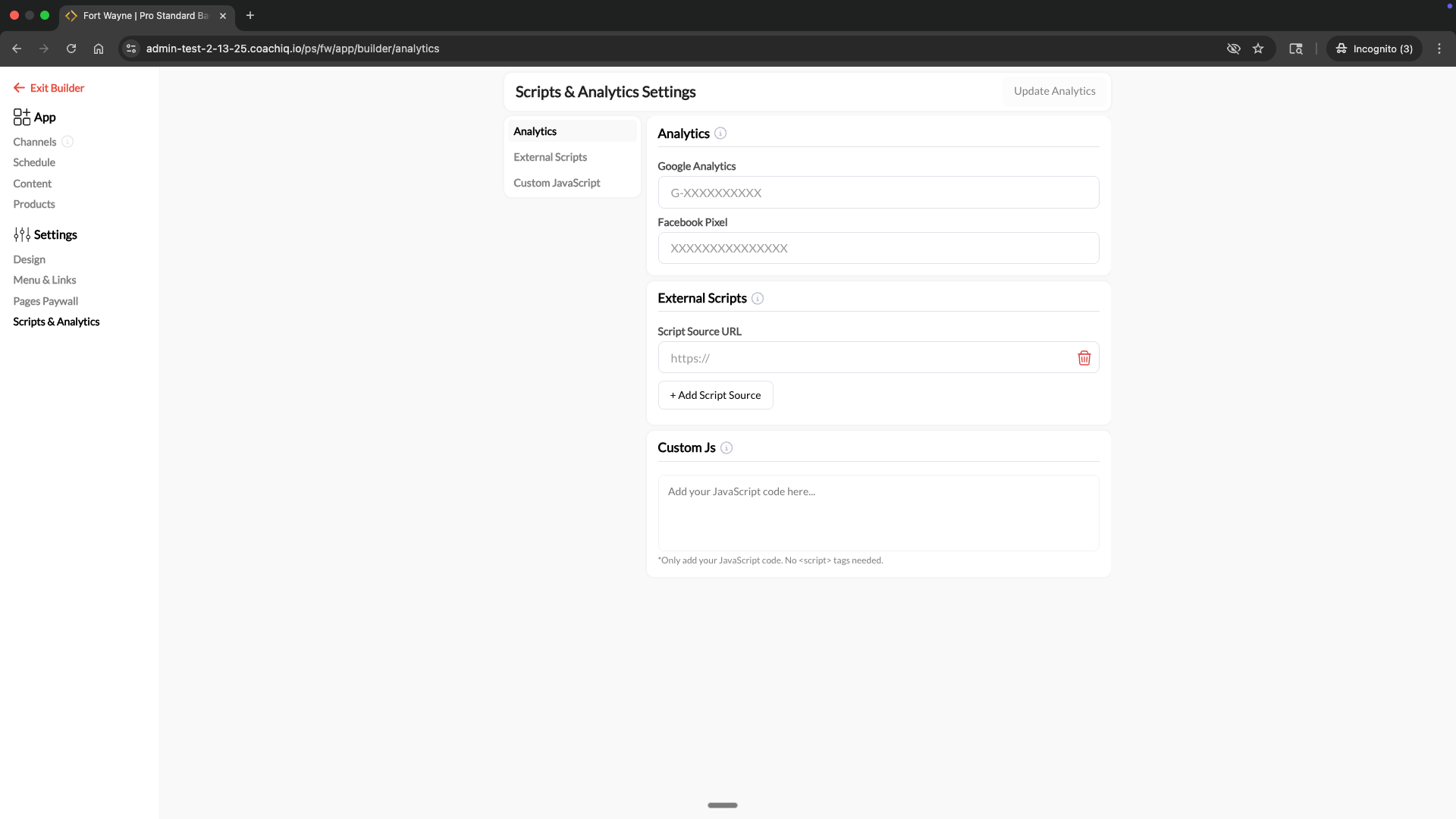
Where to find this: Dashboard → App Builder → Settings → Scripts & Analytics
Web edition only: Scripts and analytics only apply to the web version of your athlete portal (accessed via browser). Native iOS and Android apps cannot run custom scripts due to platform restrictions.
What you’ll accomplish
Add tracking and analytics to your athlete portal’s web edition. This lets you:- Track athlete engagement with Google Analytics
- Run Facebook Pixel for retargeting and conversion tracking
- Load third-party tools (Hotjar, Intercom, etc.)
- Add custom JavaScript for advanced integrations
Accessing Scripts & Analytics settings
1
Navigate to App Builder
From your dashboard, select App in the left sidebar.
2
Go to Settings
Click Settings in the navigation menu.
3
Select Scripts & Analytics
Choose Scripts & Analytics to access your tracking options.
Adding Google Analytics
Track athlete behavior, page views, and engagement metrics with Google Analytics.Get your Measurement ID
1
Open Google Analytics
Go to analytics.google.com and sign in.
2
Access Admin settings
Click the Admin gear icon in the bottom left corner.
3
Open Data Streams
Under Property Settings, click Data Streams.
4
Get or create a Web stream
Select your existing web stream, or click Add stream → Web to create one.Enter your athlete portal URL (e.g.,
app.coachiq.io/your-org/your-portal).5
Copy the Measurement ID
Copy the Measurement ID - it starts with
G- followed by letters and numbers (e.g., G-ABC123XYZ).Add to CoachIQ
1
Paste your Measurement ID
In the Analytics section, paste your Measurement ID into the Google Analytics field.
2
Save your changes
Click Update Analytics in the top right corner.
Your Google Analytics tracking is now active on your athlete portal web edition.
Verify it’s working
1
Open Google Analytics Realtime
In Google Analytics, go to Reports → Realtime.
2
Visit your athlete portal
In another browser tab, visit your athlete portal web edition.
3
Check for activity
You should appear as an active user in the Realtime report within a few seconds.
Adding Facebook Pixel
Track conversions and build retargeting audiences with Facebook Pixel.1
Get your Pixel ID
In Meta Business Suite, go to Events Manager → Data Sources → your Pixel.Copy the Pixel ID (a string of numbers, e.g.,
1234567890123456).2
Add to CoachIQ
In the Analytics section, paste your Pixel ID into the Facebook Pixel field.
3
Save your changes
Click Update Analytics to activate tracking.
4
Verify the pixel fires on the portal
In Meta Events Manager, open Test Events and load a portal page (your sign-up link, a form link, or the Schedule page) in a browser. A PageView from the portal should appear within a few seconds.
Portal pages fire the pixel independently of your public website. If your website shows events in Test Events but portal pages do not, confirm the Pixel ID is saved here in the App Builder’s Scripts & Analytics, not only in the Website Builder; the two are configured separately.
Adding External Scripts
Load third-party JavaScript libraries by URL. Use this for tools like Hotjar, Intercom, Drift, or any service that provides a script URL.1
Get the script URL
From your third-party tool, copy the script source URL (starts with
https://).2
Add the URL
In the External Scripts section, paste the URL into the Script Source URL field.
3
Add more scripts (optional)
Click + Add Script Source to add additional script URLs.
4
Save your changes
Click Update Analytics to load the scripts.
Adding Custom JavaScript
Run your own JavaScript code for advanced integrations, custom tracking events, or specialized functionality.1
Write your code
In the Custom Js section, enter your JavaScript code.
2
Save your changes
Click Update Analytics to activate your custom code.
Example: Custom event tracking
Common questions
Does this work on the mobile apps?
Does this work on the mobile apps?
No. Scripts and analytics only work on the web edition of your athlete portal (accessed through a browser). Native iOS and Android apps cannot execute custom scripts due to platform security restrictions.
Can I add multiple analytics tools?
Can I add multiple analytics tools?
Yes. You can use Google Analytics, Facebook Pixel, multiple external scripts, and custom JavaScript all at the same time.
Why isn't my tracking showing data?
Why isn't my tracking showing data?
Common causes:
- Didn’t click Update Analytics - Make sure you saved your changes
- Ad blocker active - Disable ad blockers when testing
- Wrong ID format - Google Analytics IDs start with
G-, Pixel IDs are numeric only - Caching - Try a hard refresh (Ctrl+Shift+R or Cmd+Shift+R)
- Meta Pixel set only on the website - The Website Builder and the App Builder each have their own Scripts & Analytics. Add the Pixel ID here for portal pages and check Meta Test Events while loading a portal URL
- Testing in the mobile app - Scripts only run in the web edition; open the portal in a browser to test
Do I need to add the full Google Analytics script?
Do I need to add the full Google Analytics script?
No. Just paste your Measurement ID (e.g.,
G-ABC123XYZ) into the Google Analytics field. CoachIQ automatically loads and configures the tracking script for you.What's the difference between External Scripts and Custom JS?
What's the difference between External Scripts and Custom JS?
- External Scripts: Loads JavaScript files from a URL (for third-party tools)
- Custom JS: Runs your own JavaScript code directly (for custom functionality)
Will this affect my website tracking?
Will this affect my website tracking?
No. These settings only apply to your Athlete Portal (App Builder). Website tracking is configured separately in Website Builder → Analytics & Tracking.