

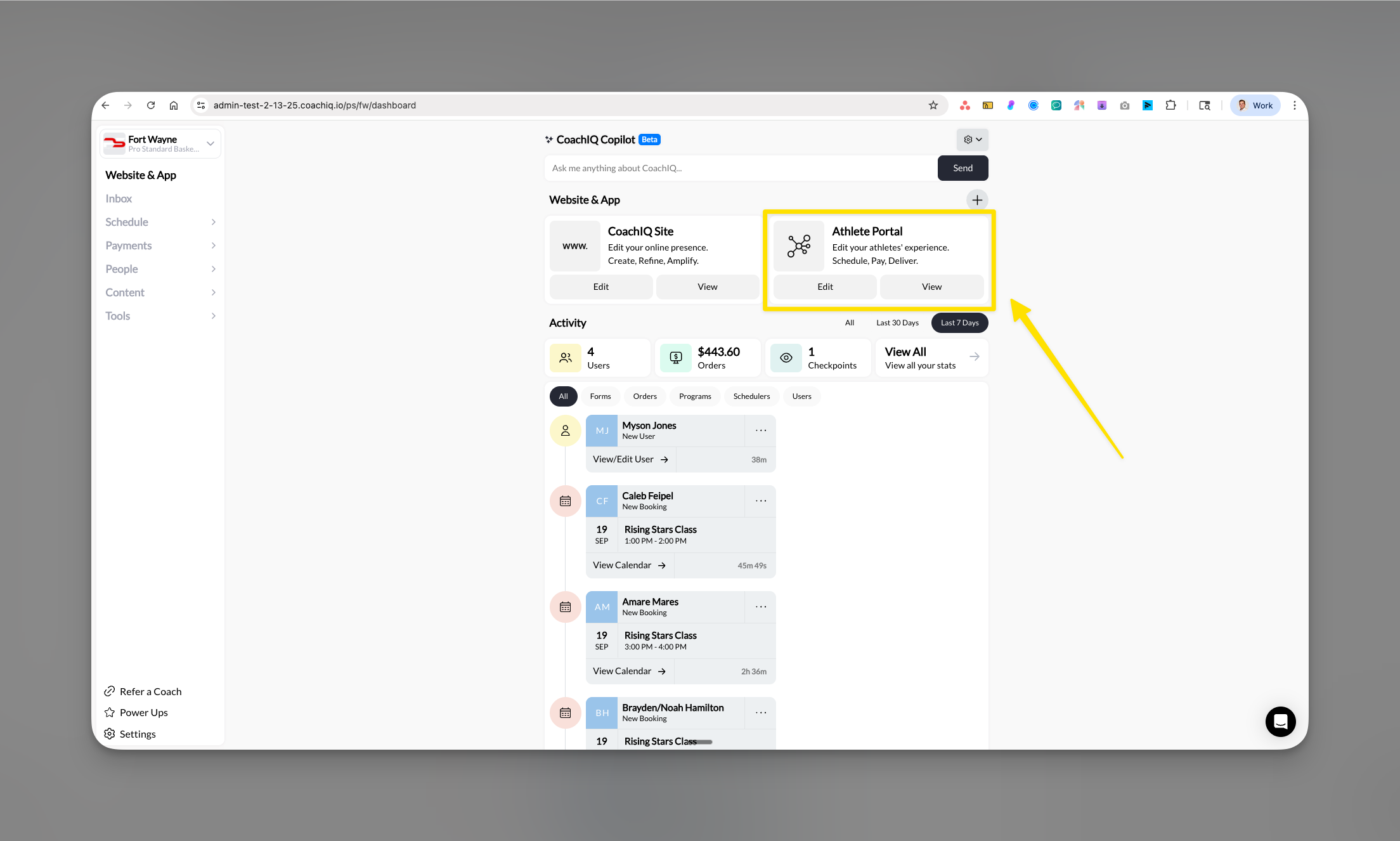
What you’ll accomplish
Learn how to use Channels to communicate effectively with your athletes through announcements and direct messages, while understanding exactly what athletes see and experience on their end.Understanding Channels
Channels is the dedicated communication hub that connects you with your athletes. It’s automatically active for all CoachIQ users and provides a seamless two-way communication system. Key components:- Announcements: Broadcast messages to all or selected athletes (one-way)
- Direct Messages: Private two-way conversations with individual athletes
- Rich Media Support: Athletes can send photos and videos
- Instant Notifications: Automatic push notifications to athlete devices
The athlete’s view of Channels
Understanding what athletes see helps you communicate more effectively. Here’s their experience: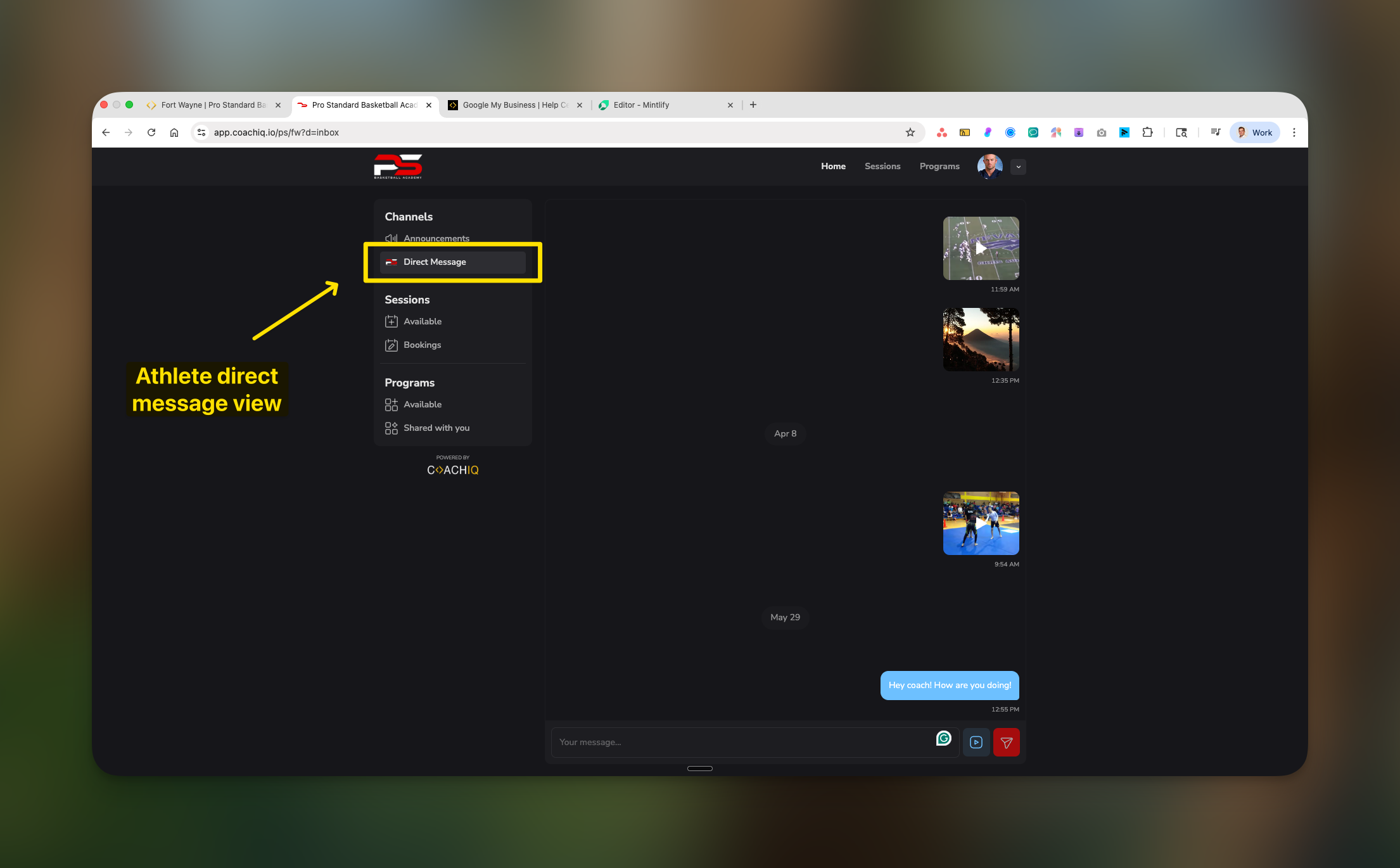
Athletes see a clean, organized Channels interface with Announcements and Direct Messages clearly separated
- Announcements tab: All broadcast messages from coaches
- Direct Messages tab: Private conversations with their coach
- Media sharing buttons: Camera and attachment options for sending photos/videos
- Clean message threads: Organized conversation history
Managing announcements (broadcast messages)
How announcements work
Announcements are one-way broadcast messages perfect for team updates, schedule changes, and important notifications. Athletes can react with emojis but cannot reply with text.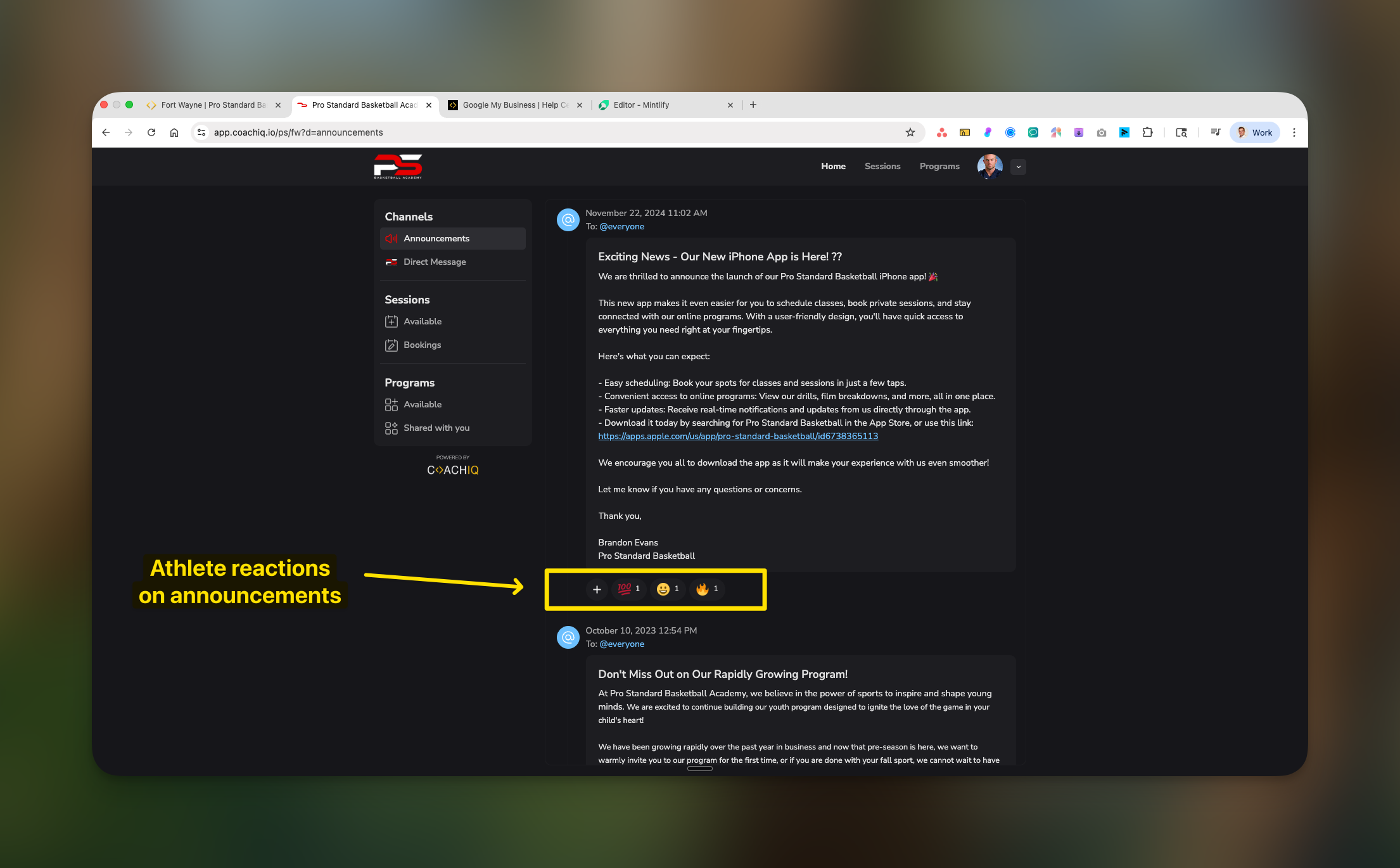
Athletes can react to announcements with emojis, creating engagement without cluttering your inbox
- Athletes see sender name and timestamp
- Message remains visible until you delete it
- Emoji reactions show engagement (❤️, 😊, 👍, 🔥)
- No text replies means no inbox clutter
Sending announcements from your Inbox
All announcements are created and managed through your main Inbox: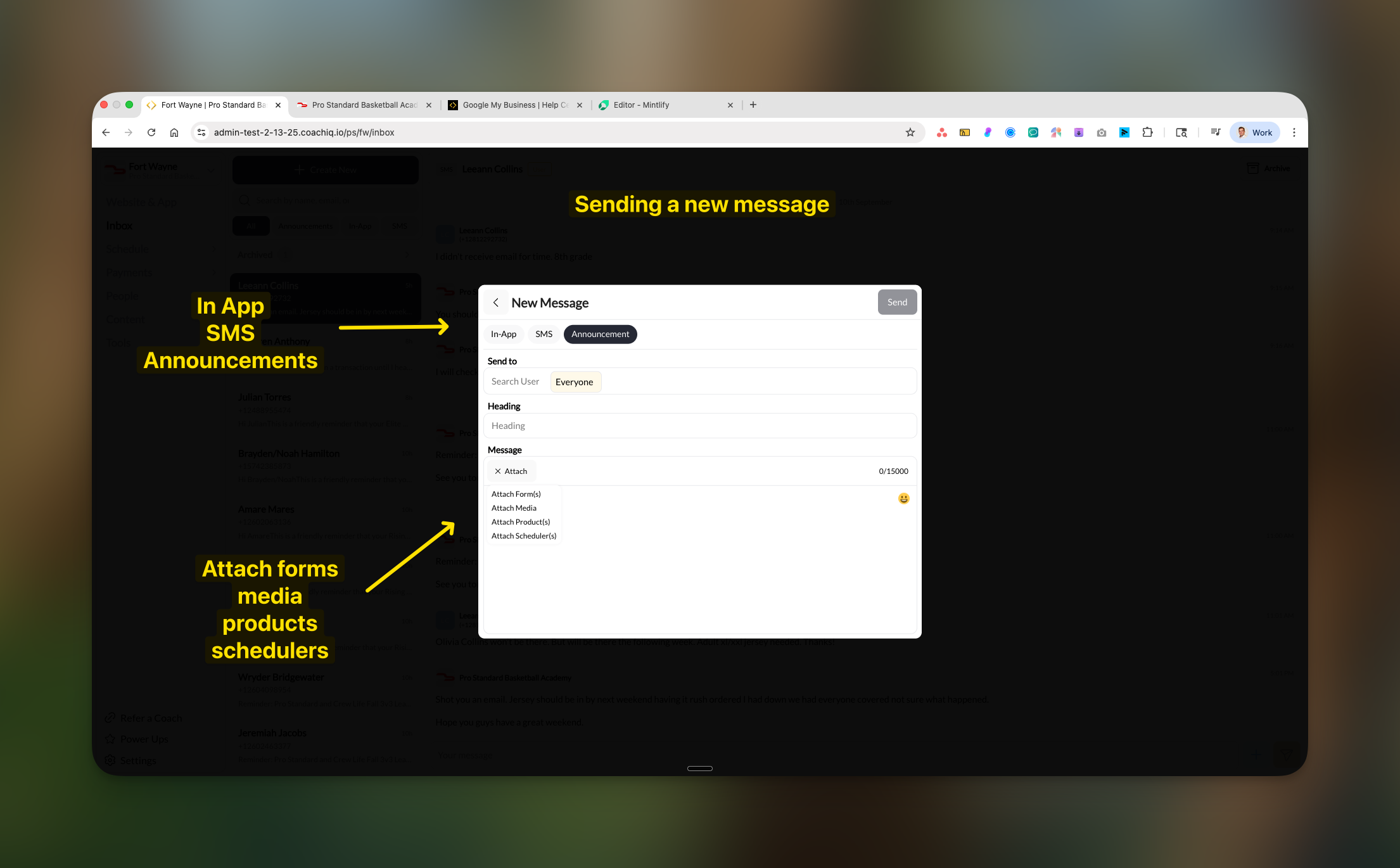
Create announcements directly from your Inbox with rich attachment options
Open your Inbox
Start new message
Select Announcement
Choose recipients
Add your message
- Forms: Waivers, surveys, registration forms
- Media: Images, videos, documents
- Products: Membership links, packages
- Schedulers: Booking links for sessions
Send
What athletes see in announcements
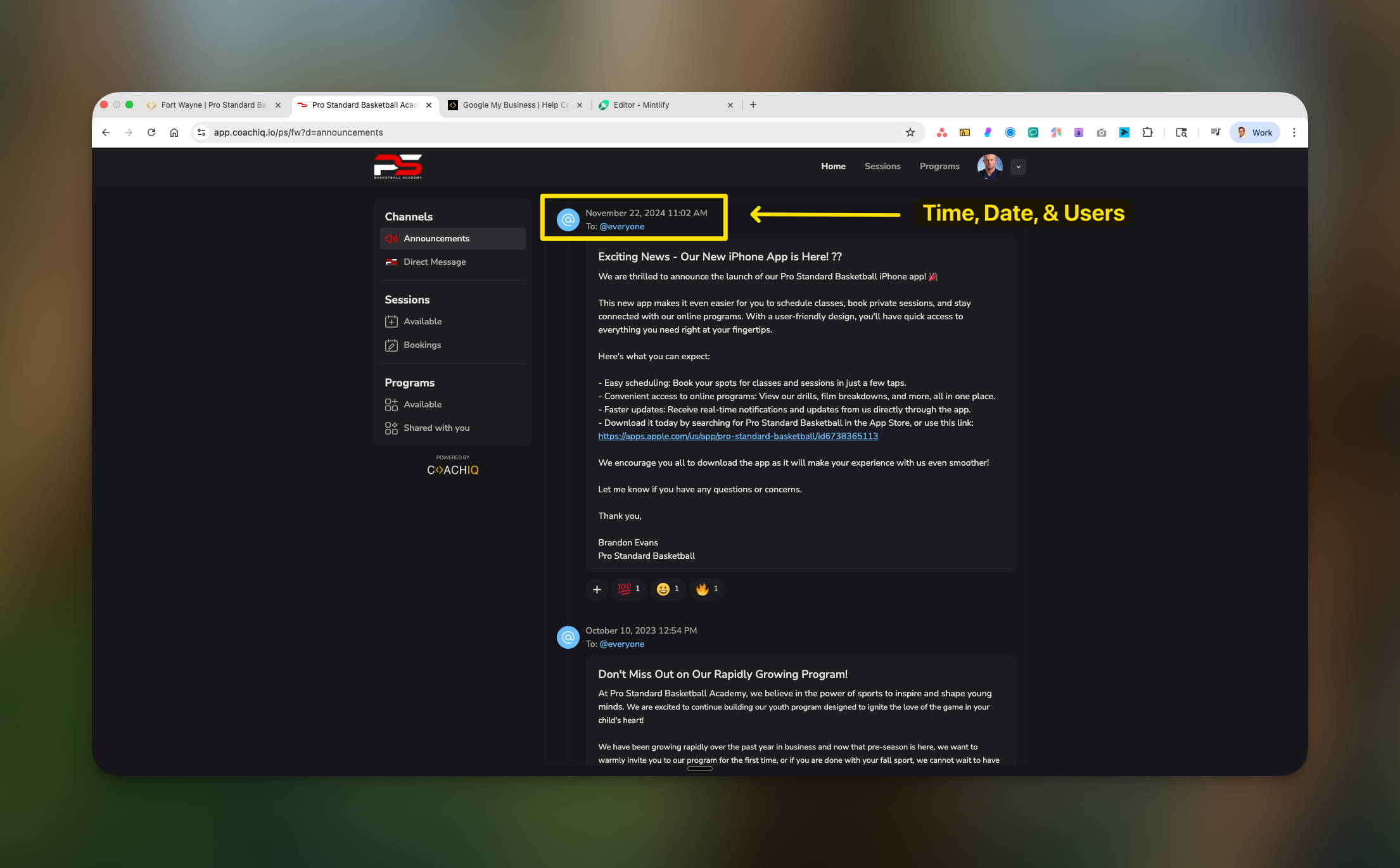
Athletes view announcements with clear timestamp, sender info, and emoji reaction options
- Timestamp: When the message was sent
- Sender indicator: Shows “To: @everyone” or specific group
- Full message content: Including any links or attachments
- Reaction bar: Quick emoji reactions at the bottom
Direct Messages - Two-way conversations
How Direct Messages work
Direct Messages enable private, real-time conversations between you and individual athletes. This is where personalized coaching and feedback happens.Managing conversations in your Inbox
All athlete messages appear in your main Inbox for centralized management: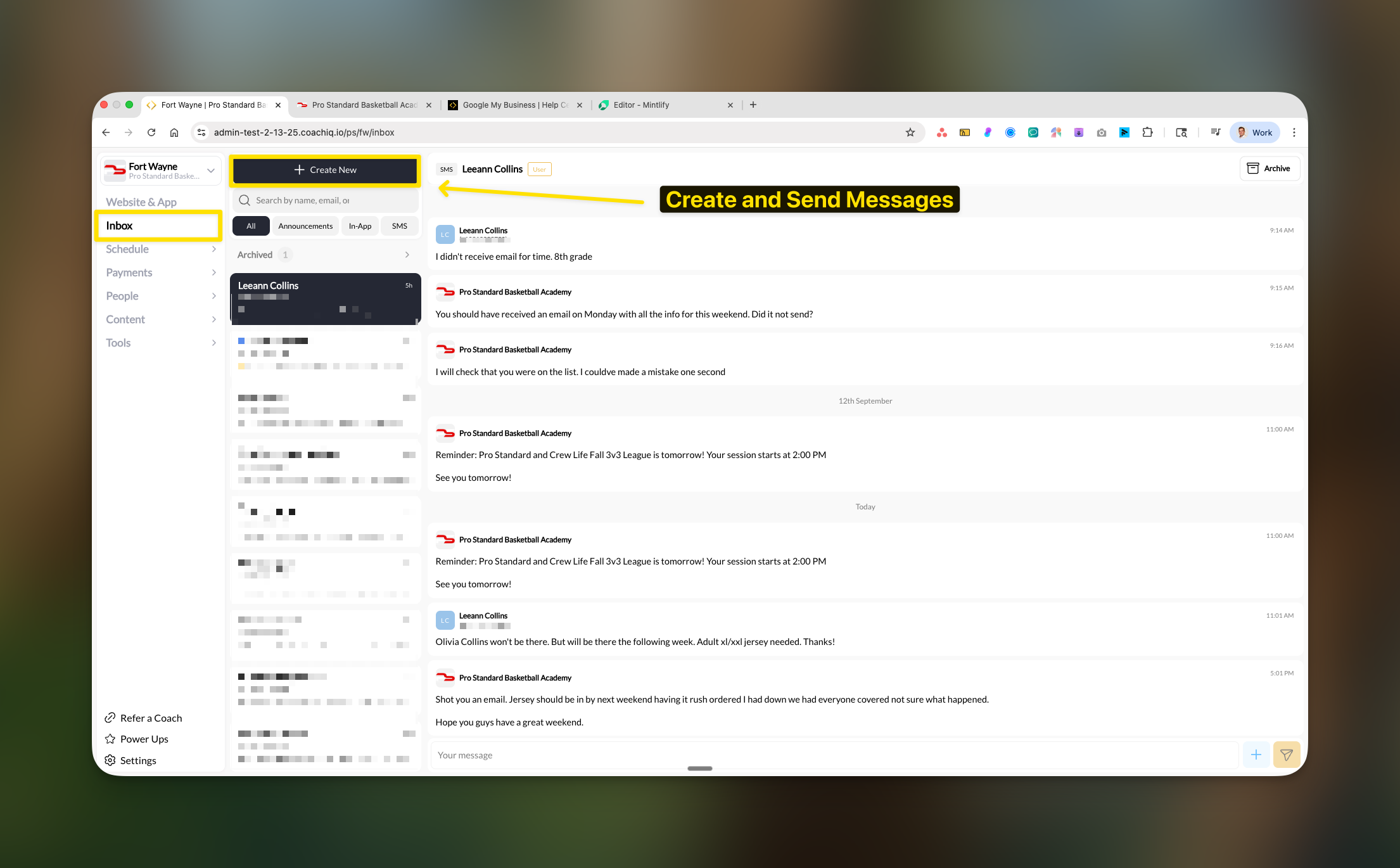
Your Inbox shows all athlete messages with timestamps and conversation history
- Athlete name (e.g., “Leeann Collins”)
- Message preview and full conversation thread
- Timestamps for each message
- Quick reply box at the bottom
- Archived conversations section
What athletes can do in Direct Messages
Athletes have robust messaging capabilities:- Start conversations: Click message button to contact you
- Send text messages: Type and send instantly
- Share media: Upload photos and videos directly
- View history: See complete conversation thread
- Receive notifications: Get alerts for your replies
Understanding message privacy
How mass messages work:
- You select multiple recipients (tags or individuals)
- System creates individual message threads
- Each athlete sees only their personal copy
- Replies come back as separate conversations
- Complete privacy maintained between athletes
- Student privacy: No athlete sees another’s information
- Personalized feel: Each message appears individual
- Clean organization: Separate threads for each conversation
- Easy management: Track individual responses
Push notifications
Notification behavior:
- Instant delivery: Messages trigger immediate push notifications
- iOS & Android: Full support on mobile apps
- Web notifications: Available if athlete enables browser notifications
- Smart alerts: Different sounds/badges for announcements vs direct messages
- Offline delivery: Notifications queue when athletes are offline
Attachment capabilities
What you can attach to messages:
Rich attachment options let you share forms, media, products, and scheduling links
- Forms: Registration, waivers, surveys, feedback forms
- Media: Training videos, technique photos, documents
- Products: Membership packages, training programs, merchandise
- Schedulers: Direct booking links for sessions
What athletes can send you:
- Photos (JPG, PNG) - perfect for form checks
- Videos (MP4, MOV) - ideal for technique review
- Text messages with questions or updates
Best practices for effective communication
Announcement strategies:
- Timing matters: Send during peak app usage (7-9 AM or 6-8 PM)
- Keep it scannable: Use bullet points and short paragraphs
- Clear subject: Start with the main point (e.g., “CANCELLED: Tonight’s Session”)
- Use reactions strategically: “React with 👍 if you’re coming”
- Include actionable attachments: Add booking links or forms when relevant
Direct Message tips:
- Response time: Reply within 24 hours to maintain trust
- Professional tone: Keep conversations appropriate and documented
- Encourage media: Ask for form videos or progress photos
- Personal touch: Use athlete names and reference their goals
- Set boundaries: Establish response hours in your bio
Common questions
Why don't I see a toggle to turn Channels on/off?
Why don't I see a toggle to turn Channels on/off?
Can athletes message each other?
Can athletes message each other?
- Proper supervision and safety
- Privacy protection between athletes
- Prevention of bullying or inappropriate contact
- Maintained professional boundaries
How do I know if an athlete has seen my message?
How do I know if an athlete has seen my message?
- Emoji reactions on announcements
- Reply messages in direct conversations
- Athletes mentioning they saw your message
What's the difference between In-App and SMS in the message composer?
What's the difference between In-App and SMS in the message composer?
- In-App: Sends only to the athlete’s portal (free, unlimited)
- SMS: Sends text message to athlete’s phone (uses SMS credits)
- Both: You can select both for important messages
Can I schedule messages to send later?
Can I schedule messages to send later?
How long are messages stored?
How long are messages stored?
What if an athlete sends inappropriate messages?
What if an athlete sends inappropriate messages?
- Document the messages (they’re saved automatically)
- Address directly with the athlete and/or parent
- Remove the athlete from your program if necessary
- Report serious issues to appropriate authorities
Pro tips
Troubleshooting
Messages not delivering:
- Verify athlete has app installed (for push notifications)
- Ensure you have their correct contact information
- Test with a different message type (In-App vs SMS)
An athlete says Direct Message or Announcements looks empty
On the web, an empty conversation says so, and if messages can’t load the athlete sees Try again instead of a blank panel. Day headings match the times shown on each message. Ask the athlete to tap Try again or refresh before resending.Inbox is cluttered:
- Archive old conversations regularly
- Use tags to filter active athletes
- Set up automations for common responses
- Use announcements instead of individual messages when appropriate