

Where to find this: Dashboard → App (left sidebar)
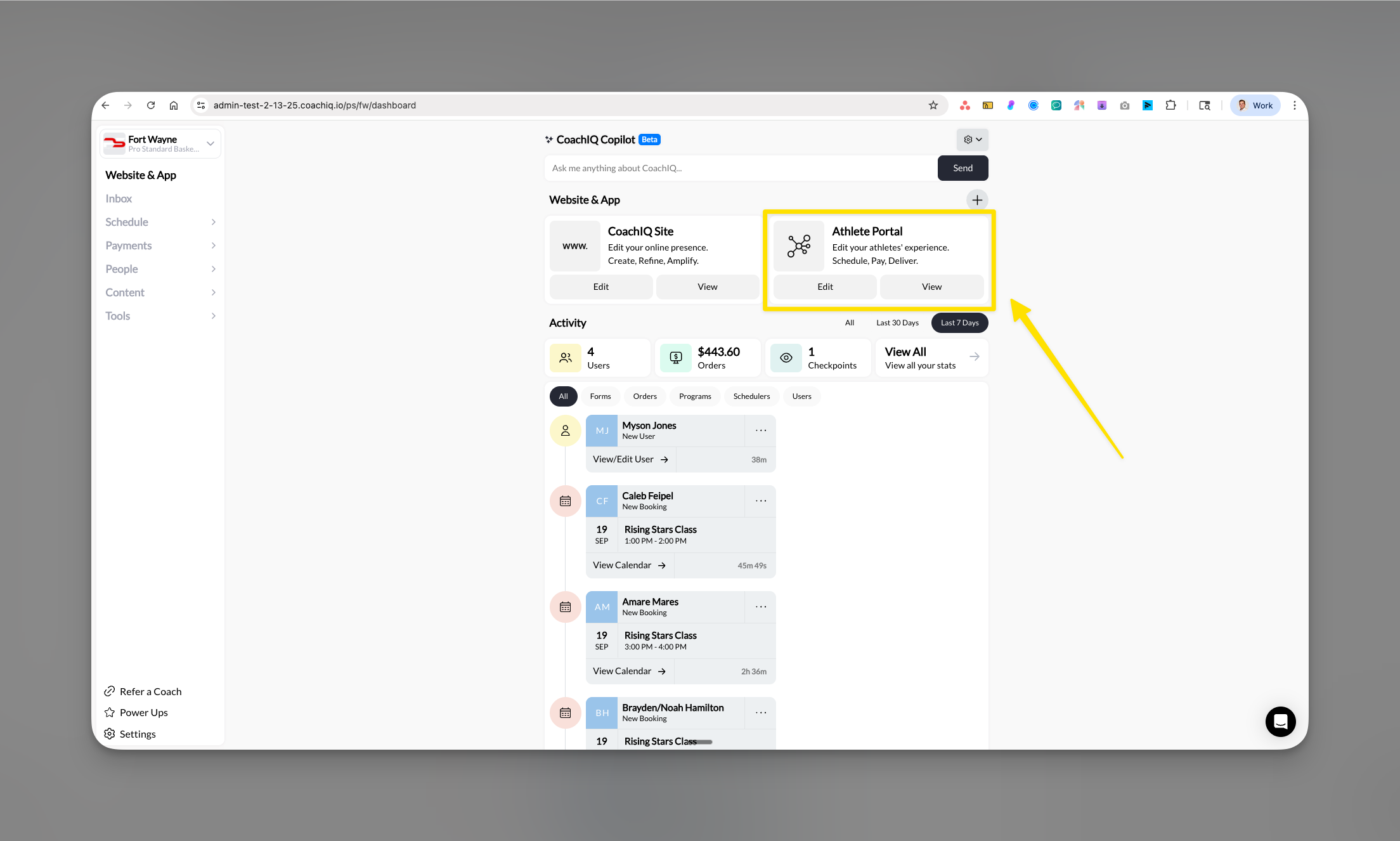
Give your athletes a professional training experience
Your Athlete Portal is the professional, branded platform where athletes and parents access everything about their training - from booking sessions to viewing programs. You control every aspect of the experience while athletes enjoy a seamless, app-like interface that makes your business look as professional as the big academies.What is the Athlete Portal?
The Athlete Portal is your custom-branded platform that gives athletes and parents organized access to their training experience. It’s not just a basic login area - it’s a complete ecosystem with three access points: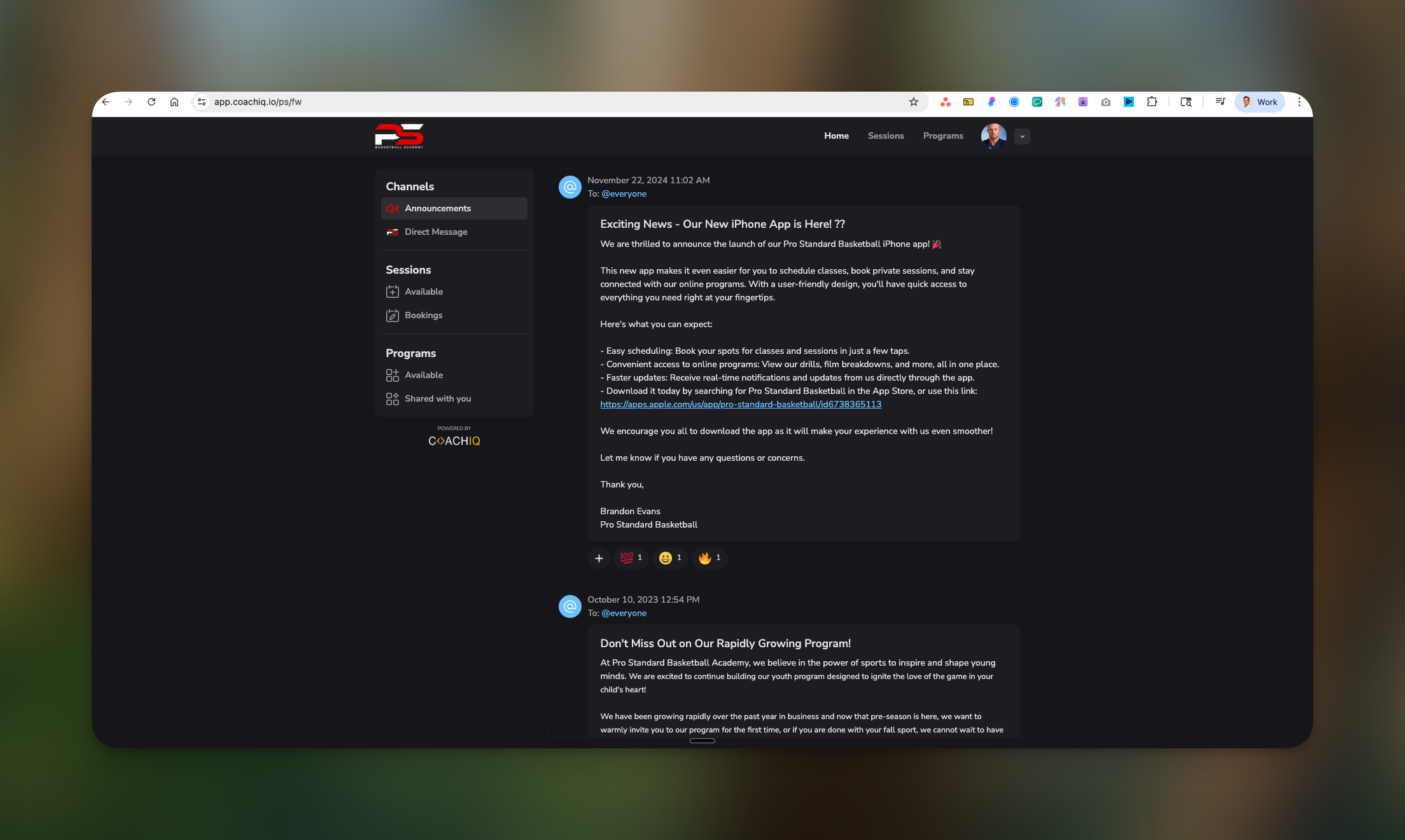
- iOS mobile app (your branded app in the Apple App Store)
- Android mobile app (your branded app in Google Play Store)
- Web portal (accessible from any browser on phone or computer)
The two experiences: What you control vs what athletes see
- Coach's View
- Athlete's View
You work in the App Builder - your control center where you:
- Design the layout and branding
- Add or remove features
- Set up paywalls and access levels
- Organize content and scheduling
- Control what athletes can see and do
How athletes get started (Critical for iOS users)
Two ways athletes can join your portal
1
Option 1: Coach adds them
The smoothest experience for everyone:
- You add the athlete in People → New User
- They receive a welcome email with login credentials
- They can immediately download your app and sign in
- Full access granted based on their tags/purchases
2
Option 2: Athletes self-register
Athletes create their own accounts:
- Athlete visits your CoachIQ website
- Creates account through web portal
- Makes any initial purchases (memberships/credits)
- Downloads your app and logs in with web credentials
Platform differences
Your portal is available on the web and in supported iOS and Android apps. Personalized Apps are now available for both stores; each business’s listing and update is released separately. A personalized app can prompt a new athlete to register on their first login attempt. Purchases depend on the installed app version and enabled checkout: eligible native purchases can stay in the app, while other purchases open the browser. The website remains a useful starting point for account creation and purchasing.What athletes can do in your portal
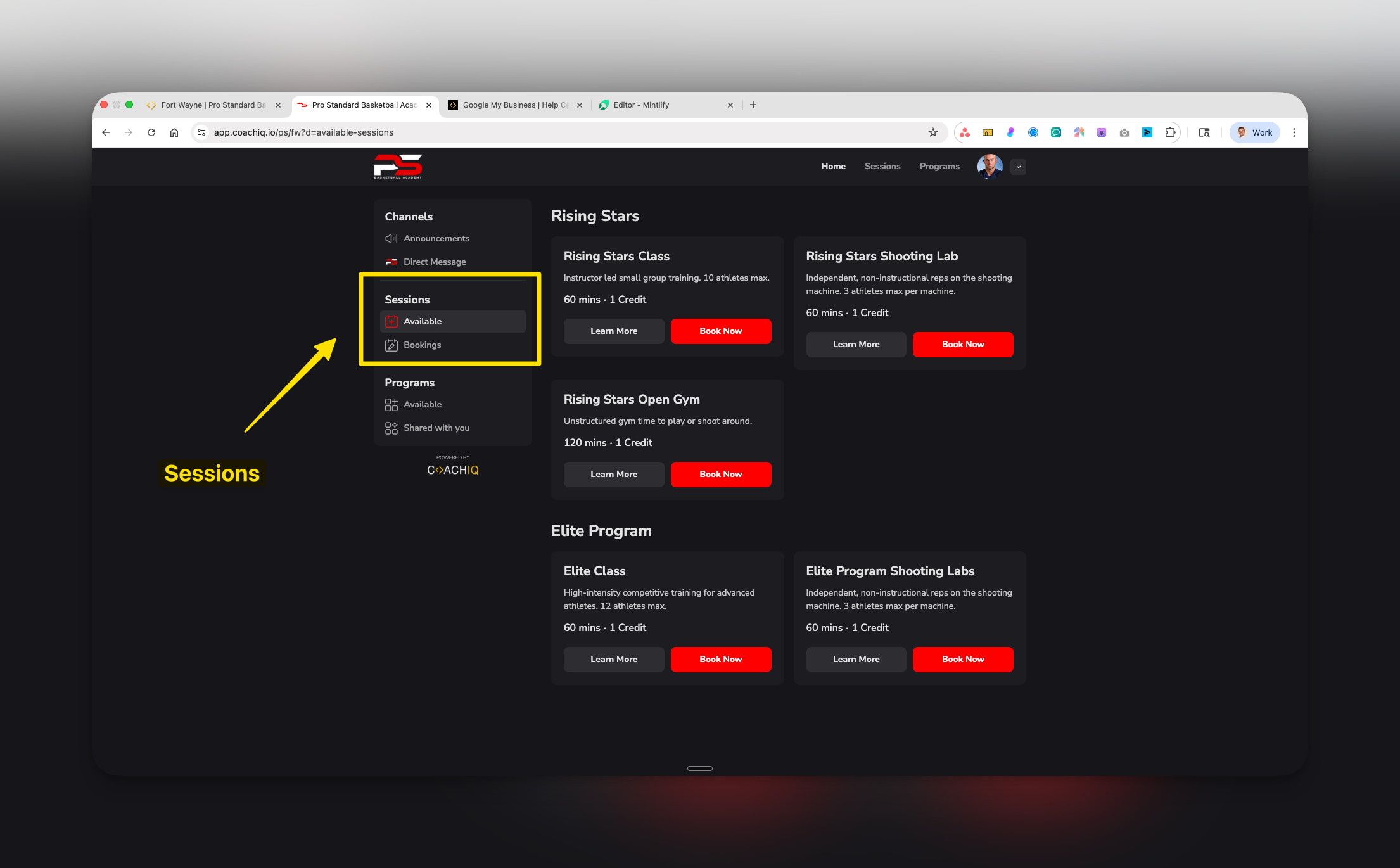
Once athletes have access, they can: ✅ Scheduling & Bookings- View available sessions and schedules
- Book sessions using credits or payment
- Cancel or reschedule bookings
- See session details and coach assignments
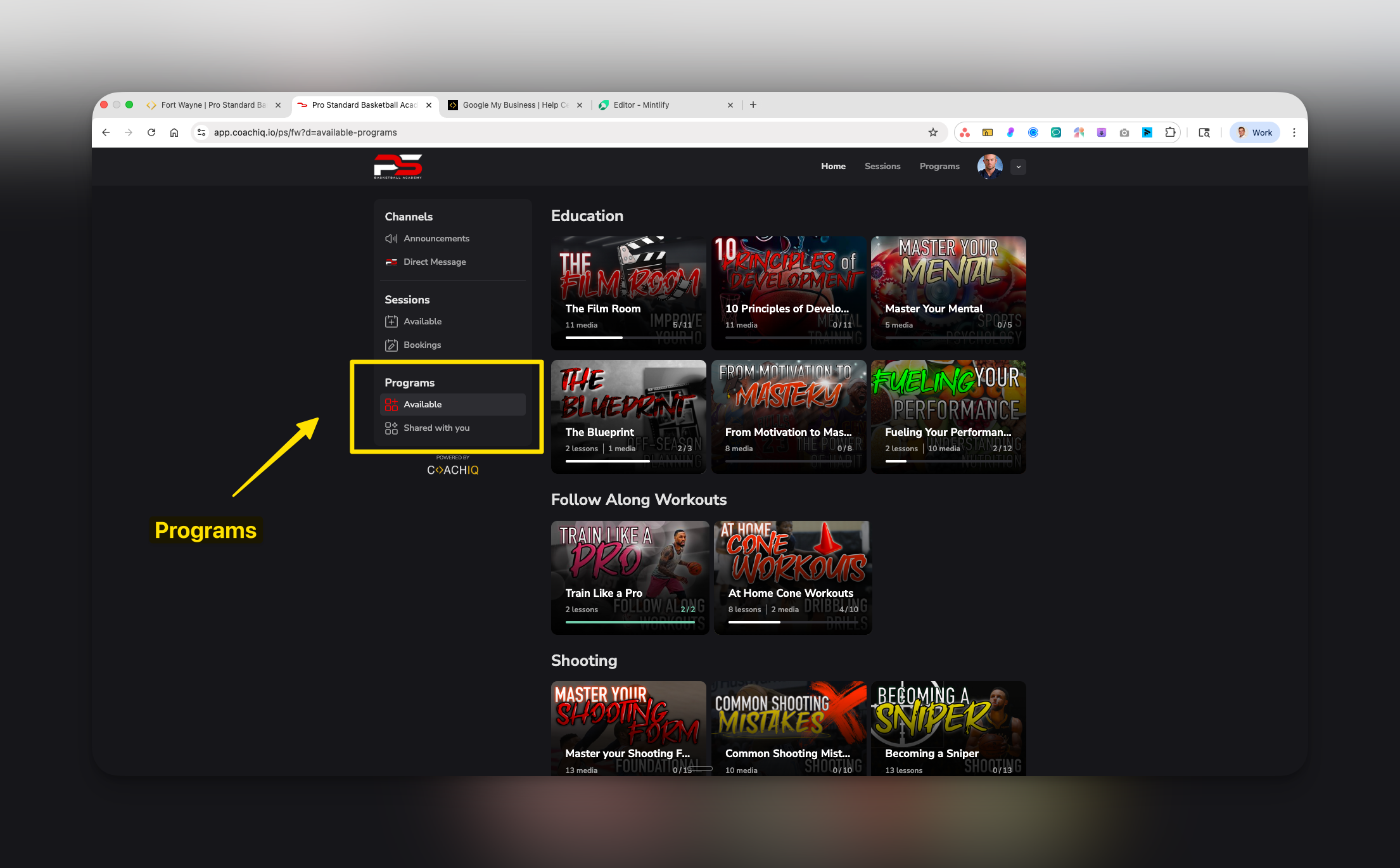
- Access training programs and lessons
- Watch video content and tutorials
- Track progress through programs
- Download resources and materials
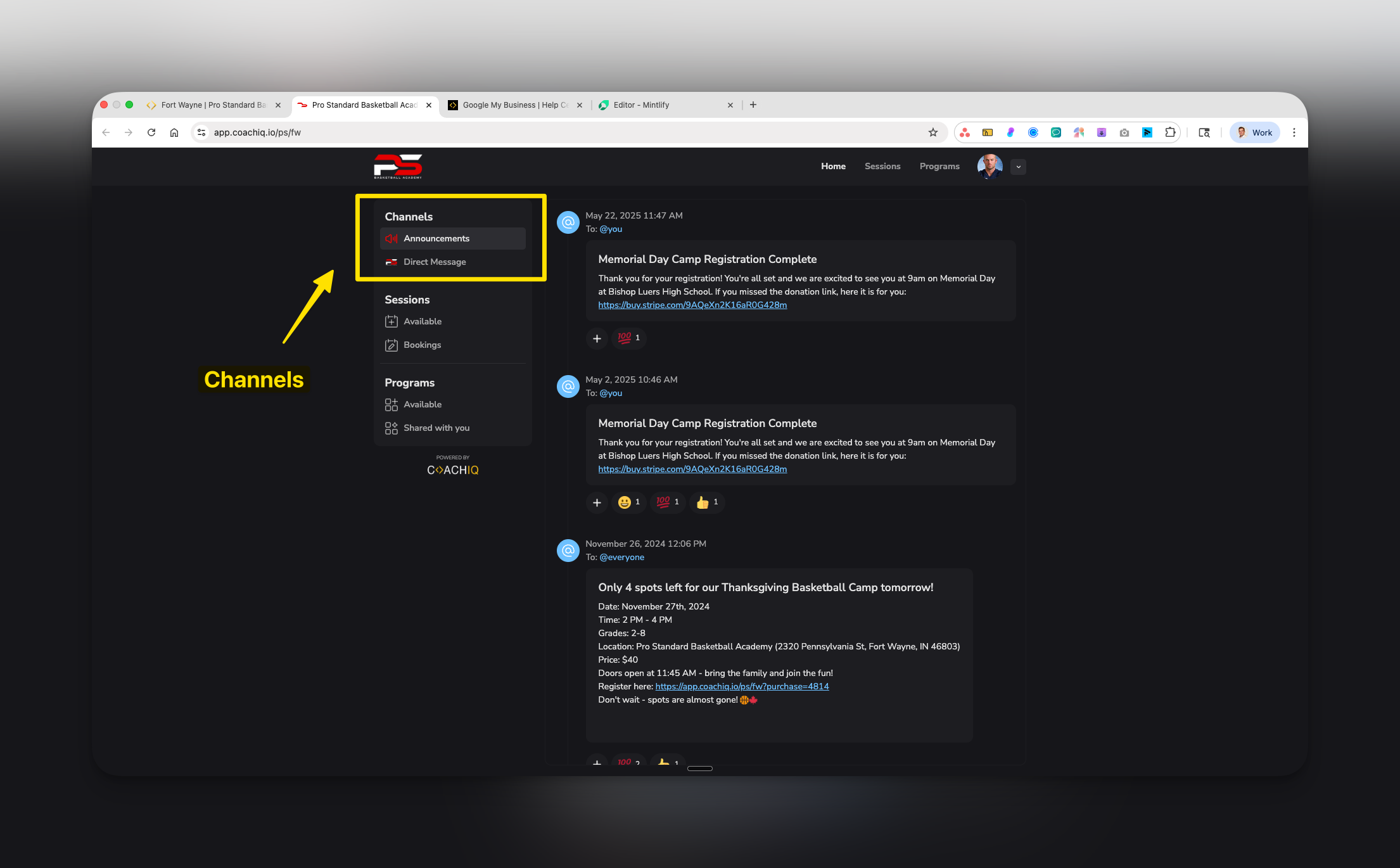
- Receive announcements and updates
- View direct messages from coaches
- Reply to coach messages
- Get push notifications (mobile apps)
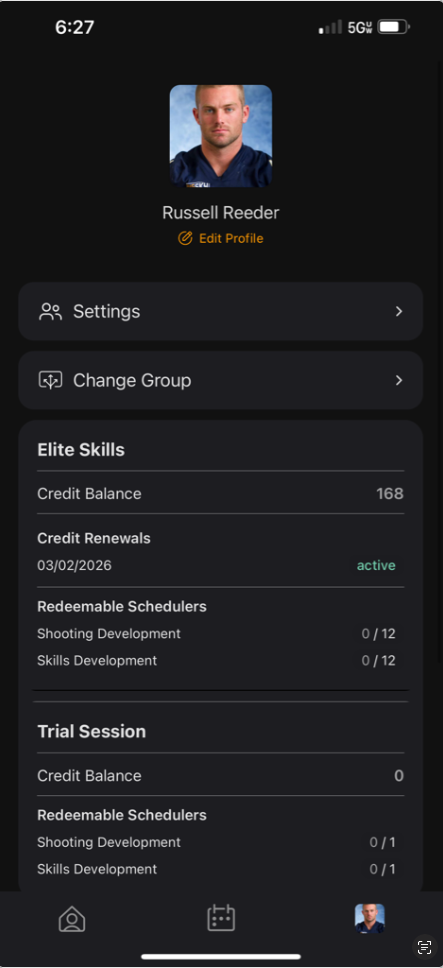
- View credit balance and history
- Manage billing and subscriptions
- Update profile information
- Track payment history
- Buy memberships and subscriptions
- Purchase session credits
- Register for camps and clinics
- Access paywalled content
What athletes CANNOT do
Understanding limitations helps set proper expectations: ❌ Cannot anywhere:- See other athletes’ information or bookings
- Message other athletes directly
- Modify program content or materials
- Change session availability or schedules
- Access coach-side features
- View content behind paywalls (without payment)
Your control center: The App Builder
The App Builder is where you shape the entire athlete experience. Located in your dashboard’s left sidebar, it provides:Core structure
- Channels: Communication hub for messages and announcements
- Content: Programs and educational materials
- Schedule: Session booking and calendar
- Products: Memberships and purchases
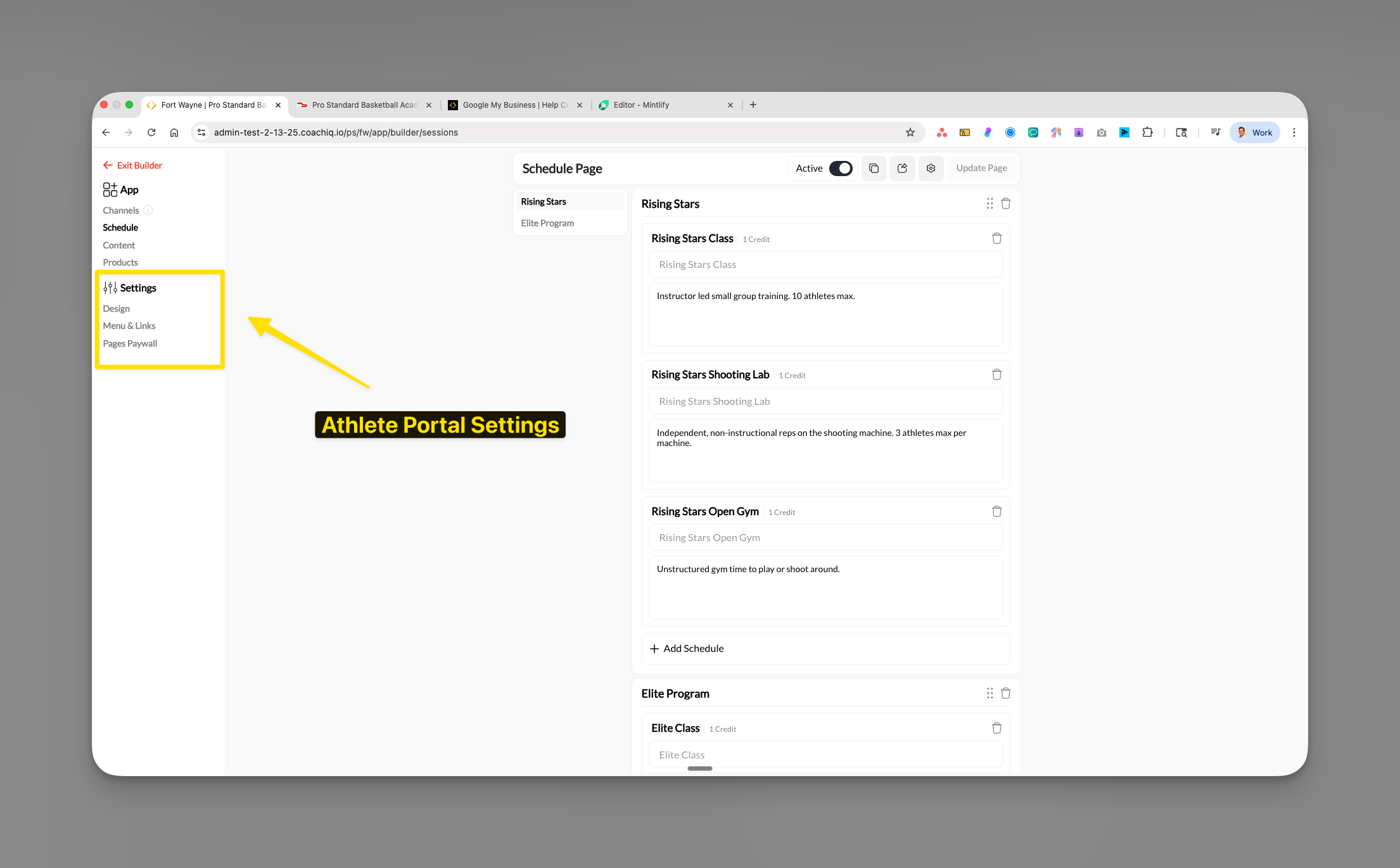
Settings controls
- Design: Themes, colors, and branding
- Menu & Links: Navigation and menu visibility
- Pages Paywall: Access restrictions and monetization
How changes work
- Changes update in real-time as you build
- Use “Update Page” to save your work
- Athletes see changes immediately after publishing
- Preview mode lets you test the athlete experience
Key concepts to understand
Sections
Sections
The building blocks of each page. You organize content into sections like “Elite Program” or “Beginner Training” to create logical groupings for athletes.
Pages
Pages
The four main areas of your portal: Channels (communication), Content (programs), Schedule (bookings), and Products (purchases). Each can be toggled on/off.
Paywall
Paywall
Your monetization boundary. Set which pages or content require payment to access. Non-members see a preview with payment options.
Reader App
Reader App
A term for apps that display content purchased elsewhere. Do not use it as a blanket description of current CoachIQ checkout; check the installed app and enabled features.
Common questions
How do athletes create an account?
How do athletes create an account?
Athletes can create an account on your website. Personalized apps also prompt new athletes to register on their first login attempt, using your configured sign-up fields.
What's the best way to onboard new athletes?
What's the best way to onboard new athletes?
For smoothest onboarding:
- Add them manually in the People section
- Have them create accounts on your website first
- Then direct them to download the app
- Include clear instructions in welcome emails
Where do iOS users make purchases?
Where do iOS users make purchases?
Use the checkout offered by the released app. Eligible purchases can use native checkout where enabled; otherwise complete the purchase on the web.
Should I direct people to web or app first?
Should I direct people to web or app first?
Always direct new users to your website first to create accounts and handle initial payments. After that, they can use the mobile app for daily access. The exception is a branded Personalized App, which prompts an athlete with no account to sign up on their first login attempt.
How do athletes book and pay in the mobile app?
How do athletes book and pay in the mobile app?
Booking happens in the app. If a scheduler accepts both payment and credits, the app asks the athlete whether to pay or use a credit, the same choice as on the web. Card checkout can stay in the app where enabled for the purchase, or open the browser on other versions. See Booking in the native app.
Do athletes get logged out when CoachIQ pushes an update?
Do athletes get logged out when CoachIQ pushes an update?
No. If a platform update lands while an athlete or coach is using the app, the app signs them back in once the update completes instead of dropping them at the login screen. An athlete who still ends up logged out should update the app from the App Store or Google Play and sign in once.
What happens when an athlete requests account deletion?
What happens when an athlete requests account deletion?
Athletes can request deletion of their account from inside the CoachIQ app or your Personalized App (Apple requires this of every app with sign-up). The request arrives in your Inbox as a message from that athlete; nothing is deleted automatically. Action it the way you would any other request: confirm with the athlete, then remove them from your organization from their profile. See Block or remove an athlete.
Pro tips for athlete onboarding
What’s next?
Now that you understand how the Athlete Portal works, you’re ready to start building. Begin with:- App Builder Setup & Navigation - Learn the interface and how to make changes
- Setting Up Channels - Configure your communication hub
You’re ready! You now understand the fundamental structure of CoachIQ’s Athlete Portal and how athletes access your platform. Time to start building your professional training app!
Related articles
Products in Your Portal
Display and sell memberships, packages, and products
Page Paywalls
Restrict page access until athletes purchase a qualifying product
Booking in the native app
What athletes and parents see when they book from the iOS or Android app
Family Accounts
Parents, managed children, and who gets the reminders
Scheduling Overview
Set up session types, availability, and booking rules
Product Overview
Understand how products, pricing, and visibility work
Inbox Overview
Communicate with athletes through messages and announcements
Content Overview
Manage programs, lessons, and media for your athletes