

Where to find Lessons: Dashboard → Content → Media Hub → Create Lesson button
What makes lessons powerful
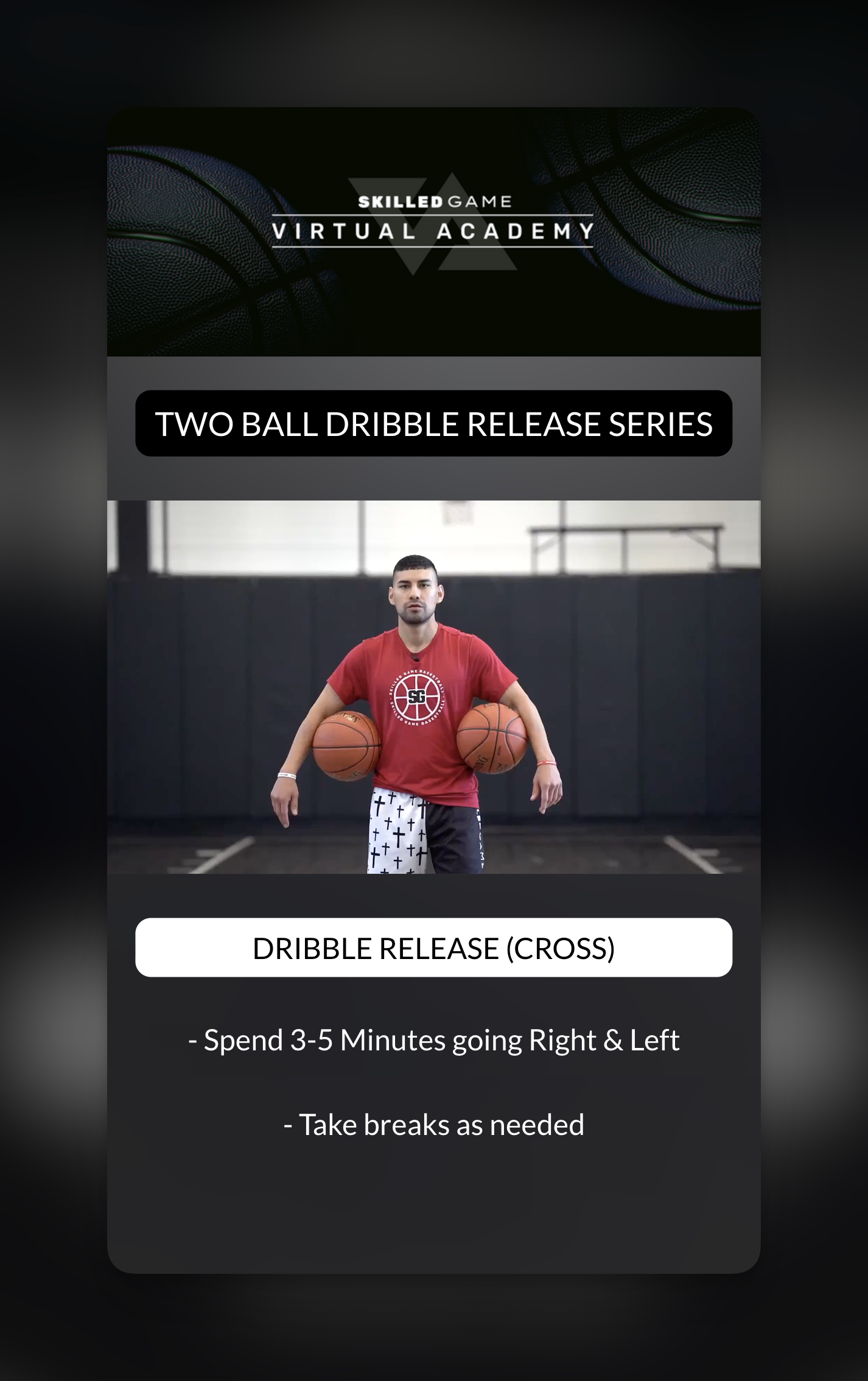
Unlike standalone videos, lessons let you:- Layer text and instructions over your media
- Add quizzes to check athlete understanding
- Collect written feedback with form fields
- Let athletes upload their own videos for you to review
- Guide navigation with buttons and links
- Create a structured experience athletes complete slide by slide
How to create your first lesson
1
Open the Lesson Builder
Go to Content → Media Hub and click the Create Lesson button in the top right.You can also click Copy Existing to duplicate an existing lesson as a starting point.
2
Set your lesson details
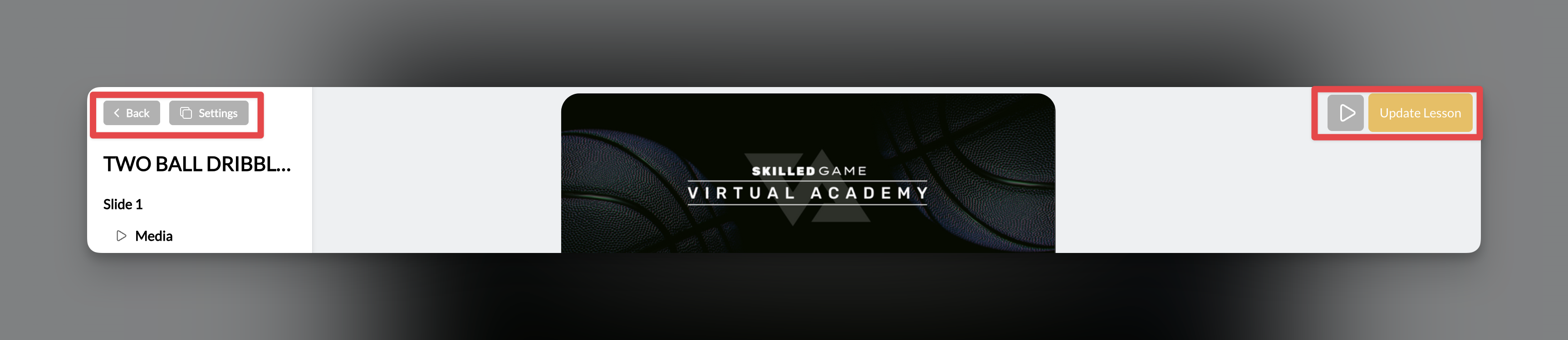
Click the Settings icon in the top bar to configure:
- Lesson Name: What athletes will see (e.g., “Shooting Form Basics”)
- Thumbnail: The cover image shown in programs
- Tags: For organizing in Media Hub
3
Add your first slide
Your lesson starts with one blank slide. Click on any element type in the toolbar to add content:
- Media: Add a video or image from your Media Hub
- Text: Add text overlays
- Button: Add navigation or links
- Quiz: Add multiple choice questions
- Form: Add free-text input fields
- Upload: Let athletes submit their own content
4
Add more slides
Click Add Slide at the bottom of the builder to create additional slides. Athletes will swipe left/right to navigate between them.
5
Preview your lesson
Click the Preview button (play icon) in the top bar to see exactly what athletes will experience. Swipe or click arrows to navigate through slides.
6
Save your lesson
Click Update Lesson (yellow button, top right) to save your work.
Understanding the Lesson Builder interface
The builder is divided into four main areas:Top bar
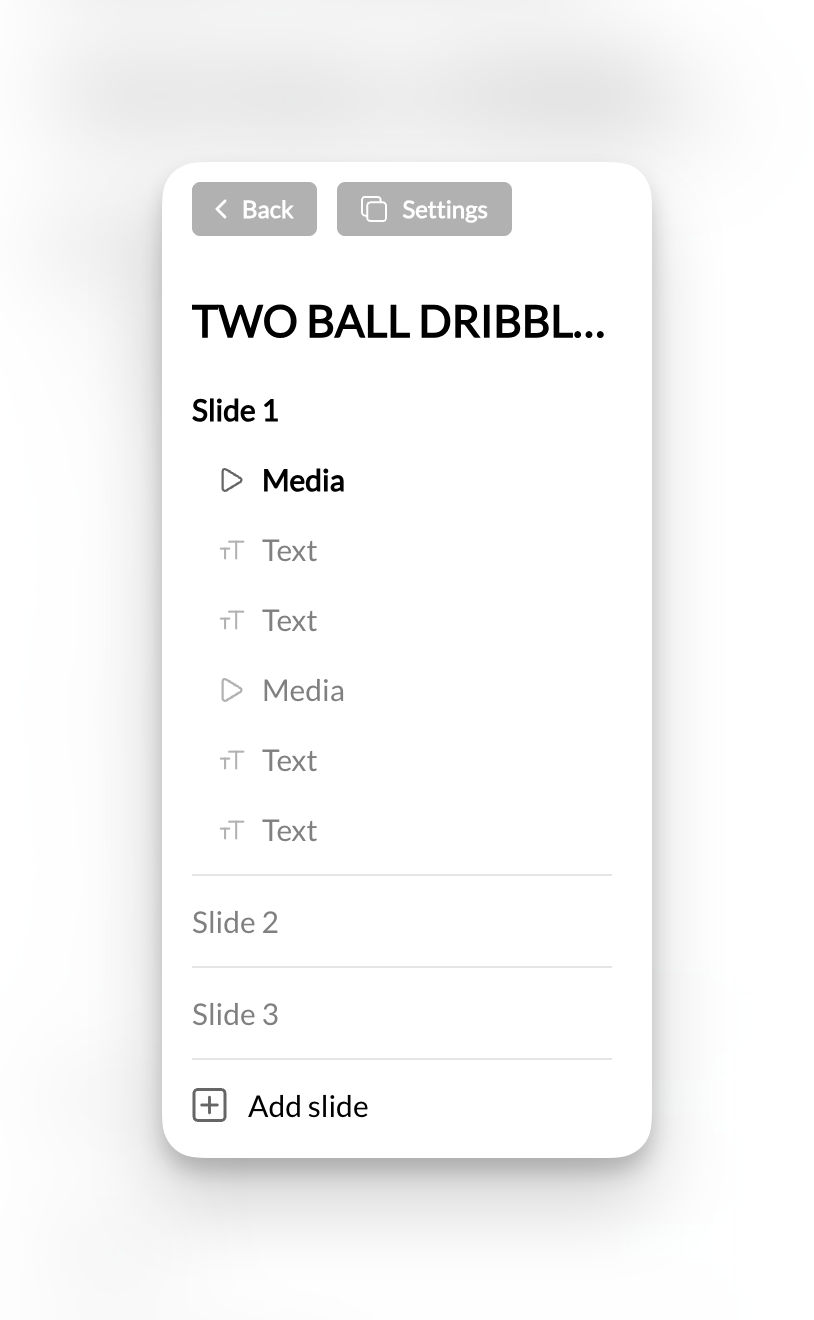
Left sidebar
Shows your lesson structure:- Lesson title at the top
- Slide list showing each slide and its elements
- Expandable view to see what’s on each slide
- Click any slide to select it for editing
Center canvas
A mobile phone preview showing exactly how your current slide will appear to athletes. This is your main editing area—what you see is what athletes get.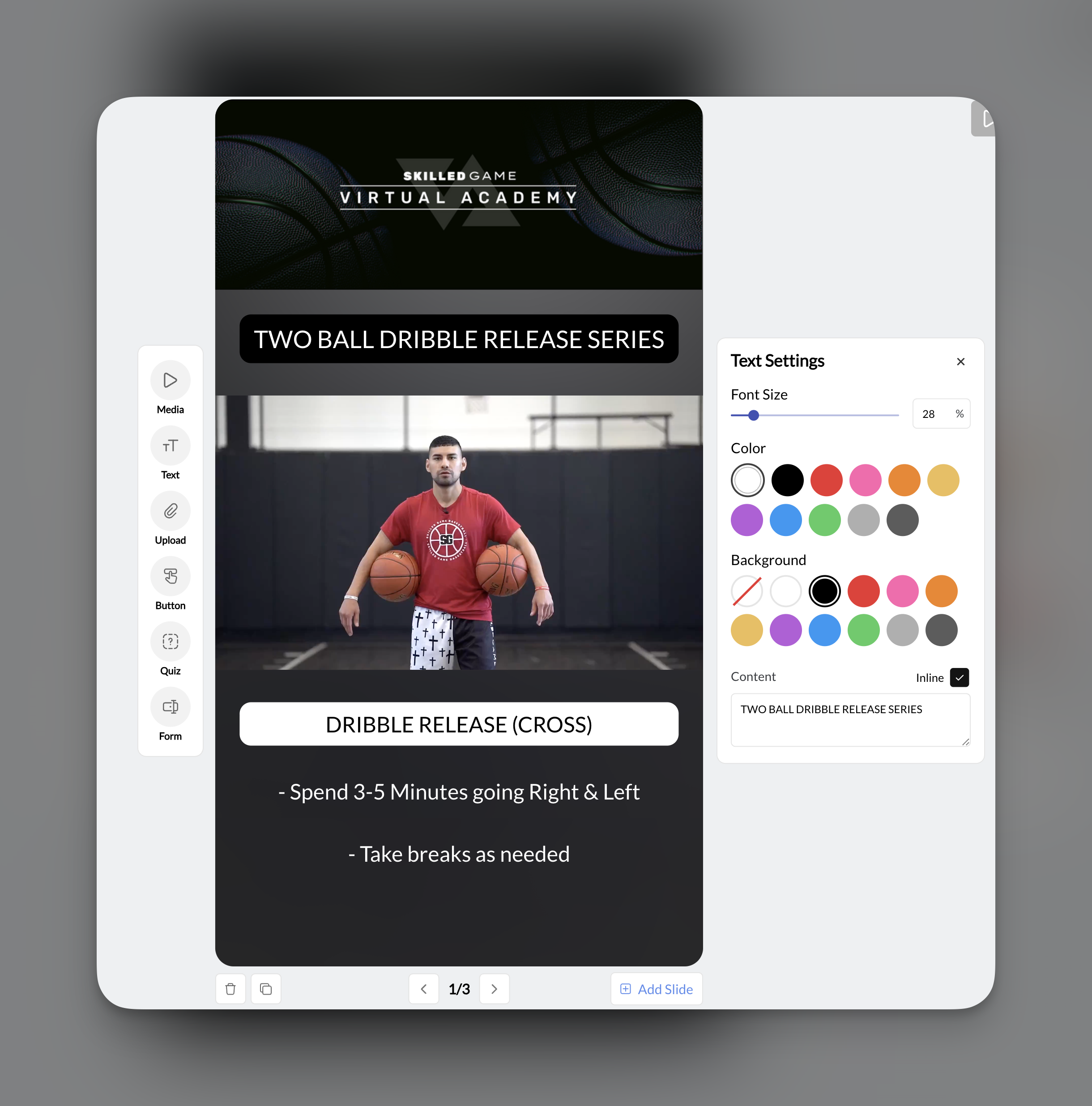
Right panel
Contextual settings for whatever element you have selected. Options change based on the element type (text color, button actions, quiz options, etc.).Working with slides
Adding slides
Click Add Slide at the bottom of the builder. New slides appear at the end of your lesson.Reordering slides
Drag slides up or down in the left sidebar to change their order.Duplicating slides
Click the duplicate icon at the bottom of the canvas to copy the current slide. Useful when creating similar slides with minor variations.Deleting slides
Select a slide and click delete. Be careful—this cannot be undone without re-creating the slide.No limit: You can add unlimited slides to a single lesson. However, shorter, focused lessons (5-15 slides) typically perform better than very long ones.
The six lesson elements
Each slide can contain multiple elements layered on top of each other. Here’s a quick overview:For detailed instructions on configuring each element, see the Lesson Components Guide.
How athletes experience lessons
When athletes open a lesson within a program, they see:- A full-screen, mobile-optimized view of your first slide
- Progress dots at the top showing how many slides remain (like Instagram Stories)
- Swipe left/right (or tap arrows) to navigate between slides
- Interactive elements they can engage with—answer quizzes, fill forms, upload videos
- Completion tracking so they know when they’ve finished
Where lesson responses go
When athletes interact with your lesson elements:Responses are tied to the Program, not the individual lesson. This means you access all athlete submissions from the Program Builder’s Stats view.
Tips for creating effective lessons
Start with media
Keep slides focused
Use buttons for pacing
Save frequently
Common lesson patterns
Drill breakdown lesson
Drill breakdown lesson
Slide 1: Full video demonstrationSlide 2: Key point #1 with text overlay on still imageSlide 3: Key point #2 with text overlaySlide 4: Quiz checking understandingSlide 5: Upload element for athlete to submit their attempt
Educational content lesson
Educational content lesson
Slide 1: Introduction video from youSlides 2-5: Key concepts with images and textSlide 6: Quiz on the materialSlide 7: Form asking athletes to reflect on what they learned
Form check / video review lesson
Form check / video review lesson
Slide 1: Example of correct form (video)Slide 2: Common mistakes to avoid (text + images)Slide 3: Upload element for athlete to submit their form videoSlide 4: Thank you message with next steps
Frequently asked questions about lessons
Can I use the same lesson in multiple programs?
Can I use the same lesson in multiple programs?
Yes! Once created, lessons appear in your Media Hub and can be added to any program. This is great for reusing foundational content across different courses.
How do I edit an existing lesson?
How do I edit an existing lesson?
In Media Hub, click on any lesson to open it. You can also access lessons from within a Program by clicking on the lesson node and selecting “Edit Lesson.”
Can I add multiple elements to one slide?
Can I add multiple elements to one slide?
Yes. Each slide can have unlimited elements layered on top of each other. For example, a video with a text overlay and a button at the bottom.
What's the difference between Quiz and Form?
What's the difference between Quiz and Form?
Quiz provides multiple choice options—athletes tap to select their answer. Form provides a free-text field—athletes type their own response. Use Quiz for quick checks, Form for reflection and open-ended questions.
Are quizzes graded?
Are quizzes graded?
No. Quizzes in CoachIQ are for engagement and feedback collection, not formal assessment. There’s no pass/fail or scoring—you simply see what athletes selected.
What's the Upload element for?
What's the Upload element for?
The Upload element lets athletes submit their own videos, images, or files. It’s designed for them to upload content (like a video of themselves doing a drill), NOT for coaches to add content. Use the Media element to add your own videos and images.
Why did my changes disappear?
Why did my changes disappear?
The Lesson Builder does not auto-save. If you navigated away or closed the browser without clicking “Update Lesson,” your changes were not saved. Always save frequently while building.