

Where to find this: Dashboard → Inbox → Create New → In-App
What are In-App messages?
In-App messages are your direct line to athletes through the CoachIQ platform. These messages appear in the athlete’s app and portal, creating a private conversation thread between you and your athletes - similar to texting but without the phone charges.Why use In-App messages?
Free messaging
No per-message costs, unlike SMS. Send unlimited messages without worrying about fees.
Rich attachments
Attach forms, sessions, products, and media directly in your messages.
Two-way conversation
Athletes can reply, creating ongoing dialogue for feedback and questions.
Multi-platform delivery
Messages appear in both the mobile app and web portal, plus email notifications.
Prerequisites
Sending an In-App message
1
Open the message composer
Navigate to your Inbox and click Create New. Select In-App from the message type options.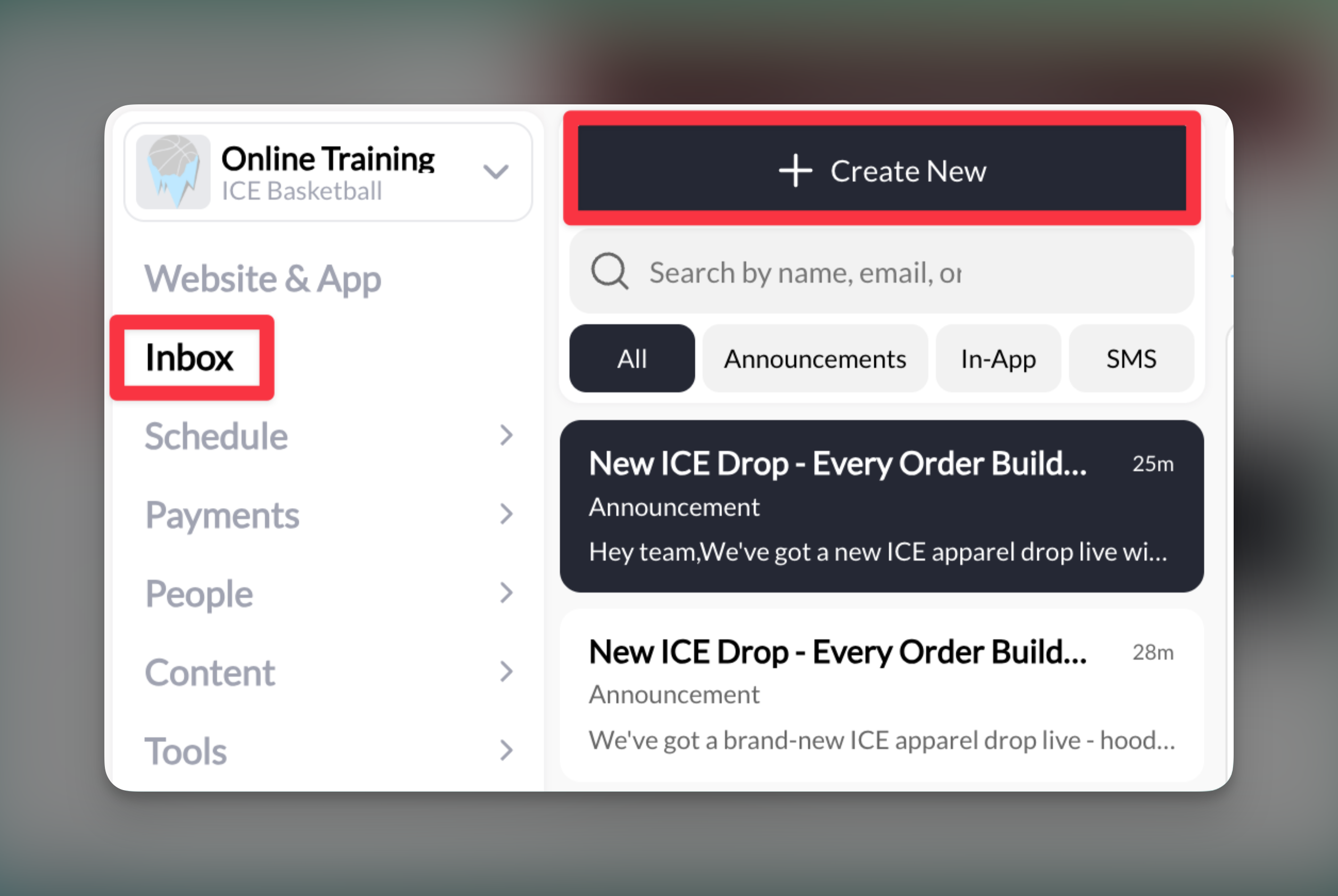
2
Select your recipients
In the “Send to” field, you can:
- Type an athlete’s name to message them individually
- Select multiple athletes for a group message
- Use tags to message predefined groups
- Choose roles (Admin, User, Customer)
3
Compose your message
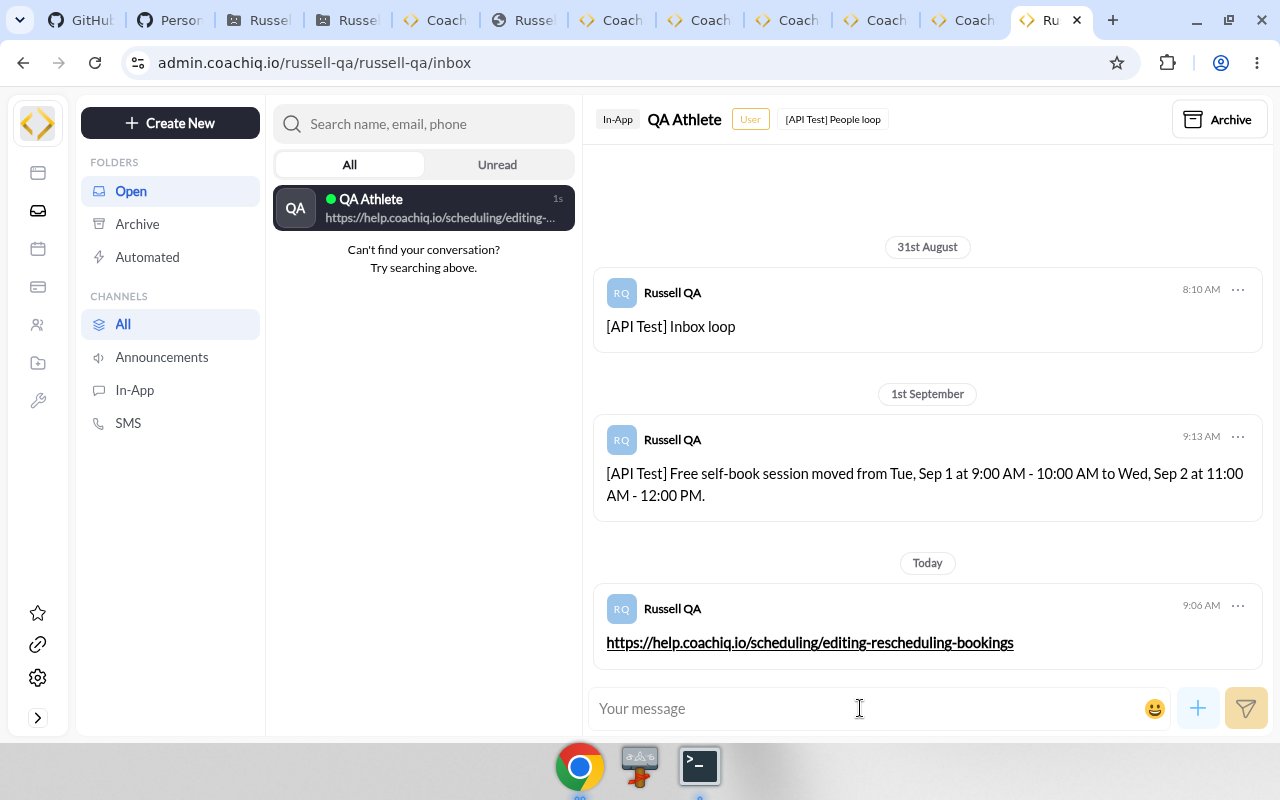
Write in Your message.If you paste a URL into an In-App thread and send it, the sent bubble shows that URL as a blue, underlined hyperlink (not plain text). The conversation preview may truncate the URL.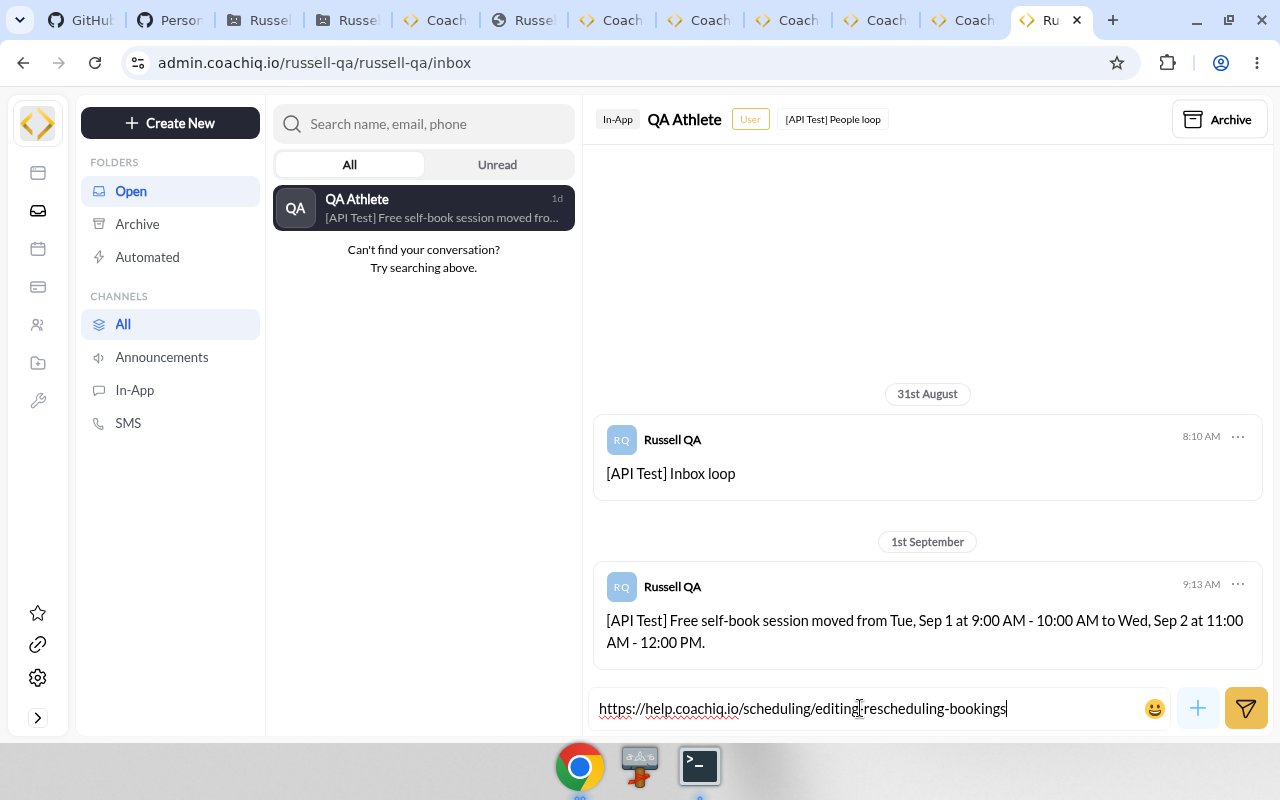
4
Add attachments (optional)
Click the + Attach button to include: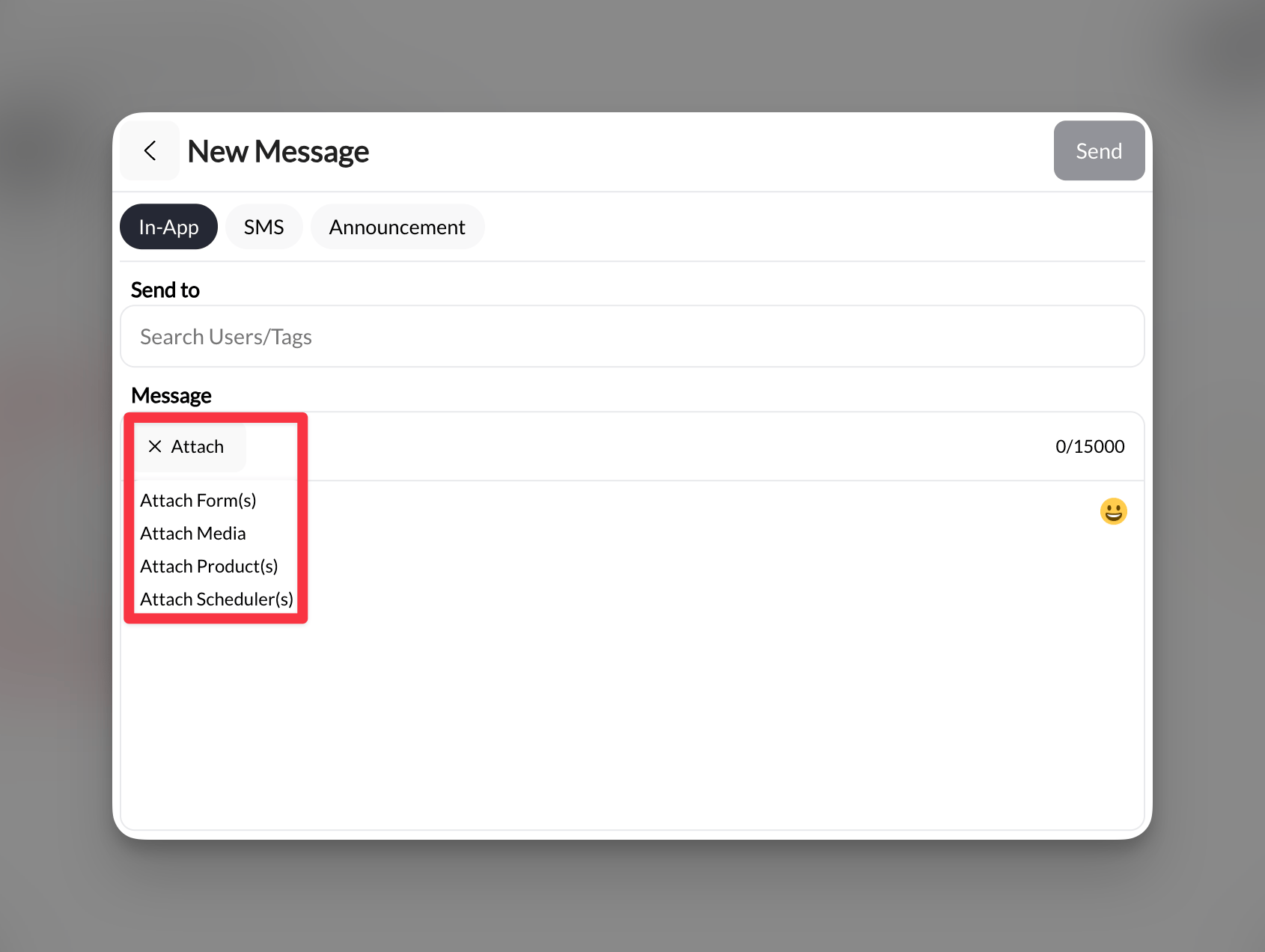
- Forms: Collect information or feedback
- Media: Share videos or images for instruction
- Products: Allow direct purchase or signup
- Scheduler: Enable instant session booking
5
Send the message
Click Send to deliver your message. Athletes will receive:
- An in-app notification (if they have the app)
- A portal notification (if they use the web version)
- An email notification to their registered address
Success! Your message is delivered instantly across all platforms.
How athletes receive In-App messages
Mobile app users
- Push notification appears on their phone
- Message shows in the Inbox/Channels section
- Can reply directly from the app
Portal users
- Notification appears when they log in
- Message visible in their inbox
- Can reply from the web interface
Email notifications
All In-App messages trigger an email to ensure athletes don’t miss important communications, even if they haven’t opened the app recently.Managing In-App conversations
Viewing replies
- Replies appear in your main Inbox view
- Conversations maintain full thread history
- New replies trigger notifications to you
Continuing conversations
Simply click on any existing conversation to:- View the full message history
- Send follow-up messages
- Add new attachments
- See when messages were read
Messages CoachIQ sends on an athlete’s behalf
One In-App message is written by the system, not the athlete. When an athlete tries to book a credit-based scheduler and does not have enough credits, CoachIQ sends you an In-App message from that athlete’s account asking for credits. It reads along the lines of: “Hi! I’d like to book [scheduler] on [date · time], but I’m 1 credit short. Could you add credits to my account? Thanks!” Treat it as a booking request. Add the credits from the athlete’s profile (see Managing athlete credits), then reply in the same thread so they know to book.Check the audience before sending
Review the recipient count and any per-send limit shown in the confirmation. Limits can differ by your organization and message channel; they are separate from your messaging-credit balance and SMS character count. If the audience exceeds the displayed limit, narrow the recipient selection before sending. Do not assume every group has the same maximum.Best practices
When to use In-App vs SMS
When to use In-App vs SMS
Choose In-App when:
- Sending regular updates or feedback
- Cost is a consideration
- You need rich attachments
- The message isn’t time-critical
- It’s urgent (practice cancelled, last-minute changes)
- You’re unsure if the athlete checks the app
- You need to reach parents who don’t use the app
Effective message strategies
Effective message strategies
- Be personal: Use the athlete’s name and reference specific situations
- Add value: Include helpful attachments like drill videos or booking links
- Set expectations: Let athletes know if you need a reply
- Time it right: Send technique feedback soon after practice while it’s fresh
Attachment best practices
Attachment best practices
- Forms: Great for collecting feedback after sessions
- Schedulers: Perfect for filling last-minute cancellations
- Media: Ideal for sharing technique videos or progress photos
- Products: Useful for promoting camps or special programs
Unsend an In-App message
Open the conversation and use the message actions menu beside the message time. Choose Unsend, then confirm removal. Keeping the message at the confirmation step leaves it in the conversation. Admins can unsend any In-App message in their group. Coaches, parents, and athletes can only unsend messages they sent. Confirmed removal stays in effect after reloading and across Admin, the web athlete portal, and the current native app. Unsend applies to In-App messages. It does not recall a separately delivered SMS or email.Common questions
Can I delete a sent message?
Can I delete a sent message?
Yes. Choose Unsend from the message actions menu and confirm. Admins can remove any In-App message in their group; coaches, parents, and athletes can remove their own messages.
Do group In-App messages show everyone's replies?
Do group In-App messages show everyone's replies?
No, when you send to multiple recipients, each conversation remains private between you and each individual athlete.
What if an athlete doesn't have the app?
What if an athlete doesn't have the app?
They won’t receive In-App messages. You’ll need to use SMS or ensure they set up their athlete portal access.
Is there a limit on message length?
Is there a limit on message length?
In-App messages can be up to 15,000 characters, which is far more than any normal message needs. The counter under the composer shows how much room is left.
Can parents receive In-App messages?
Can parents receive In-App messages?
Yes, if parents have their own profile in the system with app or portal access.
Pro tips
Limitations to remember
- Athletes must have app or portal access
- Unsend follows your role permissions; see Unsend an In-App message
- No read receipts (you can’t see if the message was read)
- Attachments appear as cards/links, not embedded content
Related articles
- SMS Messages - Setup and Best Practices
- Announcements - Broadcasting to Your Team
- Attaching Forms, Sessions, and Products
- Using Tags for Group Messages