

Where to find this: People → Staff (Admin only). Settings does not have a Staff entry.
Admin-only actions and staff notifications
Creating a new client or a reusable form field requires an Admin. Coaches can select existing form fields; a restricted creation action explains that an Admin is needed. Page access does not by itself expand those action permissions. An Admin can also pause staff notification emails for everyone in the selected group without changing their saved personal preferences. See Staff email notifications.What you’ll accomplish
Build your coaching team by adding staff members, controlling which platform features they can access, and managing their roles as your business grows.Understanding staff roles
CoachIQ has two staff roles with different permission levels:- Admin
- Coach
Full platform access — staff cards can show Full Access. No restrictions.What Admins can do:
- Access every page and feature
- Manage staff (add, remove, change roles)
- Configure all settings
- View all financial data
- Control page blocking for Coaches
- Business owner (you)
- Business manager or operations lead
- Anyone who needs complete access
Adding staff members
1
Navigate to Staff tab
From the People section, click the Staff tab at the top.
The Staff tab is only visible to Admin users.
2
Click Add Staff
In the top-right corner, click the + Add Staff button.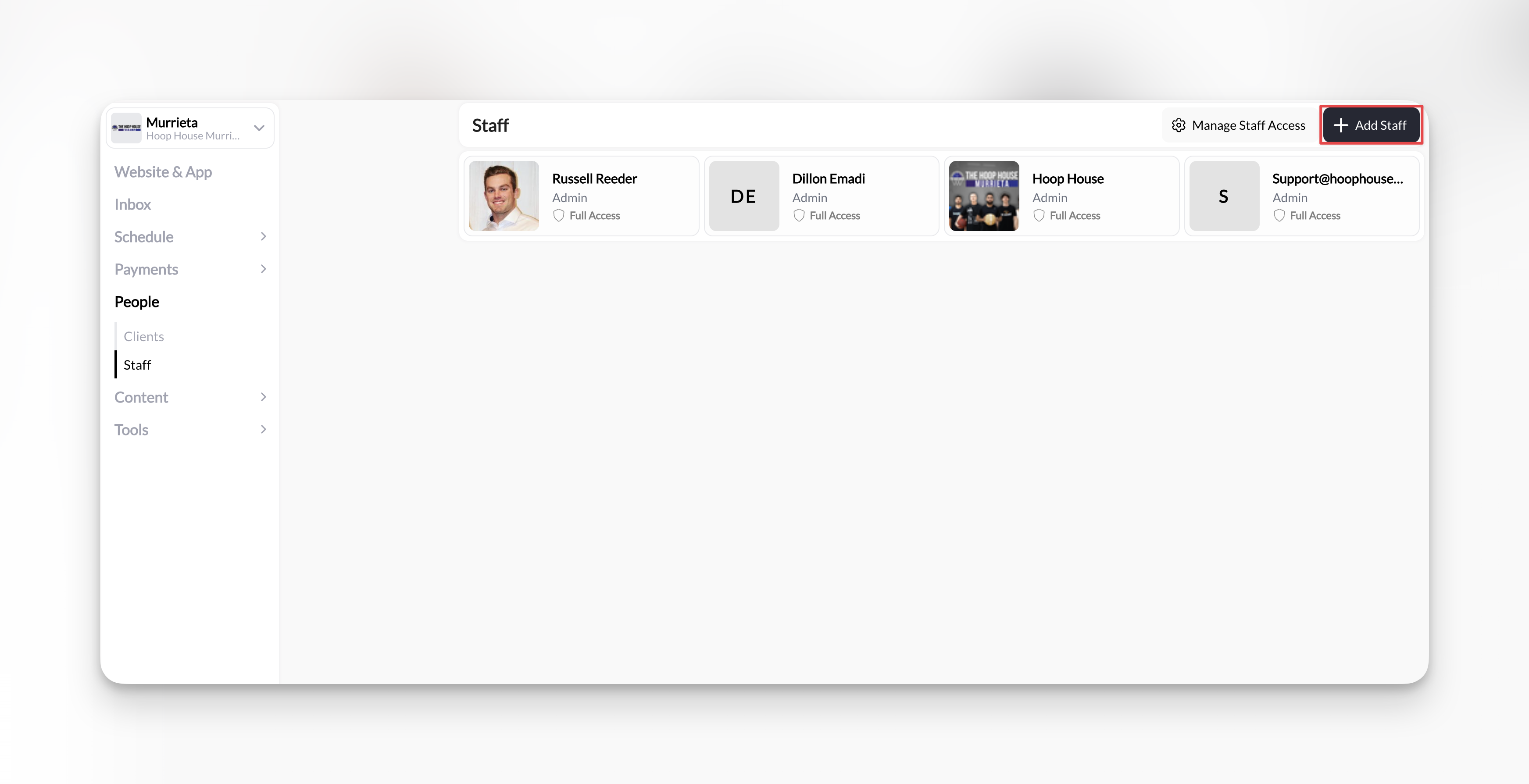
3
Enter email address
Type the email address of the person you want to add and press Enter or click Add Staff.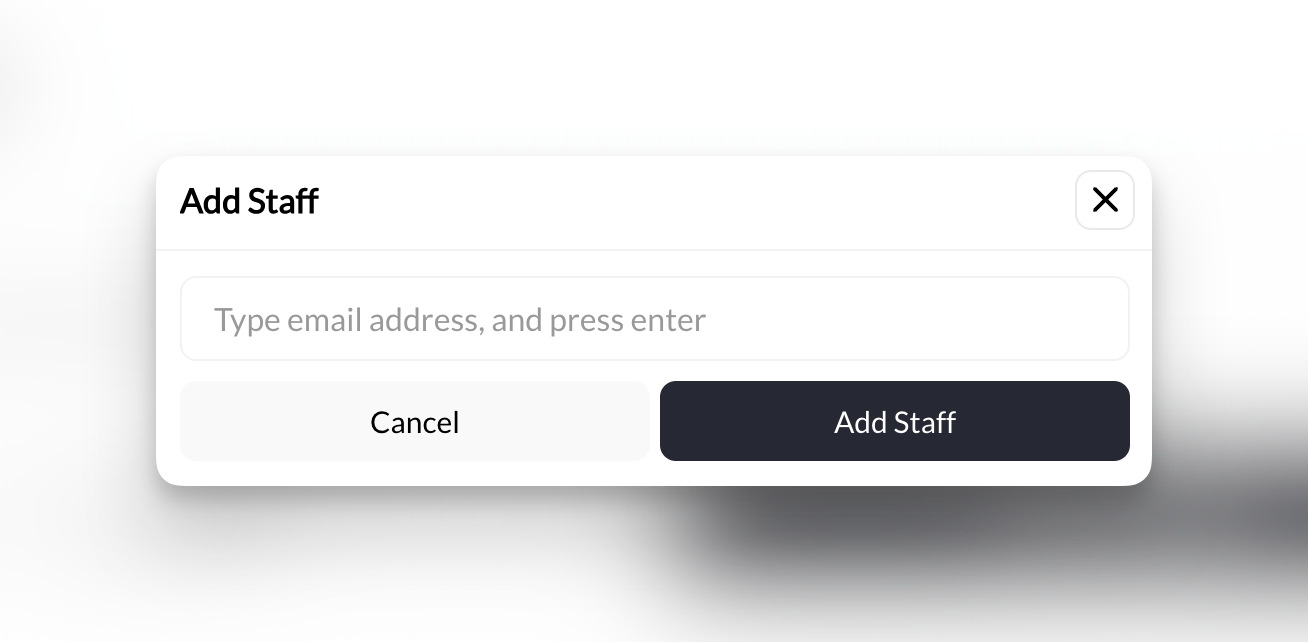
- Staff member is immediately added to your organization
- They’ll appear in both Staff tab AND Clients tab
- Default role: Coach (staff cards can show Full Access)
- No email is sent - you’ll need to tell them they’ve been added
4
Tell them to log in
Inform your new staff member:“I’ve added you to our CoachIQ organization. Log in at app.coachiq.io with your email address. If you don’t have a CoachIQ account, you’ll be able to create one during login.”When they log in, CoachIQ automatically connects them to your organization and gives them access based on their role.
Managing staff access (blocking pages)
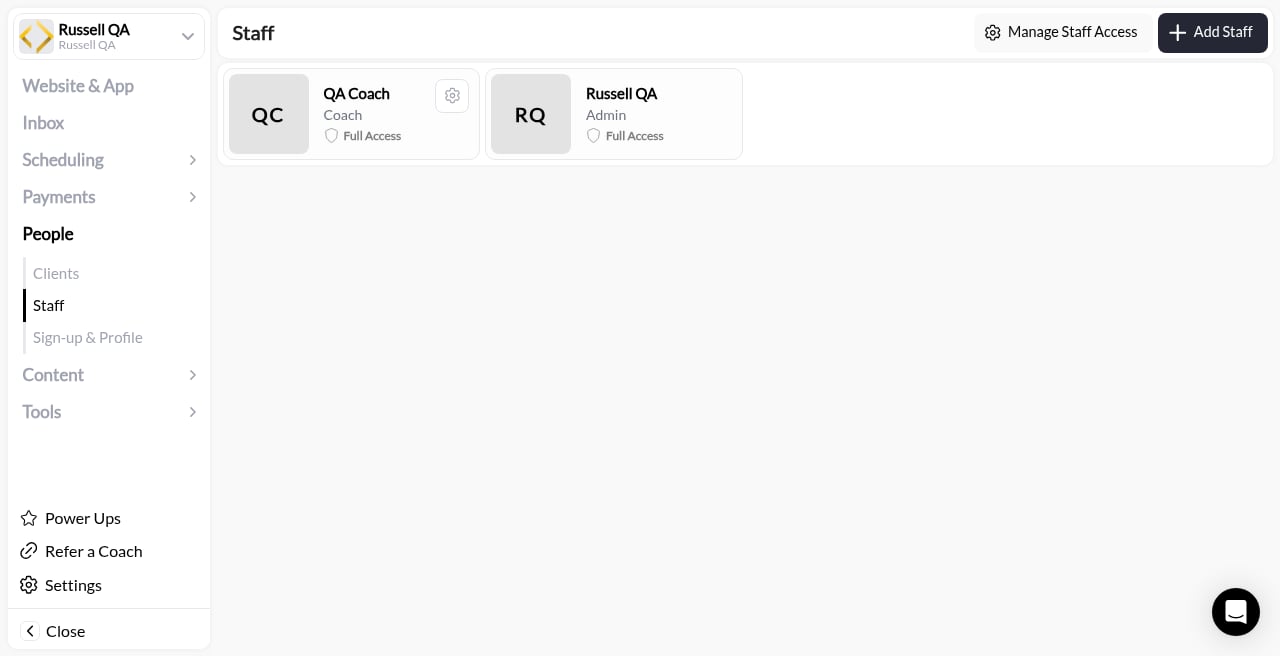
Coach access works on two levels:- Default Coach Access is the fallback every coach inherits. Set it from People → Staff → Manage Staff Access (next to Add Staff).
- Custom access is a per-coach set of page blocks that overrides the default for that one person. Set it by opening the coach from Staff.
1
Open Manage Staff Access
On People → Staff, click Manage Staff Access.That opens Default Coach Access.
2
Review who it applies to
The banner reads Managing access for: Coaches without custom access.
3
Block Access
Under Block Access:“Select pages that should be blocked by default. Coach-specific settings override this fallback. Admins can view all pages.”Use Select pages to block. If nothing is blocked, status is All Pages Accessible.
4
Save or cancel
Click Update Settings to save, or Cancel.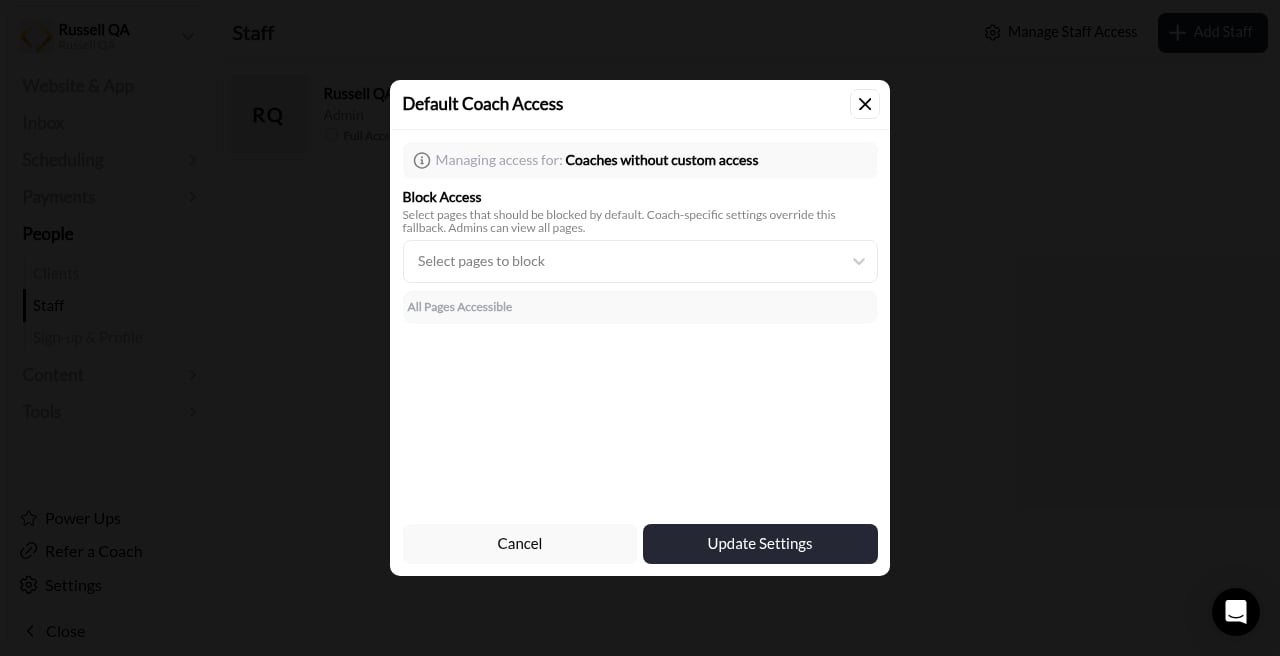
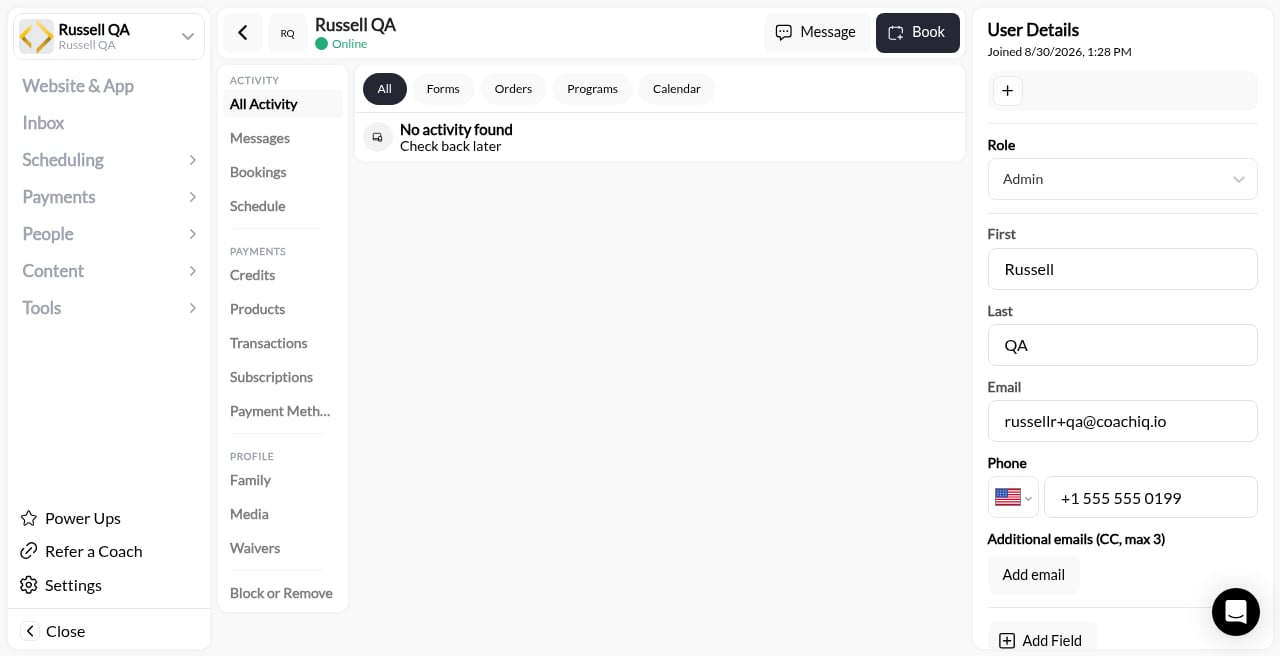
Custom access for one coach
Since September 2026 each coach can carry their own page restrictions instead of sharing one list with every other coach.1
Open the coach from Staff
On People → Staff, click the coach’s card to open their profile. User Details shows Role set to Coach.
2
Set their custom access
Use the coach’s access settings to choose which pages this person is blocked from. Anything you set here overrides Default Coach Access for this coach only; the banner on the default screen (“Coach-specific settings override this fallback”) is describing exactly this.
3
Save
Save the change. Back on Staff, the coach’s access column no longer reads Full Access, and the change applies the next time the coach loads a page.
What a page block also hides
Blocking a page hides more than its menu item. The block carries through to the places that show the same information:
A client’s Credits tab always stays visible. Payment Methods shows when either Transactions or Subscriptions is allowed.
Copilot follows the same blocks, and picks up a change right away in the same chat: a blocked area gets a message to ask an Admin, while other questions are still answered. A connected AI assistant also respects the coach’s blocks and keeps access to the actions those blocks don’t cover.
What coaches can do on client profiles
When a coach’s access doesn’t block Clients, they can:- See and edit a client’s custom field values. Adding or deleting a custom field for everyone stays with Admins, so those buttons are hidden for coaches.
- Use Update User to fix a client’s name, email or phone. Staff members’ details are read-only for coaches, and a coach can’t change the email, phone or CC emails of a client who also belongs to another group; the message says only an Admin can.
Blocking or removing a coach
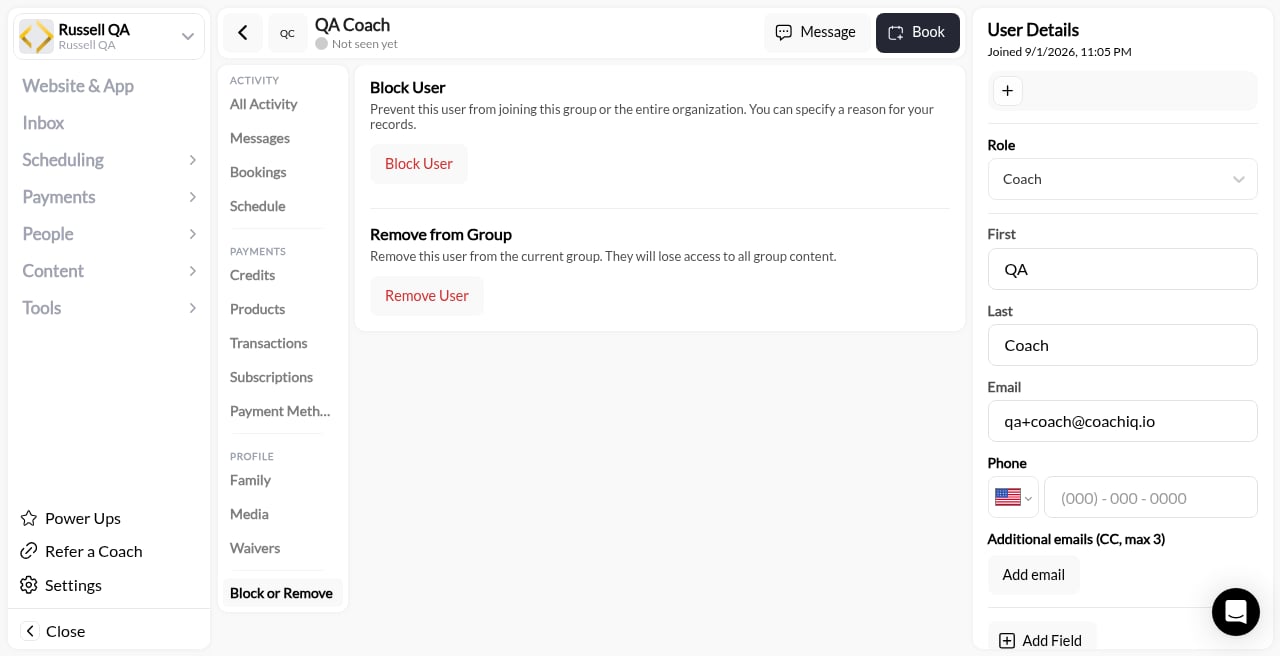
Separate from page access, a coach profile also has Block or Remove:- Block User — Prevent this user from joining this group or the entire organization. You can specify a reason for your records. Button: Block User.
- Remove from Group — Remove this user from the current group. They will lose access to all group content. Button: Remove User.
Changing staff roles
Promote coaches to admins or demote admins to coaches as your team evolves.1
Find the staff member
In the Staff tab, locate the person whose role you want to change.
2
Open their profile
Click on their card to open their full profile (same as client profiles).
Staff members appear in both the Staff tab and Clients tab with identical profiles.
3
Change role
In the User Details sidebar (right side), find the Role dropdown and change between: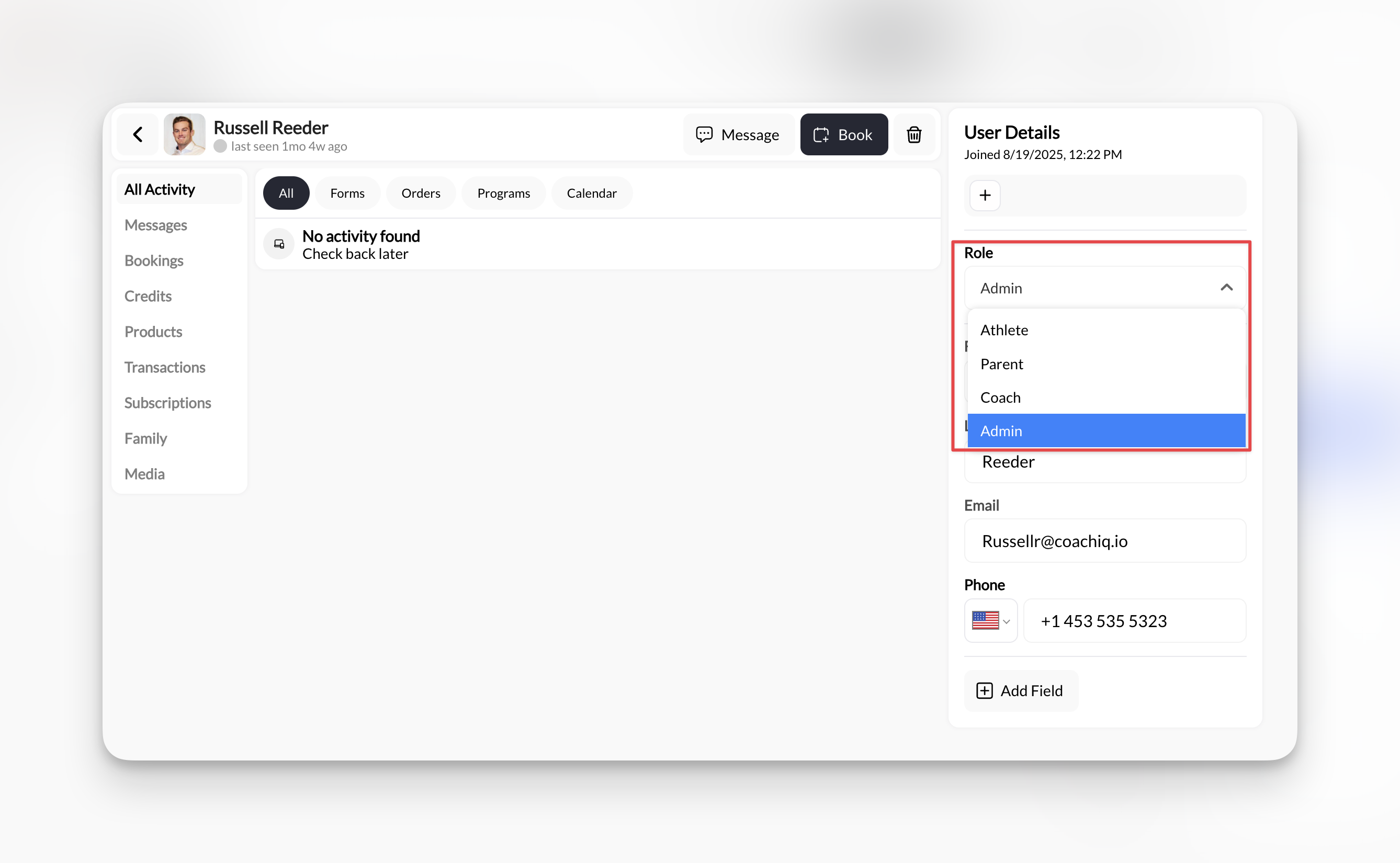
- Admin
- Coach
- Coach → Admin: Gains full access. Admins can view all pages.
- Admin → Coach: Subject to Default Coach Access until you give them custom access
Staff profiles
Staff members have the same profile structure as clients with all the same tabs. What you can view:- All Activity - Everything they’ve done in the platform
- Messages - Conversation history
- Bookings - Sessions they’re coaching or attending (if they also train)
- Credits - If they’re both staff and a client
- Products - Purchases (if they’re also a customer)
- Transactions - Revenue data (if applicable)
- Family - Linked family members
- Media - Content shared with them
Removing staff members
1
Navigate to Clients tab
Go to People → Clients (not Staff tab).
Staff members appear in both tabs, but deletion only works from Clients tab.
2
Find the staff member
Locate the person you want to remove using search or filters.
3
Open their profile and change their role
Click on their card, change their role to parent or athlete
4
Remove
Click the Trash Can icon in profile headerWhat happens:
- Removed from both Staff and Clients tabs
- Loses access to your organization immediately
- Their created content (schedulers, bookings, messages) remains
Common questions
Can I give different coaches different permissions?
Can I give different coaches different permissions?
Yes. Default Coach Access applies to every coach without custom access. To give one coach a different set of page blocks, open that coach from People → Staff and set their custom access; it overrides the default for that person only. Admins can view all pages and cannot be restricted. See Custom access for one coach.
What if my coach already has a CoachIQ account?
What if my coach already has a CoachIQ account?
No problem. When they log in, CoachIQ automatically connects them to your organization. They’ll see your org in their account switcher (if they work for multiple orgs).
Do staff members get notified when they're added?
Do staff members get notified when they're added?
No. CoachIQ doesn’t send emails. You need to manually tell them they’ve been added and should log in at app.coachiq.io.
Can coaches see the Staff tab and other staff members?
Can coaches see the Staff tab and other staff members?
Only Admins can see the Staff tab. Coaches cannot view or manage other staff members.
What happens to bookings when I remove a coach?
What happens to bookings when I remove a coach?
All past bookings remain intact with the coach’s name attached. Future bookings assigned to that coach stay in the calendar. You’ll need to manually reassign or cancel them.
How many staff members can I add?
How many staff members can I add?
This depends on your CoachIQ plan. Check your billing settings or contact support for your specific limit.
Can I temporarily disable a staff member without deleting them?
Can I temporarily disable a staff member without deleting them?
Yes - technically you can remove admin/coach access by switching their role to a athlete or parent.