

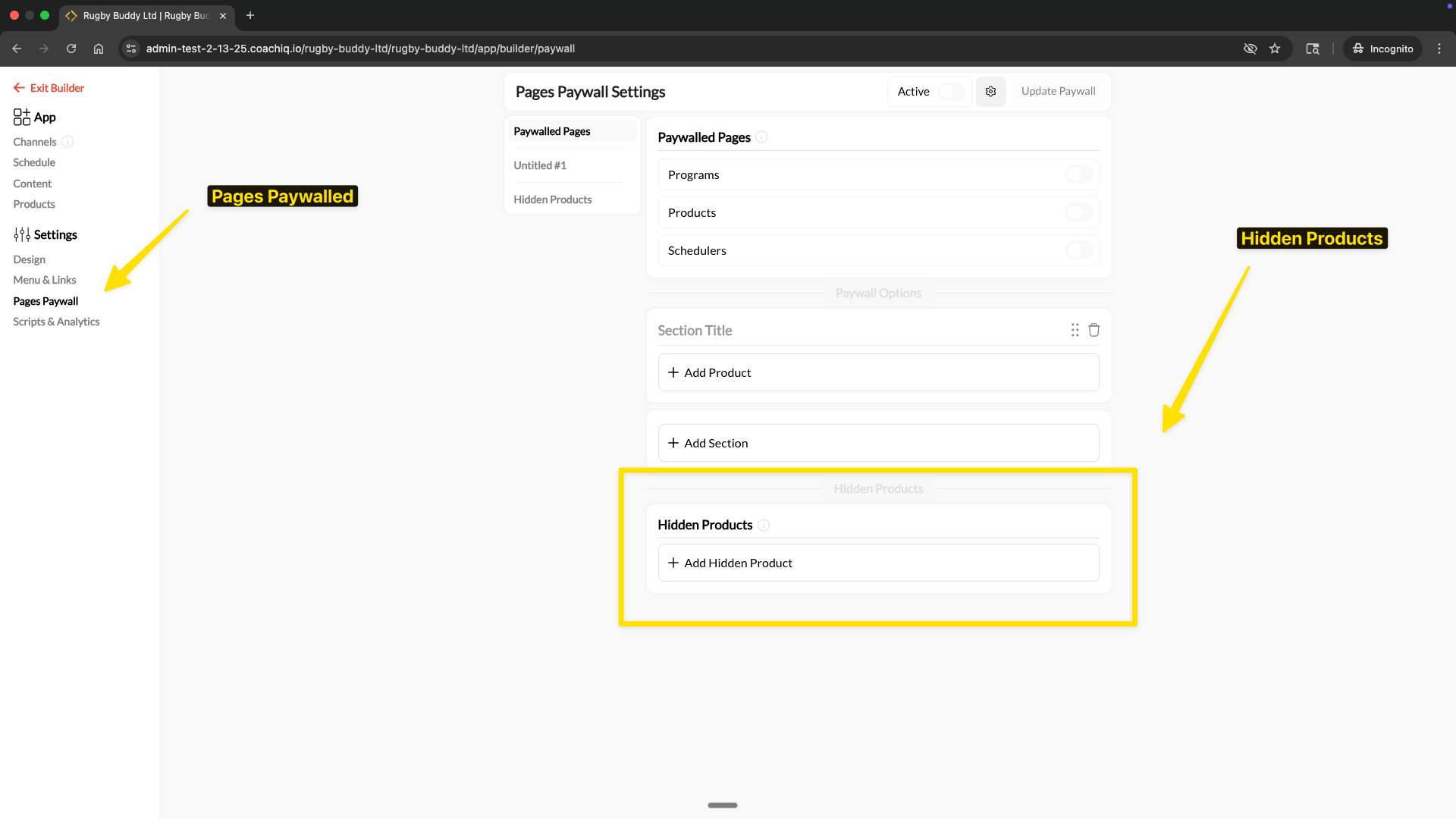
Quick Answer: Hidden products unlock paywalled pages just like regular products, but athletes never see them on the paywall purchase screen. Use them for grandfathered pricing, invite-only access, or complimentary memberships. Configure at App Builder → Settings → Pages Paywall → Hidden Products.
What are hidden products?
Hidden products are paywall products that grant athletes access to paywalled pages without appearing on the paywall purchase screen. When an athlete lands on a paywalled page, they see your visible products as purchase options — but hidden products are never shown. Athletes who already have a hidden product still get full access, they just can’t discover or buy it from the paywall. This gives you precise control over who can access your app and at what price, without exposing every option to every athlete.When to use hidden products
Grandfathered pricing
You raised your monthly membership from $49 to $69, but your existing athletes are locked in at the old rate. Without hidden products, that $49 option sits on your paywall and every new athlete picks the cheaper one. With hidden products: Hide the $49 product from the paywall. Current athletes keep their rate and retain full access. New athletes only see the $69 option.Invite-only or exclusive access
You want to give a select group of athletes access to your app — a travel team, a tryout group, or a VIP tier — without the product being available to everyone. With hidden products: Create a product for that group, hide it from the paywall, and assign it only to the athletes you choose. Other athletes never know it exists.Complimentary or sponsored access
You need to give free or discounted access to staff, coaching assistants, scholarship athletes, or sponsored partners. A visible $0 product on your paywall invites everyone to grab it. With hidden products: Create a free or discounted product, hide it from the paywall, and assign it directly to the athletes who qualify. Your public pricing stays clean.How to add a hidden product
1
Navigate to paywall settings
From your App Builder, click Settings in the left sidebar, then select Pages Paywall.
2
Open the Hidden Products tab
In the left panel, click Hidden Products to switch to the hidden products configuration.
3
Add a hidden product
Click + Add Hidden Product. Select the product you want to hide from your product list.
The product must already exist in Payments → Products. If you haven’t created it yet, do that first.
4
Save your changes
Click Update Paywall to apply. The hidden product now grants paywall access without appearing on the athlete-facing purchase screen.
Athletes with this product can access paywalled pages immediately. Athletes without it never see the product as an option.
How athletes receive hidden products
Since hidden products don’t appear on the paywall, you need to get them to athletes through other channels:- Assign directly — Add the product to an athlete’s account in People → [Athlete] → Products
- Send a purchase link — Share a direct link to the product via DM, email, or SMS
- Use an access code — Create an access code for the hidden product and share it privately
Common questions
I updated my pricing — how do I transition?
I updated my pricing — how do I transition?
- Create your new product at the updated price
- Add the new product as a visible paywall product
- Move the old product to Hidden Products
- Existing subscribers keep their rate and access; new athletes only see the new price