

Where to find this: Dashboard → People (to create/apply tags) Dashboard → Inbox → Create New (to use tags for messaging)
What are tags?
Tags are labels you create to organize athletes into groups. Instead of selecting 20 individual athletes every time you message the varsity team, tag them once as “Varsity” and message the entire group with one click. Think of tags as your custom mailing lists that work across all message types.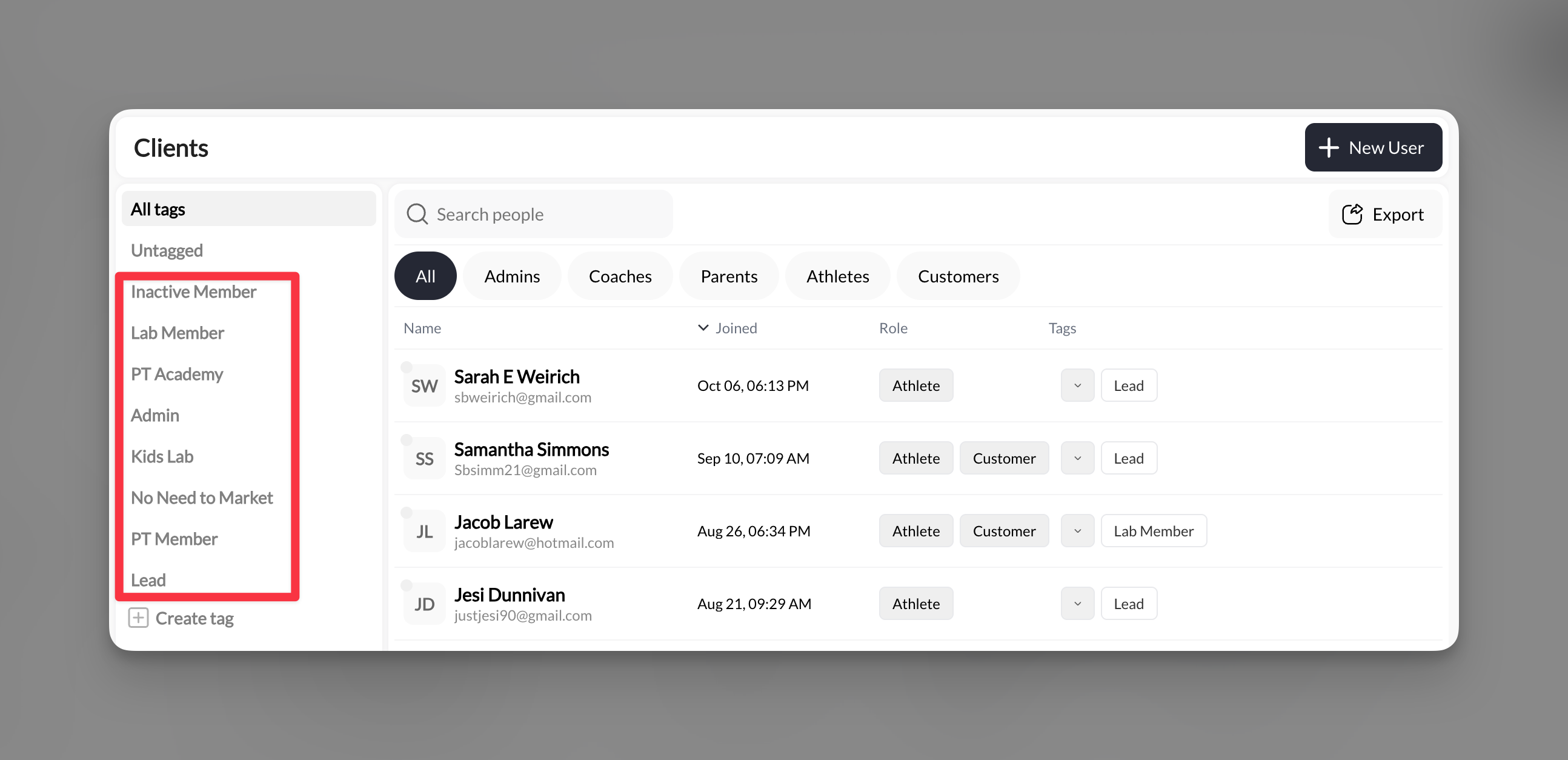
Common tag examples
By skill level
By team/program
By status
By logistics
- Payment status: Paid, Outstanding, Scholarship
- Equipment: Needs Gear, Uniform Ordered
- Communication: Parents Only, Athletes Only
- Special groups: Leadership Council, New This Season
Setting up your tags
1
Navigate to People
Go to People in your main navigation to access your athlete database.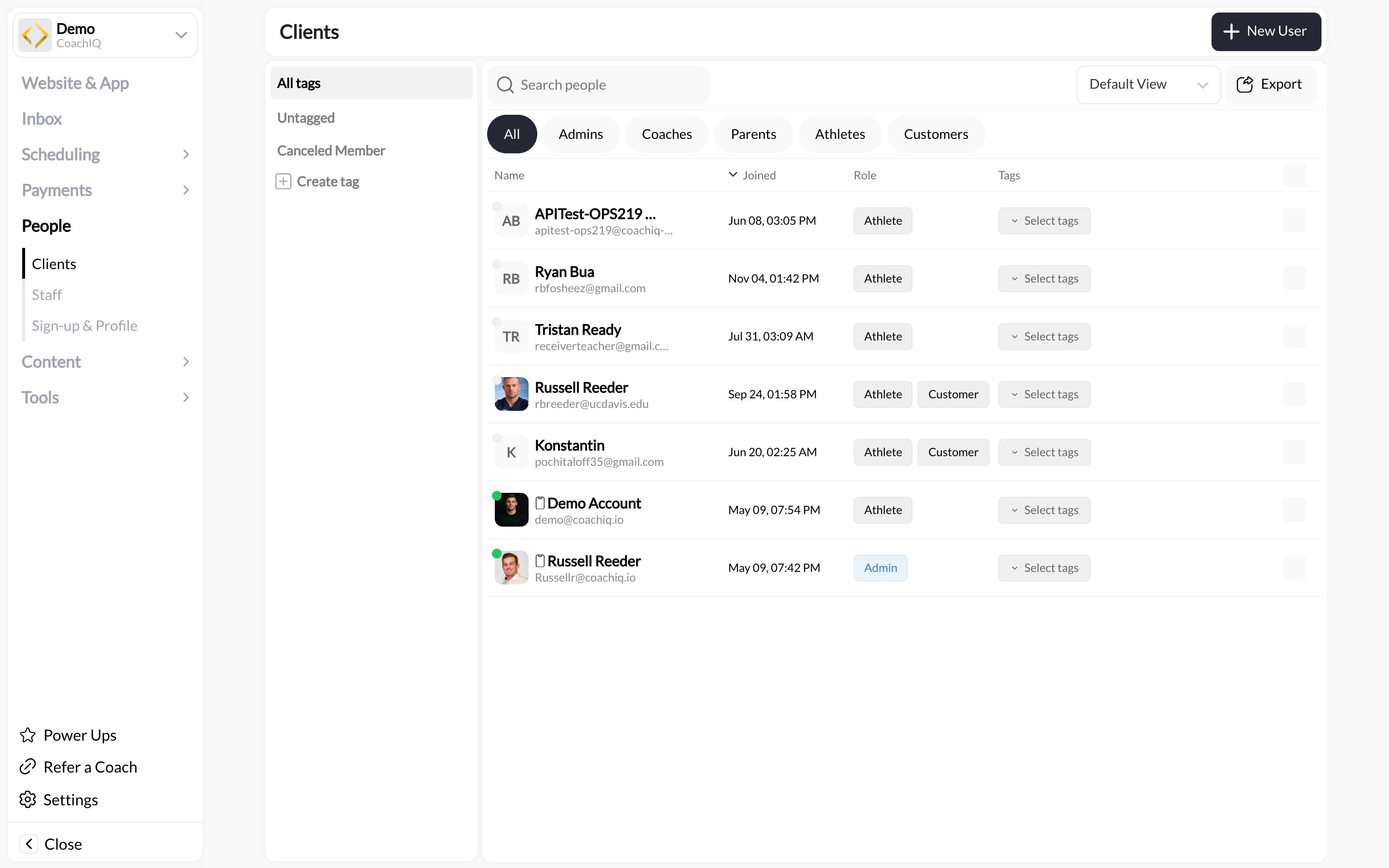
2
Create new tags
Look for the tags section in your People area. Create tags that match your communication needs.Examples to create:
- “Spring 2024 Team”
- “Competition Squad”
- “Monday/Wednesday Group”
- “Needs Medical Form”
3
Apply tags to athletes
Select one or more athletes and apply relevant tags:
- Check the boxes next to athlete names
- Choose “Add Tags” from the bulk actions
- Select which tags to apply
- Save changes
4
Verify tag assignments
Filter by each tag to confirm the right athletes are included. This prevents messaging mistakes.
Tags are now ready to use for group messaging!
Sending messages with tags
Quick group message
1
Create new message
Go to Inbox → Create New → Choose your message type (In-App, SMS, or Announcement)
2
Select recipients by tag
In the “Send to” field: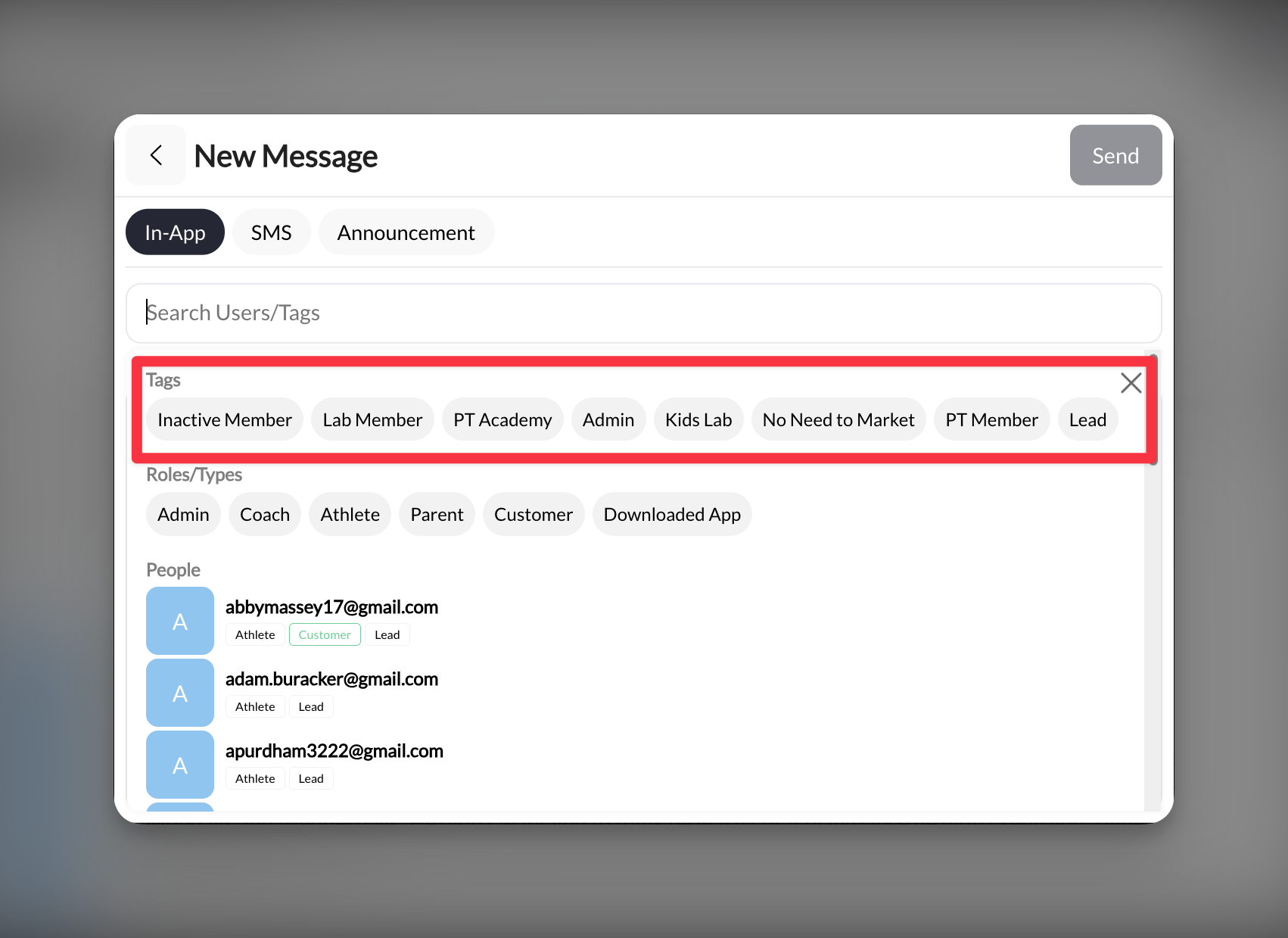
- Start typing your tag name
- Select the tag from the dropdown
- All athletes with that tag are automatically included
3
Compose and send
Write your message and send to the entire group at once.
Combining multiple tags
You can message athletes who have ANY of several tags:- Select “Elite Program” tag
- Also select “Advanced Training” tag
- Message goes to anyone in EITHER group
Overlap handling: If an athlete has both tags, they still only receive one message.
Sub-tags
Tags can be nested: a parent tag such as “Travel Program” with sub-tags for each team inside it (“U12 Travel”, “U14 Travel”). You create the hierarchy in People → Tags. When you pick recipients for an Announcement or SMS in the Inbox, sub-tags appear nested under their parent tag in the recipient list. Select the sub-tag to message just that nested group, or the parent tag for the wider one; you do not have to pick the parent and then trim people by hand.Strategic tagging for different message types
For In-App messages
Best tags for In-App group messages:- Program enrollment (“Fall Basketball”, “Speed Training”)
- Feedback groups (“Needs Form Review”, “Technique Focus”)
- Progress tracking (“Ready for Advanced”, “Competition Eligible”)
For SMS messages
Cost-conscious tags for urgent SMS:- “Primary Contacts” (parents who need immediate updates)
- “No App Access” (those who only receive SMS)
- “Emergency Contacts” (for weather/safety issues)
For announcements
Broad tags for announcements:- “All Athletes 2024”
- “Parents”
- “Summer Camp Registered”
Common questions
What happens if I delete a tag?
What happens if I delete a tag?
The tag is removed from all athletes, but it doesn’t delete the athletes themselves. Past messages sent using that tag remain unchanged.
Can I send to a sub-tag without messaging the whole parent group?
Can I send to a sub-tag without messaging the whole parent group?
Yes. In the Announcement or SMS recipient picker, sub-tags are listed under their parent tag. Choose the sub-tag on its own and only people with that sub-tag receive the message.
Can I message athletes who DON'T have a tag?
Can I message athletes who DON'T have a tag?
Not directly, but you can filter for athletes without specific tags in the People section, then select them manually for messaging.
Check the audience before sending
Review the recipient count and any per-send limit shown in the confirmation. Limits can differ by your organization and message channel; they are separate from your messaging-credit balance and SMS character count. If the audience exceeds the displayed limit, narrow the recipient selection before sending. Do not assume every group has the same maximum.Best practices
Tag templates for quick setup
Youth sports program
- Age Groups: U10, U12, U14, U16, U18
- Skill Levels: Recreational, Competitive, Elite
- Sessions: Spring 2024, Summer 2024, Fall 2024
- Status: Active, Trial, Alumni
Individual training business
- Training Type: Strength, Speed, Skills, Recovery
- Package: Monthly, Per-Session, Unlimited
- Schedule: Morning, Afternoon, Evening, Weekend
- Goals: College Prep, Fitness, Competition
Multi-location facility
- Location: North Gym, South Field, Main Facility
- Coaches: Coach Mike, Coach Sarah, Coach Tom
- Programs: Basketball, Soccer, Performance
- Membership: Gold, Silver, Bronze