

Adding elements: In the Lesson Builder, click on any element icon in the toolbar to add it to your current slide. Each slide can have multiple elements layered on top of each other.
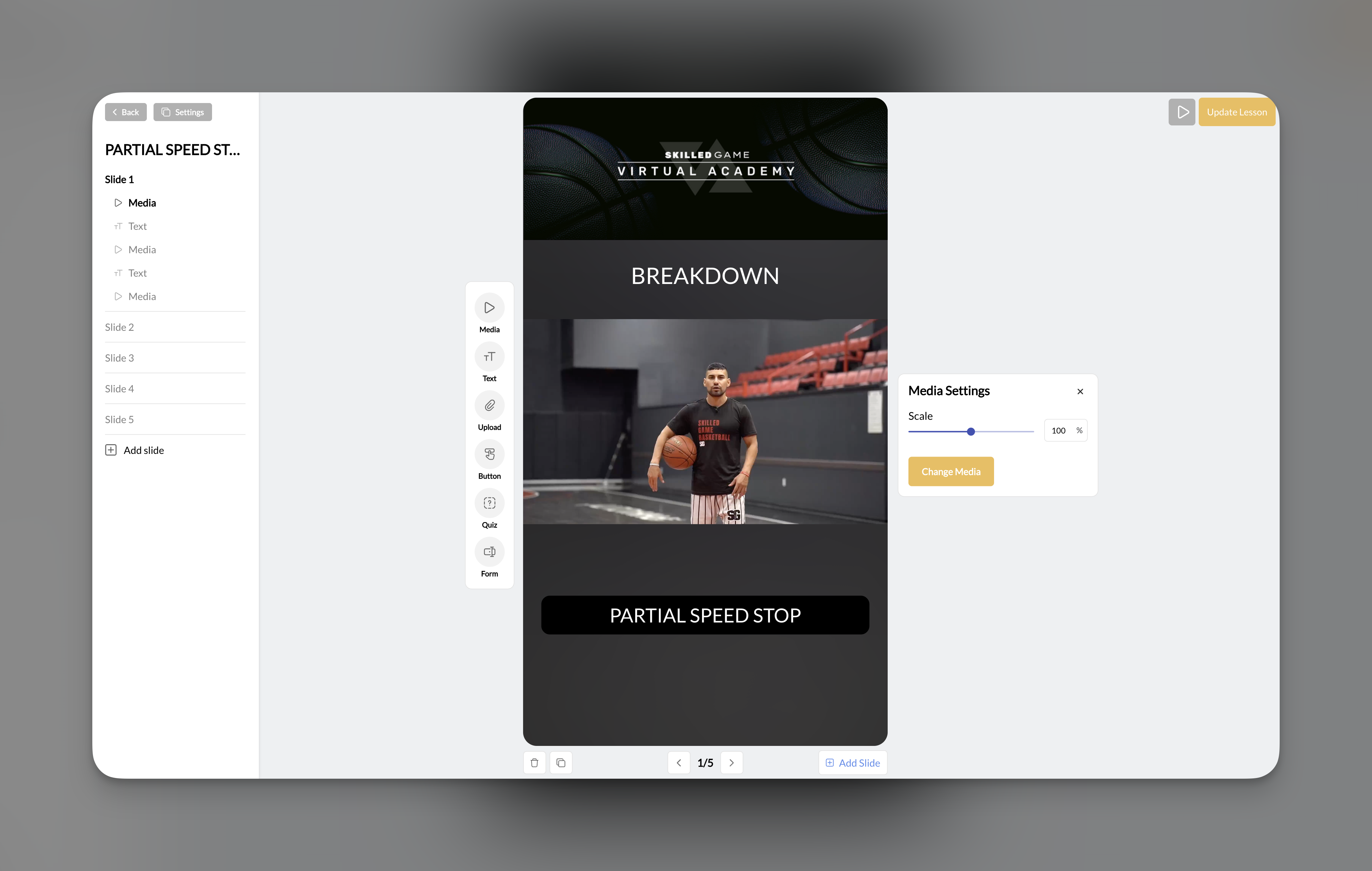
Element quick reference
Media element
The Media element pulls videos and images from your Media Hub to display on slides. This is typically the foundation of most slides—start with media, then layer other elements on top.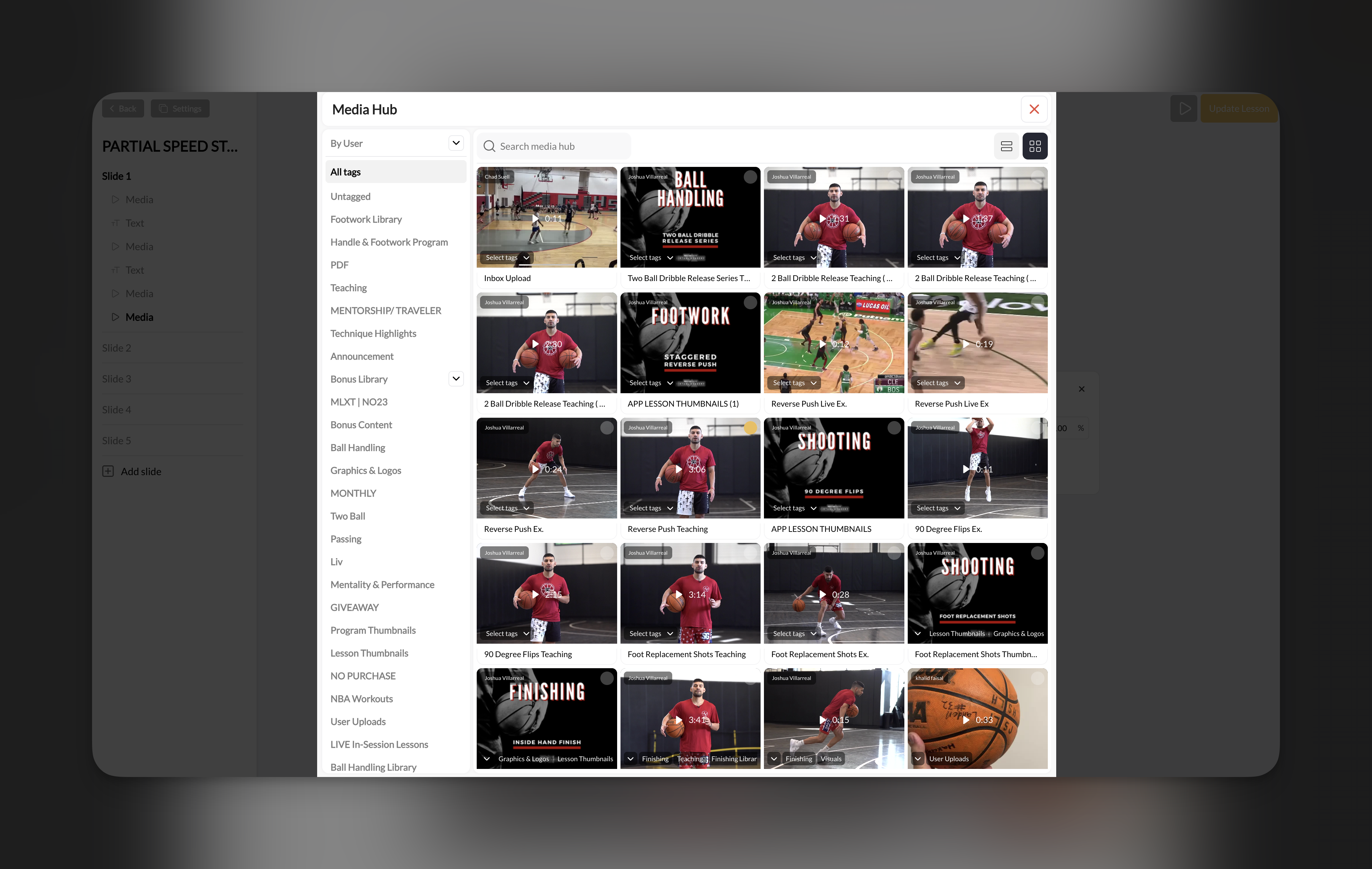
How to add media
1
Click the Media icon
In the Lesson Builder toolbar, click the Media element (▶ icon).
2
Select from Media Hub
A panel opens showing your Media Hub. Browse or search for the video or image you want.
3
Click to add
Click on any media item to add it to your slide. It will appear on the canvas.
Media settings
Once added, select the media element to access settings in the right panel:Media best practices
- Use Media Hub first: You can only add media that’s already in your Media Hub—upload your content there before building lessons
- Mind the format: Vertical/portrait videos work best since lessons display in mobile format
- Keep videos short: 30-90 second clips per slide work better than long videos spanning multiple minutes
Text element
The Text element adds customizable text overlays to your slides. Use it for instructions, key points, titles, or any written content.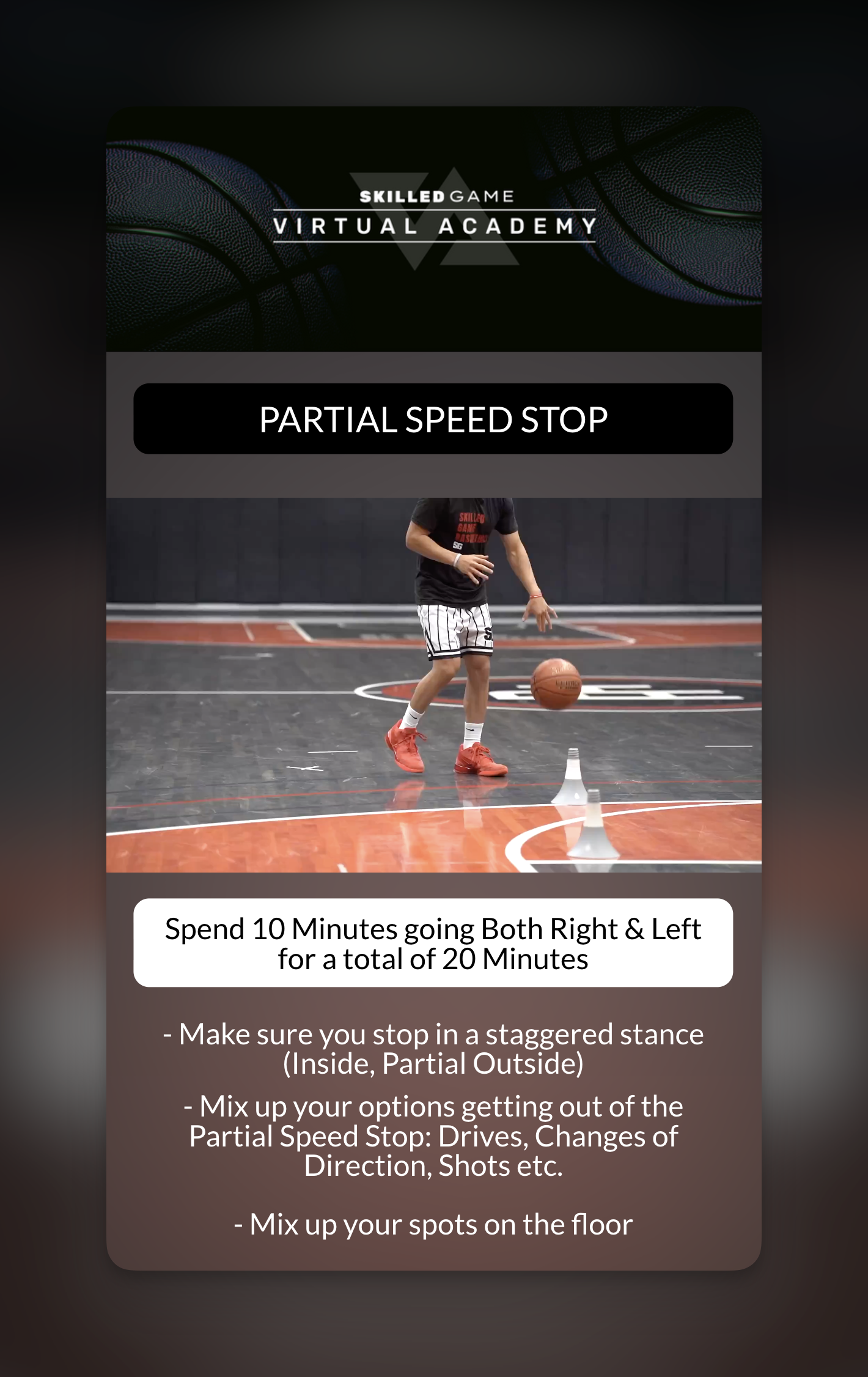
How to add text
1
Click the Text icon
In the toolbar, click the Text element (TT icon).
2
Edit the default text
A text box appears with placeholder text. Click to edit and type your content.
3
Style your text
Use the right panel to customize appearance.
Text settings
Text color options
Both text color and background offer the same 12-color palette:- White
- Black
- Gray
- Red
- Orange
- Yellow
- Green
- Teal
- Blue
- Indigo
- Purple
- Pink
Text best practices
- High contrast: Use light text on dark backgrounds (or vice versa) for readability
- Keep it short: Athletes are swiping through quickly—limit text to key points
- Use backgrounds: A semi-transparent background helps text stand out over video/images
- Position thoughtfully: Place text where it won’t cover important parts of underlying media
Button element
The Button element creates tappable buttons that can navigate between slides, open external links, or provide downloadable files.How to add a button
1
Click the Button icon
In the toolbar, click the Button element (grid icon).
2
Configure the action
Choose what happens when athletes tap the button.
3
Style the button
Customize colors to match your brand.
Button actions
Button settings
Button best practices
- Use for pacing: Adding a “Next” button (instead of just swipe) ensures athletes consciously move forward
- Clear labels: Use action-oriented text like “Download Workout PDF” instead of just “Download”
- Consistent styling: Keep button colors consistent throughout your lessons
- Test links: Always preview your lesson to make sure external links and downloads work
Downloadable files: The downloadable link option accepts any file type—PDFs, spreadsheets, documents, etc. This is how you share materials that can’t be displayed directly in lessons.
Quiz element
The Quiz element adds multiple choice questions to your lessons. Athletes tap to select their answer from the options you provide.How to add a quiz
1
Click the Quiz icon
In the toolbar, click the Quiz element (🤔 icon).
2
Write your question
Enter the question athletes will see.
3
Add answer options
Add multiple choice options. Click Add Option to add more choices.
4
Configure appearance
Choose light or dark theme.
Quiz settings
Important: Quizzes are not graded
What quizzes are good for:- Checking understanding (you review responses manually)
- Gathering preferences (“What skill do you want to work on next?”)
- Engagement and interaction during lessons
- Collecting data about your athletes
- Formal assessments with grades
- Certification requirements with pass/fail
- Automated feedback based on correct/incorrect
Quiz best practices
- Keep questions clear: One question per quiz element
- Limit options: 3-5 answer choices works best
- Use for checkpoints: Add quizzes after teaching a concept to reinforce learning
- Review responses: Check the Program Stats to see how athletes answered
Form element
The Form element adds free-text input fields where athletes can type their own responses. Use it for reflection questions, goal setting, feedback, or any open-ended input.How to add a form
1
Click the Form icon
In the toolbar, click the Form element (📋 icon).
2
Write your prompt
Enter the question or prompt athletes will respond to.
3
Configure appearance
Choose theme and button color.
Form settings
Form vs Quiz: When to use each
Form best practices
- Ask specific questions: “What’s one thing you’ll focus on this week?” is better than “Any thoughts?”
- Set expectations: Let athletes know roughly how much you expect (a sentence vs a paragraph)
- Use for accountability: Ask athletes to commit to goals or reflect on progress
- Review responses: Check Program Stats regularly to read what athletes submit
Upload element
The Upload element lets athletes submit their own videos, images, or files. This is powerful for remote coaching, form checks, and drill assignments.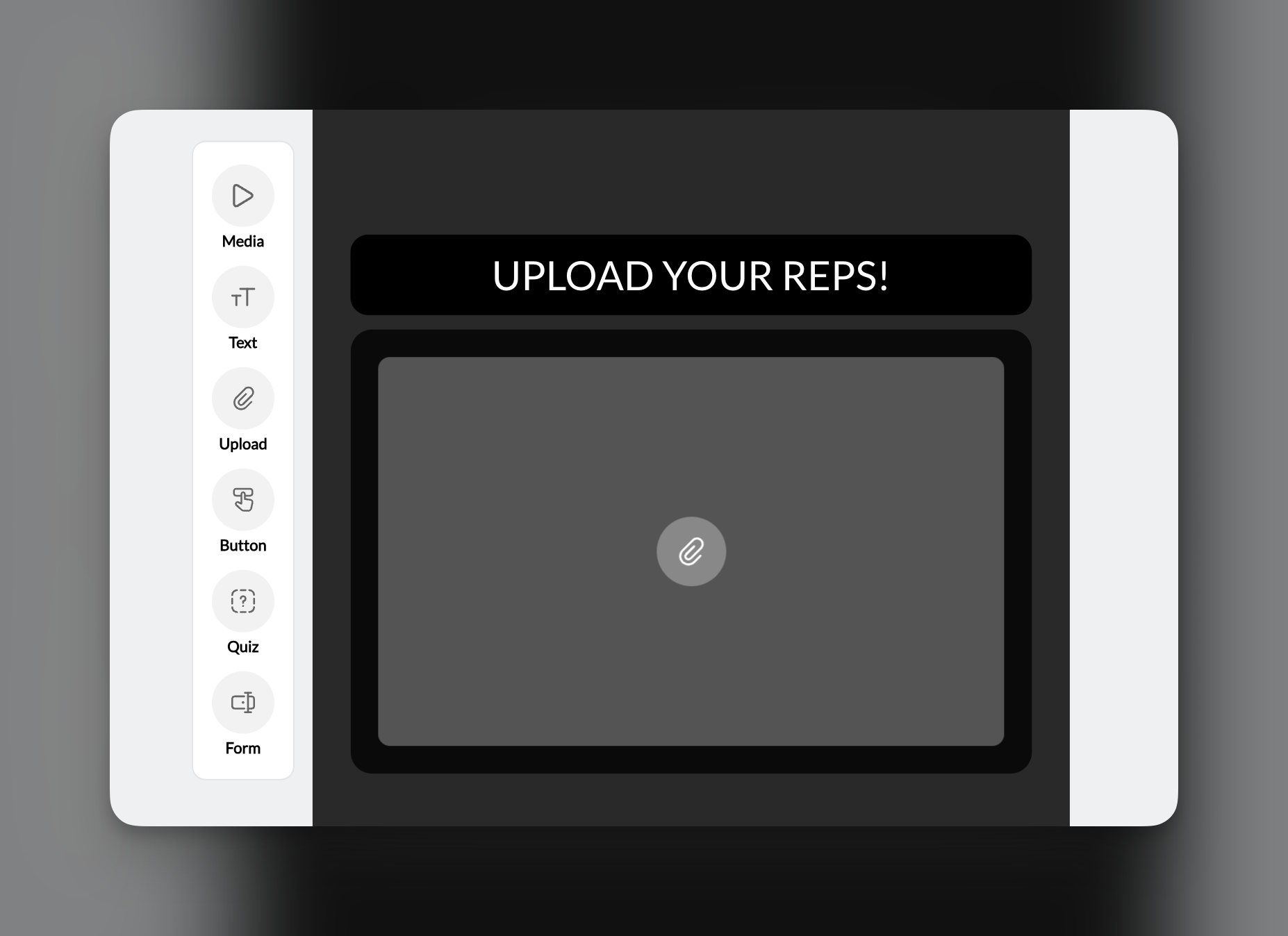
How to add an upload prompt
1
Click the Upload icon
In the toolbar, click the Upload element (📎 icon).
2
Configure the prompt
Athletes will see a prompt to upload their content.
3
Set the theme
Choose Light or Dark appearance.
Upload settings
What athletes can upload
Athletes can upload:- Videos (from their camera roll or recorded in-app)
- Images/photos
- Other file types
Upload use cases
Form check submissions
Form check submissions
Show an example of correct form, then ask athletes to upload a video of themselves performing the movement. Review their submissions and provide feedback.
Drill completion proof
Drill completion proof
Assign a drill and have athletes upload video evidence that they completed it. Great for accountability in remote training.
Progress photos
Progress photos
For fitness coaching, have athletes submit progress photos at regular intervals throughout a program.
Homework assignments
Homework assignments
Ask athletes to film themselves practicing a skill from your lesson, then submit for review.
Upload best practices
- Explain what you want: Add a Text element above the Upload explaining what athletes should submit
- Show an example first: Use a Media element to demonstrate what you’re looking for before asking for uploads
- Check submissions regularly: Athletes expect feedback—review uploads in Program Stats and respond
- Set expectations: Let athletes know how you’ll use their uploads (review, feedback, etc.)
Where element responses are collected
All interactive elements (Quiz, Form, Upload) collect responses at the Program level, not the individual lesson level. To view responses:- Open the Program containing your lesson
- Click the Stats button in the top bar
- View all submissions organized by lesson/checkpoint
This means if you use the same lesson in multiple programs, responses are tracked separately for each program.
Layering multiple elements on one slide
Each slide can have unlimited elements layered on top of each other. Common patterns: Video + Text + Button:- Media element (video) as background
- Text element with key instruction overlay
- Button element at bottom for “Next”
- Media element (image showing a scenario)
- Quiz element asking about what they see
- Text element explaining the reflection prompt
- Form element for athlete response
Frequently asked questions about lesson elements
Can I mark a correct answer for quizzes?
Can I mark a correct answer for quizzes?
No. CoachIQ quizzes don’t have correct/incorrect answers or scoring. They’re for engagement and data collection. You can review responses manually to see what athletes selected.
How do I add a PDF to my lesson?
How do I add a PDF to my lesson?
Use the Button element with the “Add downloadable link” action. Upload your PDF and athletes can download it when they tap the button.
Can athletes skip the Upload element?
Can athletes skip the Upload element?
Currently, athletes can proceed through lessons without uploading. If you require submissions, consider adding a text note explaining that uploads are expected.
How many elements can I add to one slide?
How many elements can I add to one slide?
There’s no limit. However, keep slides focused—too many elements can feel cluttered. If you need lots of content, spread it across multiple slides.
Can I change element order on a slide?
Can I change element order on a slide?
Yes. Drag elements up/down in the left sidebar to change their stacking order. Elements lower in the list appear visually on top.
What file types can athletes upload?
What file types can athletes upload?
Athletes can upload videos, images, and other common file types. There’s no strict restriction, but video and image uploads are most common.
Next steps
Create Your First Lesson
Put these elements to work—build your first interactive lesson.
Build a Program
Package your lessons into programs athletes can access.
Related articles
Uploading & Organizing Media
Get videos and images into Media Hub so you can use them in lesson elements.
Sharing & Selling Programs
Configure pricing and access for programs that contain your lessons.
Content in the Athlete Portal
Control how athletes discover and access your lesson content.
Forms Overview
Build standalone forms for collecting information outside of lessons.