

Where to find sharing options: Open any form in the builder → click Share in the top bar
Get your form link
Every form has a unique shareable link.1
Open your form
Go to Tools → Forms and click on the form you want to share.
2
Click Share
In the top bar, click Share to open the sharing options.
3
Copy the link
Copy the direct link to your form. Anyone with this link can access and submit.
Where to use the direct link
- Text it to interested parents
- Include in email responses to inquiries
- Add to your Instagram bio or linktree
- Share in Facebook groups or community posts
- Include in printed materials (use a QR code generator)
Embed on your CoachIQ website
The cleanest way to add forms to your site is using the Form section block in Website Builder.1
Open Website Builder
Go to Website & App → Website Builder.
2
Add a Form section
Click to add a new section and select Form from the section types.
3
Select your form
Choose which form to display from your existing forms.
4
Save and publish
Save your website changes. The form now appears directly on your page.
Forms embedded on your CoachIQ website inherit your site’s styling and feel native to the experience.
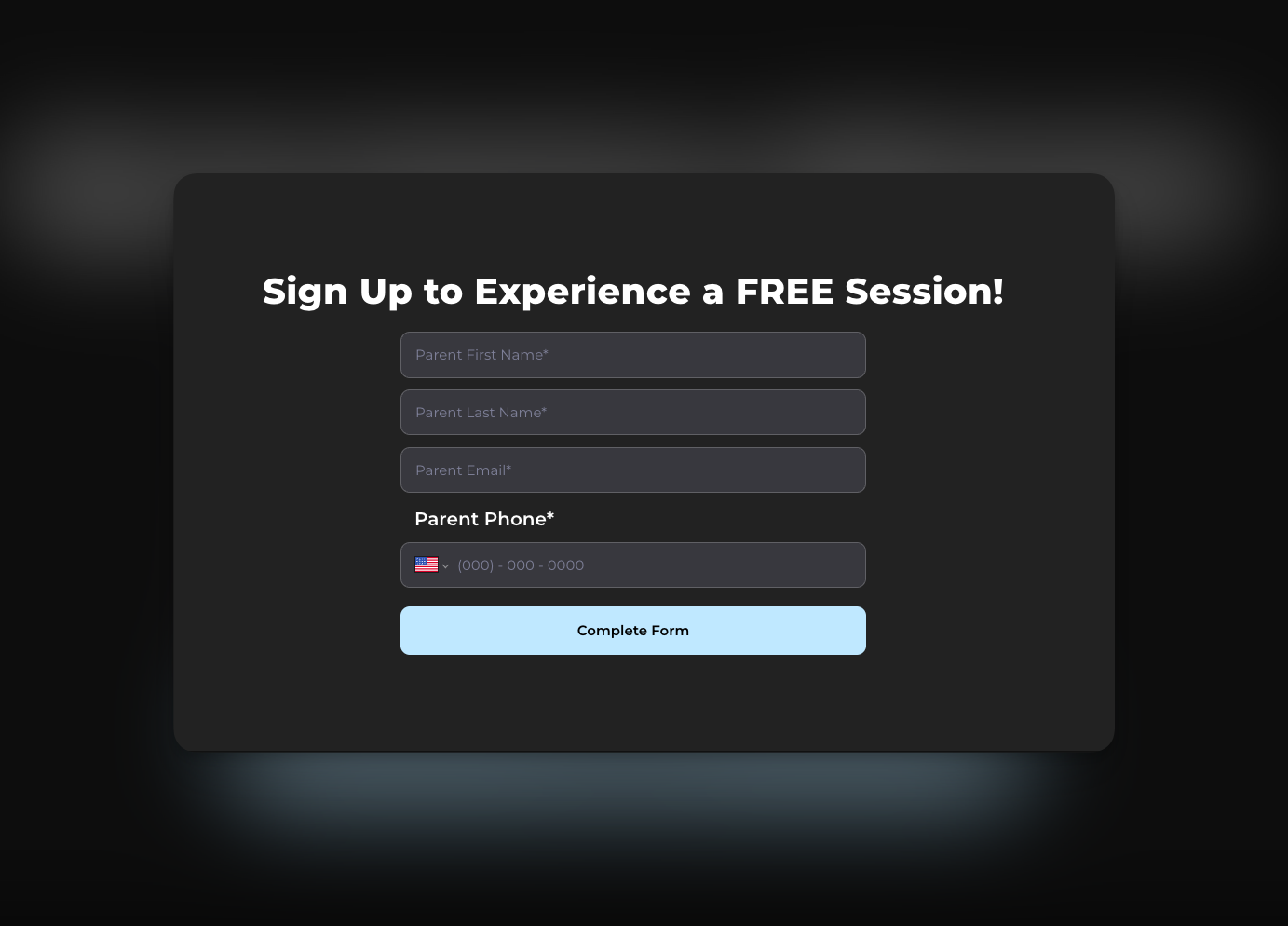
Embed on external websites
If you have a website outside CoachIQ (Wix, Squarespace, WordPress, etc.), you can embed your form there too.1
Get the embed code
In the Share menu, copy the embed code (iframe snippet).
2
Add to your external site
Paste the embed code into an HTML block or custom code section on your website platform.
3
Adjust sizing if needed
You may need to adjust the iframe width/height to fit your page layout.
Send forms via Inbox
You can send a form link directly to athletes or parents through CoachIQ’s Inbox.1
Open Inbox
Go to Inbox in the main navigation.
2
Start a message
Create a new message or reply to an existing conversation.
3
Attach or paste the form link
Include your form link in the message. Athletes can tap to open and complete.
- Sending waivers to new signups
- Following up with leads who inquired
- Requesting feedback after a program ends
Completion actions
Control what happens after someone submits your form. Access this in the Settings menu within your form builder.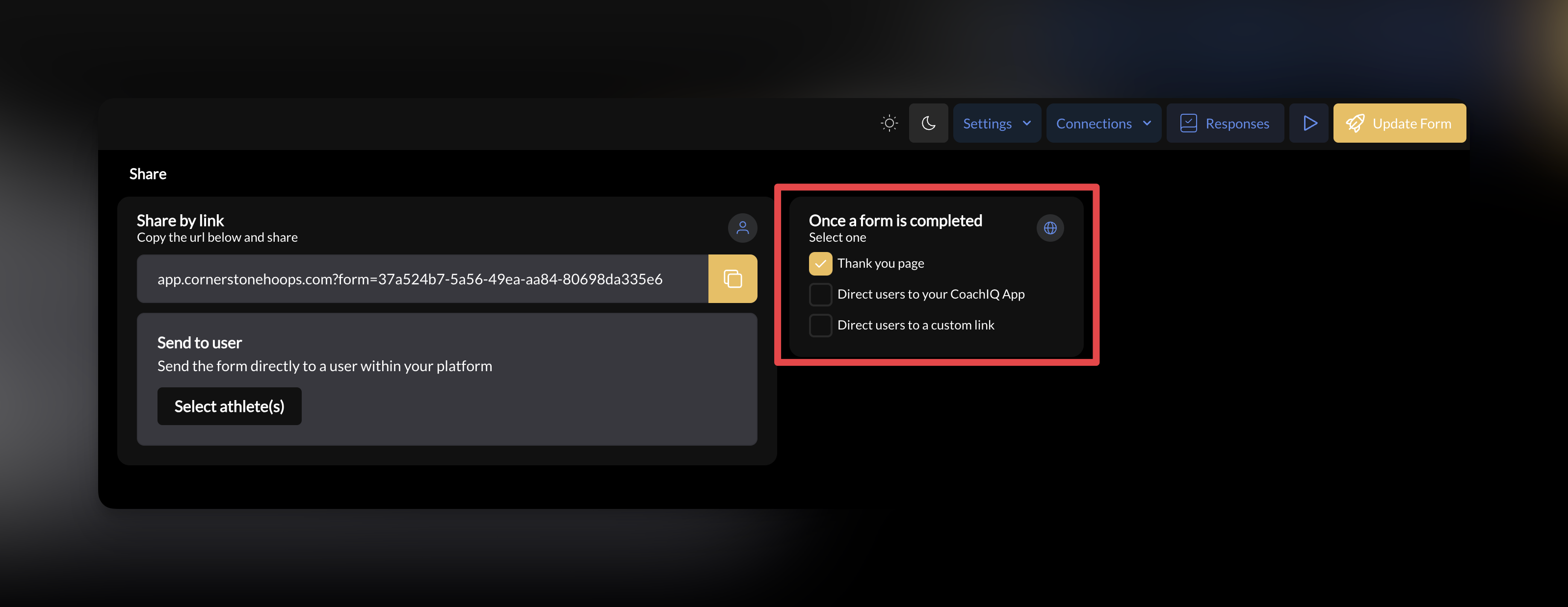
When to use each
Thank you page — Default for most forms. Simple confirmation that submission was received. Redirect to app — Use after onboarding forms. Gets the athlete into your portal where they can explore programs, book sessions, or view content. Custom URL — Use for marketing flows. Redirect to a specific page on your website, a calendar booking link, or a video welcome message.Form availability
Your form is live and accessible as soon as you click Update Form. There’s no separate publish toggle. To stop accepting submissions, you can:- Archive the form (recommended) — see below
- Remove the form section from your website, or
- Stop sharing the link
Archiving a form
Archive a form you no longer use to tuck it out of your active forms list without deleting it.1
Open your forms list
Go to Tools → Forms.
2
Archive the form
Hover over the form’s row and click the archive icon on the right — it’s the third icon, next to the share and edit icons.
3
View or restore archived forms
Use the Show filter at the top of the list to switch from Active to your archived forms. From there you can open a form to review it or un-archive it.
- Moves the form out of your active forms list — it isn’t deleted
- Stops the form from being filled out on any live public page, so old forms can’t keep quietly collecting responses
- Preserves the form and all of its past responses
- Can be reversed — you can still view an archived form and un-archive it at any time
Sharing tips
Use your lead form link everywhere
Use your lead form link everywhere
Instagram bio, Facebook page, email signature, business cards. Make it easy for interested families to reach you.
Send waivers before the first session
Send waivers before the first session
Don’t wait until they show up. Send the waiver link via Inbox as soon as they book or register.
Test your embedded forms
Test your embedded forms
After embedding on your website, submit a test response. Make sure the form loads, connections work, and completion action fires correctly.
Match completion action to the form purpose
Match completion action to the form purpose
Lead form → Thank you page (low commitment). Onboarding form → Redirect to app (get them engaged). Camp registration → Custom URL to details page.
Next steps
Responses & Automations
View submissions, export data, and trigger automated actions when forms are submitted
What Are Forms?
Back to basics — how forms connect to your entire CoachIQ system
Related articles
Inbox Overview
Send form links directly to athletes and parents via messaging
What Are Automations?
Trigger automated follow-ups when forms are submitted
People Overview
See how form submissions connect to athlete profiles
Product Overview
Understand the products you can attach to forms for payment