Video Analysis lets you create professional coaching videos with annotations, voiceover commentary, and visual markup. Record yourself breaking down an athlete’s performance, highlight key moments with drawing tools, and deliver personalized feedback that helps athletes improve faster.
Where to find Video Analysis: Content → Media Hub → Click on any video → Create Video

What you can do with Video Analysis

Record commentary

Add your voice explaining technique, pointing out areas for improvement, or praising good form.

Draw on video

Annotate directly on the video to highlight body position, movement paths, or key moments.

Add face-to-face

Include your webcam as a picture-in-picture overlay for personal connection.

Build multi-slide breakdowns

Create structured analysis with multiple slides covering different aspects.

Getting started with Video Analysis

How to create a video analysis

1

Select a video from Media Hub

Go to Content → Media Hub and find the video you want to analyze. Click on it to open the expanded view.
2

Click Create Video

In the action menu, click Create Video. This launches the Video Analysis tool with your selected video loaded.
3

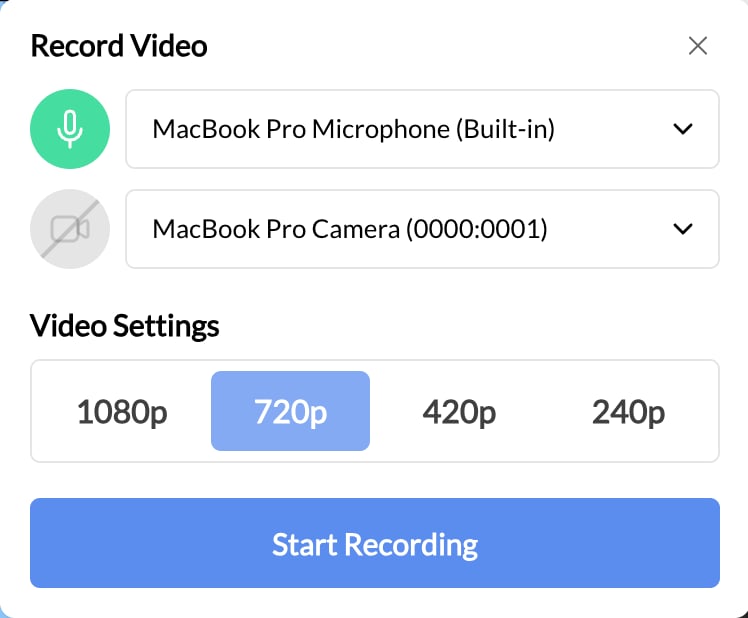
Configure your recording settings

Before recording, set up your camera and microphone:
  • Select your camera source from available devices
  • Select your microphone source from available devices
  • Choose your video resolution (1080p, 720p, 480p, or 240p)
  • Set your camera overlay style (off, circle, or square)
4

Record your analysis

Click the record button to start. As the video plays, speak your commentary and use drawing tools to annotate key moments.
5

Save and export

When finished, save your project. Export the final video to add it to your Media Hub for sharing with athletes.
Test before you record: Preview your camera and microphone before starting to ensure audio and video quality are good.

Recording controls

Basic playback

ControlFunction
Play/PauseStart or stop video playback
Timeline scrubbingClick and drag to jump to specific moments
VolumeAdjust audio levels
QualityChange video resolution based on your connection

Recording options

SettingOptionsBest for
Resolution1080p, 720p, 480p, 240p720p balances quality and file size for web delivery
Camera overlayOff, Circle, SquareCircle or square adds picture-in-picture of your face
Camera sourceYour connected camerasSelect your preferred webcam
MicrophoneYour connected micsSelect your best audio input

Keyboard shortcuts

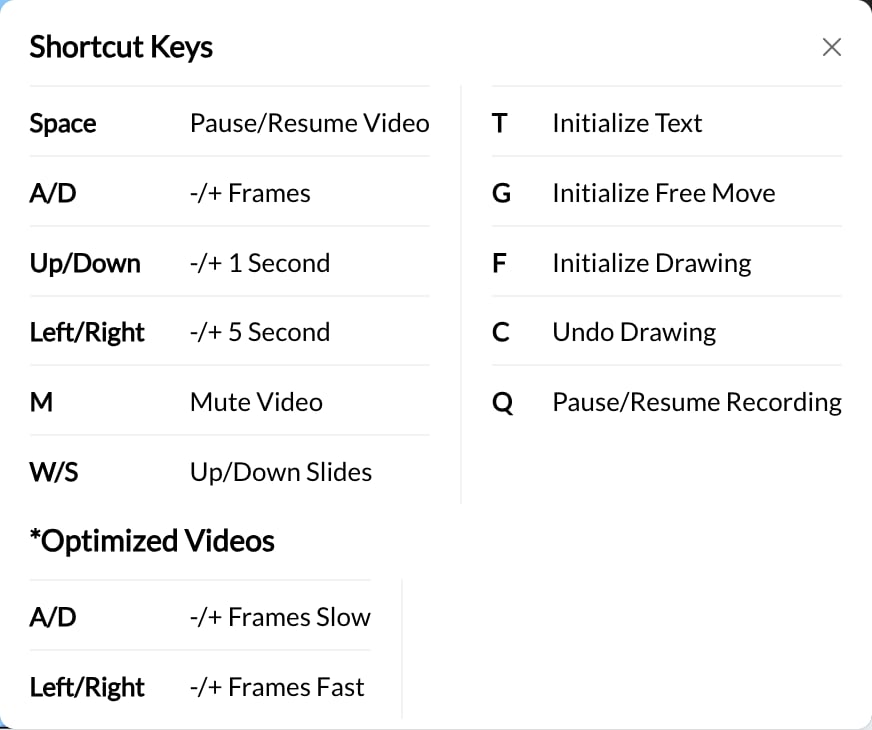
Speed up your workflow with these keyboard shortcuts:
KeyFunction
FAdd annotation/drawing
AToggle slow-motion playback
TAdd text overlay
WPrevious slide
SNext slide
Slow motion (A key) is perfect for breaking down fast movements—use it to analyze technique frame by frame.

Annotation and markup tools

Adding annotations

Annotations help athletes see exactly what you’re talking about. To add an annotation:
  1. Press F or click the annotation tool
  2. Click anywhere on the video to place your annotation point
  3. Type your commentary or note
  4. Press Enter to save

Drawing on video

Use drawing tools to highlight:
  • Body positioning and alignment
  • Movement paths and trajectories
  • Areas that need correction
  • Proper technique demonstrations
Create a consistent system: Use the same colors or symbols for similar feedback types. For example, green for “good” and red for “needs work” helps athletes quickly understand your markup.

Text overlays

Press T to add text overlays for:
  • Play descriptions
  • Technical instructions
  • Key teaching points
  • Section titles

Camera overlay (picture-in-picture)

The camera overlay puts your face on screen while the analysis video plays—perfect for building connection with remote athletes.

Overlay options

StyleAppearanceWhen to use
OffNo camera visibleWhen you want athletes to focus entirely on the video
CircleRound camera frameClean, modern look for coaching commentary
SquareRectangular frameTraditional picture-in-picture style

Face-to-face feedback benefits

  • Personal connection: Athletes see you, not just hear you
  • Non-verbal cues: Your expressions add context to feedback
  • Remote coaching: Replicates in-person review sessions
  • Trust building: More engaging than voiceover alone

Working with slides

Video Analysis supports multi-slide projects, letting you break down different aspects of performance in separate segments.

Managing slides

  • Add slide: Create a new slide for a different video clip or section
  • Remove slide: Delete slides you no longer need
  • Reorder slides: Drag slides to change their sequence
  • Navigate: Use W (previous) and S (next) to move between slides

When to use multiple slides

Slide 1: Athlete’s current technique with annotations showing issues. Slide 2: Example of correct technique for comparison.
Slide 1: Approach and setup analysis. Slide 2: Execution breakdown. Slide 3: Follow-through review.
Create separate slides for each athlete in a group session, then export as one comprehensive video.
Slide 1: Footage from last month. Slide 2: Current footage showing improvement.

Saving and exporting

Save your project

Save your video analysis project at any time to return and continue editing later. Projects are saved in your account and can be reopened.
Save frequently: If you close the browser without saving, you’ll lose your work. Save after completing each major section.

Export your video

When your analysis is complete:
  1. Click Export to render the final video
  2. Wait for processing to complete
  3. The exported video is added to your Media Hub
  4. From Media Hub, you can add it to lessons, programs, or share directly

Export resolution

Choose your export resolution based on how athletes will view it:
ResolutionBest for
1080pHigh-quality desktop viewing, presentations
720pWeb delivery, mobile viewing (recommended)
480pSlower connections, smaller file sizes
240pVery slow connections, quick previews

Use cases for Video Analysis

Athletes submit videos of themselves performing movements. You record analysis with annotations showing corrections, then share back through a program or direct message.
Upload game footage and create detailed breakdowns of plays, positioning, and decision-making. Use multiple slides for different situations.
Record yourself demonstrating proper technique with voiceover explanation. Use slow motion to highlight key movements.
Compare athlete footage from different time periods. Show them how far they’ve come and what to focus on next.
Create comprehensive video breakdowns for team meetings. Use slides to organize different plays or concepts.

Tips for effective video analysis

Keep it focused

Limit each analysis to 2-3 key points. Too much feedback overwhelms athletes.

Be specific

Instead of “fix your form,” say “bend your knees 10 degrees more at this point.”

Balance critique with praise

Point out what’s working well, not just what needs improvement.

Use visual cues

Draw lines, circles, and arrows—visual markup is clearer than verbal description alone.

Quality checklist

Before exporting, verify:
  • Audio is clear and at consistent volume
  • Camera overlay (if used) doesn’t cover important video content
  • Annotations are readable and positioned well
  • Slides are in logical order
  • Key points are clearly communicated

Troubleshooting

Check browser permissions. Your browser needs permission to access your camera and microphone. Look for a camera icon in your browser’s address bar and ensure access is allowed.
Refresh the page and try again. If the issue persists, check your internet connection or try a different browser.
Longer videos and higher resolutions take more time to process. For faster exports, try 720p instead of 1080p.
Verify your camera is connected and selected in the settings. Try toggling the overlay option off and back on.
This can happen with slower computers. Try closing other applications to free up processing power, or export at a lower resolution.

Frequently asked questions

Yes! Use the Upload element in lessons to have athletes submit their videos. Their uploads appear in your Program Stats, and you can download them to analyze in Video Analysis.
Exported videos are saved to your Media Hub. From there, you can add them to lessons, programs, or share directly with athletes.
You can re-open saved projects and make changes. However, once exported, the final video file cannot be edited—you’d need to re-export a new version.
Video Analysis works with common video formats (MP4, MOV, etc.) that are already in your Media Hub. Upload videos to Media Hub first, then open them in Video Analysis.
There’s no strict limit, but very long videos may take longer to process and export. For best results, keep individual analysis videos under 10-15 minutes.
Video Analysis is designed for desktop browsers where you have access to camera, microphone, and drawing tools. For best results, use a computer.

Next steps