

Where to find this: People → Sign-up & Profile
What you’ll accomplish
Shape the account people create when they join you: force the right account type, pick the fields they fill in, make the important ones required, and add your own custom fields (jersey size, emergency contact, school) so every profile has what you need from day one. Everything on this page applies both to public sign-up (someone registers through your website, athlete portal, or a form) and to the form you see when you add a user yourself.The page at a glance
The page has three parts: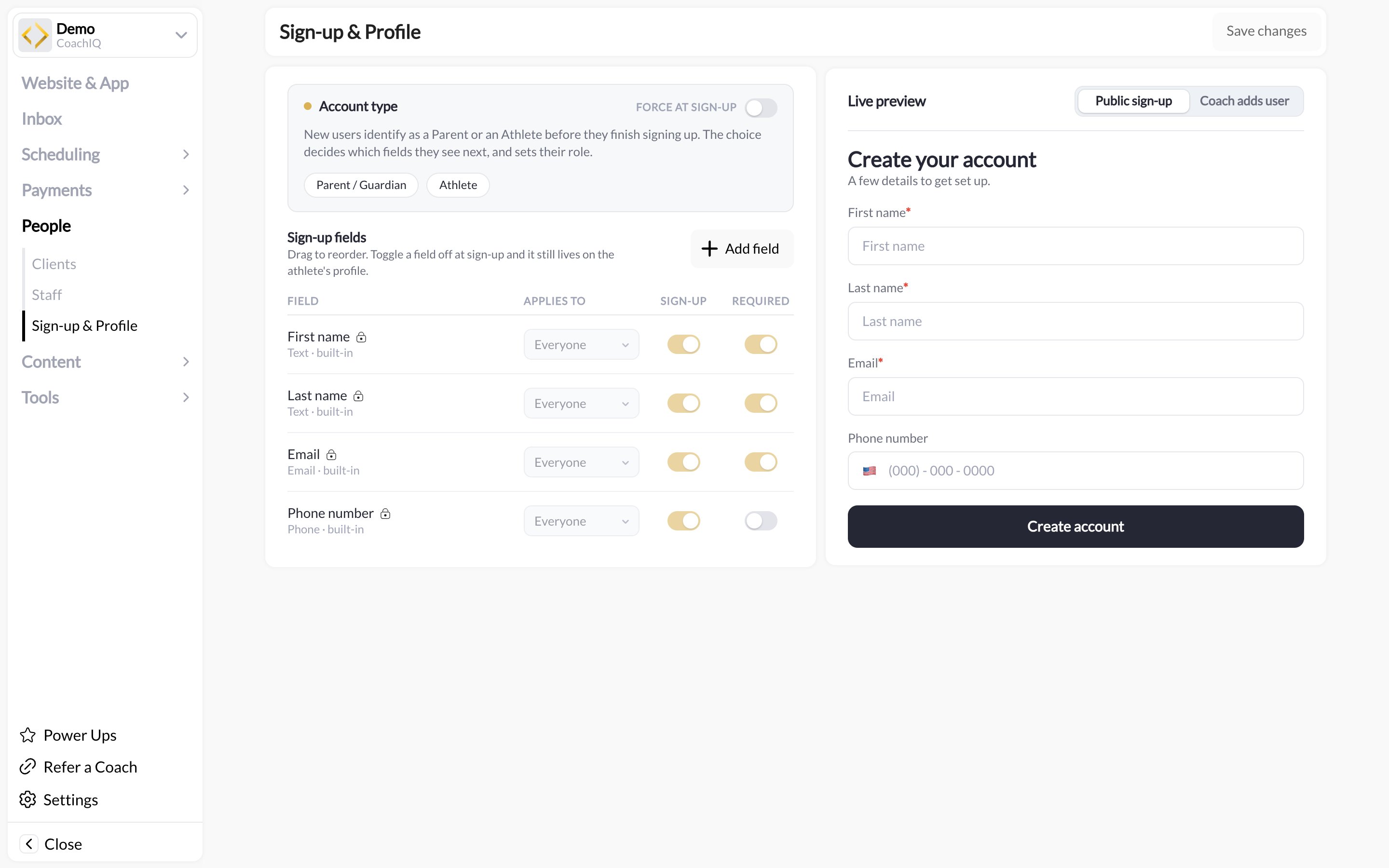
Account type
Use FORCE AT SIGN-UP to decide who is creating the account. As the app puts it: new users identify as a Parent or an Athlete before they finish signing up; the choice decides which fields they see next and sets their role.- Parent/Guardian — the person signing up is the parent. They create their own login, then add their children as connected athletes. Choose this if you coach youth players and want parents to hold the account, the payment method, and the messages.
- Athlete — the person signing up is the player. Choose this for adult clients, college athletes, or any program where the athlete manages their own account.
Sign-up fields
The Sign-up fields table lists every field a new account can carry. Each row has four columns:Built-in fields
First name, Last name, Email, and Phone number are built in (each row shows its type, for example “Text · built-in”). Email is the login credential, so it always stays on the form. Turn phone on and switch its REQUIRED toggle on if you rely on SMS reminders; a profile with no phone number cannot receive texts. The phone number is also where athletes and parents receive a sign-in code if they choose to sign in with a texted code. See How athletes and parents sign in. The phone field on the sign-up form has a country selector that defaults to +1 (United States). People outside the US pick their country from the selector; numbers are saved with the country code, so a US number is stored as +1 and not misread as another country’s code. Dashes and spaces in the number are accepted. Toggling a field off at sign-up does not delete it. It still lives on the profile, where you or the client can fill it in later.Custom fields
Click Add field to create your own. Give it a label, pick who it applies to, then switch SIGN-UP and REQUIRED on as needed. Typical custom fields:- Emergency contact name and number
- Date of birth or graduation year
- Position, handedness, or skill level
- School or club team
- Jersey or T-shirt size for camps
Reorder fields
Drag rows up or down to change the order they appear in on the form. Put the fields people always know (name, email) first and the optional extras last. Nothing applies until you click Save changes at the top of the page.Live preview
The right-hand preview updates as you change fields. Toggle between:- Public sign-up — what a new person sees when they register through your site or portal
- Coach adds user — what you see under People → Clients → New User
How this connects to the rest of CoachIQ
- Forms — a form with Log in / Sign up turned on uses these same account settings when a new person submits it. See Creating Forms.
- Products — guest checkout can create an account at purchase; the account type you force applies. See Product Builder.
- Automations — the New User trigger fires after sign-up, so you can welcome people or tag them by a custom field value. See Triggers and actions.
- Import — bulk imports through Settings → Data → Import People skip the sign-up form entirely. See Data settings.
Common questions
Will changing required fields affect existing clients?
Will changing required fields affect existing clients?
No. Requirements apply at sign-up. Existing profiles keep whatever they have; you can fill gaps from their profile or ask them to update it in the athlete portal.
Can I have different fields for parents and athletes?
Can I have different fields for parents and athletes?
Yes. Set APPLIES TO on each field. A parent-only field (say, “Preferred contact time”) is hidden when an athlete signs up, and vice versa.
A family says sign-up keeps failing. What should I check?
A family says sign-up keeps failing. What should I check?
The form now shows the reason above the button. The usual cause is a phone number or email already linked to another account. They can sign in with the email on that account, or use a different phone number.
Can I delete a custom field?
Can I delete a custom field?
You can turn it off for sign-up so nobody new is asked for it. Removing it from existing profiles clears data you may want, so turn it off first and confirm you no longer need the values.
Where do I see the answers?
Where do I see the answers?
In the User Details panel on the client’s profile, and in the Clients list when you export. Coaches whose Staff Access doesn’t block Clients can see and edit the values too; only Admins can add or delete a field.
Related articles
Adding & Editing Clients
Create users yourself and edit any field afterwards
Client Profiles
Where custom field values live once an account exists
Onboarding New Athletes
The full first-experience flow from sign-up to first session
Creating Forms
Collect more detail after sign-up without bloating the form