

Where to find this: Inbox → New message
Step 1: Choose what you’re sending
Click New message. The window asks for the type once: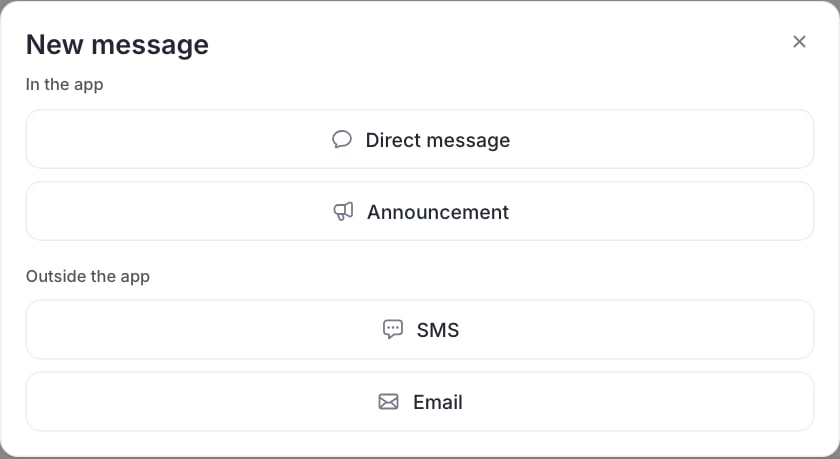
New message: choose In the app or Outside the app.
Step 2: Choose who gets it
Click the field at the top. It reads Add clients or tags (Add roles or clients for an announcement, Add clients, tags or an email for an email). Type to search, or scroll the list. It’s grouped:- Roles and groups: Admin, Coach, Athlete, Parent, Customer and Downloaded App (people who have the mobile app). Announcements also offer Everyone, which is picked to start with.
- Teams: picking a team adds the athletes on its current roster and their parents, as one item with the number of people. Teams show only when your club uses Teams.
- Tags: everyone with that tag. Sub-tags are listed under their parent tag, so you can message one team inside a program without the whole program.
- People: each person with their role beside their name. Add client at the end adds someone new to People.
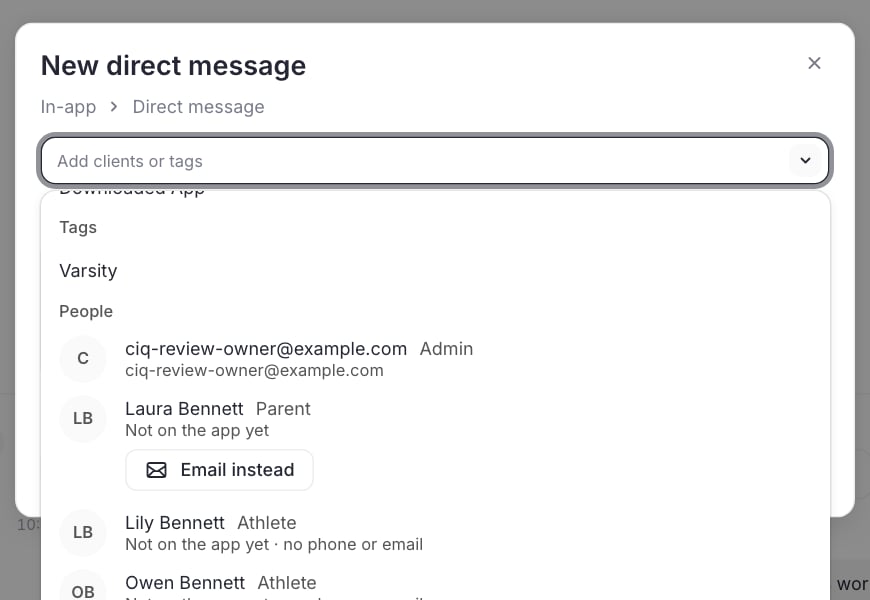
The To field, grouped into roles, tags and people. Clients who aren't on the app yet are marked.
Combining tags
Pick several tags and the message goes to anyone with any of them. Someone with two of the tags still gets it once. To build or check a tag first, see Tags and filters.Clients who aren’t on the app yet
Direct messages reach people who have signed in to your app, on the web or the mobile app. Someone who hasn’t signed in yet shows Not on the app yet in the list, with buttons to reach them another way:- Text instead, when they have a phone number
- Email instead, when they have an email address
Who’s left out
CoachIQ only sends to people who belong to your club:- Announcements and group emails go to accepted members. People whose membership is incomplete, suspended or declined are skipped.
- Direct messages can’t go to someone who isn’t an active member.
- Texts go only to people in your club, and never to someone who has turned texts off or has no mobile number.
- Emails skip people on your Can’t get email list.
- Picking a team adds only people you could already pick by name. A short notice says how many were added and why anyone was left out.
Step 3: Write and attach
Write your message in Message (announcements also have a Heading; emails have a Subject). A small counter under the box shows how much room is left: 15,000 characters for in-app messages and announcements, 1,400 for texts. Click Attach to add a form, media, a product or a scheduler. See Message attachments.Step 4: Review and send
The send button says what will happen: Send message, Send text or Send email. When a message goes to a group, you get a review step first: Review message, Review text, Review email or Review announcement. It shows how many clients get it, a preview, and See list, which names everyone it reaches. Back to edit returns to your message. The main button reads Send to and the number of clients. Messages to a group are sent separately: each person gets their own copy and replies come back as separate conversations. Nobody sees anyone else’s reply.Send limits
Each club has a limit on how many people one message can go to, per channel. The standard limit is 400 people for in-app messages, texts and emails. If your list is over the limit, narrow it or split it into two sends. The User Limit Expansion Power-Up raises it. Limits are separate from your messaging credits.Messages started outside the Inbox
You can also message people from a team, a client’s profile or a calendar session (Message all). These use the same review step, with See list to check who gets it. For a calendar session, choose Athletes, Parents or Both and how to send it.Common questions
Can I message athletes who don't have a tag?
Can I message athletes who don't have a tag?
Not in one pick. In People, filter for the clients you want, then add them by name, or give them a tag first.
Does a parent get messages meant for their child?
Does a parent get messages meant for their child?
Picking a team adds the athletes and their parents. Announcements also reach the joined parents of anyone you pick; see Who gets an announcement. For direct messages, texts and emails, pick the parent too.
What happens if I delete a tag?
What happens if I delete a tag?
The tag is removed from everyone who had it. Messages already sent to it don’t change.
Do group messages show everyone's replies?
Do group messages show everyone's replies?
No. Each person replies in their own conversation with your team.