

Where to find this: Inbox → open a conversation. The icons at the top and the reply box at the bottom hold everything on this page.

The icons above a conversation: Assign, Snooze, Archive and More, then Activity and Assistant.
Assign a conversation
Assigning tells your team who is handling a conversation.- Open the conversation and click Assign (the person icon, or press A). It reads Unassigned until someone takes it.
- Pick You or a staff member from the list.
Snooze until later
Snooze hides a conversation until you’re ready to deal with it.- Click Snooze (the clock, or press S).
- Pick Later today, This evening, Tomorrow, This weekend, Next week, or Pick a date and time.
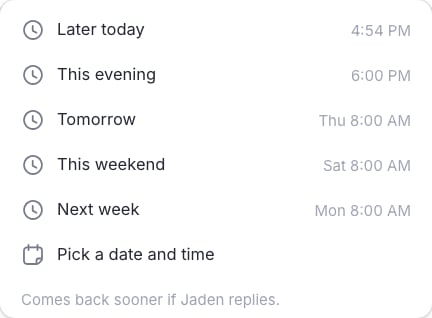
Snooze choices. Times use your own time zone.
Archive and reopen
Click Archive (or press E) when a conversation is done. Archiving a client conversation archives it for everyone on your staff: it leaves Open and moves to every staff member’s Archive. A message appears naming who archived it, with Undo. An archived conversation shows “Archived by” and the person’s name at the top, with Reopen. Reopening puts it back in Open for everyone. A new message from the client also brings it back to Open; an automated reminder doesn’t. If a teammate already archived or reopened the conversation a moment before you, CoachIQ tells you, and the list updates to show where the conversation is now.A direct conversation between two staff members stays personal: archiving it only archives it for you.
Mark as unread
Right-click a conversation (or press and hold on a phone) and choose Mark as unread to flag it for yourself. Read and unread are personal: marking a conversation unread doesn’t change it for your teammates. Opening the Inbox doesn’t mark conversations as read; a conversation is marked read when you open it.Work on several conversations at once
- Right-click any conversation and choose Select, or point at a row’s picture and tick the box that appears.
- Tick the other conversations you want.
- Archive, assign, snooze or mark them read together. Undo reverses the last action.
Leave a note for your team
Notes are for your staff only. The client never sees them.- In the reply box, switch from Reply to Note. The box turns a soft colour and reads Team only.
- Write the note and click Save note.
Log a phone call
Log calls you make or take on your own phone so the whole team knows what was said.- In the reply box, switch to Log call.
- Choose How did it go?: Talked, No answer, Left voicemail or Wrong number.
- Choose Who called?: you called them, or they called you.
- Check When, add the Length (min) if you like, and write What happened.
- Click Save call.
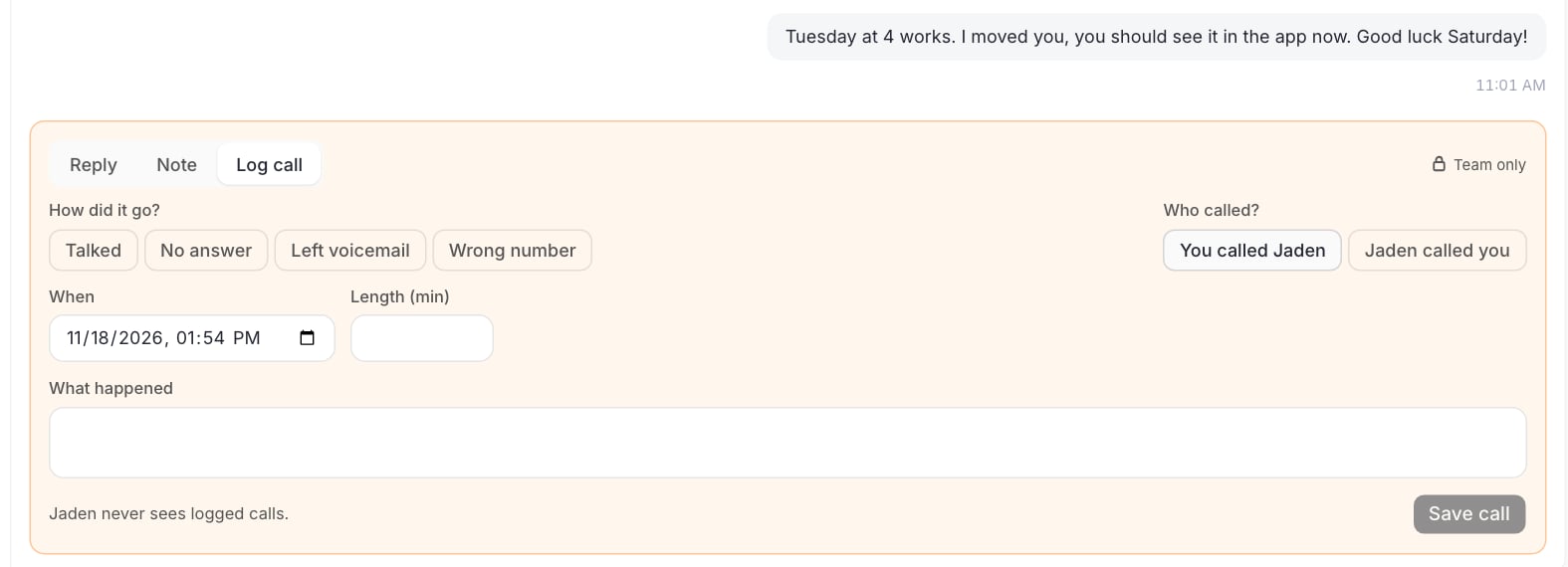
Log call: the outcome, who called, when, how long and what happened. Team only.
Who can add notes and log calls
Admins can always add and delete notes and calls. Coaches can while the Coaches can add notes and log calls switch is on. Admins find it at the top of a client’s Notes tab on their profile; it’s on by default. When it’s off, coaches who can see clients still read notes and logged calls but can’t add or remove them.Drafts
A reply you type in a conversation saves as a draft as you go (you’ll see Saved). It stays with that conversation, so you can leave and come back, even after reloading the page. Only you see your drafts; a teammate opening the same conversation sees an empty reply box. All your unsent replies are listed under Drafts.Send later
Schedule a reply to go out at a set time, for example first thing tomorrow instead of late at night.- Write your reply.
- Open the menu attached to Send and choose Send later.
- Pick the date and time. Times are in your own time zone.