

Where to find this: Inbox → open a conversation with a client → Activity (top right, or press I)
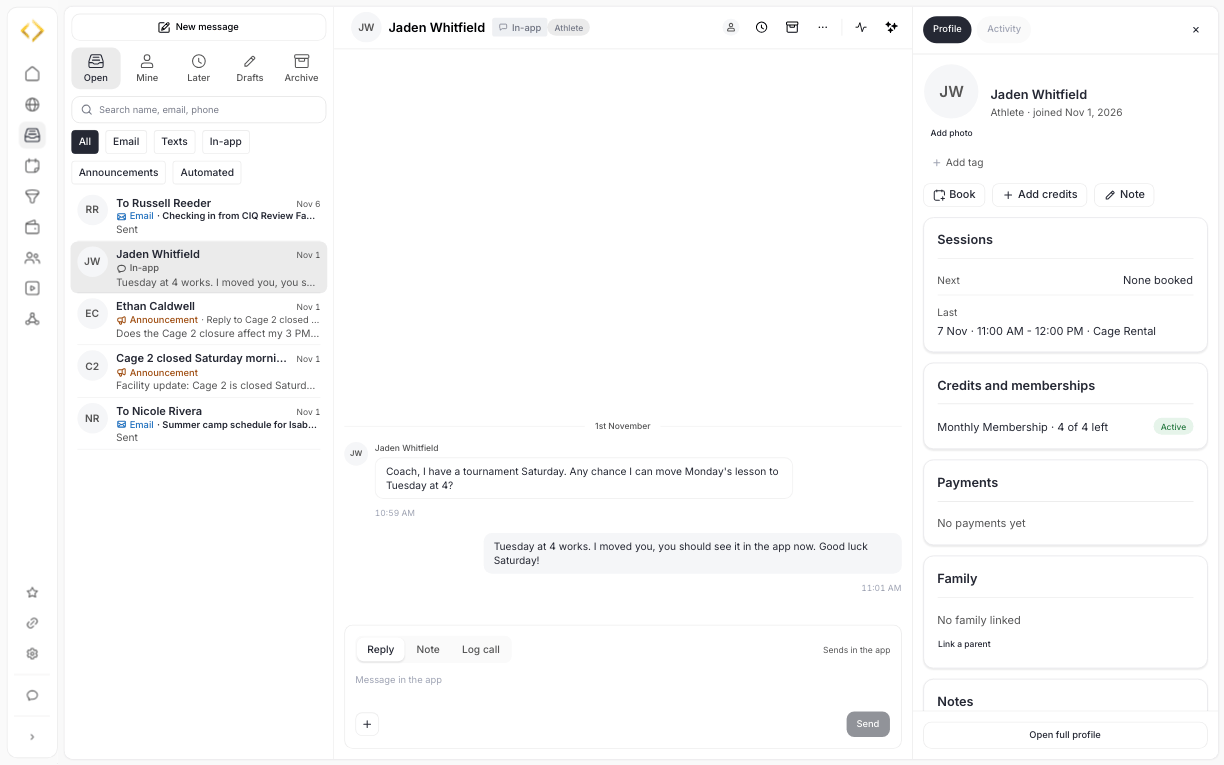
The side panel opens on Profile: the person, quick actions, then sessions, credits and memberships, payments, family, notes, waivers and details.
Profile
The panel opens on Profile, one scrolling page about the person:- Top: photo, name, role and when they joined, their tags (with Add tag), and three quick actions: Book, Add credits and Note.
- Anything that needs attention comes first. For example, if a waiver isn’t signed, a warning shows with a Resend waiver button.
- Sessions: the Next booked session (or None booked) and the Last one.
- Credits and memberships: each active credit pack with how many are left, for example “8 of 10 left”, and each membership with its status.
- Payments: recent payments. A balance shows only when the client has account credit or an amount due. For a child whose parent pays, it’s the parent’s balance.
- Family: linked parents, children and siblings, with a button to switch to each one. Link a parent when there’s none.
- Notes: your team’s notes. Staff only.
- Waivers: each waiver and when it was signed.
- Details: email and phone.
Resend a waiver
When a client hasn’t signed a waiver, click Resend waiver on the warning. CoachIQ sends them a new request to sign by email and app notification. For an athlete whose account a parent manages, it goes to the parent who pays. After sending, the warning shows when it was sent, and the button waits an hour before you can send it again. The warning stays until the waiver is signed. Admins, and coaches who can open People → Clients, can resend waivers. The same button is on each unsigned waiver in the client’s profile under Waivers.Activity
Switch to Activity to see the client’s history, newest first, grouped by day. Filter it with All, Calls, Notes, Bookings, Payments and Forms.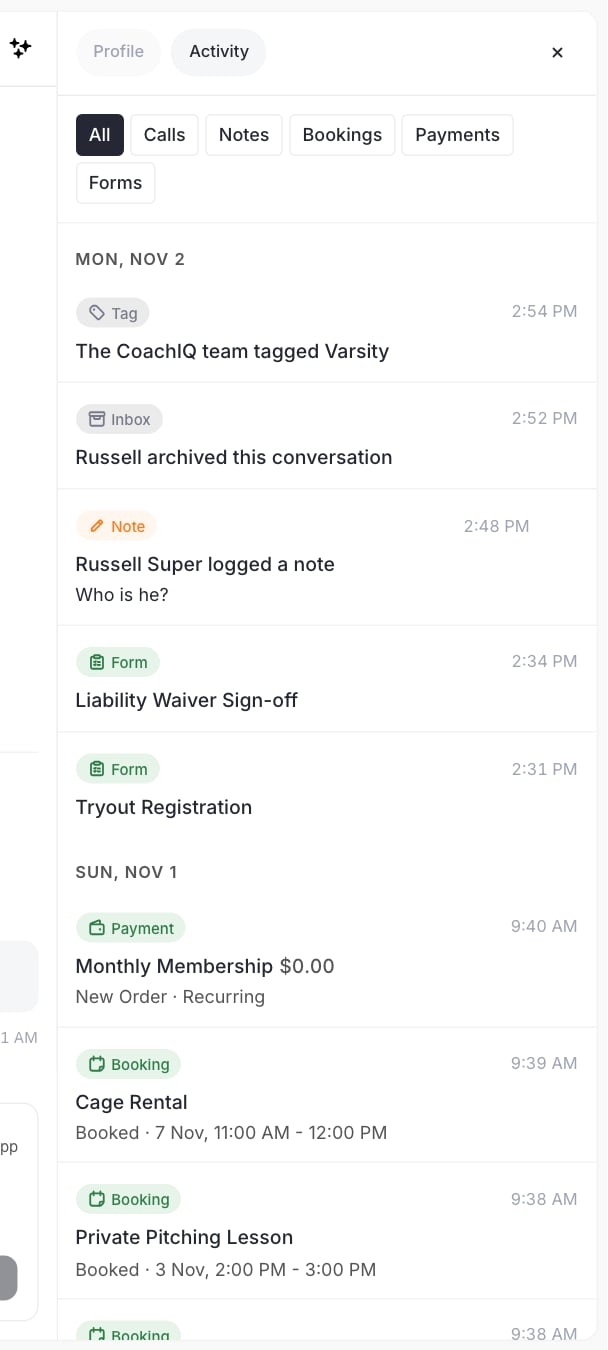
Activity: tags, archive, notes, forms, payments and bookings in one timeline.
- Notes and logged calls from your team. See Leave a note and Log a phone call.
- Bookings, payments and forms, such as a booking with its time or a signed waiver.
- What happened to the conversation: who took it (“Daniela took this conversation”, naming who had it before), who handed it to whom, and who archived it.
- Tags added to the client, for example “Daniela tagged Billing”.
- Emails your team sent the client from the Inbox, with the subject (last six months).
- Messages your automations sent: texts, in-app messages and tag or role announcements. Automation messages sent before the November 2026 update don’t show.
Draft a reply with the Assistant
The Assistant can write a first draft of your reply from what CoachIQ knows about the client.- Open a conversation with a client and click Assistant (the sparkle icon, or press K).
- The Assistant panel drafts a reply using the client’s remaining credits, your next open times and a booking link, and lists what it based the draft on.
- Read the draft. Click Insert to put it in the reply box.
- Edit it if you like, then send it yourself.