

Where to find this: People › Staff. Default access (top right) sets the fallback for every coach. Access on a coach’s card sets that one coach. Only admins can change staff access, and admins always see everything.
- Which pages can they open? You block the pages they don’t need.
- Which clients can they see? All clients, or only clients with the access tags you pick.
Default access for every coach
Default access is what every coach gets unless you’ve given them their own settings. New coaches start on it, including anyone you add from Staff and anyone whose role you change to Coach.1
Open Default access
On People › Staff, click Default access. The window is Default coach access: “These settings are the fallback for coaches without custom access.”
2
Tick the pages to block
Under Blocked pages, tick each page coaches shouldn’t open. Pages are grouped the way your sidebar is: Website & App, Inbox, Schedule, Payments, People, Teams, Content, Tools and Sales. The line at the bottom counts what’s blocked, or reads No pages blocked.
3
Save
Click Save. Coaches on the default get the change the next time they load a page.
Access for one coach
1
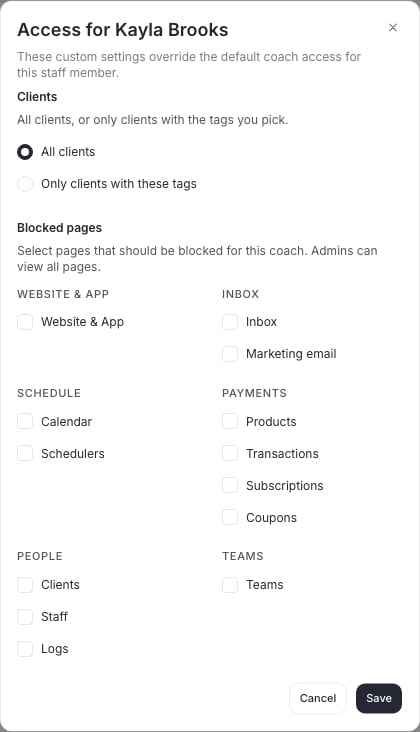
Open the coach's access
On People › Staff, click Access on the coach’s card (or … › Manage access). The window is Access for and the coach’s name: “These custom settings override the default coach access for this staff member.”
2
Choose their clients
Under Clients, pick All clients, or Only clients with these tags and choose one or more access tags. See Limit a coach to certain clients.
3
Choose their blocked pages
Tick the pages to block for this coach. These settings replace the default for this coach only.
4
Save
Click Save. The coach’s card now shows their access and which clients they see.
Limit a coach to certain clients
Use this when a coach should only see their own athletes, for example a pitching coach who works with the Pitching group.1
Make an access tag
On People › Clients, click Create tag, name it and set Kind of tag to Staff access tag. To use a tag you already have, open the tag’s menu on the left and choose Staff access settings. Access tags can’t sit inside another tag.
2
Tag the clients
Give the tag to every client that coach should see. For a family, tag the athlete.
3
Limit the coach
On People › Staff, click Access on the coach’s card, choose Only clients with these tags, pick the tag and click Save. A live count shows how many clients they’ll see.
- The Clients page reads Showing your clients and lists only clients with their access tags. Opening anyone else shows You don’t have access to this client.
- Content, Programs, Video Analysis, Products and Sheets stay open, but only show their own clients’ names. For example, Programs lists every program with only their own athletes enrolled, and Products shows only purchases where everyone on the purchase is their client.
- The Calendar and Schedulers stay open unless you block them, and form answers show on their own clients’ bookings. The Calendar shows only their clients’ bookings, active or canceled; times with no visible client booked show as open, with the real number of spots left. Bookings of other clients are refused, even from a direct link. A team calendar stays closed to them.
- A client’s profile shows a Staff access section with their access tags and the coaches who can see them.
Share a sheet with a limited coach
Admins can share a single sheet with chosen coaches as Can view or Can edit. When you share with a limited coach, the Share window shows how many of the sheet’s rows that coach will see and which tags give them access, for example “Coach · sees 21 rows (Pitching)”. See Sheets.What a blocked page also hides
Blocking a page closes more than its sidebar item. A blocked coach can’t open the page from a saved link or a builder link either; they land on the first page they can use.
A client’s Credits section always stays visible. Payment methods shows when either Transactions or Subscriptions is allowed. The history of every email, text and push message your business has sent is for admins only, whatever a coach’s access.
The Assistant follows the same blocks: a question about a blocked area gets a note to ask an admin, while other questions are still answered. ChatGPT or Claude connected to a coach’s account follow their blocks too.
Session notices without the Inbox
When a coach cancels a session time, moves it, or changes its length or location, the Calendar sends its own notice to the people booked and the assigned coaches, as an in-app message, announcement or text. This works for a coach whose Inbox is blocked. A coach without Inbox access can send up to 25 of these notices a day.Common questions
A coach says a page disappeared. What happened?
A coach says a page disappeared. What happened?
Check their card on People › Staff. If it shows their own access, open Access and look at the blocked pages and the Clients setting. If not, check Default access. A coach limited to tagged clients always loses the pages listed above.
Can I limit an admin?
Can I limit an admin?
No. Admins see every page and every client. To limit someone, make them a Coach.
Do team roles like Head coach give extra access?
Do team roles like Head coach give extra access?
No. A team responsibility doesn’t change what a coach can open. Staff access decides that.
Related articles
Add and manage staff
Add coaches, send invitations and change roles
Find and organize clients
Create tags and staff access tags