

Teams gives a season roster one place to work. Keep athletes, staff, registration connections, practices, games, and team automations together while continuing to use CoachIQ’s existing profiles, schedulers, and messaging.
Open People → Teams. Teams must be enabled for your organization, and staff permissions still apply. If you do not see it, contact your organization Admin or CoachIQ Support about access.

Why we built Teams

A team involves more than a list of names. Families register an athlete, staff need a current roster, and that roster needs the right practices, games, and communication. Managing those pieces separately makes it easy for a roster change to be missed elsewhere. Teams connects those tasks around the athletes participating in a season. Athlete memberships identify who plays; their existing guardian relationships identify family contacts. Team staff responsibilities identify who is helping run the team.

Create your first team

  1. Open People → Teams and select Create team.
  2. Enter the team name, such as 12U Blue.
  3. Choose a short code and color for its badge. Two to four characters works well for the code.
  4. Enter a season label and the season start and end dates.
  5. Create the team, then open its workspace.
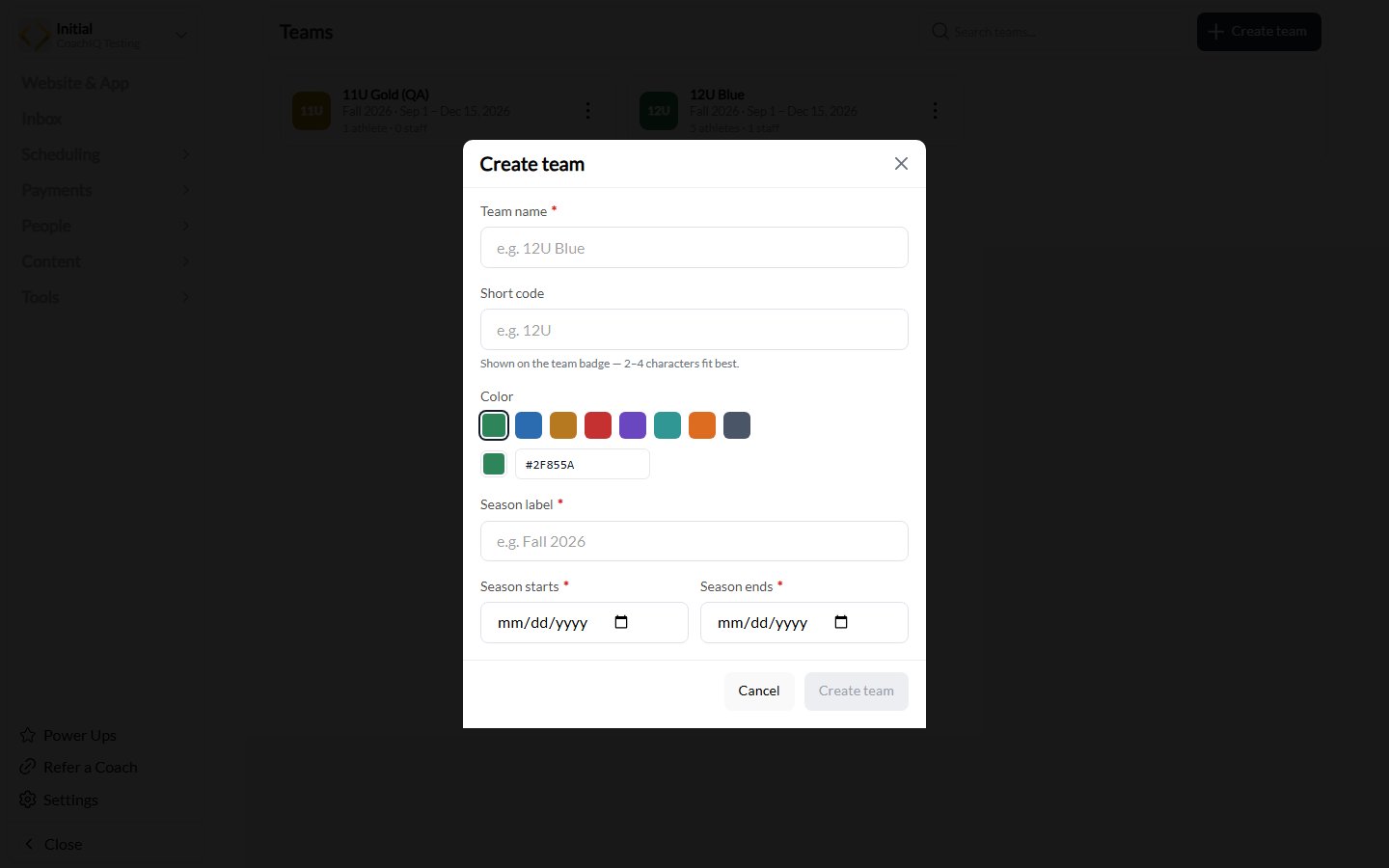
Create team dialog with team name, short code, color, season label, and dates

Create a team with a name, badge, and season. This screenshot uses a testing organization.

Use Edit team when the name or season details need attention. Check the season before connecting schedules or sharing registration links.

Your team workspace

A practical setup order

Build your roster and staff

Add athletes, import from a tag, and assign team responsibilities.

Set up practices and games

Connect schedulers and verify the roster’s bookings.

Connect registration and communication

Share the right registration links and reach athletes and guardians.
Create the team and confirm the season, add staff and the initial roster, then connect its schedulers and check the booking results. Connect registration when you are ready for families to join through the appropriate product or form.

Find and archive teams

Use search and the All, Active, and Archived filters in the team list. Archive a team when you want to move it out of the active list; use the archived view to find and restore it later. Before closing a season, review future sessions, registration connections, and active automations separately. Do not use archive as a substitute for canceling sessions or managing a subscription.

Teams, tags, and staff access

Tags help organize clients. A Teams roster connects athlete membership to team workflows. Importing from a tag is an explicit roster action; the tag itself is not the roster. Team responsibilities such as Head coach or Manager do not grant organization permissions. Manage staff access through People → Staff. A staff member’s existing restrictions can affect access to the team or its roster.