

Where to find this: Client Profile → Waivers (in the PROFILE group of tabs)
What it shows
The tab opens with a count such as 0/2 accepted, then lists every active waiver in your account. A waiver the client has already agreed to shows its acceptance; one they have not shows an Accept button.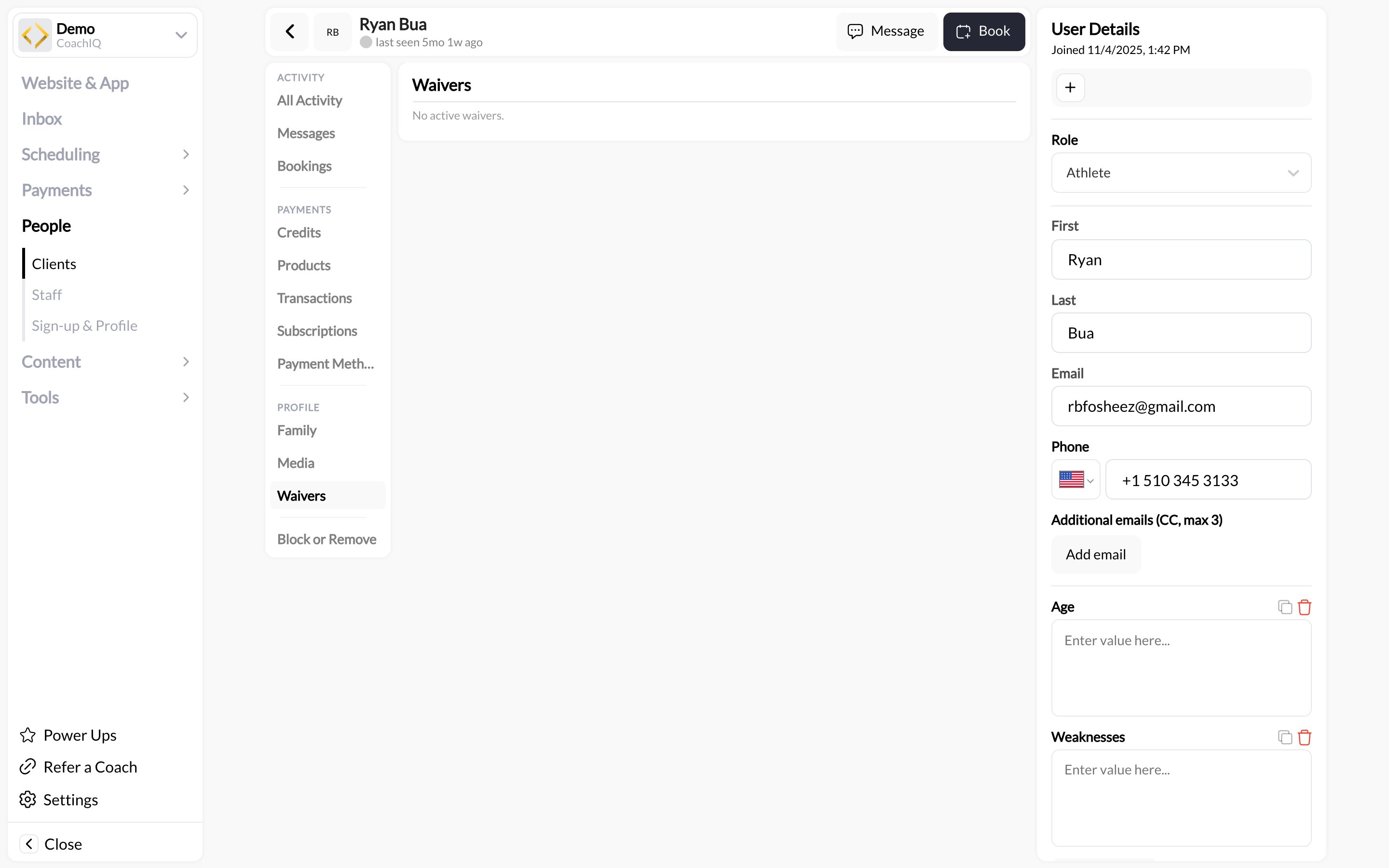
Labels were checked against the live app on 2026-09-02. The compliance report across all clients lives in Tools → Waivers; see Waivers.
What to do here
- Before a first session, open the athlete’s Waivers tab and confirm the count reads all accepted.
- If a waiver is outstanding, click Message in the profile header and send the link to a product or form that carries the waiver. They accept it as part of checkout or submission, and the tab updates.
- If they signed in person, on paper or verbally at the front desk, click Accept next to the waiver to record it on their profile. Keep the paper copy; the digital record shows the date you recorded it.
- For a family, check each connected child. Waivers are accepted per profile, so a parent’s acceptance does not cover a child unless the product or form was completed for that child.
Common questions
Can I mark a waiver accepted manually?
Can I mark a waiver accepted manually?
Yes. Click Accept next to the waiver on this tab. Use it when you collected the signature outside CoachIQ and want the profile to reflect it. Acceptances recorded at checkout or on a form carry the client’s own action, which is stronger if a dispute ever arises.
A client bought a product but the waiver still shows as not accepted
A client bought a product but the waiver still shows as not accepted
The product does not have that waiver attached. Open the product’s Advanced settings and check Require Agreement to Terms. See Require a waiver at checkout.
Where do I see everyone who is missing a waiver?
Where do I see everyone who is missing a waiver?
Tools → Waivers, click the acceptance count on the waiver, then filter by Missing. Export CSV from there.
Related articles
Waivers
Create waivers, attach them to products and forms, track compliance
Client Profiles
Every section of the profile explained