

Where to find this: Client Profile → Transactions tab
What it shows
Complete financial history with this client: Summary metrics (top of tab):- Total - Number of transactions
- Revenue - Total dollar amount collected
- Failed - Number of failed payment attempts
- 7 Days
- 30 Days
- 90 Days
- All Time (default)
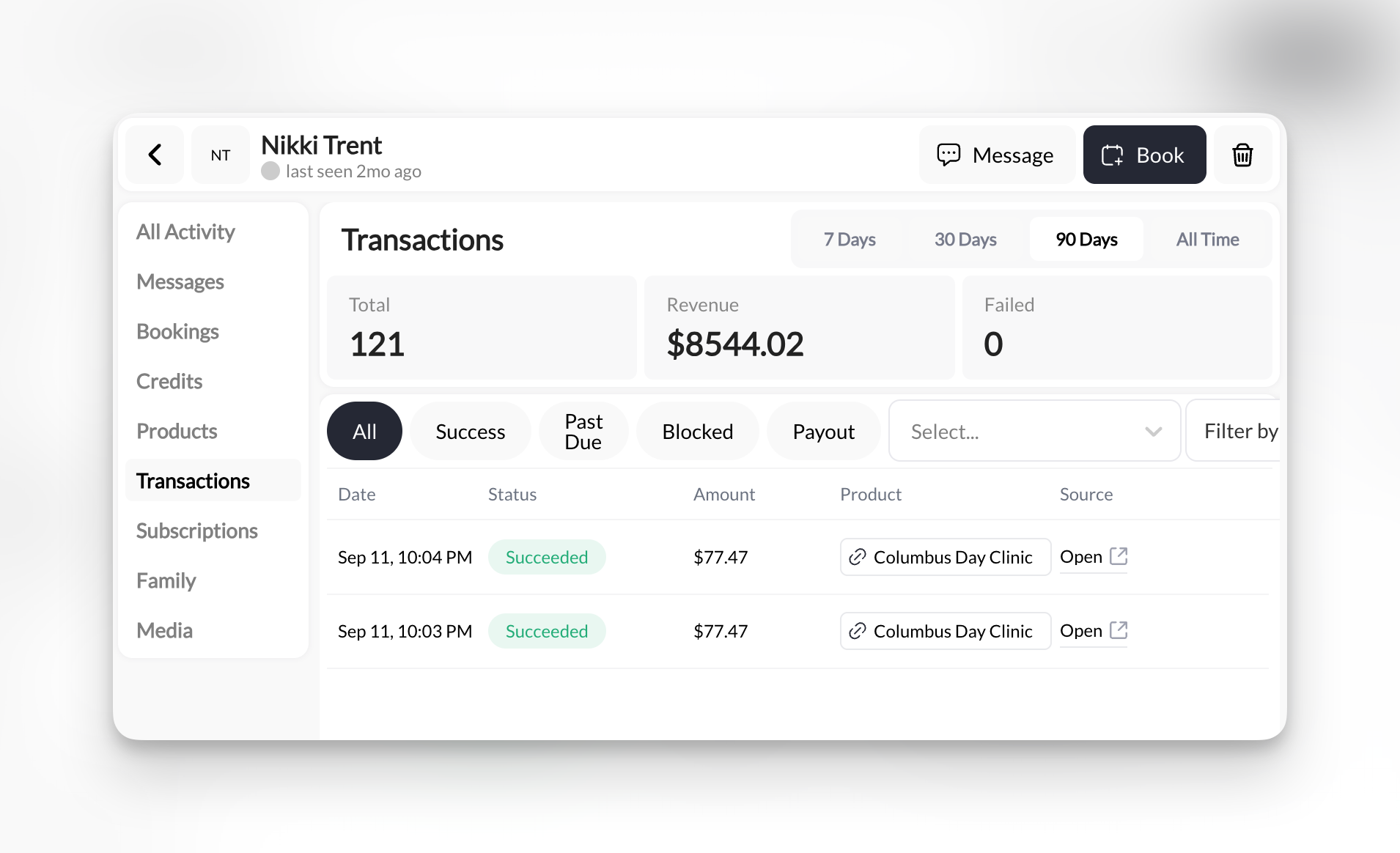
Transaction status filters
Filter by payment status to narrow results:
Plus a “Select…” dropdown for additional status types if needed.
Reading transaction entries
Each transaction row shows:Empty transactions list? This client has never made a payment. They might have free access, manually granted products, or haven’t purchased yet.
Common uses
Did their payment go through this month?
Did their payment go through this month?
- Click 30 Days filter
- Look for Success status transactions
- Check amount matches their subscription price
Why did their payment fail?
Why did their payment fail?
- Click Past Due status filter
- Find the failed transaction date
- Check Source column (usually says subscription product name)
Did I already refund them?
Did I already refund them?
- Use All filter (show everything)
- Look for negative amounts (refunds show as
-$10.00) - Check date to confirm timing
Track monthly recurring revenue from this client
Track monthly recurring revenue from this client
- Click 30 Days
- Count successful subscription charges
- Add up amounts
What you CAN’T do here
Transactions tab is view-only. To take action:Understanding “Source” column
Common sources you’ll see:- Admin - You manually charged them or added product
- Cash · Paid, Check · Paid, Other · Paid - A product you added and marked paid outside Stripe, with the amount you confirmed. Recording cash, check and other payments
- Subscription product name - Auto-charged from recurring billing
- Product name - One-time purchase they made through checkout
- “Unknown” - Old transaction before source tracking existed