

Where to find this: Payments → Transactions or Subscriptions → Filter by Past Due
Why payments fail
Common reasons for payment failures: Card issues:- Expired card
- Insufficient funds
- Card declined by issuer
- Incorrect card details
- Card reported lost or stolen
- Fraud prevention triggered
- Daily spending limit exceeded
- International transaction blocked
- Bank requires authentication
- Network timeout
- Processing error
- Stripe API issue
Most failures are card-related and resolve when client updates payment method.
How failed payments appear
- Subscription payments
- One-time payments
Subscriptions page shows Past Due statusWhen subscription payment fails: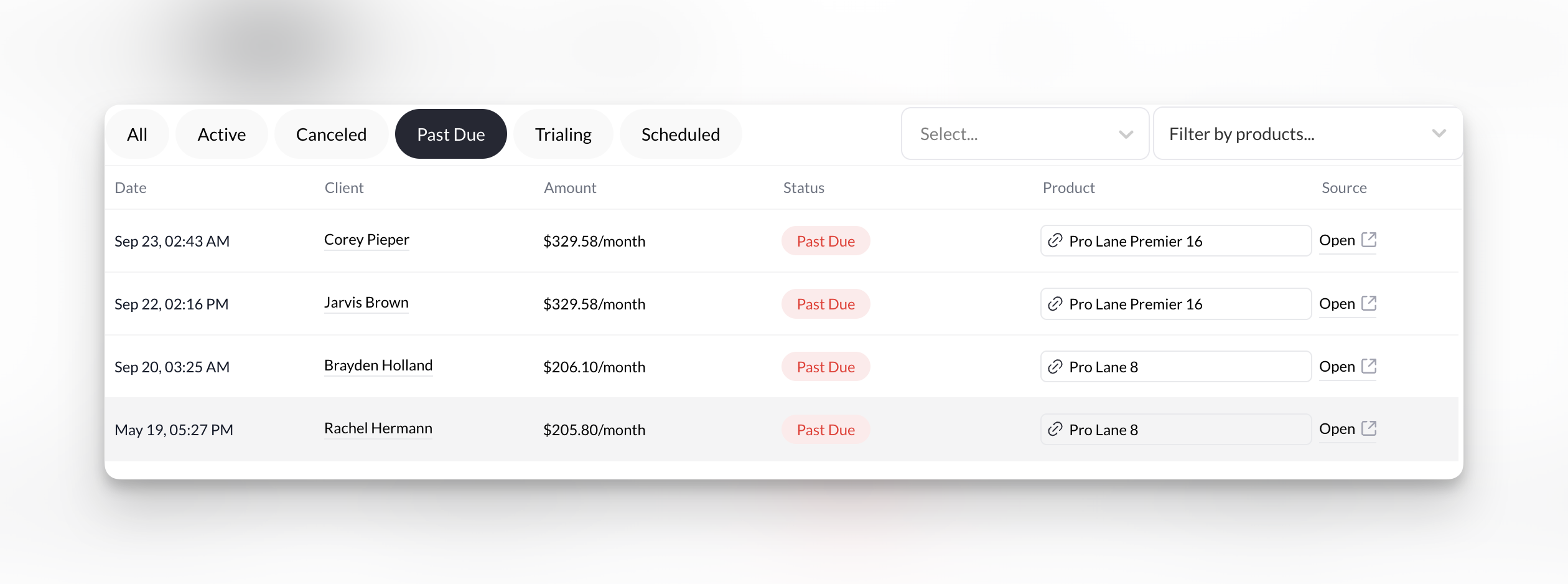
- Status changes to “Past Due” (red)
- Last attempted payment shows as failed
- Next retry date displayed
- Client may retain access during retry period
Stripe’s automatic retry schedule
Subscription payments only - Stripe retries automatically:- 3 days after initial failure
- 5 days after first retry
- 7 days after second retry
- 10 days after third retry
Recovering failed subscription payments
1
Identify Past Due subscriptions
Go to Payments → Subscriptions and filter by Past Due status.
2
Review failure reason
Click subscription to view details in stripe.Check Payment History for failure reason:
- Card declined
- Insufficient funds
- Expired card
- Requires authentication
3
Contact client immediately
Send message through Inbox or email:Message template: “Hi [Name], your recent payment for [subscription] was declined. To avoid service interruption, please update your payment method here: [payment update link]”
4
Send payment page update link
From subscription details: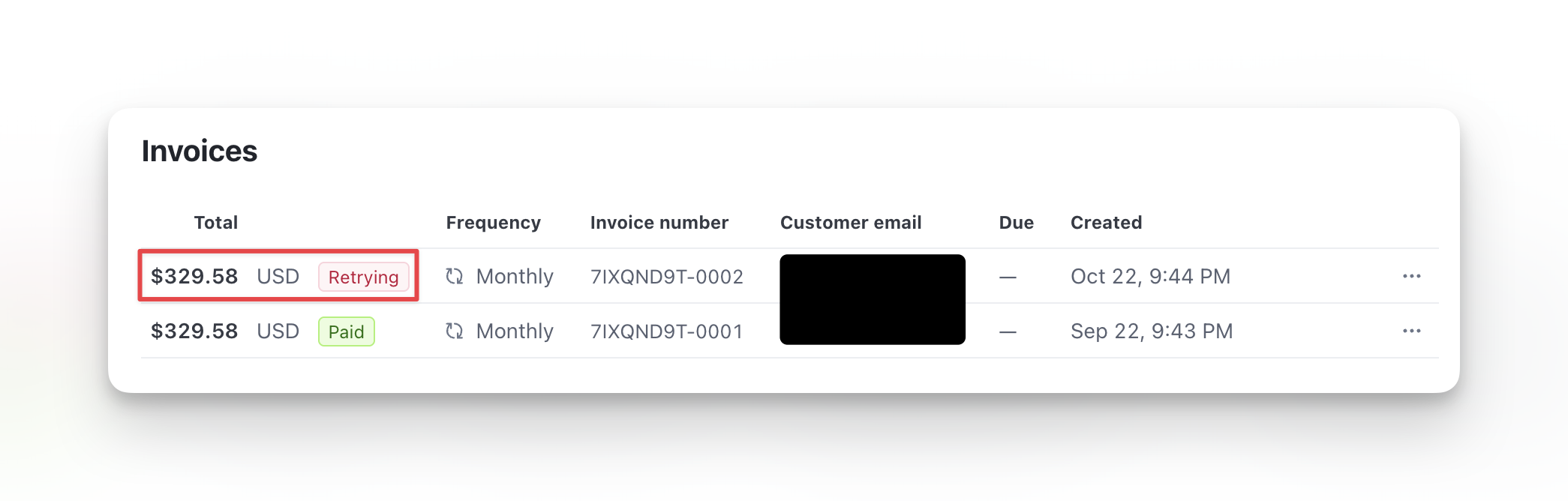
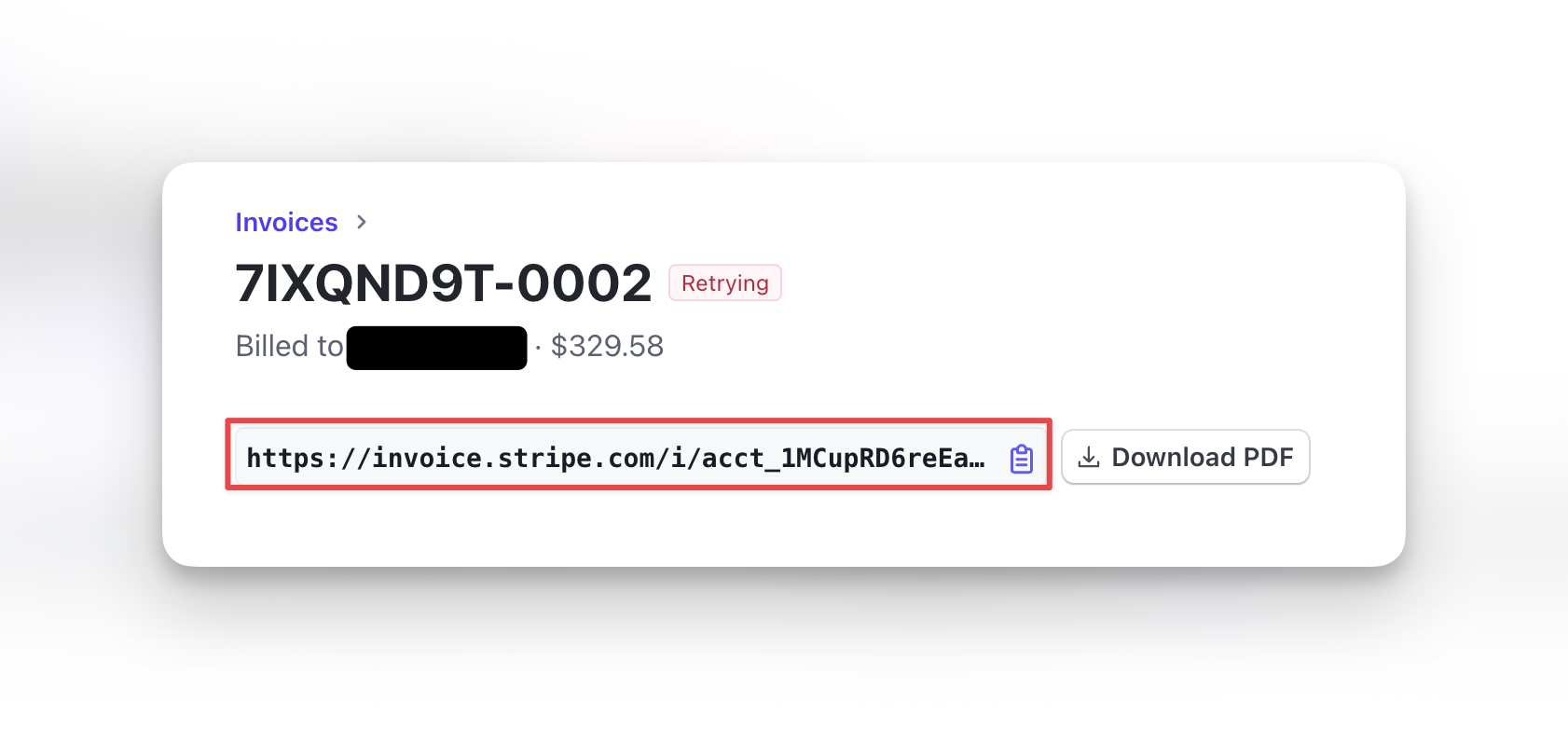
- Click **Open **on the subscription under the Source column
- Scroll to the Invoice section
- Click the Invoice labeled Retrying
- Copy the Payment Page link
- Send link to client
5
Client updates card
Client clicks link, enters new payment details and checks out.
6
Monitor retry success
Check subscription status:
- Active = Retry succeeded, subscription recovered
- Past Due = Still failing, follow up again
- Canceled = All retries failed, subscription lost
Payment recovered. Subscription returns to Active status. Credits renew. Service continues.
Recovering failed one-time payments
One-time payments don’t retry automatically. You must manually recover them.1
Find failed transaction
Go to Payments → Transactions and filter by Failed status.
2
Contact client
Message template: “Hi [Name], your payment for [product] didn’t process successfully. You can complete your purchase here: [new payment link]”
3
Provide new payment link
Option 1: Resend product link
- If client has product URL, they can try purchasing again
- Client re-enters payment details
- Client pays via alternative method (Venmo, check, etc.)
- You manually record transaction
- Manually grant access/credits
4
Verify payment success
After client attempts payment again, check Transactions page for successful charge.If successful: Grant access, issue credits, confirm with client.
What clients see when payment fails
Subscription failure:- May receive email from Stripe about failed payment
- May receive notification from you
- Usually retain access during retry period
- Risk losing access if not resolved
- Transaction doesn’t complete
- No confirmation email
- No access to product/credits
- Must attempt payment again
Client experience varies based on your notification settings. Configure Stripe email notifications in Stripe Dashboard.
Communication best practices
When payment fails: ✅ Do:- Contact immediately (within 24 hours)
- Be helpful and non-judgmental
- Provide clear next steps
- Include payment update link
- Offer assistance if needed
- Wait for automatic retries
- Shame or blame client
- Threaten immediate cancellation
- Use aggressive language
- Send multiple messages in one day
Preventing payment failures
Proactive strategies:Monitor card expirations
Monitor card expirations
Check upcoming expirations in Stripe Dashboard.Action: Contact clients 30 days before card expires with payment update link.Result: Prevent failures before they happen.
Send payment reminders
Send payment reminders
For subscriptions: Remind clients 3-5 days before billing date.Message: “Your [subscription] renews on [date] for $[amount]. Your card ending in [last 4] will be charged. Need to update payment info? [link]”Result: Gives clients heads-up and chance to update card if needed.
Require backup payment method
Require backup payment method
Advanced: Some coaches require two cards on file.If primary fails, Stripe automatically tries backup card.Setup: Configure in Stripe Dashboard (requires technical setup).
When payment recovery fails
If client doesn’t respond or can’t/won’t update payment: Subscriptions:- Stripe exhausts retries (25 days)
- Subscription automatically cancels
- Client loses access and credits
- Must resubscribe to resume service
- Transaction remains failed
- No product or credits issued
- Client must attempt purchase again
- Can write off as lost sale
Document failed recovery attempts for your records. Some coaches have policies about re-allowing clients who frequently fail payments.
Troubleshooting specific failure reasons
Card declined - Generic
Card declined - Generic
Reason: Bank declined without specific reasonSolution:
- Ask client to contact their bank
- Bank can provide specific reason
- Client may need to authorize charge
- Try different card
Insufficient funds
Insufficient funds
Reason: Not enough money in accountSolution:
- Wait for client to add funds
- Offer payment plan if appropriate
- Next retry may succeed when funds available
Expired card
Expired card
Reason: Card past expiration dateSolution:
- Send payment update link
- Client enters new card with current expiration
- Usually quick resolution
Card reported lost or stolen
Card reported lost or stolen
Reason: Card flagged by issuerSolution:
- Client must use completely different card
- Old card won’t work even after “update”
- Client needs to contact bank for replacement
Next steps
- Issue refunds - Process refunds for recovered payments if needed
- Manage subscriptions - Handle subscription modifications
- View transactions - Monitor all payment activity