

Where to find this: People → Clients → open the client → Products. Use Payments → Subscriptions to review billing status across clients.
Canceling subscriptions
Two ways to cancel a subscription:- Cancel at period end
- Cancel immediately
Recommended approachClient keeps access through current billing period. Subscription ends on next billing date.What happens:
- Client retains access until period ends
- Credit access follows the purchase and its configured expiration rules
- No refund issued
- No future charges
- Subscription status changes to “Canceled” on end date
How to cancel a subscription
1
Open the client's purchase
Open People → Clients, select the client, and choose Products. Find the membership you intend to end.
2
Choose Cancel membership
Use Cancel membership on that purchase. Staff can use this control even when the product does not allow members to cancel themselves.
3
Choose when it ends
Select At end of billing period to keep access through the paid period, or Immediately to end billing and access now. Neither option automatically refunds a payment.
4
Confirm and check the result
Choose Cancel membership to proceed, or Keep membership to leave it unchanged. Reopen the purchase and check its status and end date. Use the client’s Subscriptions tab or Payments → Subscriptions to verify the billing record.
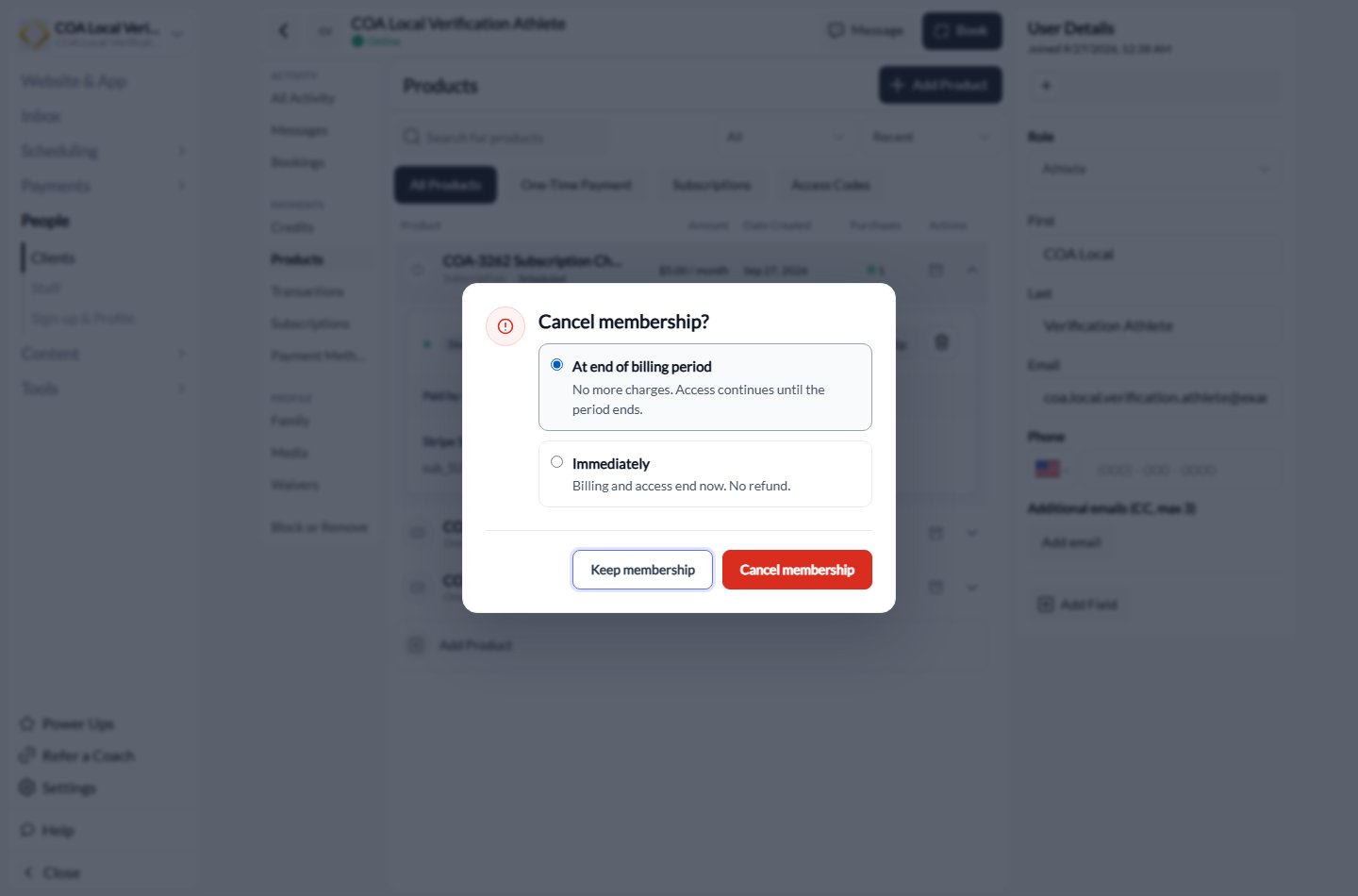
Test-account example showing the two cancellation timings.
If the subscription pays for more than one athlete, canceling it would affect the other memberships. Follow Shared family memberships to remove one athlete instead.
A subscription is not on a purchase
If a client reports charges for a membership missing from Products, check Client profile → Payment Methods → Active Subscriptions.- Find the subscription marked Not on a purchase and verify its name and amount.
- Choose Cancel subscription on that record.
- Select At end of billing period or Immediately, then confirm.
- Check the end date or Canceled status in Payments → Subscriptions. The missing purchase does not need to be recreated to stop billing.
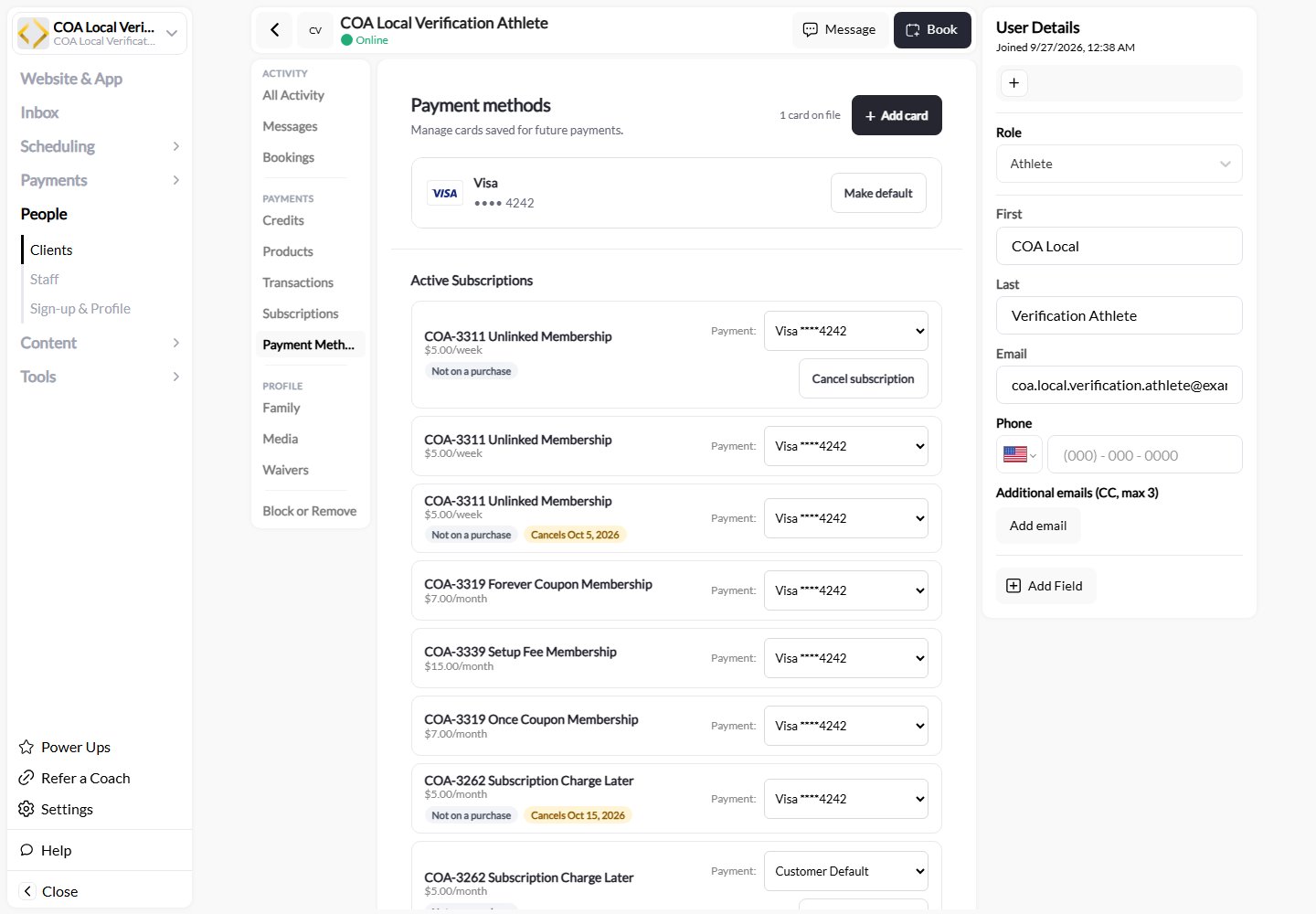
Test records illustrate subscriptions that need billing management even though they are not linked to a purchase.
Canceling versus removing a purchase
Cancel membership controls future billing and when membership access ends. Remove or Archive changes the purchase on the client’s profile. A membership that is still billing cannot be removed first. Cancel and verify the outcome before removing or archiving. To preserve access through the paid period, leave the purchase in place until its end date. Removing a purchase is not a payment refund. One-time purchases do not require a subscription-cancellation step.What happens after cancellation
Access:- Cancel at period end: Access until period expires
- Cancel immediately: Access ends now
- No future charges
- Past payments remain (no automatic refund)
- Client must purchase subscription product again
- Creates new subscription (not reactivation of old one)
- New subscription ID and billing schedule
A membership scheduled to end stays Active or Trialing, with Cancels [date], until it ends. It remains in that filter and count; it appears under Canceled after ending. Open its details for Cancels on (the end date) and Cancel requested (when cancellation was requested).
Refunding subscription payments
Canceling doesn’t refund anything, and refunding doesn’t cancel. To give money back for a membership payment, refund it from the client’s Transactions. See Refund a payment.See a membership’s billing details
On the client’s Subscriptions tab, select Manage on a membership to see who pays, the card it charges, the amount, the next payment, and the latest invoice. A membership that one parent pays for on behalf of two children opens from the parent’s page or either child’s page. Because a change would affect both children, the panel doesn’t offer cancel there and explains why. Make that change in Stripe, or see Shared family memberships.Payment methods on recurring memberships
At checkout for a recurring membership, athletes see every payment method that is active for your organization: card, Apple Pay and Google Pay, and US Bank Account (ACH). Bank account is the lower-fee option for higher-priced memberships, and you can set a separate processing fee for ACH. Where methods are enabled: Payment methods at checkout.Subscriptions bought through the athlete checkout between late April and early September 2026 were created card-only, even where ACH was enabled, so an athlete on one of those memberships could not switch it to a bank account. New memberships bought since then offer every active method. If an athlete on an older membership wants to pay by bank, contact support with the subscription.
Updating client payment methods
A client needs to update their card for future charges, or you want to see what they have on file. Client updates from your app Instruct client:- Sign in to your app
- Click profile picture in top right hand corner
- Navigate to Billing
- Add or update card
Handling failed subscription payments
When a membership payment fails, its status changes to Past due and Stripe retries the charge on the schedule set in your Stripe account. While it’s past due, the membership’s credits are paused, so the athlete can’t book with them until a payment goes through. See Failed payments.Common subscription management scenarios
Client wants to downgrade from unlimited to limited sessions
Client wants to downgrade from unlimited to limited sessions
Current approach:
- Cancel current subscription (at period end)
- Client purchases new subscription product after period ends
- New subscription starts with different pricing/credits
Client paid but wants immediate refund and cancellation
Client paid but wants immediate refund and cancellation
Steps:
- Issue full refund for current period
- Open the membership in Client profile → Products
- Choose Cancel membership → Immediately, confirm, and check the result
Client wants to pause subscription for 2 months (injury, travel)
Client wants to pause subscription for 2 months (injury, travel)
CoachIQ doesn’t support pause directly.Options:
- Cancel now, client resubscribes when ready (loses pricing if changed)
- Pause payment collection on the subscription in the Stripe Dashboard
- Let subscription continue, client just doesn’t book sessions
When you pause payment collection in Stripe, CoachIQ shows it. Payments → Subscriptions shows Payments paused under the status, with the resume date if you set one, and paused memberships are counted separately from Active and left out of MRR. The member sees “Payments paused” and when payments resume in Billing and Orders. They keep their access, bookings and credits while paused. CoachIQ has no pause button of its own yet. Paused memberships
Client's card expires next month
Client's card expires next month
Proactive approach:
- Check upcoming card expirations (visible in Stripe)
- Send payment update link before expiration
- Avoid failed payment entirely
Client disputes subscription charge with bank
Client disputes subscription charge with bank
Bank chargeback process:If client disputes with bank (not you), Stripe notifies you of chargeback.Your response:
- Check Stripe Dashboard for chargeback details
- Provide evidence (subscription terms, usage logs, confirmation emails)
- Stripe submits evidence to bank
- Bank makes final decision (can take 60-90 days)
Resubscribing canceled clients
When client wants to restart canceled subscription: Process:- Client purchases subscription product again (like a new client)
- New subscription created with new ID
- New billing schedule starts
- Old subscription remains canceled in history
- Reactivate old canceled subscription
- Restore previous subscription ID
- Resume old billing schedule
Each subscription is independent. Cancellation is permanent. Resubscribing creates entirely new subscription.
Next steps
- Handle failed payments - Recover Past Due subscriptions
- Issue refunds - Process subscription refunds
- The Subscriptions page - Monitor all subscriptions