

Where to find this: Payments → Subscriptions
What the Subscriptions page shows
The Subscriptions dashboard displays all recurring billing for your coaching business:- Active memberships and their status
- Canceled subscriptions
- Failed payment retries
- Monthly recurring revenue (MRR)
- Subscription history and details
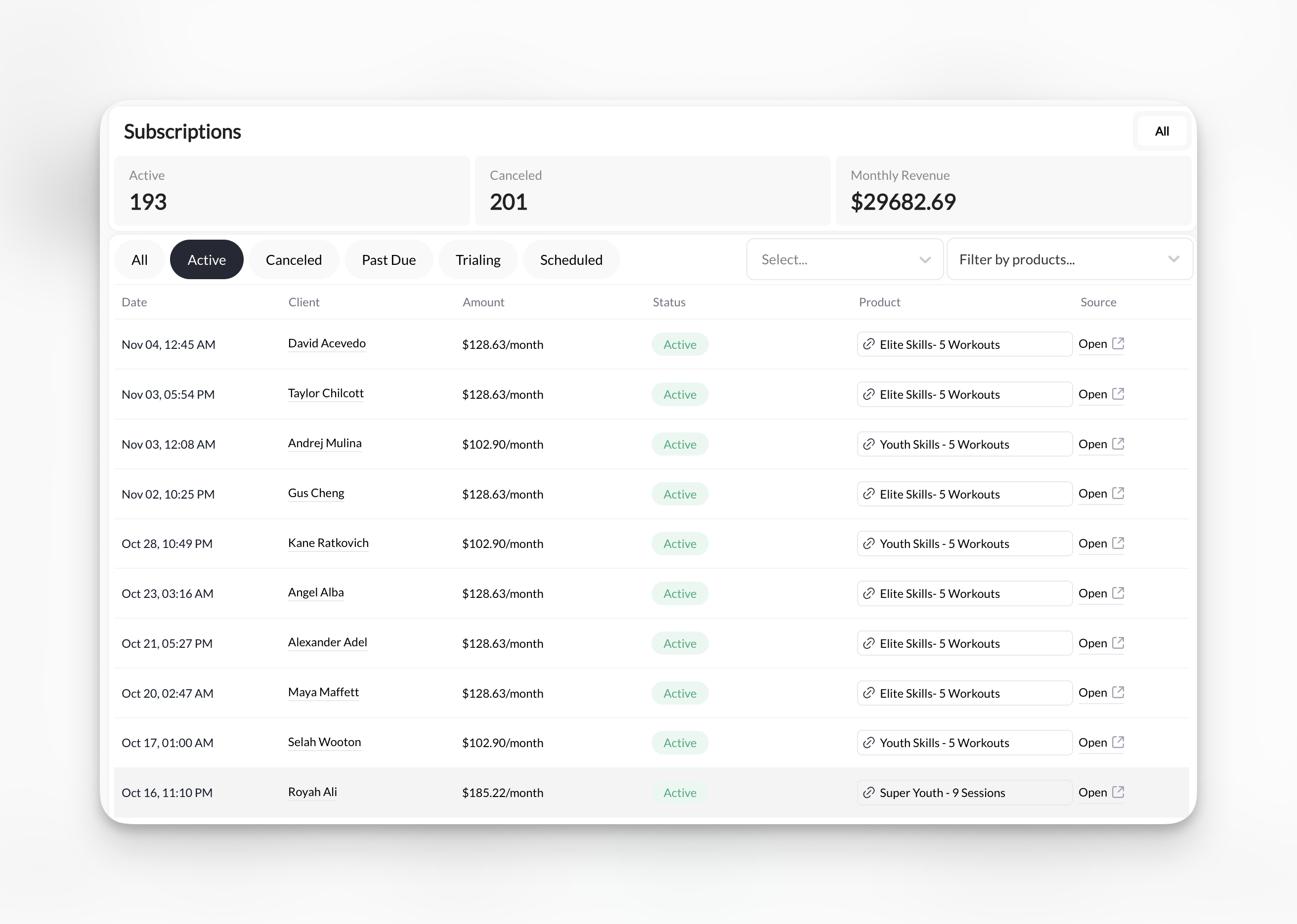
Key metrics at the top
Three metrics display above your subscription list: Active Subscriptions- Count of currently active, billing subscriptions
- Includes trialing and scheduled subscriptions
- Excludes canceled and past due
- Total number of ended subscriptions
- Tracks churn and cancellation history
- Total monthly revenue from active subscriptions
- Updates in real-time as subscriptions change
- Based on monthly equivalent (annual subscriptions divided by 12)
Subscription list columns
Each subscription displays:
Click any row to view full subscription details.
Subscription status types
- Active
- Trialing
- Scheduled
- Past Due
- Canceled
- Incomplete Expired
Green indicator - Running normallyThe membership is currently active. It renews on its billing schedule unless it is set to end. Check for Cancels [date] before assuming another payment is due.
Scheduled cancellations
A membership ending at period end shows Active — Cancels [date] or Trialing — Cancels [date]. It stays in its current filter and count while access continues. It moves to Canceled when it ends. Open the row to distinguish Cancels on, the membership’s end date, from Cancel requested, when the cancellation was requested. The record does not show another renewal when it is scheduled to end.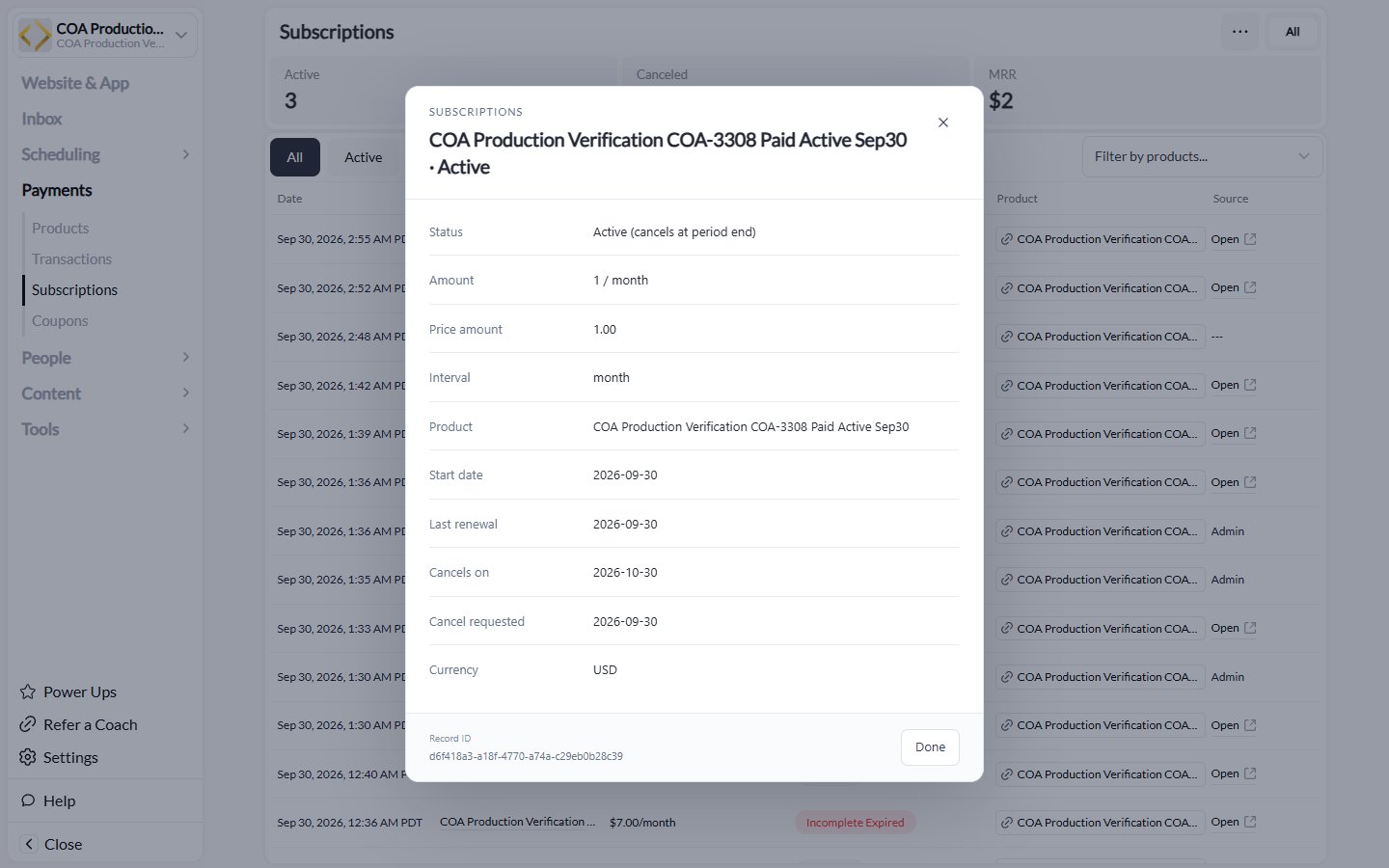
A production test membership with a scheduled end. Names and amounts are test examples.
Filter and search subscriptions
Filter by status: Click status tabs at top:- All
- Active
- Canceled
- Past Due
- Trialing
- Scheduled
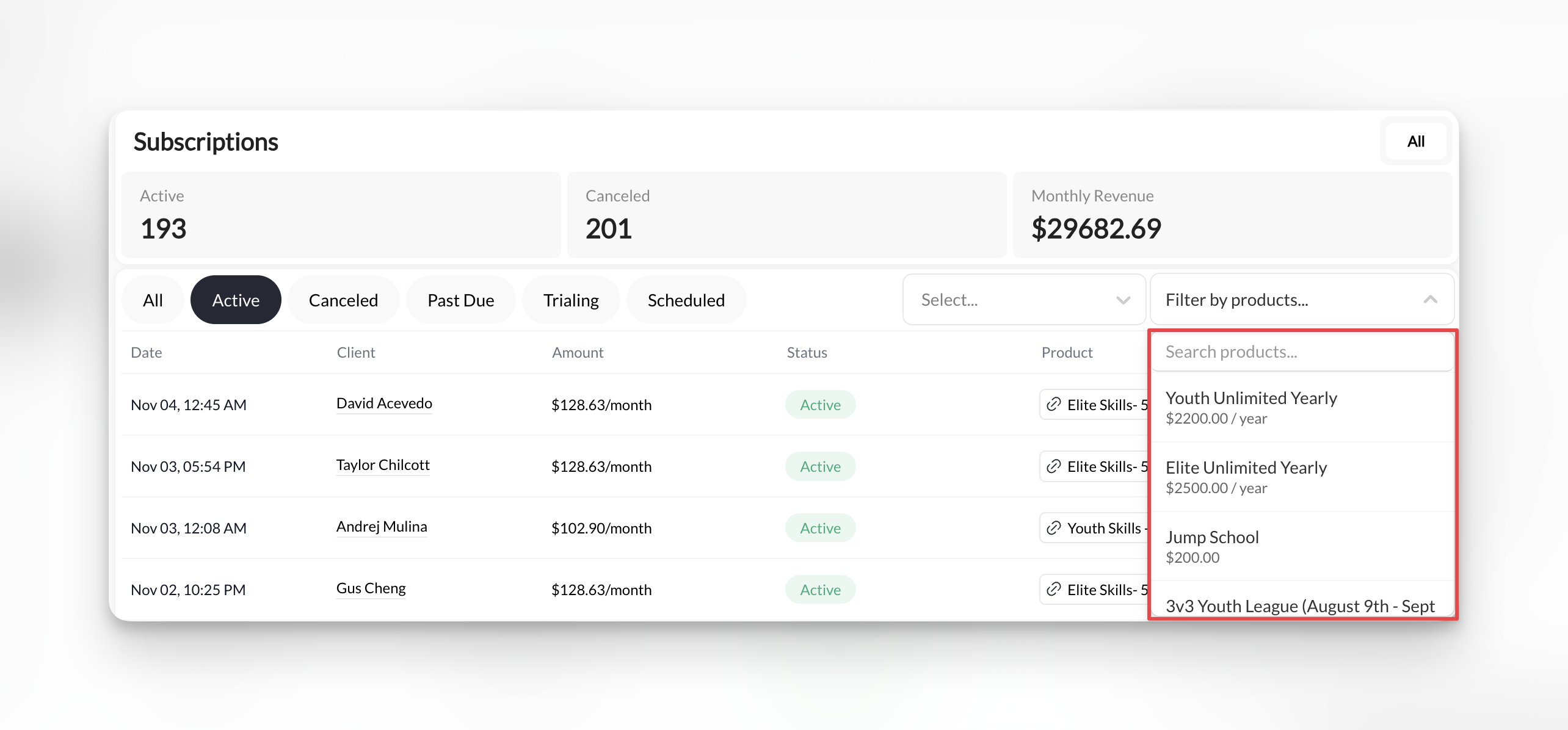
Check for unsynced subscriptions
An unsynced subscription is one that exists in CoachIQ but isn’t linked to Stripe. When a subscription is unsynced, the platform doesn’t know to process payments, issue credits, or manage billing for that client. Use the Unsynced filter to quickly identify any subscriptions that may have slipped through without a Stripe connection.1
Go to Payments → Subscriptions
Open the Subscriptions dashboard from the main navigation.
2
Click the Unsynced filter
In the status filter tabs at the top of the page, select Unsynced. This filters the list to show only subscriptions that aren’t connected to Stripe.
3
Review and resolve
For each unsynced subscription, check:
- Does the client have an active subscription in Stripe? If yes, the subscription may need to be relinked.
- Was this a manual product addition that was never connected to billing?
- Did a transfer or migration cause it to lose its Stripe connection?
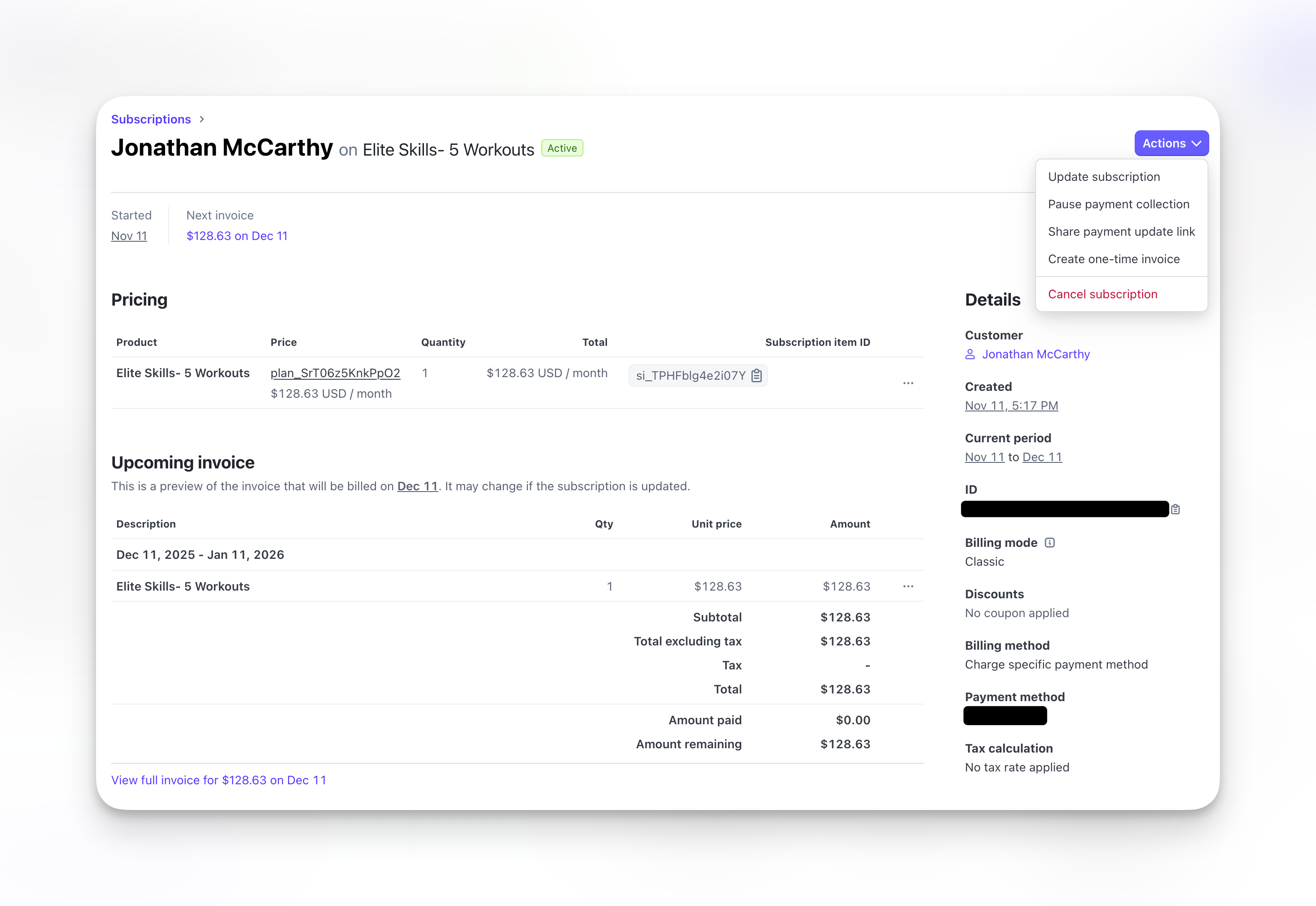
View subscription details
Click Open under the Source column of the subscription to view on Stripe: Billing information:- Current period start and end dates
- Next billing date
- Billing frequency
- Amount charged each period
- All successful charges
- Failed payment attempts
- Amount paid to date
- Cancel subscription
- Update billing date
- Change product/pricing
- Issue refund for last payment
Understanding subscription lifecycle
1
Client subscribes
Client purchases subscription product. Subscription appears as Active (or Trialing if trial configured).
2
First payment processes
Immediate charge.Credits issued (if configured). Client can book sessions.
3
Automatic renewals
Card charges on schedule (monthly, quarterly, annually).New credits issued each period (if configured). Client continues accessing services.
4
Payment failure
If card declines: Status changes to Past Due. Stripe retries automatically over several days.Client retains access during retry period.
5
Subscription ends
Client cancels OR payment retries exhaust.Status changes to Canceled. Credits expire. Access ends.
Common subscription scenarios
- Healthy subscription
- Past due subscription
- Canceled subscription
- Trial subscription
What you see:
- Status: Active (green)
- Regular successful payments in history
- Credits renewing each period
Subscriptions vs. transactions
Subscriptions page: Ongoing billing relationships- Shows subscription status
- Displays next billing date
- Tracks recurring revenue
- Shows each charge (including subscription charges)
- Displays one-time payments too
- Tracks total revenue
Every subscription charge also appears in Transactions. Subscriptions page focuses on ongoing relationships, Transactions shows individual payments.
Export subscription data
Export subscription list for reporting or accounting:- Apply any desired filters (status, date range)
- Click Export button (if available)
- Download CSV file
- Financial reporting
- Churn analysis
- Revenue forecasting
- Accounting software import
What you can’t do on Subscriptions page
These actions require Stripe Dashboard:- Change subscription pricing mid-cycle
- Apply retroactive discounts
- Modify payment schedule
- Complex subscription modifications