

Where to find this: Tools → Waivers
The waivers dashboard
Navigate to Tools → Waivers to see all your waivers at a glance.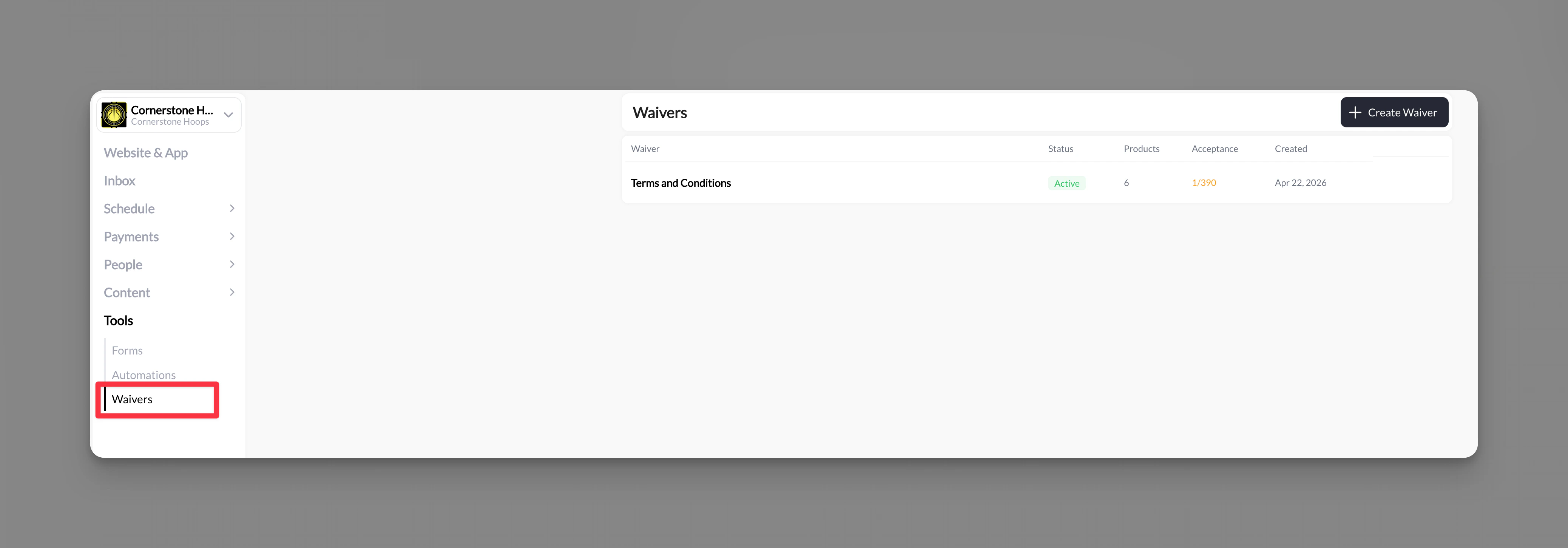
Create a waiver
1
Go to Tools → Waivers
Click + Create Waiver in the top-right corner.
2
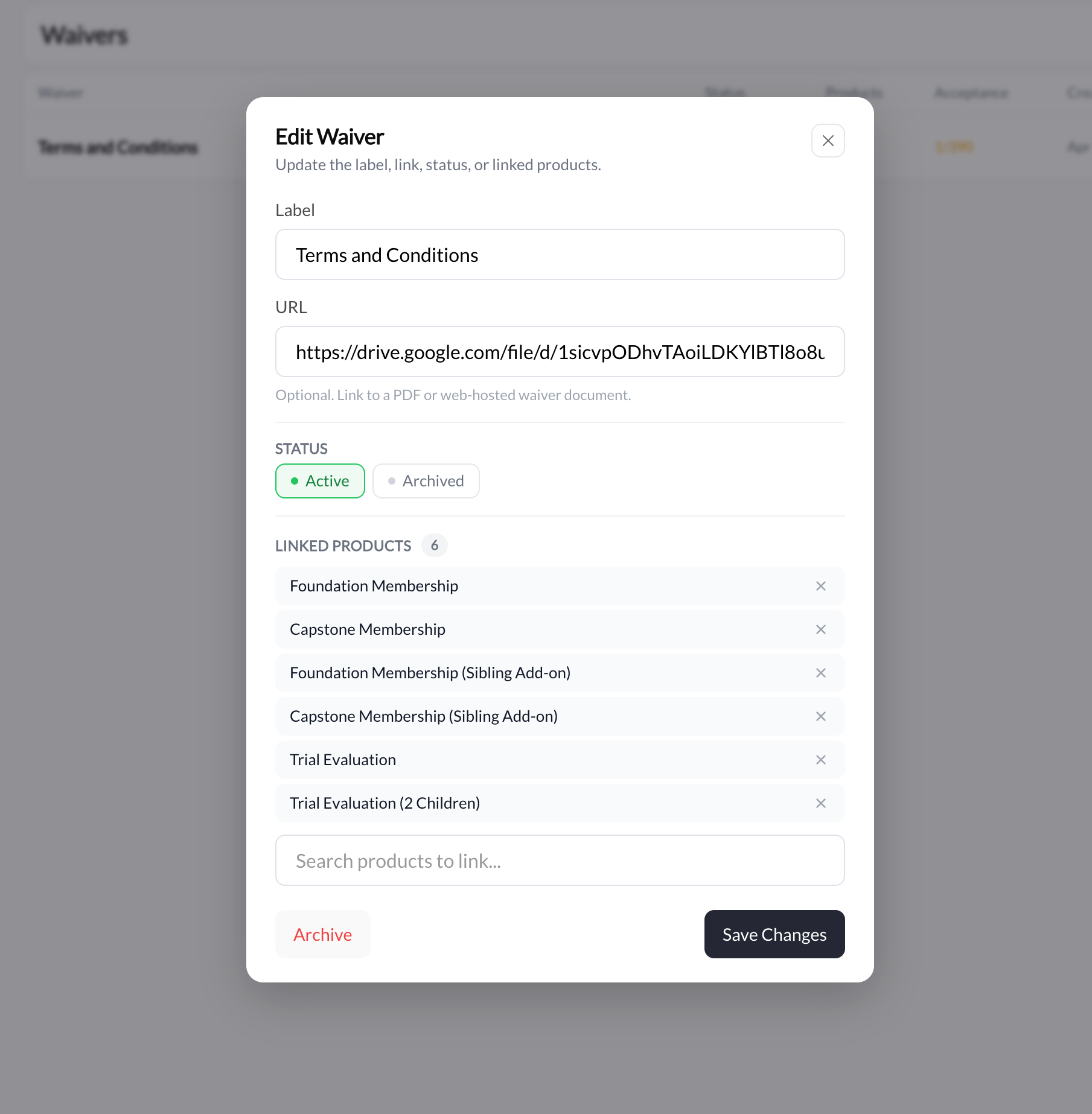
Fill in the waiver details
- Label — Give your waiver a clear name (e.g., “Liability Waiver”, “Cancellation Policy”)
- URL — Link to the full waiver document. This can be a page on your CoachIQ website, a Google Drive link, a PDF, or any public URL.
3
Save the waiver
Click Save Changes. Your waiver is now active and ready to attach to products or forms.
Require a waiver at checkout
Attach a waiver to any product so clients must agree before purchasing.1
Open the product
Go to Payments → Products and select the product you want to add a waiver to.
2
Go to Advanced settings
Click Advanced in the left sidebar of the product editor.
3
Toggle on Require Agreement to Terms
Enable the toggle, then select your waiver from the dropdown. You can also search for existing waivers or create a new one directly from here.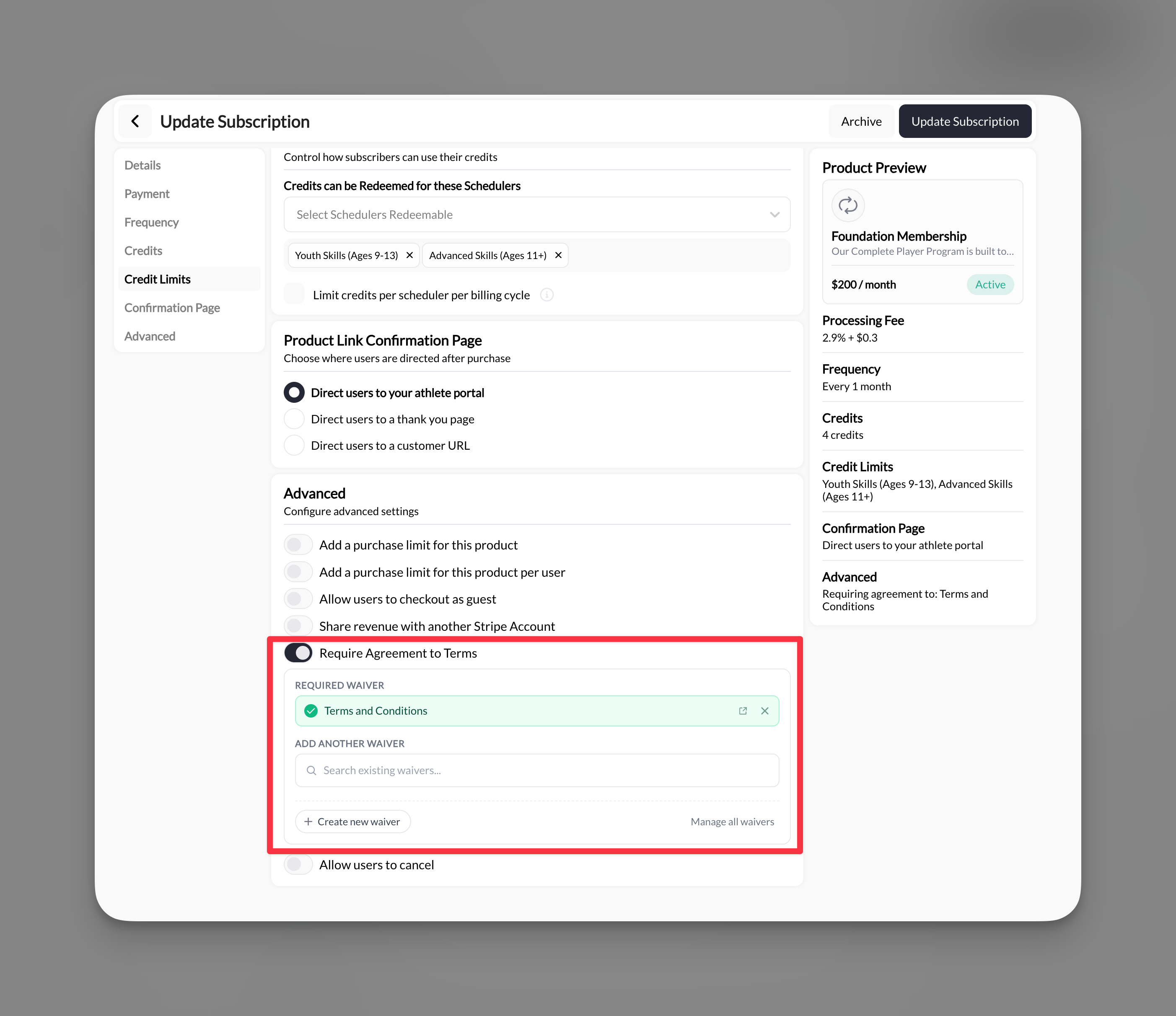
4
Save the product
Click Update Subscription (or Create) to save.
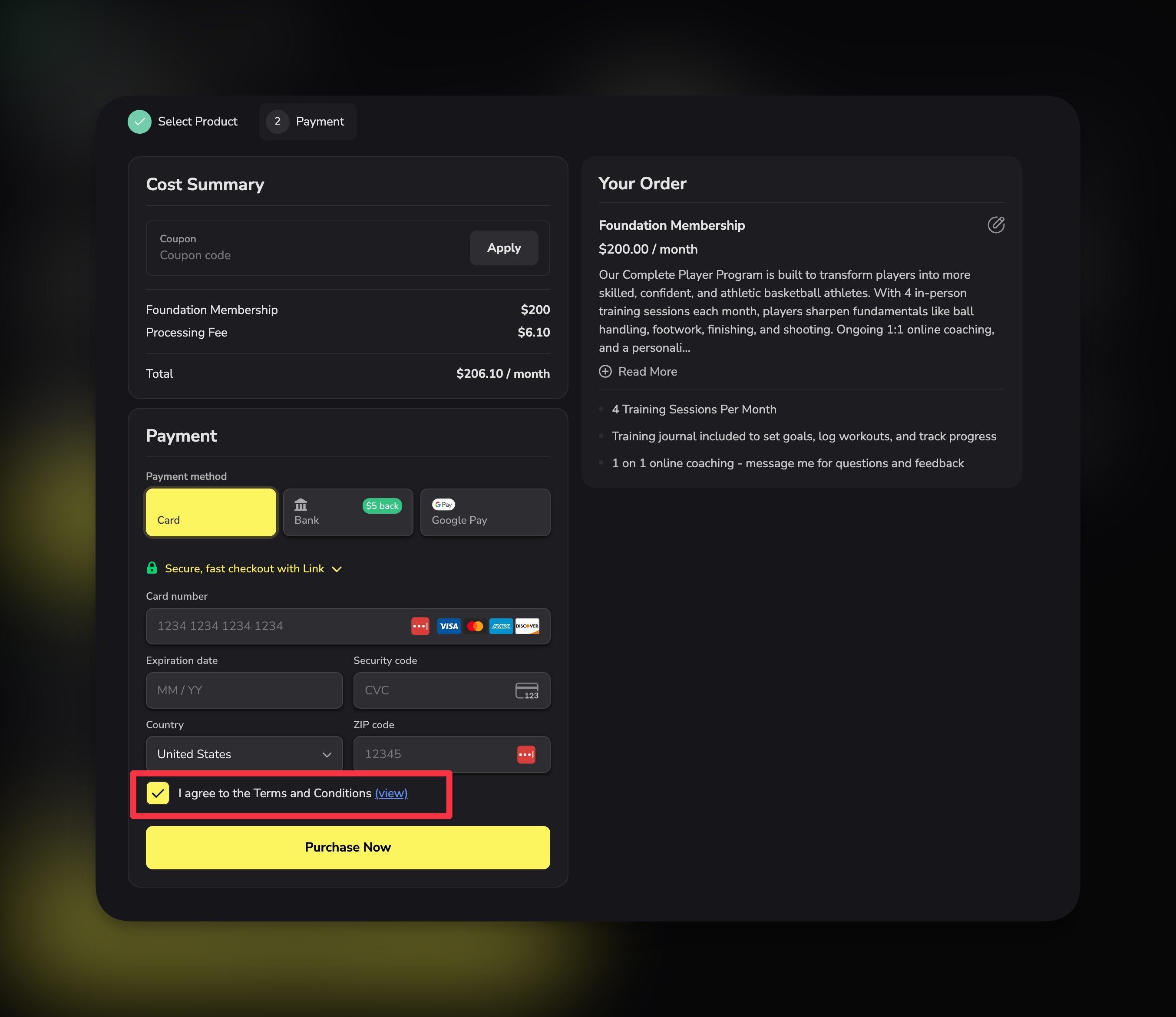
Done! Clients will now see a checkbox at checkout: “I agree to the [Waiver Name].” They must check it before they can purchase.
Add a waiver to a form
You can also require waiver acceptance on any form — useful for registration forms, intake forms, or onboarding flows.1
Open your form
Go to Tools → Forms and select the form you want to edit.
2
Add a Waiver component
In the form builder, click the General section in the left panel and select Waiver from the component list.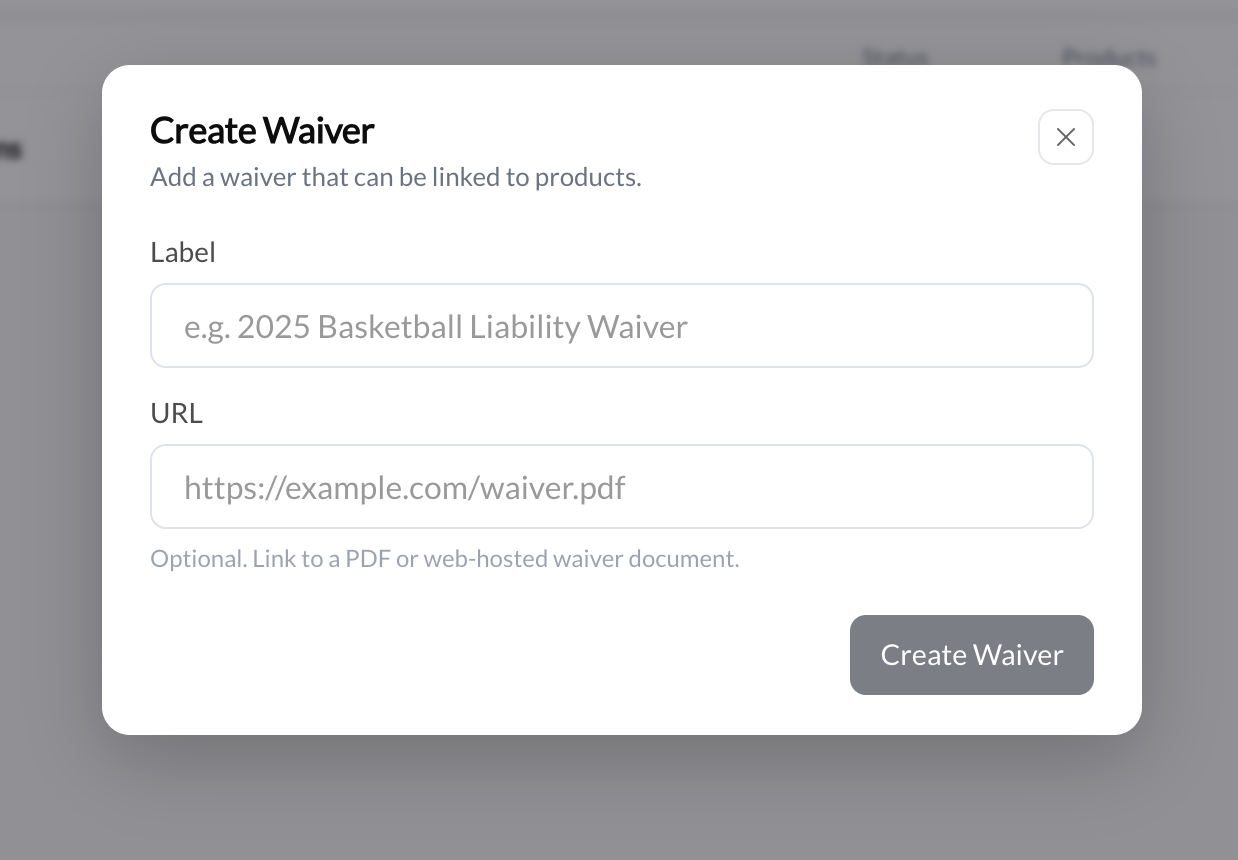
3
Select your waiver
Choose the waiver you want to require. The form will display a checkbox with a link to the waiver document.
4
Save the form
Click Update Form to save.
Done! Anyone submitting this form must accept the waiver before completing it.
Track waiver compliance
The compliance report shows exactly who has accepted each waiver and who hasn’t — so you always know where you stand.1
Open the compliance report
Go to Tools → Waivers and click on the acceptance count (e.g., “1/200”) for any waiver.
2
Review acceptance status
The compliance report shows: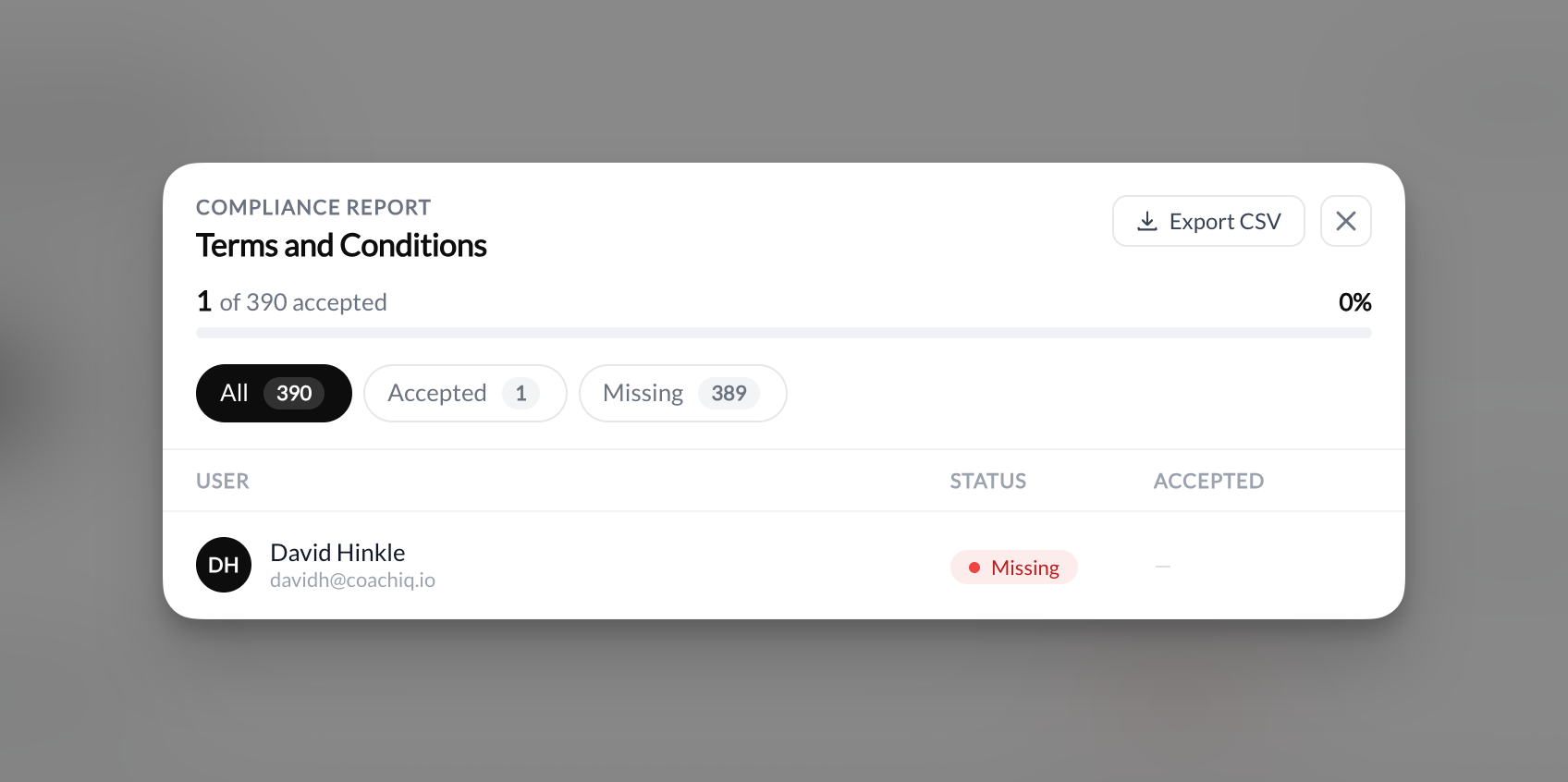
- All — Every client in your system
- Accepted — Clients who have agreed to the waiver (with the date)
- Missing — Clients who have not yet accepted
3
Export the report
Click Export CSV to download the full compliance list. Use this for your records, insurance requirements, or audits.
Edit or archive a waiver
Click on any waiver in the dashboard to edit it. You can update:- Label — Rename the waiver
- URL — Point to an updated document
- Status — Set to Active or Archived
- Linked Products — See and manage which products require this waiver
Common questions
Can I use different waivers for different products?
Can I use different waivers for different products?
Yes. Each product can require its own waiver. For example, use a liability waiver for training sessions and a cancellation policy for memberships.
What happens when a client agrees to a waiver?
What happens when a client agrees to a waiver?
The system records who accepted, when they accepted, and how (via purchase or via form). This shows up in the compliance report and on the client’s activity feed.
Can clients skip the waiver checkbox?
Can clients skip the waiver checkbox?
No. When a waiver is required, the checkbox is mandatory. Clients cannot complete the purchase or submit the form without checking it.
What URL should I use for my waiver?
What URL should I use for my waiver?
Any publicly accessible link works — a page on your CoachIQ website, a Google Doc, a PDF hosted on Google Drive, or an external website. Just make sure the link works for anyone who clicks it.
Does this work with guest checkout?
Does this work with guest checkout?
Yes. The waiver checkbox appears for both logged-in clients and guest checkout.
Can I see waiver acceptance on a specific client?
Can I see waiver acceptance on a specific client?
Yes. Check the client’s activity feed in People → Client Profile to see when they accepted and through which product or form.
Related articles
Legal Pages
Create terms, privacy policy, and disclaimers on your website
Product Builder
All product settings including Advanced options
Creating Forms
Build forms with waiver components and more
Forms Overview
Everything you can do with CoachIQ forms