

Where to find this: Stripe Dashboard → Subscriptions + People → Athlete Profile → Products tab
How to upgrade a membership
1
Update the subscription in Stripe
Log in to your Stripe Dashboard and navigate to Customers → Subscriptions. Find the athlete’s existing subscription and upgrade it to the new membership tier.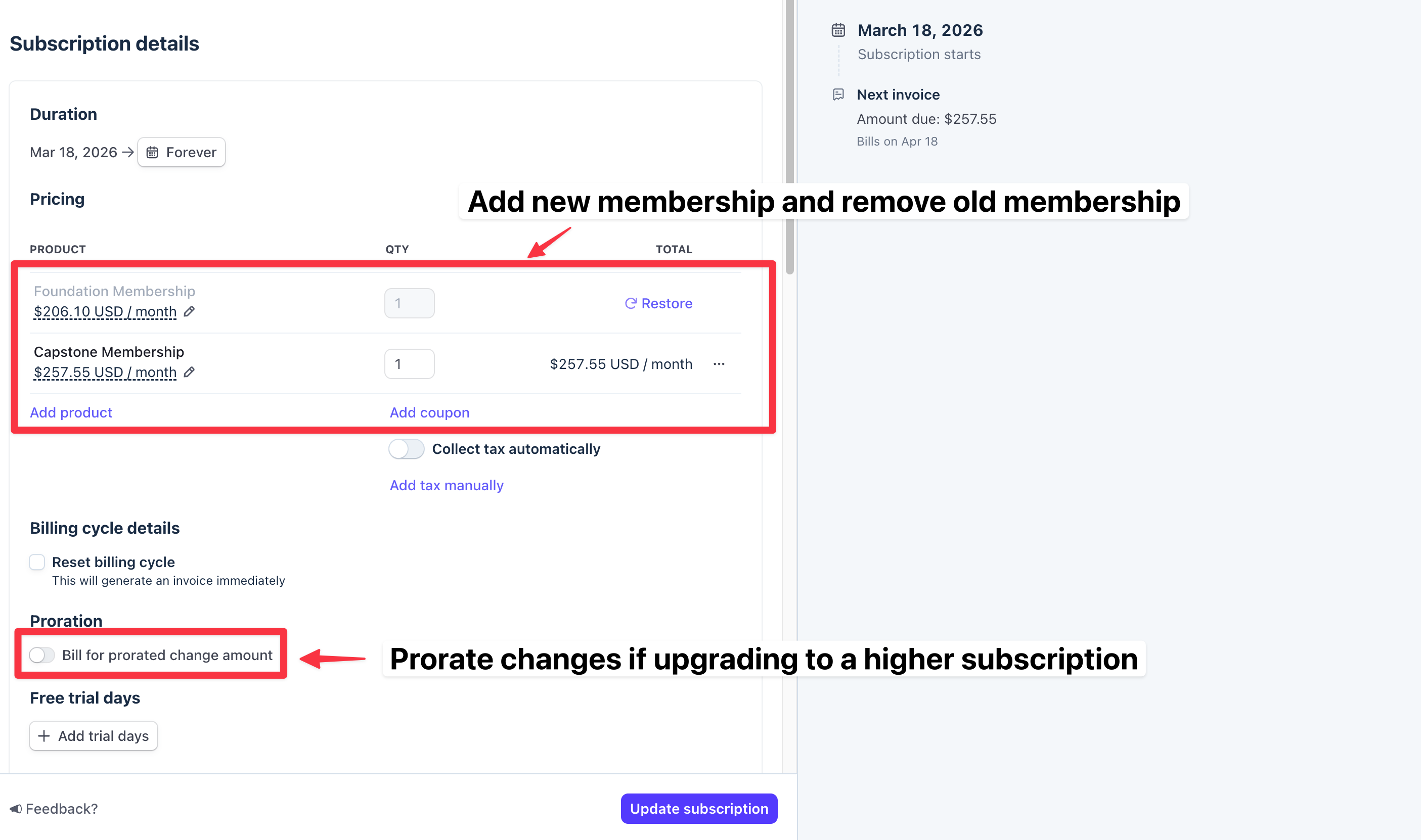
2
Copy the new subscription ID
Once the subscription is updated, copy the subscription ID from the Stripe subscription detail page. It starts with 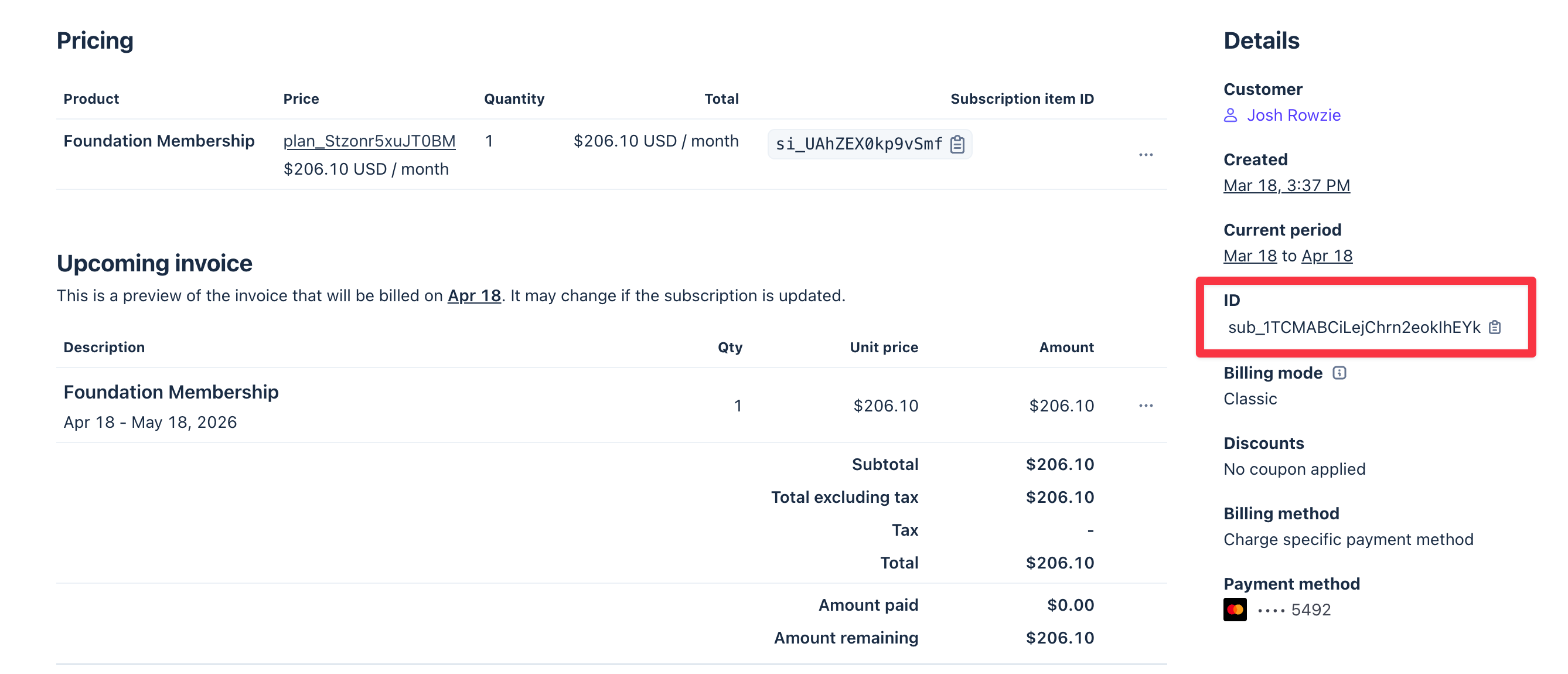
sub_.3
Open the athlete's profile in CoachIQ
Go to People and open the athlete’s profile. Click the Products tab.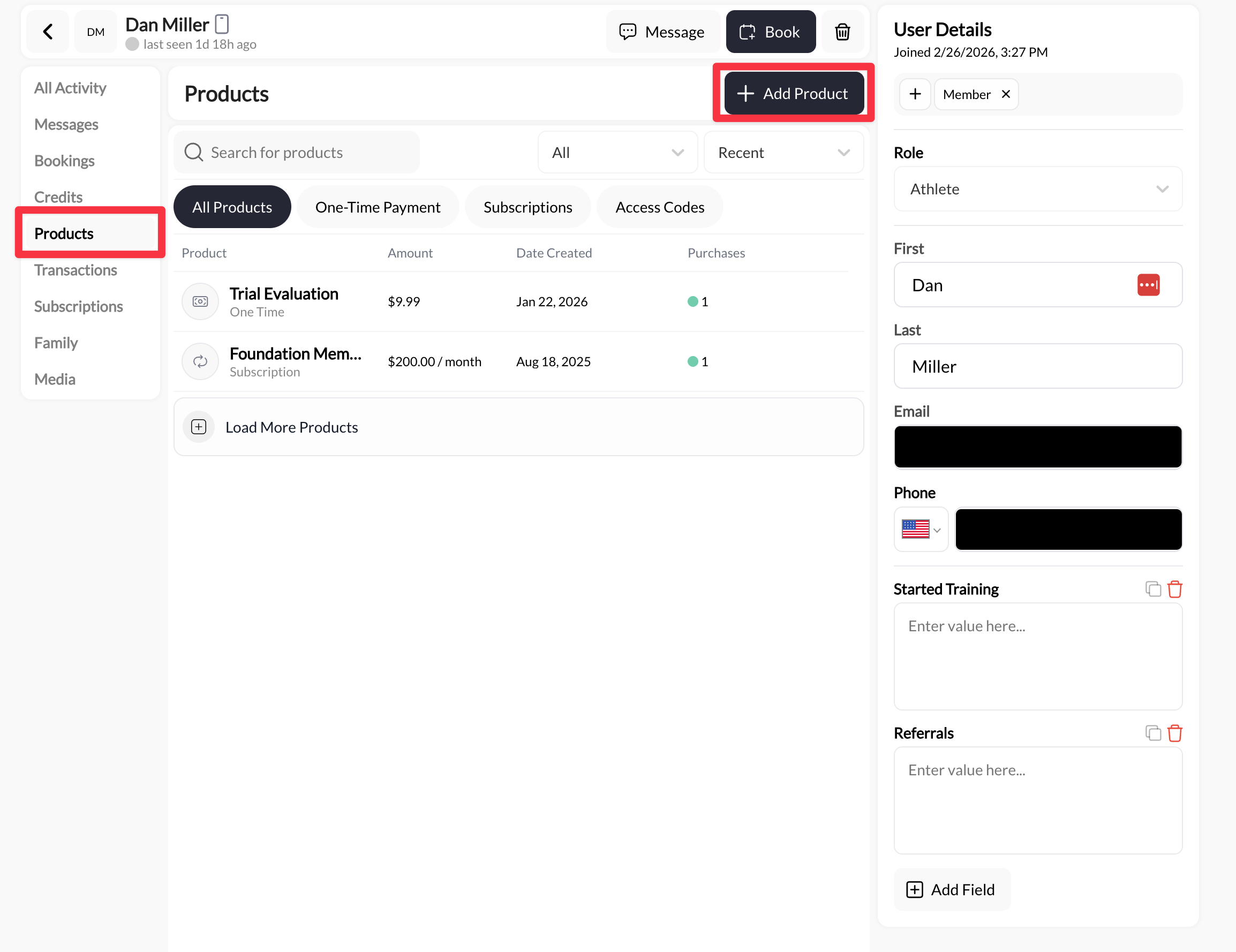
4
Add the new membership and paste the subscription ID
Click Add Product, select the new membership tier, and paste the Stripe subscription ID into the subscription ID field. This links CoachIQ to the correct Stripe subscription.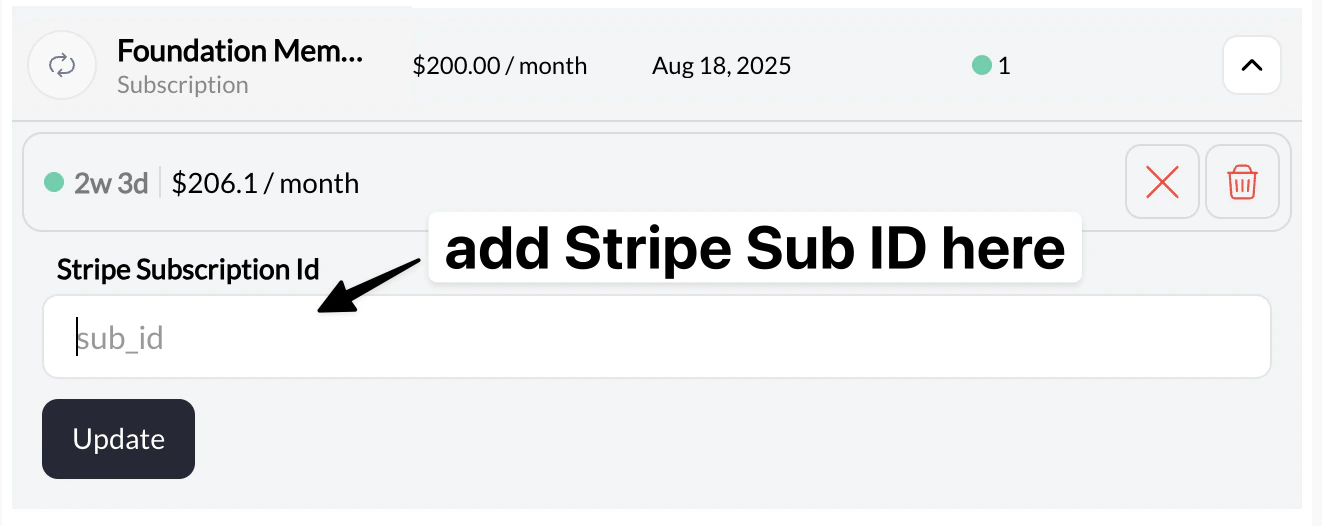
The new membership should now appear as active on the athlete’s profile.
5
Remove the old membership
With the new membership confirmed as active, remove the old membership tier from the athlete’s profile so there are no duplicate subscriptions.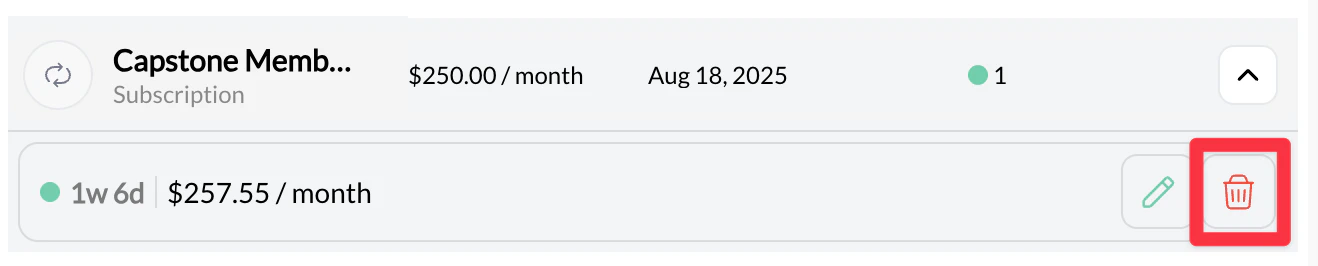
Common issues
New membership isn't showing on the athlete's profile after adding it
New membership isn't showing on the athlete's profile after adding it
This usually means the Stripe subscription ID wasn’t entered, or was entered incorrectly. Go back to the product reference, confirm the subscription ID matches the one in Stripe (starting with
sub_), and re-save.Athlete has two active memberships showing
Athlete has two active memberships showing
You added the new membership but didn’t remove the old one. Go to the athlete’s Subscriptions tab and remove the previous membership tier.
I upgraded in Stripe but forgot to update CoachIQ
I upgraded in Stripe but forgot to update CoachIQ
That’s okay. The Stripe subscription is the billing source of truth. Just complete steps 3–5 above — open the athlete’s profile, add the new product reference with the correct subscription ID, and remove the old one.
Next steps
- Manage Subscriptions — Cancel, pause, or refund subscriptions
- Subscriptions Dashboard — View all active subscriptions across your roster