

Where to find this: Sales › Pipeline in the left sidebar. The number beside Pipeline counts people who are new since you last looked.
Set up your pipeline
The first time an owner or admin opens Pipeline, it shows Start your pipeline with four templates:
Pick a template to see its stages, choose which of your forms, products and sessions feed it, and turn on the automations you want. Then click Create pipeline. Start from scratch creates an empty pipeline you set up yourself.
Coaches see No pipeline yet (“An owner or admin can set one up”) until then. Your business has one pipeline.
The board and the list
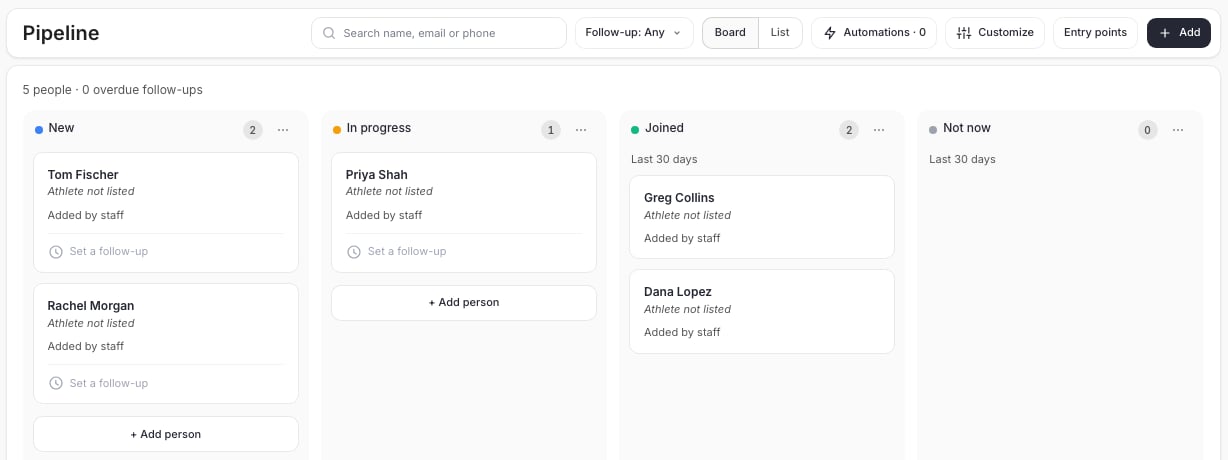
- Board shows a column per stage, with a count and a … menu. Drag a card to another stage to move it. Dragging never sends anyone a message. If a move doesn’t save, the card offers Retry.
- List shows one row per person with Person, Stage, Source, Follow-up, Last activity and Added. The row’s … menu has View in People and Message (for people in People), then Move to with each stage.
- The line above the board counts people and overdue follow-ups, for example “5 people · 0 overdue follow-ups”.
- Search name, email or phone finds a person, and Follow-up filters by when their follow-up is due.
Add people
Automatically, from entry points. Click Entry points and choose what adds people to the pipeline:- Forms: people are added when they submit one of these forms.
- Products: people are added on a completed first purchase.
- Sessions: people are added when they book one of these.
1
Type a name
The name box searches People as you type. Pick someone who’s already a client to fill in their email and phone and link the card to their profile, or choose Add “name” as a new person.
2
Add contact details and a follow-up
A new person needs a name plus an email or phone. Optionally pick a Follow-up date.
3
Click Add to pipeline
The card shows “Added by staff” as its source. If the person is already in the pipeline, you’re told which stage they’re in, with Open to go to their card. No second card is made.
Work a card
Click a person to open Person details:- The header shows their name, email and phone, with Phone, Message and View in People where they apply, and Edit for their contact details.
- Stage and Follow-up. The follow-up menu offers Tomorrow, Next week and other dates, or Pick a date. Once a follow-up is set, Mark done sits next to it.
- Athletes: the athletes this person is bringing. Add athlete adds a name.
- Source: where they came from, such as a form, product, session or “Added by staff”.
- Notes and Activity: everything that’s happened on this card, including each stage move and who made it.
- At the bottom, buttons to move them to your closing stages (for example Mark joined and Not now).
Remove someone added by mistake
Owners and admins can open the person and choose Remove from pipeline. Their profile, bookings and purchases stay. A new form, booking or purchase from an entry point would add them again as a new card.Customize stages
Click Customize › Stages. Drag stages to reorder them, change a stage’s color and name, Add stage, or delete one. Deleting a stage that has people in it asks where to move them. The last two stages close a card, one for success and one for not now; you can rename them but not remove them. Click Save.Automations
Click Automations (or Customize › Automations). “Automations move people between stages and follow up for you. They use the same builder as Tools > Automations and show up there too.” Pipeline adds these to the automation builder:- Triggers: Added to Pipeline and Pipeline Stage Changed.
- Actions: Move to Pipeline Stage and Add to Pipeline.
- Conditions such as the pipeline stage, days in stage, upcoming bookings and tags. Tag conditions read as the tag’s name, for example “Tag is Newsletter”.
Who can use Pipeline
Owners and admins set up the pipeline, its entry points, stages and automations, and remove cards. Coaches work the cards they can see. A coach blocked from Pipeline in staff access, or limited to clients with access tags, doesn’t see it.Common questions
Is a pipeline card the same as a client?
Is a pipeline card the same as a client?
No. A card can be someone who isn’t in People yet, such as a parent who asked about tryouts. Once they book, buy or sign up they’re in People too, and View in People opens their profile.
Will dragging a card message the family?
Will dragging a card message the family?
No. Moving a card never sends a message by itself. Only an automation you’ve turned on can.
Can I have more than one pipeline?
Can I have more than one pipeline?
Not yet. Each business has one pipeline.
Related articles
Automations
Build the automations that move people along
Forms
Make the inquiry or tryout form that feeds your pipeline