

Add existing athletes
- Open the team’s Roster tab.
- Select Add athletes.
- Search and select the intended athlete profiles.
- Confirm the addition and review the updated roster.
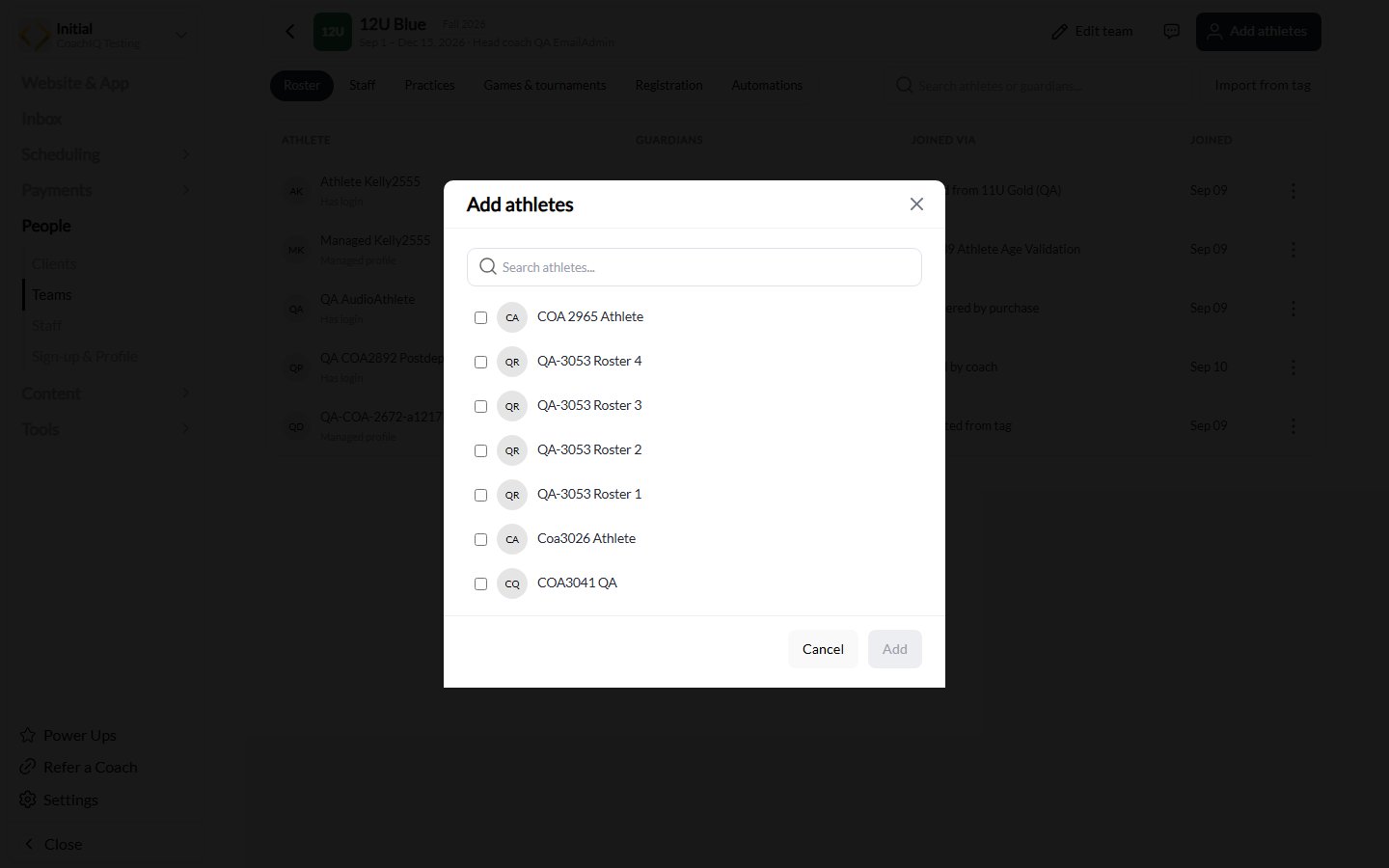
Search for participating athletes and select their profiles before adding them. This example uses CoachIQ Testing records.
Import athletes from a tag
Select Import from tag and choose the tag you use to organize the athletes. Review the eligible athletes and import result. Parents and staff are skipped, and athletes already on the team are not added again. This imports memberships into the current team; it does not turn the tag into an ongoing roster-sync rule. Review later roster changes in Teams.Read and search the roster
The roster shows the athlete, guardian information, how they joined, and when they joined. Search can match athlete and displayed guardian names.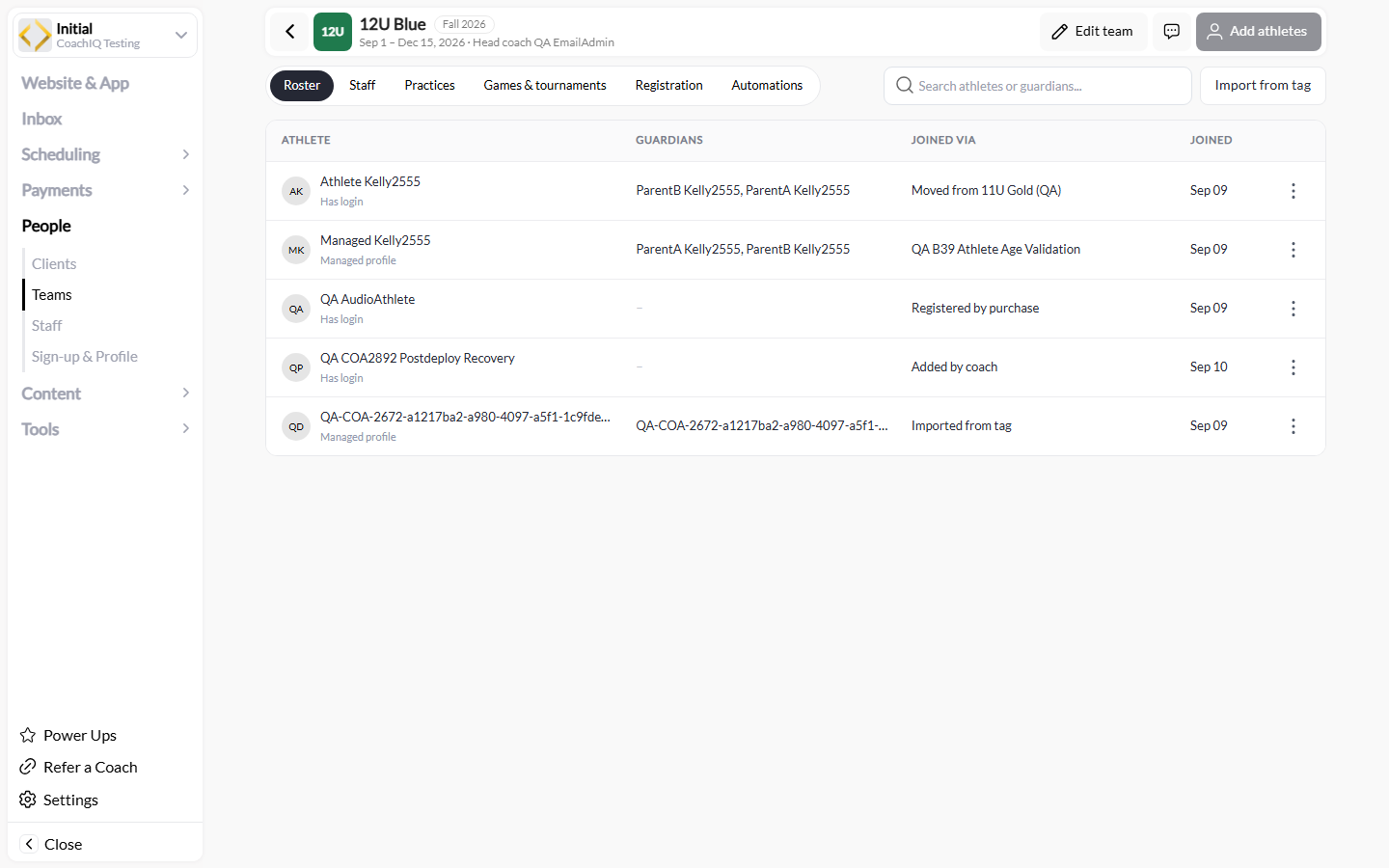
Read across a roster row to see the athlete, guardians, how they joined, and the join date. The names here are testing records.
Move or remove an athlete
Use the athlete’s roster actions to move them to another team or remove them. Confirm the intended team and athlete before saving. Removing an athlete preserves their client profile, purchases, and past attendance. Leaving a team releases future bookings created through that team; it does not mean every unrelated booking has been canceled. Review the relevant team calendar and booking results after a change, especially when moving between teams.Roster membership and successful session booking are separate. Adding an athlete can start roster booking on linked schedules, but capacity or other booking limits can leave sessions incomplete. Check the scheduler’s booking status rather than assuming every athlete is booked.
Add team staff
- Open Staff and choose Add staff.
- Select an existing member of your organization staff.
- Choose their responsibility on this team and save.
- Review the resulting staff card.
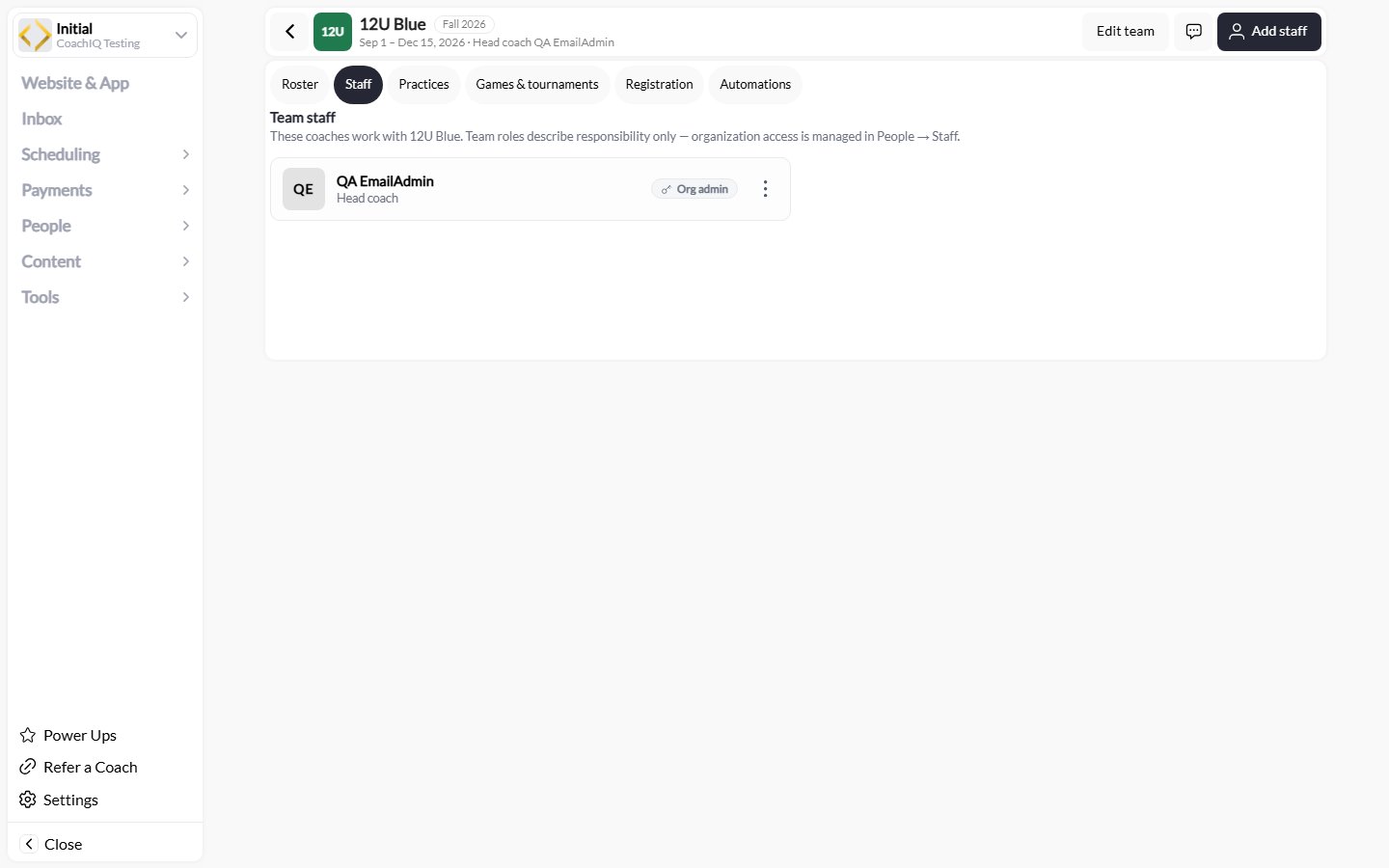
The team responsibility and organization access are shown separately. This example uses a testing account.