

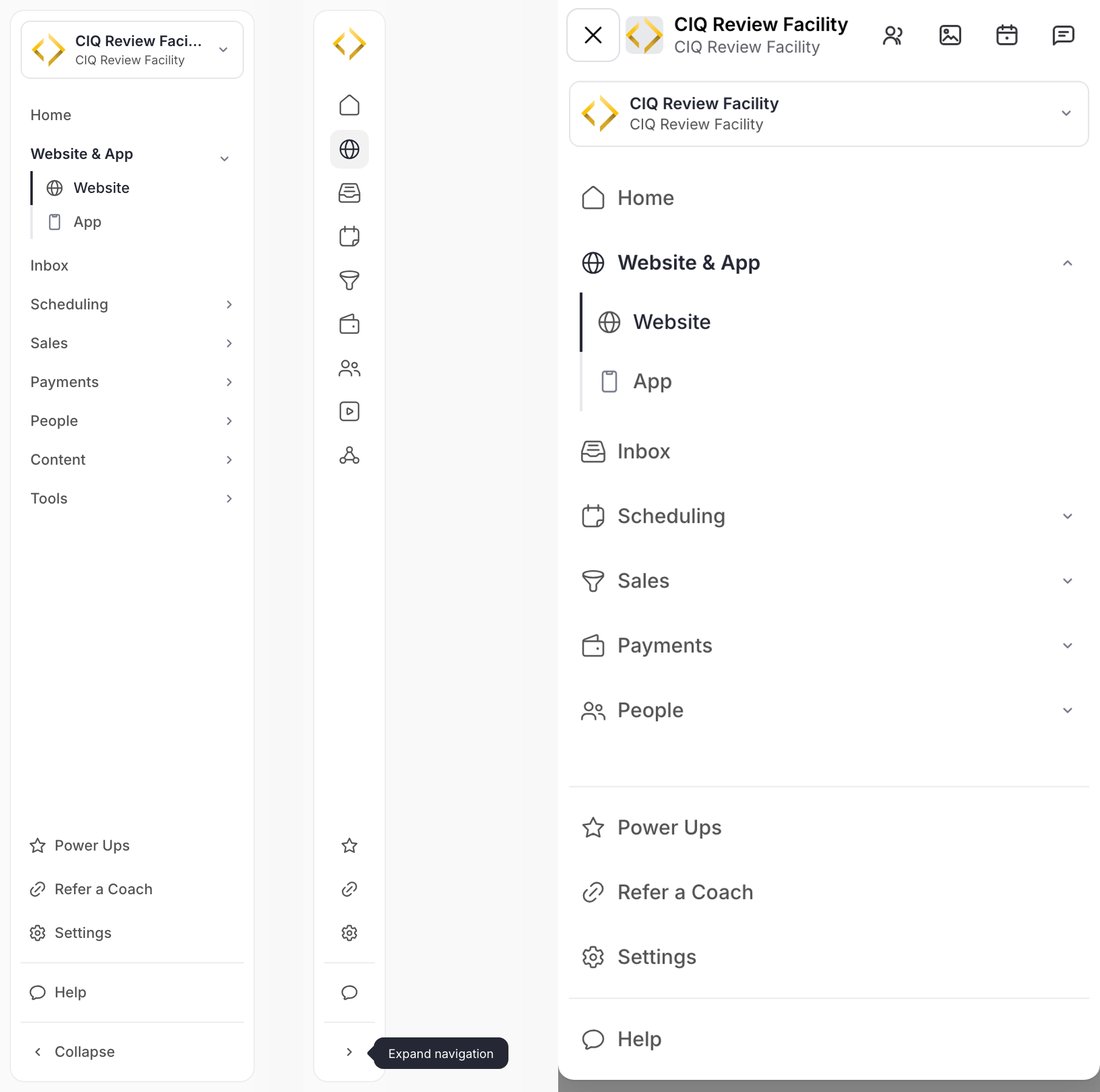
The sidebar on a computer (left), collapsed to icons (middle), and the menu on a phone (right).
Where you start
When you sign in, CoachIQ opens Website & App → Website: your site’s status and address, its pages, and shortcuts into the website builder. Saved links to the old dashboard open this page too. See Your website. Website & App → App does the same for the app your families use. See Your app.A new Home page is rolling out club by club. If your club has it, Home is the first item in the sidebar and you land there when you sign in. See The Assistant.
What’s in the sidebar
Click a section to open its first page. The section expands to show the pages inside it, and the page you’re on is highlighted.
If your organization uses Teams, Teams appears with People.
At the bottom of the sidebar:
- Power Ups: services you can request from the CoachIQ team, such as a branded app or done-for-you ads, plus your connected apps. See Power-Ups.
- Refer a Coach: tell us about another coach who could use CoachIQ. It opens a short form in a new tab.
- Settings: your account and the business settings. See Settings below.
- Help: opens CoachIQ support, where you can ask the team a question.
- Collapse: shrinks the sidebar to icons (computer only).
Why your sidebar might look different
Each person sees only the pages they’re allowed to use. Admins see everything. A coach whose access has been limited doesn’t see the blocked pages at all, and opening one from a saved link takes them to the first page they can use. See Staff access. Sheets is for Admins. A coach only sees a sheet an Admin has shared with them.Switch between groups
If you work in more than one group or business, the card at the top of the sidebar shows the one you’re in. Click it to see your other groups, then pick one to switch. A check mark shows the current group.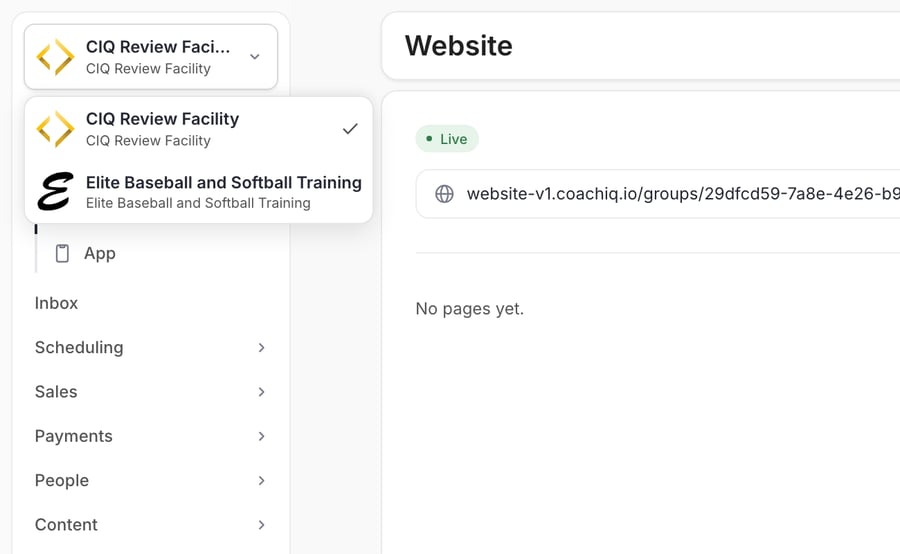
The group switcher at the top of the sidebar.
Collapse the sidebar
On a computer, click Collapse at the bottom of the sidebar to shrink it to a strip of icons and give the page more room. Hover over an icon to see its name. To bring the full sidebar back, click the arrow at the bottom (Expand navigation).On a phone
The admin works in your phone’s browser too. The top bar shows your organization and group, with shortcuts to People, Media Hub, Calendar and Inbox. Tap the menu button on the left to open the full menu, with the same sections as on a computer, and the X to close it. For running your day from your phone, the CoachIQ app has the same information in a phone layout.Settings
Settings at the bottom of the sidebar opens your settings with their own menu, grouped the same way as this Help Center:
Log out is at the bottom of the Settings menu. See Settings overview.
Common questions
Where did the dashboard go?
Where did the dashboard go?
The old dashboard is now Website & App → Website and Website & App → App, each focused on one thing. To see what a client has been doing, open their profile and choose Activity. Payments are in Payments → Transactions.
I can't find a page another staff member has
I can't find a page another staff member has
Your access is set by an Admin. Ask them to check your access under People → Staff. See Staff access.
Which group am I working in?
Which group am I working in?
The group name is on the card at the top of the sidebar, and in Settings → Groups under Current group.
The admin shows a message asking me to update my browser
The admin shows a message asking me to update my browser
Your browser is too old for the admin. Update it, or open the admin in a current version of Chrome, Safari, Edge or Firefox.