

Where to find Forms: Tools → Forms in the main navigation
What forms do
You build a form once, share its link, and every response is saved in CoachIQ, on the form and on the client’s profile. Common uses:- Lead capture: “I’m interested in training” inquiries from your website
- New athlete intake: contact details, goals, experience, parent details
- Camp or event registration: sign-up and payment in one go
- Waivers: agreements before the first session
- Feedback: end-of-program surveys and testimonials
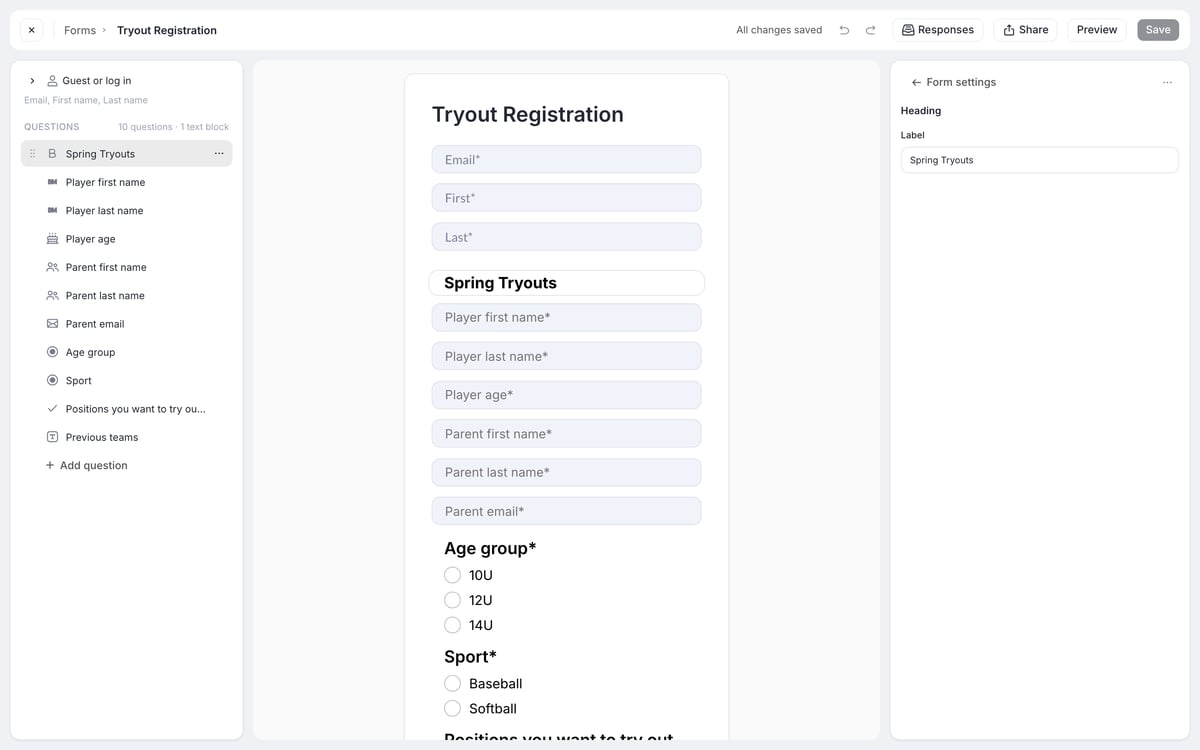
How forms connect to CoachIQ
Forms connect to the rest of CoachIQ.People
Responses from people with an account appear on their profile, and answers can fill profile fields. Returning visitors are asked to sign in part-way through.
Products
Take a payment as part of the form, for camp fees or registration fees. Products can also require a form at checkout.
Schedulers
Let athletes book a session, such as an evaluation, right after your questions.
Automations
Start an automation when a form is submitted: send a welcome message, add a tag or add credits.
How the pages work: visitors enter their details, answer your questions, then go to a Products page if the form takes a payment or a Sessions page if it books a session. A form does one or the other. See Guests, payments and bookings.
Why use CoachIQ forms vs. external tools
If you’ve used Google Forms, Typeform or JotForm, here’s the difference:What you can build with forms
Lead capture form
Embed on your website to capture interested families. Typical fields: “I am the” (Parent/Athlete), name, email, phone, “How did you hear about us?”New athlete onboarding
Collect everything before the first session: contact info, athlete age, experience level, goals, parent details, and a waiver agreement.Camp registration with payment
Combine info collection with payment: athlete details, t-shirt size, emergency contact, plus a product for the camp fee.Waiver/liability form
Add a Waiver question and require agreement before training begins. With guests turned off, the signed waiver is on their profile and in the waiver’s report.Testimonial collection
Ask for a review and permission to share it on your website.What forms can’t do
- Show or hide questions based on an answer. Automations can act on answers instead: the Form Submitted trigger offers each question as an Answer field, so “if they picked Instagram, add the Instagram Lead tag” is built in Automations.
- Save a half-finished response. Families complete the form in one go.
- Take a payment and book a session on the same form. Pick one.
- Show drop-off. You see responses, not how many people started and left.
Quick glossary
Next steps
Build a form
Create a form and add your questions
Guests, payments and bookings
Take a payment or book a session
Team registration
If Teams is enabled for your organization, a team can connect an existing registration form. Families register the participating athlete, and the completed submission can add that athlete to the team. See team registration.Related articles
What Are Automations?
Learn how automated workflows trigger when forms are submitted
Product Overview
Understand the products you can attach to forms for payment collection
Creating Your First Scheduler
Build a scheduler to embed in your form flow for session bookings
People Overview
See where form responses show on a client’s profile