

Where to find this: open a form and click Share in the top bar, or choose Share from the form’s … menu in Tools → Forms. Copy link in the same menu copies the link without opening anything.
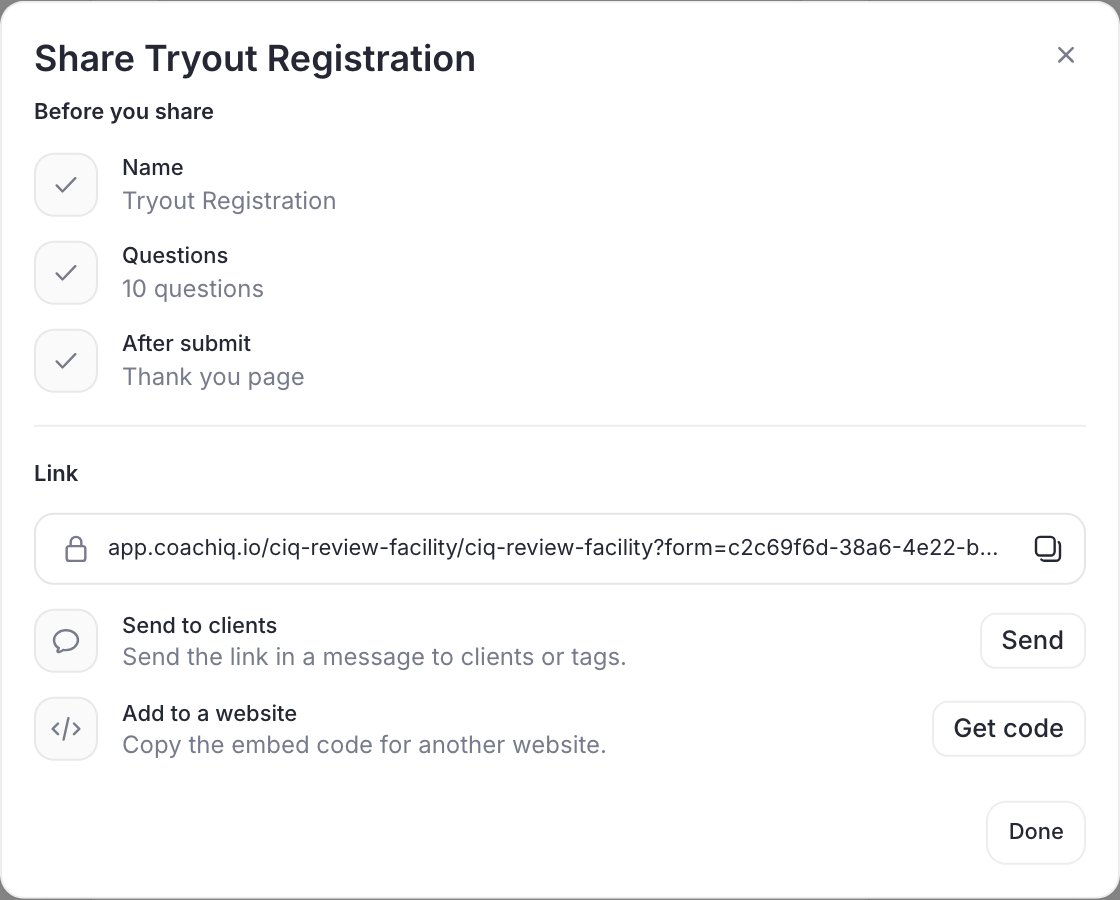
Before you share
The top of the window is a short check of the form: its Name, how many Questions it has, and what happens After submit. It also points out anything that would trip families up:- unsaved changes
- a question with no label, or a choice question with no options
- a waiver question with no waiver picked
- template placeholder text you haven’t replaced
- a payment with no products, or a booking with no sessions
Copy the link
Click the copy button at the end of the Link box. You’ll see Link copied, and the window stays open. Anyone with the link can open the form. Use it in texts and emails, your Instagram bio, a QR code on a flyer, or a team group chat. Links to older CoachIQ form pages, from an old message or website, now open the form’s current page, so families can still fill it in.Send it to clients
1
Click Send
Next to Send to clients, click Send.
2
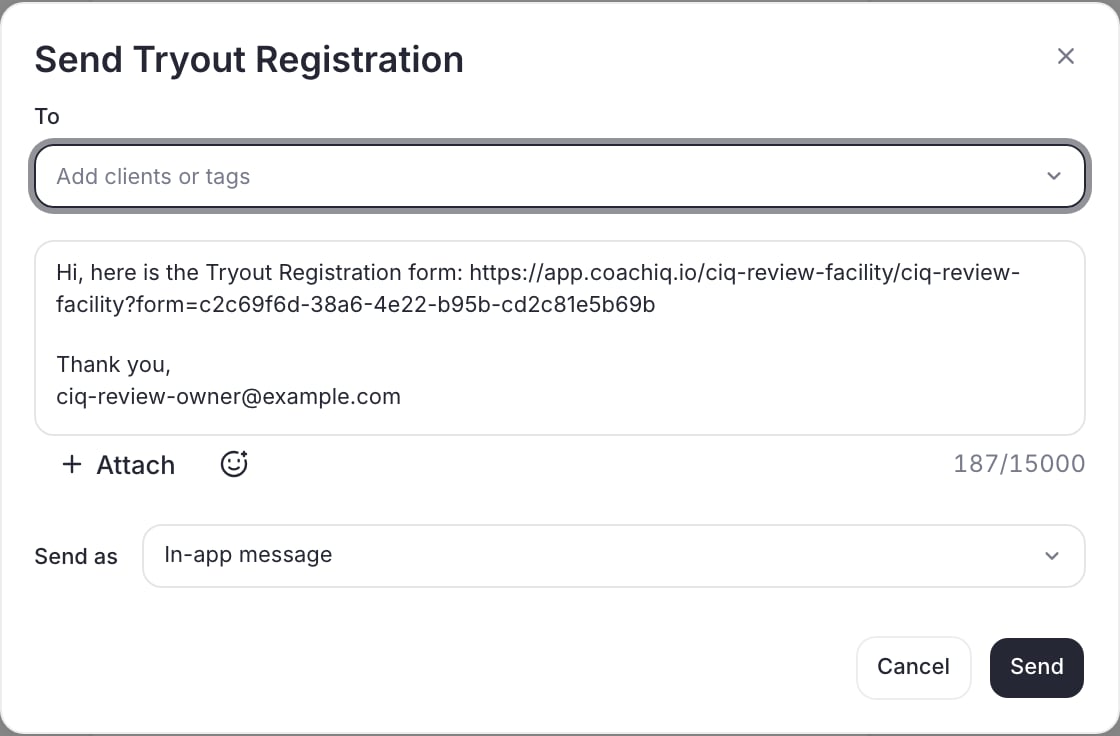
Pick who gets it
In To, add clients or tags.
3
Check the message
The message starts with “Hi, here is the [form name] form:” and the link, and signs off with your name. Edit it if you like. Attach adds a file.
4
Choose how it's sent and send
Pick the channel in Send as (for example In-app message) and click Send. Someone who isn’t on the app yet gets a Text instead or Email instead button on their row, so the form still reaches them.
Add it to your CoachIQ website
Use a Form section in the website builder. The form takes on your site’s look. See Form sections.Embed it on another website
For a site outside CoachIQ (Wix, Squarespace, WordPress and so on):1
Get the code
In Share, next to Add to a website, click Get code.
2
Copy it
Click Copy code. You’ll see Code copied. Close the window to go back to Share.
3
Paste it on your site
Paste the code into an HTML or custom code block where the form should appear, then publish your site and test the form there.
Stop taking submissions
There’s no publish switch: a form is live as soon as it’s saved. To stop it, archive it. Archived forms stop accepting submissions on every link, embed and website section, and keep all their responses. Restore it any time from the Archived filter.Tips
Test the link yourself
Test the link yourself
Open the link on your phone and submit a test response before you send it out. On a form with a payment or booking, go through every page.
Send waivers early
Send waivers early
Send the waiver when someone signs up, not on the day they arrive.
Match After submit to the form
Match After submit to the form
Lead form: Thank you page. Onboarding form: Send them to your app. Camp registration: Send them to a link with a what-to-bring page. Set it in Settings.
Related articles
Build a form
Questions, design, settings and saving
Responses and automations
See who filled it in and act on their answers
Form sections
Put a form on your CoachIQ website
Attach forms in Inbox
Add a form to any message