

Home is turning on club by club. If your club has it, Home is the first item in the sidebar and CoachIQ opens it when you sign in. Want it now? Ask the CoachIQ team through Help at the bottom of the sidebar, or reply to any CoachIQ email, and we’ll switch it on for your club. Until then, the Assistant is in Tools → Assistant.
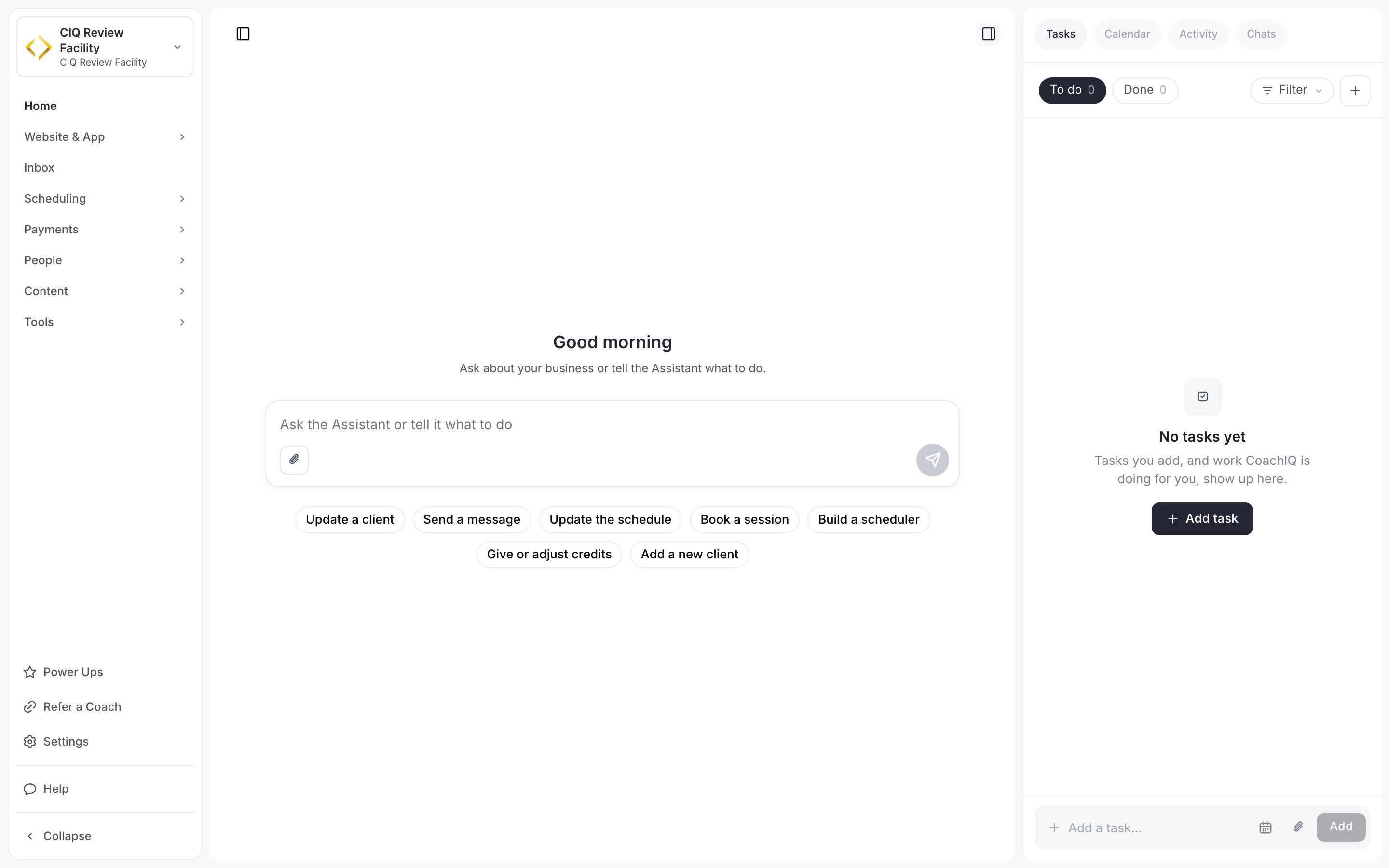
Home with the Tasks tab open on the right.
Ask the Assistant
Type in the box under the greeting, the way you’d ask a colleague: “Who’s booked tomorrow?”, “How much did we collect last month?”, “Give Sam Lee 2 credits on her 10 Lesson Pack.” The buttons under the box are quick actions, such as Book a session, Give or adjust credits or Add a new client. Clicking one starts the request in the box for you to finish. It never sends anything on its own. Owners and Admins see actions for running the business; Coaches see actions for their own day. Answers come from your own records. When you ask for a change, the Assistant shows it on a card, and nothing saves until you approve it. Bookings made in the chat don’t take a payment or use credits. To learn what to ask and how cards work, see:The Assistant
Asking questions, attaching images, flagging a wrong answer and who can use it.
What the Assistant can do
Questions it answers and changes it can make, by area, with example requests.
The panels on the right
The icon at the top right hides or shows the panel, and the icon at the top left hides or shows the sidebar, so you can give the chat the whole screen.Tasks
Your to-do list. To do and Done show how many tasks are in each.- Type in Add a task at the bottom, optionally pick a due date with the calendar button and attach files with the paperclip, then click Add. The + button at the top does the same.
- Tick a task to finish it. Finished tasks move to Done. The bin icon removes a task, with Undo for a few seconds.
- Click the name chip on a task you made to assign it to anyone on your staff. It then shows on their list too.
- Filter narrows the list by source, assignee, due date or attachments.
- Add follow-up task at the top of a chat turns the latest answer into a task. You can also type “Add a task to call Sam’s mom on Friday.” A task for your own list is added straight away, without an approval card, and never messages anyone.
Calendar
One day of your schedule, starting today. Use the arrows to move a day at a time, and Today to come back. Book session opens the booking window, and Open Schedule opens the full calendar.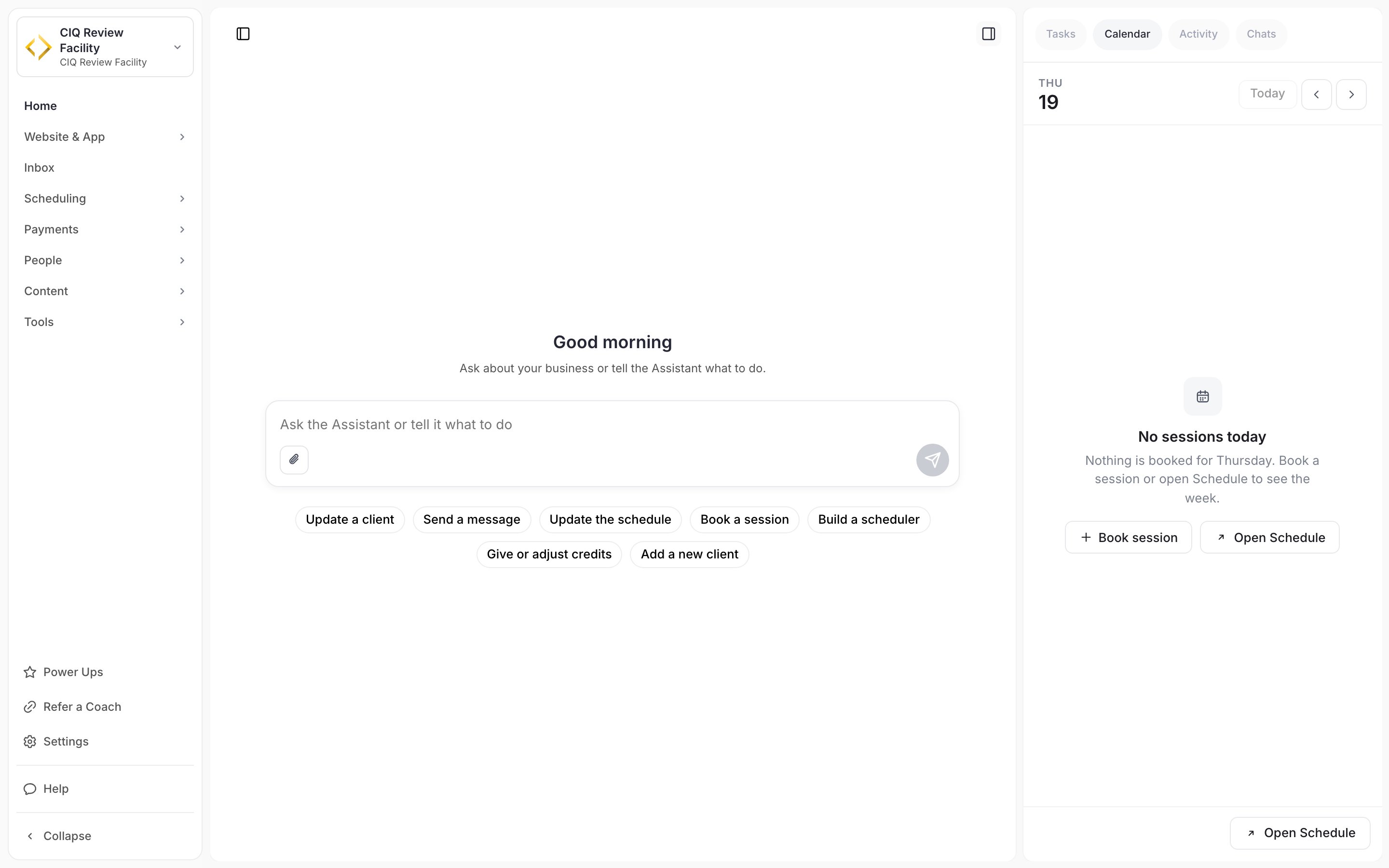
The Calendar tab on a day with nothing booked.
Activity
What’s been happening in your business: new bookings, orders, form responses, program activity and new clients, newest first.- 7 days, 30 days and All set the period.
- Three numbers sit at the top. Owners and Admins see the money collected, sessions booked and new clients.
- The filters (All, Forms, Orders, Programs, Schedulers, Users) narrow the list to one kind of activity.
- Each item links to the record, for example View response on a form submission.
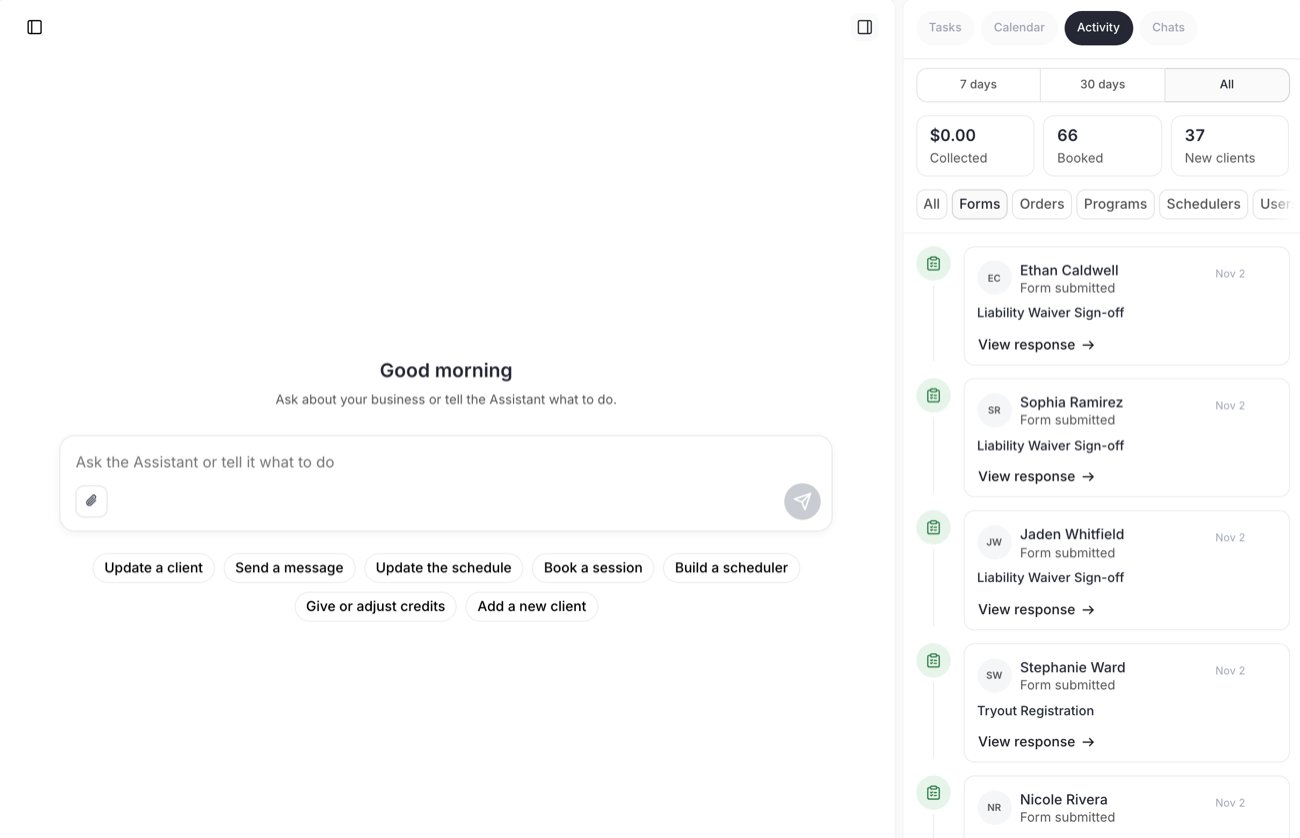
The Activity tab filtered to Forms.
Chats
Your conversations with the Assistant: Recent and Archived, search, pin and archive, and Start a new chat. Chats belong to you; your colleagues don’t see them. See Your chats.Who sees Home
- Home appears only in clubs where it’s turned on.
- Admins see everything on Home.
- Coaches use Home within their staff access. Home and the Assistant are listed there as Tools, Assistant, so a coach an Admin blocks from it doesn’t get the Assistant.
- Families never see Home. They use your app.
Common questions
Where did Tools → Assistant go?
Where did Tools → Assistant go?
In clubs with Home, the Assistant lives on Home, and old links to the Assistant open Home.
Does Home change anything for families?
Does Home change anything for families?
No. Home is for your staff. Bookings and payments in your app work as before.