

Where to find this: Tools → Assistant. The new Home page, which is rolling out club by club, puts the Assistant at the centre of Home instead.
What the Assistant can do
Questions it answers and changes it can make, by area, with example requests and what it won’t do.
Approvals, undo and limits
How to read a card, what Approve does, undo, and the limits that keep changes safe.
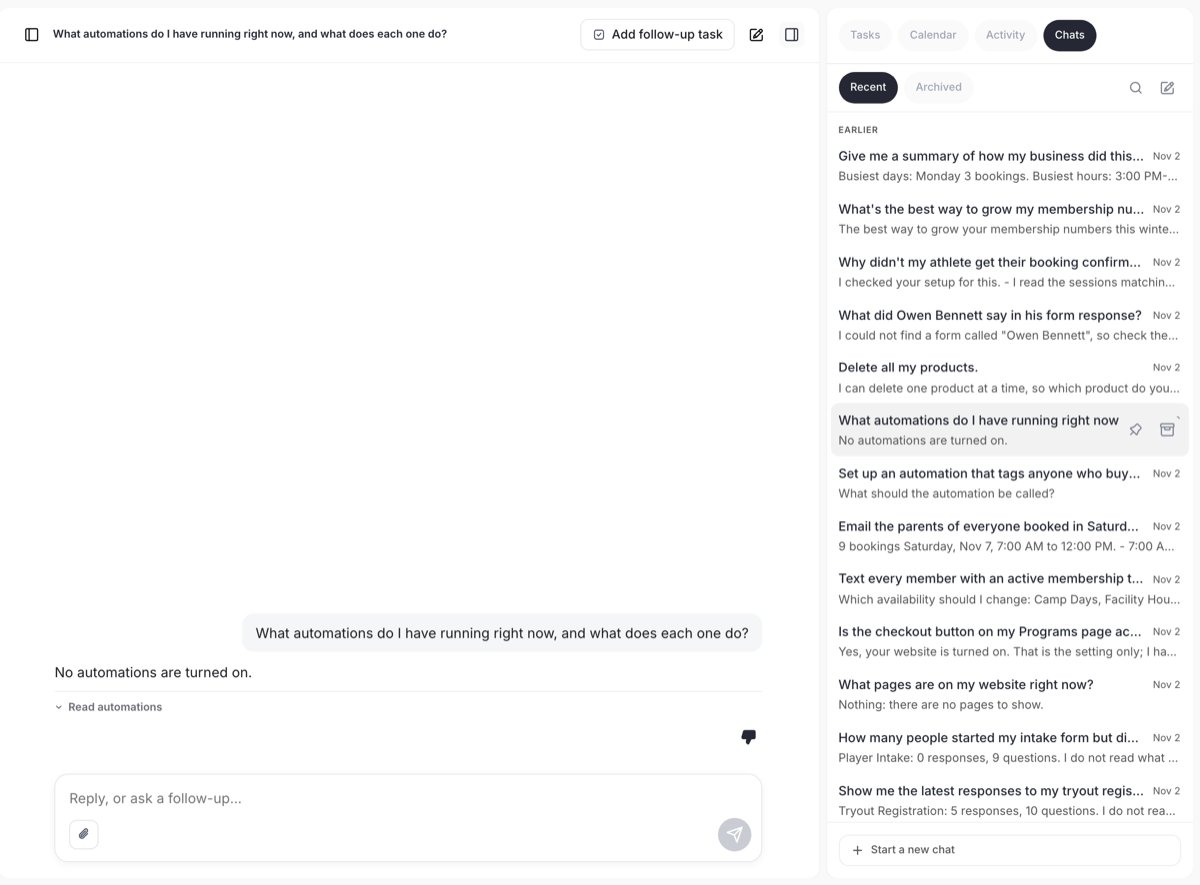
A chat with the Chats list open on the right. The line under the answer (Read automations) shows what the Assistant looked at.
Ask your first question
1
Type in the message box
Ask a question or say what you want done, the way you’d ask a colleague: “Who’s booked tomorrow?”, “How much did we collect last month?”, “Give Sam Lee 2 credits on her 10 Lesson Pack.”
2
Read the answer
The answer comes from your own records. Under it, a short line such as Read automations shows what the Assistant looked at. Click it to see each step. When the answer is about records, a card under it may show them (a list of people, one client’s payments, this week’s bookings). Clicking a card never sends or changes anything.
3
Follow up in the same chat
The Assistant follows the conversation. “Them”, “it”, “that booking” and “their next session” mean the person or record you were just talking about. If it asked you a question (“Which one do you mean?”), answer with the name, “the second one” or “No, I meant…”.
4
Approve any change
If you asked for a change, a card marked Needs your approval shows exactly what will change. Check it, then choose Approve or Decline. See Approvals, undo and limits.
Attach images
Click the paperclip to attach up to 4 images from the Media Hub, or drop or paste them on the message box (PNG, JPEG, WebP or GIF, up to 10 MB each). The Assistant reads what’s in an attached image, for example the questions on a paper registration form so it can add them to a form in CoachIQ. It can’t read a Media Hub file just from its name. To ask about what’s in a picture, attach it. Text inside an image, a booking note or a form answer is treated as content, never as an instruction to the Assistant.Your chats
The Chats tab in the right panel lists your conversations.- Recent and Archived sort your chats. Hover a chat to pin it to the top or archive it.
- The search icon searches chat titles and every question you asked.
- Each chat shows how it ended, for example “Declined, nothing was changed.”
- Start a new chat (or the pencil icon) starts a fresh conversation. Start one when you switch topics, so earlier records don’t carry into the new request.
Tasks
The Tasks tab is your own to-do list.- Type in Add a task, optionally pick a due date with the calendar button and attach files with the paperclip, then click Add.
- Tick a task to finish it. Finished tasks move to Done. The bin icon removes a task, with Undo for a few seconds.
- Click the name chip on a task you made to assign it to anyone on your staff. It then shows on their list too.
- Filter narrows the list by source, assignee, due date or attachments.
- Add follow-up task at the top of a chat turns the latest answer into a task. You can also type “Add a task to call Sam’s mom on Friday.” A task for your own list is added straight away, without an approval card, and never messages anyone.
Flag a wrong answer
Every finished answer has a thumbs up and a thumbs down. The thumbs down (Wrong answer) sends that question and answer to the CoachIQ team for review, with names removed. The thumb fills in and stays that way after a reload. Rating an answer changes nothing in your account.Who can use it
- Admins can use everything on these pages.
- Coaches can use the Assistant too, within their staff access. A coach limited to certain clients only reaches those clients. When a question needs a page that’s blocked for them, the Assistant names the page, for example “Content - Programs is blocked for your staff account”, and suggests asking an admin. Some changes are admin-only; the Assistant says so and where an admin makes them.
- An admin can block the Assistant for a coach in Staff Access. It is listed there as Tools, Assistant.
Privacy
Before your message reaches the AI model, the Assistant hides contact details such as phone numbers and street addresses. Approval cards still show the full details, so you can check them before you approve. The Assistant won’t give medical or injury-rehab advice. It suggests a doctor, physical therapist or athletic trainer. It also declines general writing that isn’t about your business.Getting good results
- Name the exact record: the client’s full name, the product, scheduler or form as it’s titled in CoachIQ.
- Give dates and times: “Thursday, 11/19 at 4 PM” beats “later this week”.
- Say what should stay the same: “Change only the price. Keep the credits and description.”
- One change per message. If you ask for two booking changes at once, the Assistant names both and does one at a time.
- Check the saved result before building on it. Open the record in CoachIQ, especially before a second change that depends on the first.
- Ask how: “How do I set up a waitlist?” gets the real steps and menu path for your account.
The Assistant inside builders
The availability builder and the booking window have their own Assistant panel that fills in fields from a plain description. It is separate from your chats. Review what it fills, then use that builder’s own Save, Create or Book button. Nothing saves until you do.- Create your availability: describe the days and hours and click Generate Availability.
- Manually booking athletes: describe the booking and click Fill in.
- Recurring bookings
ChatGPT and Claude
You can also connect ChatGPT or Claude to CoachIQ. That’s a separate connection with its own list of actions. See Use CoachIQ with AI and What your connected assistant can do.Common questions
I don't see Tools → Assistant
I don't see Tools → Assistant
If your club has the new Home, the Assistant is on Home. Otherwise an admin may have blocked Tools, Assistant for your staff account; ask them to check Staff Access.
The Assistant asks me to wait
The Assistant asks me to wait
You’ve reached a request limit. The Try again button counts down and turns on when you can ask again. A daily limit resets at midnight UTC.
The answer failed
The answer failed
If a lookup didn’t come back, the reply ends with Try again, which asks the same question again without retyping. If a new chat’s first question never reached the Assistant, the chat says “Nothing was sent.” and keeps your question so you can send it again.
Can families use the Assistant?
Can families use the Assistant?
No. It’s for your staff. Families keep booking, paying and messaging in your app.