What you’ll accomplish

By the end of this guide, you’ll have functional availability templates that define when you can coach. These templates become the foundation for all your bookable sessions.
Success criteria: Your availability templates are created and ready to be connected to schedulers, generating bookable time slots for athletes.
New to availability? Read How Availability Works first to understand the concepts. This article focuses on the practical “how-to” steps.

Before you begin

Decide on your approach before you start configuring: Most coaches start here (Recommended):
  • One to two availability schedules (ex: separate availabilities for group sessions and private sessions)
  • Weekly recurring pattern (same days/times each week)
  • Regular coaching hours
Advanced setup (Add later if needed):
  • Multiple availability schedules (different locations or contexts)
  • Specific date availability (irregular schedules)
  • Complex patterns across templates
First-timer tip: Create ONE simple weekly recurring availability template to start. You can always create more later when you have a clear reason to do so.
This is the most common and easiest approach. Set your regular weekly schedule once, and it continues forward automatically.
1

Navigate to scheduler page

From your dashboard:
  1. Click Schedule in the main navigation
  2. Click Schedulers from the submenu
2

Create new Availabilty

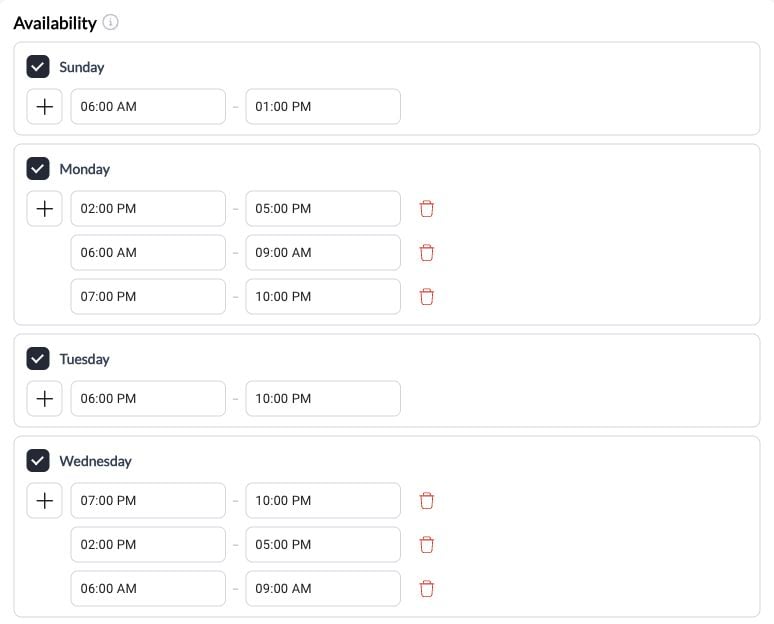
On the Scheduler page, locate the Availability and press the plus button
Availability section in scheduler builder
3

Select your available days

Check the boxes for the days you’re available to coach:Example 1: Weekday Coach
  • ✅ Monday
  • ✅ Tuesday
  • ✅ Wednesday
  • ✅ Thursday
  • ✅ Friday
Example 2: Weekend Specialist
  • ✅ Saturday
  • ✅ Sunday
Example 3: Flexible Schedule
  • ✅ Monday
  • ✅ Wednesday
  • ✅ Friday
  • ✅ Saturday
Availability Ex Pn
4

Set time ranges for each day

For each day you selected, set your available hours.You can set different hours per day if needed:
  • Monday: 4:00 PM - 8:00 PM
  • Wednesday: 3:00 PM - 9:00 PM
  • Friday: 4:00 PM - 8:00 PM
  • Saturday: 9:00 AM - 2:00 PM
Or same hours across all days:
  • All selected days: 3:00 PM - 8:00 PM
Time selection tip: Use the dropdown or type times directly. Most systems support 15-minute increments (3:00, 3:15, 3:30, 3:45, etc.).
5

Account for Time Slots Within Your Availability

Important math: Make sure your time available corresponds with the time slots you want to create later so your scheduler populates properlyExample:
  • Avalability set from 5 - 9 pm
  • ✅ Sessions are 60 minutes
    • 5 - 6 pm
    • 6 - 7 pm
    • 7 - 8 pm
    • 8 - 9 pm
  • ❌ Sessions are 1 hour and 30 minutes
    • 5 - 6:30 pm
    • 6:30 - 8 pm
    • Not enough time with the availabilty set to end at 9 pm
Why this matters: If your availability doesn’t fit with the time slots offered, this will cut into your availability window, potentially preventing the last session from being bookable.
6

Name your availability template

Good template names:
  • “Private Training Sessions at Location 1”
  • “Group Training Sessions at Location 2”
Avoid generic names:
  • “Availability 1”
  • “Schedule A”
  • “Template 1”
If naming isn’t available at this stage, don’t worry—the availability will still work perfectly.
7

Review and save

Before saving, verify:
  • ✅ Days selected are correct
  • ✅ Time ranges match your intended schedule
  • ✅ End times account for buffer time
  • ✅ All days have time ranges set
Click Save or continue with the rest of your scheduler configuration.
Success! You’ve created a weekly recurring availability template. This pattern will automatically generate available slots every week going forward.

Method 2: Specific dates availability

Use this when you have irregular schedules, seasonal coaching, or want to test time slots for a limited period.
1

Access the Availability section

On the Scheduler page, navigate to the Availability section (same as Method 1, Steps 1-2).
2

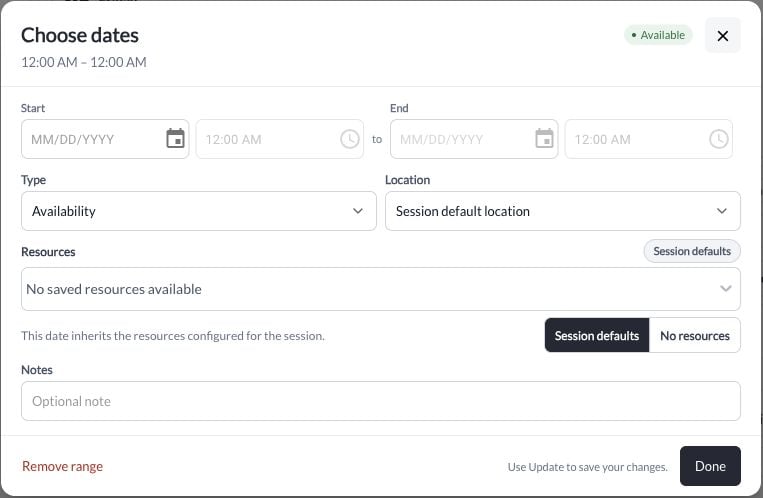
Choose 'Specific Dates' option

Look for and select Specific DatesThis allows you to manually pick exact dates rather than recurring weekly patterns.
3

Select your available dates

Use the date picker or calendar to select specific dates you’re available.Example use cases:Summer camp availability:
  • July 10, 11, 12, 13, 14 (week 1)
  • July 17, 18, 19, 20, 21 (week 2)
  • July 24, 25, 26, 27, 28 (week 3)
Testing new day:
  • Every Saturday in October
  • October 7, 14, 21, 28
Irregular schedule:
  • Pick specific dates that fit your variable schedule
Specific Dates Pn
Bulk selection: Many date pickers allow you to select multiple dates at once or select date ranges. Look for “Select Range” or similar options to avoid clicking individual dates.
4

Set time ranges for selected dates

After selecting dates, set the time ranges for those dates.Option A: Same time for all dates
  • All selected dates: 9:00 AM - 5:00 PM
Option B: Different times per date (if supported)
  • July 10: 9:00 AM - 5:00 PM
  • July 11: 10:00 AM - 3:00 PM
  • July 12: 9:00 AM - 5:00 PM
5

Review and save

Verify:
  • ✅ All intended dates are selected
  • ✅ No accidental dates included
  • ✅ Time ranges are correct
  • ✅ Dates extend far enough into future
Click Save to create this specific-date availability.
Ongoing maintenance required: Unlike weekly recurring patterns, specific dates don’t extend automatically. You’ll need to add more dates as time goes on.

Method 3: Using Copilot to generate availability

CoachIQ’s Copilot AI can generate availability patterns based on plain language descriptions.
1

Access Copilot in scheduler builder

Look for a Copilot panel on the side in the Availability Builder.
Copilot access in scheduler builder
2

Describe your availability in plain language

Tell Copilot your schedule using natural language.Example prompts that work well:Simple weekly pattern:
“I’m available Monday, Wednesday, and Friday from 3 PM to 8 PM”
Multiple time blocks:
“I coach weekday afternoons 3-8 PM and Saturday mornings 9 AM to 1 PM”
Specific exclusions:
“Available every weekday 2-7 PM except Thursdays”
Pro tip: Be specific with times and days. The more detail you provide, the better Copilot can generate your availability.
3

Review Copilot's generated availability

Copilot will generate an availability pattern based on your description.What to verify:
  • ✅ Days are correct
  • ✅ Times match your intent
  • ✅ AM/PM is correct (not 3 AM when you meant 3 PM)
  • ✅ Pattern type (recurring vs specific dates) is right
Copilot generated availability preview
4

Adjust if needed

If Copilot didn’t get it quite right:
  • Edit directly: Manually adjust days or times
  • Regenerate: Try rephrasing your prompt and ask Copilot again
  • Accept and tweak: Accept the generated availability and fine-tune manually
Copilot learning: The more you use Copilot, the better it understands your patterns and preferences.
5

Accept and save

Once you’re satisfied with the generated availability, click **Create **to save your availability

Adding blackout days (blocking time off)

Blackout days prevent bookings on specific dates without deleting your entire availability pattern.
1

Access blackout day settings

Look for options called:
  • Blackout Days
  • Unavailable Dates
  • Block Time Off
  • Exceptions
This is typically in the Availability section or a separate Unavailable section.
Blackout days section in scheduler
2

Select dates to block

Use the date picker to select dates you want to block out:Common blackout uses:
  • Vacation: July 15-30
  • Holidays: Thanksgiving Day, Christmas week
  • Personal days: Doctor appointments, family events
  • Facility closures: Gym maintenance days
Selecting blackout dates on calendar
Add holidays now: When first setting up, add all known holidays and vacation days for the next 6-12 months. This prevents athletes from booking during times you can’t coach.
3

Save blackout days

Click Save or Add Blackout Days to apply these exceptions.
Result: Your regular availability continues on all other dates, but the blackout days will show no available slots to athletes.
4

Verify blackout days appear correctly

Check your calendar to ensure:
  • ✅ Blackout days show no available slots
  • ✅ Days before and after blackout still have availability
  • ✅ All intended dates are blocked
Existing bookings: Blackout days don’t automatically cancel existing bookings. If athletes already booked during dates you’re now blocking, you’ll need to manually cancel those bookings.

Creating multiple availability templates

As your business grows, you may need multiple availability templates for different contexts.
Your situation: You coach at two facilities with different schedules.Solution:
  1. Create first scheduler with “Location A Availability”
    • Downtown Gym: Monday/Wednesday 5-9 PM
  2. Create second scheduler with “Location B Availability”
    • Community Center: Tuesday/Thursday 4-8 PM, Saturday 9 AM-1 PM
Result: Location-specific schedulers pull from location-specific availability, preventing double-booking across locations.
Two schedulers with different location availability
Your situation: You only offer group classes on weekends but private training during weekdays.Solution:
  1. Create “Private Training” scheduler with weekday availability
    • Monday-Friday: 3-8 PM
  2. Create “Group Bootcamp” scheduler with weekend availability
    • Saturday/Sunday: 9 AM-12 PM
Result: Each session type has appropriate availability without overlap or confusion.
Your situation: You want to test offering early morning sessions without committing long-term.Solution:
  1. Keep existing scheduler with regular hours
    • “Regular Sessions”: Monday/Wednesday/Friday 3-8 PM
  2. Create new scheduler with trial hours
    • “Early Morning Sessions”: Tuesday/Thursday 6-8 AM (specific dates only for next month)
Result: You can test demand for early mornings and easily remove if it doesn’t work out, without affecting your core schedule.
Remember: Each scheduler can have its own availability configuration. You create multiple templates by creating multiple schedulers with different availability settings.

Editing existing availability

Your schedule will change. Here’s how to update availability for existing schedulers.
1

Navigate to your scheduler

  1. Go to Schedule → Schedulers
  2. Find the scheduler you want to edit
  3. Click to open or click Edit
Edit button on scheduler list
2

Find the Availability section

Scroll to the Availability section of the scheduler.You’ll see your current availability configuration displayed.
3

Make your changes

Common edits:Adding a day:
  • Check an additional day box
  • Set time range for that new day
  • Save
Changing hours:
  • Adjust start/end times for existing days
  • Save
Removing a day:
  • Uncheck the day box
  • Save
Adding blackout dates:
  • Select new blackout days
  • Save
Editing availability within scheduler
4

Save changes

Click Save or Update Scheduler.
Changes applied: Future available slots will reflect your updated availability. Existing bookings remain unchanged.
5

Check your calendar

Navigate to Schedule → Calendar and verify:
  • ✅ New availability shows correct slots
  • ✅ Changed hours reflect properly
  • ✅ Removed days no longer show availability
  • ✅ Existing bookings are still there
Changes are forward-looking only: Editing availability affects future bookable slots but doesn’t change or cancel existing bookings.

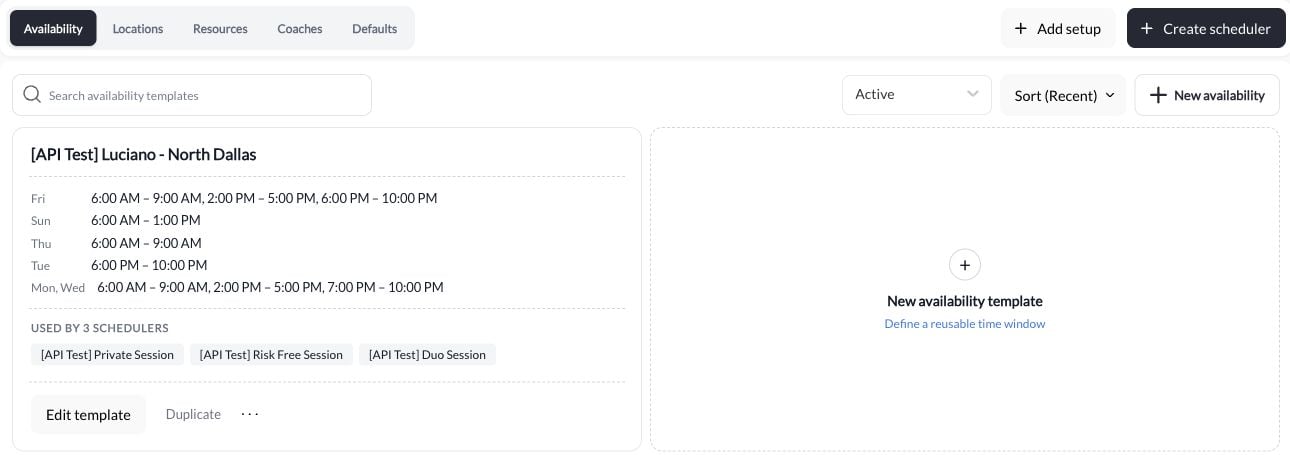
Connecting availability to multiple schedulers

The real power of availability templates: one template powering multiple session types.

The reusability workflow

1

Create your first scheduler with availability

Follow Method 1 above to create your first scheduler with your regular availability (e.g., M/W/F 3-8 PM).Save this scheduler.
2

Create your second scheduler

When creating a second scheduler:
  1. Navigate to Availability section
  2. Look for option to Use Existing Availability or Select Availability Template
If this option exists, select your previously created availability.
Option to use existing availability template
System behavior note: Different versions of CoachIQ may handle this differently. Some automatically share availability across schedulers; others require explicit selection.
3

Verify shared availability

After saving your second scheduler:
  1. Check calendar in Week view
  2. Both schedulers should show available slots during the same time windows
  3. Both should reflect any changes you make to the shared availability
Success! You’re now managing one availability pattern that powers multiple schedulers.

When schedulers should have SEPARATE availability

Create different availability for each scheduler when:
  • ✅ They’re at different physical locations
  • ✅ One is weekday-only, another is weekend-only
  • ✅ Different session types are genuinely available at different times
  • ✅ You’re testing new time slots for one session type
Don’t create separate availability when:
  • ❌ Different session types are offered during the same hours (same availability, different schedulers)
  • ❌ Only the price or duration differs (same availability works fine)
  • ❌ You want to limit bookings (use booking limits instead, not separate availability)

Common availability patterns by coaching type

Typical Setup:
  • One availability template: “Regular Coaching Hours”
  • Days: Monday/Wednesday/Friday
  • Times: 4:00 PM - 8:00 PM
  • Buffer: 15 minutes
Schedulers using this availability:
  • 30-Min Quick Session - $50
  • 60-Min Full Training - $90
  • Free 30-Min Assessment
Why it works: All services offered during same hours, manage schedule in one place.

Availability best practices summary

Start Simple

One availability template, weekly recurring pattern. Add complexity only when you have a clear problem to solve.

Add Buffer Generously

15 minutes between sessions prevents burnout and gives you breathing room. Athletes never see buffer time.

Block Holidays Upfront

Add blackout days for all known holidays, vacations, and time off when you first set up. Prevents problem bookings.

Think Reusability

One availability template powering multiple schedulers = easier management and fewer conflicts.

Extend End Times

Set availability end time 15-30 minutes past when you want your last session to end (accounts for buffer time).

Use Descriptive Names

“Downtown Gym M/W/F” is better than “Availability 1” when you have multiple templates.

Review Calendar After Changes

Always check your calendar after editing availability to verify slots appear correctly.

Test First

Create a test scheduler with your availability and verify time slots generate as expected before going live.

Troubleshooting availability issues

Possible causes:
  1. Availability days/times not set
  2. Availability end date is in the past
  3. All time slots are blocked by blackout days
  4. Buffer time + session duration exceeds availability window
How to fix:
  • Edit scheduler and verify availability is set
  • Check end date extends into future
  • Review blackout days for conflicts
  • Calculate: (session duration + buffer) × number of desired slots = minimum availability window needed
Possible cause: Buffer time is consuming your availability window.Example problem:
  • Availability: 3:00 PM - 5:00 PM (2 hours)
  • Session duration: 60 min
  • Buffer: 30 min
  • Expected slots: 2
  • Actual slots: 1 (only 3:00 PM works; 4:00 PM session would end at 5:00 PM but buffer would end at 5:30 PM)
How to fix: Extend your availability end time to accommodate buffer after last session.
Possible causes:
  1. Changes not saved
  2. Browser cache showing old data
  3. Looking at wrong date range
  4. Changes only affect future, not past
How to fix:
  • Re-save the scheduler
  • Refresh browser (hard refresh: Cmd+Shift+R or Ctrl+Shift+R)
  • Navigate to future dates to see new availability
  • Remember: existing bookings don’t change, only future slots
Possible causes:
  1. Multiple schedulers with different availability
  2. Another coach’s availability overlapping
  3. Buffer time miscalculated
  4. Availability wider than intended
How to fix:
  • Review all schedulers’ availability settings
  • Check if multiple coaches have overlapping availability
  • Verify start/end times are correct (not AM/PM errors)
  • Double-check all checked day boxes match intent
System limitation: Some versions of CoachIQ create availability per-scheduler rather than as reusable templates.Workaround:
  • Manually configure same availability in each scheduler
  • Be extra careful to keep them in sync when making changes
  • Consider using Copilot with same prompt for each scheduler to ensure consistency

Quick reference: Time calculation formulas

When planning your availability, use these formulas:

How many slots will I have?

Formula:
Available slots = (Availability window) ÷ (Session duration + Buffer time)
Example:
  • Availability: 3:00 PM - 8:00 PM = 5 hours = 300 minutes
  • Session: 60 minutes
  • Buffer: 15 minutes
  • Calculation: 300 ÷ 75 = 4 slots
Result: 4 bookable time slots per day

When should I end my availability?

Formula:
Availability end time = Desired last session start time + Session duration + Buffer time
Example:
  • Last session start: 7:00 PM
  • Session: 60 minutes
  • Buffer: 15 minutes
  • Calculation: 7:00 PM + 60 min + 15 min = 8:15 PM
Result: Set availability to end at 8:15 PM

How much availability do I need?

Formula:
Minimum availability window = (Desired number of slots) × (Session duration + Buffer)
Example:
  • Want 5 slots per day
  • Session: 60 minutes
  • Buffer: 15 minutes
  • Calculation: 5 × 75 = 375 minutes = 6.25 hours
Result: Need at least 6.25 hours of availability to offer 5 bookable slots
Pro tip: Add 15-30 minutes to calculated minimums as safety buffer for real-world schedule flexibility.

What’s next

Now that your availability is set up, you’re ready to create schedulers that use this availability.
Need help planning your availability strategy? Our support team can help you design the optimal setup for your coaching business. Contact Support