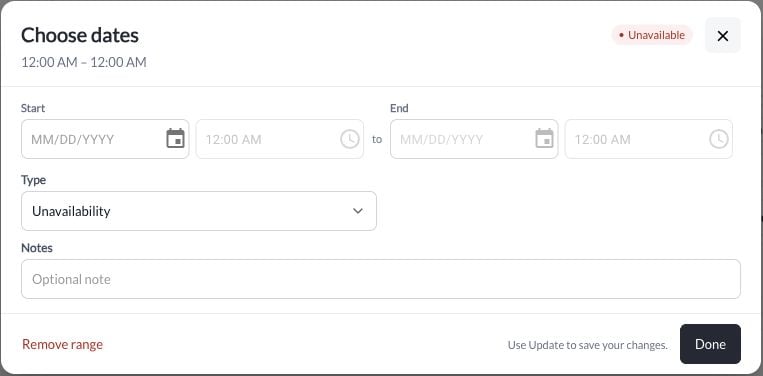
What blackout days do

Blackout days are your way of saying “I’m normally available on Wednesdays, but not THIS Wednesday.” They block specific dates from your regular availability pattern without deleting or changing your entire schedule. Think of blackout days as temporary exceptions to your regular coaching schedule.
Where to find blackout days: Typically in Schedule → Schedulers → Availability → [Select Availability]

Why blackout days matter

Without blackout days, you’d have two terrible options when taking time off: Option 1: Remove your entire availability
  • Then manually reattach it after your vacation
  • High risk of errors and forgotten settings
  • Time-consuming and frustrating
Option 2: Let athletes book during time off
  • Then manually cancel each booking
  • Upset athletes who already scheduled
  • Damaged reputation and trust
The better way: Blackout days
  • Keep your regular availability intact
  • Block specific dates you’re unavailable
  • Athletes simply don’t see those dates as options
  • Return from vacation and everything resumes automatically
Result: Your calendar stays clean, athletes can’t book inappropriate times, and your regular schedule continues seamlessly after time off.

Blackout days vs other scheduling tools

Understanding what blackout days are (and aren’t) helps you use them correctly:
What they do:
  • Block specific dates from your availability
  • Prevent NEW bookings on those dates
  • Keep your regular schedule intact
  • Temporary exceptions to recurring patterns
What they DON’T do:
  • Cancel existing bookings (you must do this manually)
  • Change your regular availability pattern
  • Notify athletes automatically
Best for:
  • Vacations (multi-day blocks)
  • Holidays (single days)
  • Personal appointments
  • Facility closures
  • Any temporary unavailability
Pro tip: Blackout days are preventive (stop future bookings), while cancellations are reactive (remove existing bookings). You often need both: add blackout days to prevent new bookings, then cancel any existing bookings during that time.

How to add blackout days

1

Navigate to your scheduler settings

From your dashboard:
  1. Click Schedule → **Schedulers **→ Availabilties
  2. Find the availability you want to block dates for
  3. Click Edit or click on the availabilty to open it
Important: Blackout days are set per-scheduler, not globally. If you have multiple schedulers, you may need to add blackout days to each one individually.
2

Find the blackout days section

Scroll through the scheduler settings to find the **Specific Dates **section
  • Or similar naming
This is below the recurring availability settings.
Blackout days section in scheduler
3

Select dates to block

Use the date picker or calendar interface to select dates you want to block.Single date selection:
  • Click on the start date (e.g., December 25 for Christmas)
  • Enter the start time (e.g., 12:00 am)
  • Click on the same date for the end date
  • Enter the end time (e.g., 11:59 pm)
Multiple Date range selection:
  • Click start date and enter the start time (e.g., July 10th 9:00 am)
  • Select the end date and enter the end time (e.g., July 20th 9:00 pm)
Multiple individual dates or ranges:
  • Folllow the above instructions for the first range
  • Click **Add Specific Date **to add another day/range to block off
4

Add notes (optional but recommended)

Why add notes: When you review blackout days later, you’ll know why you blocked those dates without having to remember.
  • “Family vacation - Europe”
  • “Gym closed for maintenance”
  • “Doctor appointment”
5

Save your blackout days

Click Update to apply these blocks.
Success! The selected dates are now blocked from future bookings. Athletes viewing available times won’t see these dates as options.
6

Verify in your calendar

Navigate to the specific scheduler and verify:
  • ✅ Blackout dates show no available slots
  • ✅ Days before blackout still have availability
  • ✅ Days after blackout resume normal availability
  • ✅ All intended dates are properly blocked
Calendar view with blackout days visible

What happens to existing bookings?

This is the most important thing to understand about blackout days:
Critical: Blackout days only prevent NEW bookings. They do NOT automatically cancel existing bookings during those dates.

The scenario

Your situation:
  1. You have regular availability every Monday
  2. Athlete already booked Monday, December 18 at 3:00 PM
  3. You add blackout days for December 18-22 (vacation)
What happens:
  • ✅ New bookings for Dec 18-22 are prevented (athletes can’t book)
  • ❌ Existing booking on Dec 18 at 3:00 PM still exists
  • ⚠️ You must manually cancel the Dec 18 booking

The workflow for time off

1

Add blackout days FIRST

Block the dates you’ll be unavailable to prevent new bookings.
2

Check calendar for existing bookings

Review your calendar during the blackout period:
  • Look for any bookings already scheduled
  • Note which athletes are affected
  • Identify sessions that need canceling
3

Cancel existing bookings manually

For each booking during blackout dates:
  1. Open the booking in your calendar
  2. Before cancelling the session send a message with cancellation reason (optional but professional)
  3. Cancel each athlete within the session
Communication tip: Cancel existing bookings as soon as you know about your time off. The more notice athletes get, the less frustration and easier rescheduling.
4

Communicate proactively (optional but recommended)

Consider sending a message to affected athletes:
  • “I’ll be on vacation Dec 18-22”
  • “Your session during this time has been canceled”
  • “Credits have been refunded to your account”
  • “Let me know if you’d like to reschedule for before/after”
This professional touch prevents confusion and maintains athlete relationships.

Managing blackout days across multiple schedulers

If you have multiple schedulers (different session types), you’ll need to decide: block all schedulers or just some?

Scenario 1: Block ALL schedulers (most common)

Your situation: You’re on vacation—ALL coaching is unavailable. Solution: Add blackout days to every scheduler.

Scenario 2: Block SOME schedulers

Your situation: You’re unavailable at Location A but still coaching at Location B. Solution: Add blackout days only to Location A schedulers, leave Location B schedulers active. Example:
  • “Downtown Gym Sessions” → Add Dec 18-22 blackout (gym closed for maintenance)
  • “West Side Facility Sessions” → No blackout (still operational)
Strategy tip: If you have location-specific or context-specific schedulers, blackout days give you flexibility to block some contexts while keeping others active.

Common blackout day uses

Duration: Multi-day to multi-week blocksHow to set:
  • Select date range: Start date → End date
  • Add to all schedulers
  • Cancel existing bookings during vacation dates
  • Add note: “Summer vacation” or “Europe trip”
Example: July 10-24 (two weeks off)Pro tip: Add vacation blackouts as soon as you book the trip, even if it’s months away. This prevents problem bookings from piling up.
Duration: Single days or long weekendsHow to set:
  • Select specific holiday dates
  • Consider adding day before/after if needed
  • Add to all schedulers
  • Review if any athletes booked before you added the blackout
Common holiday blackouts:
  • Thanksgiving Day + Black Friday
  • Christmas Eve + Christmas Day + Day after
  • New Year’s Eve + New Year’s Day
  • Memorial Day, July 4th, Labor Day
Annual planning tip: When you first set up scheduling, add ALL major holidays for the next year. Save yourself future hassle.
Duration: Varies (single day to weeks)How to set:
  • Add blackout dates to location-specific schedulers only
  • If you have one location, add to all schedulers
  • Communicate closure to athletes proactively
Common causes:
  • Gym maintenance or renovations
  • Building power/HVAC repairs
  • Seasonal closures
  • Lease or rental issues
Example: “Community Center Sessions” scheduler blocked Aug 1-7 for facility renovation
Duration: Usually single days or partial daysHow to set:
  • Select specific date
  • If morning appointment affects afternoon availability, consider blocking just that day
  • Add note for your reference
Examples:
  • Doctor/dentist appointments
  • Family commitments
  • Jury duty
  • Moving day
Partial day blocking: If you have a morning appointment but can coach in afternoon, blackout days may not be the right tool. Instead, consider adjusting your availability start time for just that day using specific date availability.
Duration: Multi-day (typically 2-5 days)How to set:
  • Block conference dates plus travel days if needed
  • Consider blocking day after for recovery/catch-up
  • Add note: “NSCA Conference” or “Certification course”
Example: April 18-21 blocked for coaching certification trainingBonus opportunity: Use conference attendance as content for athlete newsletter or social media (“Leveling up my coaching skills this week!”).
Duration: Unexpected, usually 1-3 daysHow to set:
  • Add blackout as soon as closure is confirmed
  • Immediately cancel affected bookings
  • Communicate actively with athletes
Common causes:
  • Severe weather (hurricanes, blizzards)
  • Power outages
  • Facility emergencies
  • Public health situations
Emergency tip: For unexpected closures, speed is critical. Add blackout first (prevents new bookings), then handle cancellations and communication.

Viewing and editing existing blackout days

You’ll need to review and modify blackout days as plans change.
1

Access blackout day list

Navigate to your scheduler settings:
  1. Schedule → Availability
  2. Click availabilty to edit
  3. Find Specific Dates Days section
You should see a list of currently active blackout dates.
2

Review upcoming blackout dates

Check for:
  • ✅ Dates still relevant
  • ✅ Any dates you can now remove (plans changed)
  • ✅ Missing dates that should be added
  • ✅ Notes/reasons for each blackout
Quarterly review: Every 3 months, review your blackout days. Remove old ones, add newly planned time off, verify upcoming holidays are blocked.
3

Remove outdated blackout days

For past blackout dates or changed plans:
  1. Select the blackout date(s) to remove
  2. Click Delete, Remove, or uncheck the date
  3. Save changes
Result: Those dates will now show available slots again for future weeks (if they’re in your regular availability pattern).
4

Add newly planned time off

If you’ve scheduled new time off:
  1. Select the new dates to block
  2. Add notes if helpful
  3. Save changes
  4. Check calendar for any existing bookings to cancel

Strategic blackout planning

Smart coaches don’t just react to time off—they plan blackout days strategically.

The annual blackout planning session

When to do it: When you first set up scheduling, and then each January What to do:
  1. Add all known holidays for the year
    • Federal holidays
    • Religious holidays you observe
    • Cultural celebrations
    • Personal important dates (birthdays, anniversaries)
  2. Block planned vacations
    • Summer vacation
    • Winter break
    • Family trips
    • Already-booked travel
  3. Add recurring personal commitments
    • Monthly commitments (first Friday of each month)
    • Quarterly events
    • Annual conferences
  4. Build in recovery time
    • Day after major holidays
    • Day after returning from vacation
    • Post-peak season breaks
Time investment: Spending 30 minutes adding blackout days for the entire year saves hours of booking management and athlete communication throughout the year.

Buffer blackout days

Consider adding blackout days around major events: Travel day philosophy:
  • Block day before departure (packing, preparation, travel)
  • Block day after return (unpacking, recovery, jet lag)
Example:
  • Vacation: July 10-20
  • Blackout dates: July 9-21 (includes buffer days)
Why it matters: Athletes booking 6:00 AM session on your return day = exhausted coach = poor session quality

Seasonal considerations

Adjust your blackout strategy by season: Summer (June-August):
  • More vacation blackouts
  • Holiday weekends (Memorial Day, July 4th, Labor Day)
  • Consider blocking full weeks rather than partial
Fall (September-November):
  • Thanksgiving week considerations
  • School holiday breaks (if relevant)
  • Conference season in many sports
Winter (December-February):
  • Extended holiday blocks (Christmas/New Year’s)
  • Weather-related emergency availability
  • Post-holiday recovery time
Spring (March-May):
  • Spring break weeks
  • Religious holidays (Easter, Passover)
  • End-of-school-year commitments

Communicating blackout days to athletes

Blackout days are internal—athletes don’t see a “blocked” day, they just don’t see it as available. But proactive communication still helps:

When to communicate

Always communicate:
  • ✅ When canceling existing bookings
  • ✅ For extended absences (week+)
  • ✅ During unexpected closures
Consider communicating:
  • For holiday closures (reminder)
  • For facility maintenance
  • When you return from extended time off
No need to communicate:
  • Every single blackout day
  • Short personal appointments
  • Single-day closures without existing bookings

How to communicate

When: You need to cancel their specific bookingHow: Send personalized message with cancellationTemplate:
Hi [Athlete Name], I wanted to let you know that I’ll be out of town July 10-20 for a family vacation. Unfortunately, I need to cancel your session scheduled for July 15 at 4:00 PM. Your credit has been refunded to your account and you can rebook for any time after July 21. Sorry for the inconvenience, and thanks for understanding! Coach [Your Name]

Troubleshooting blackout day issues

Possible causes:
  1. Blackout days not saved properly
  2. Blackout added to wrong scheduler
  3. Multiple schedulers exist, only some have blackout
  4. Date selection didn’t include all days
How to fix:
  • Re-save blackout days and verify they appear in list
  • Check all schedulers have appropriate blackouts
  • View calendar to verify no slots showing during blackout dates
  • Carefully re-select date range to ensure all days included
Possible causes:
  1. Browser didn’t save properly (connection issue)
  2. Selected dates then navigated away without saving
  3. Scheduler was edited afterward and blackouts removed
How to fix:
  • Always click Save/Update after adding blackouts
  • Wait for confirmation message before closing
  • Re-add the blackout dates
  • Consider taking a screenshot after adding blackouts as confirmation
Issue: Blackout days added, but bookings remainHow to fix:
  1. Navigate to calendar
  2. Find all bookings during blackout dates
  3. Send apology message to affected athletes explaining the oversight
  4. Offer priority rebooking or small goodwill gesture if appropriate
  5. Cancel each booking manually
Prevention: Immediately after adding blackout days, check your calendar for existing bookings during those dates and cancel proactively.
Issue: Accidentally selected wrong date range or too many datesHow to fix:
  1. Edit availabilty blackout settings
  2. Remove the problematic blackout dates
  3. Re-add with correct date range
  4. Verify in calendar that proper dates are blocked
Common mistake: Selecting July 1 - August 31 when you meant July 1-7 (week vs. two months).

Blackout days best practices

Add Holidays Upfront

When first setting up scheduling, add all major holidays for the next 12 months. One-time 30-minute investment.

Add Vacation Immediately

Book a vacation? Add blackout days the same day. Don’t wait until closer to the date.

Check for Existing Bookings

After adding blackout days, immediately check calendar for existing bookings to cancel.

Buffer Travel Days

Block day before departure and day after return. Prevents exhausted coaching sessions.

Add Notes

Include brief notes on blackout reasons. “Summer vacation” helps you remember context later.

Quarterly Review

Every 3 months, review blackout days. Remove outdated ones, add newly planned time off.

Communicate Cancellations

When canceling existing bookings due to blackouts, send personalized message explaining.

All Schedulers or None

For full vacations, add blackout to ALL schedulers consistently. Prevents partial availability confusion.
Questions about managing your time off? Our support team can help you set up blackout days and manage your scheduling calendar. Contact Support