What you’ll accomplish

Learn how to book athletes directly into sessions using CoachIQ’s Booking Builder—perfect for VIP clients, makeup sessions, and special scheduling situations that require your direct involvement.
Where to find this: Schedule → Calendar → “Book Session” button, or direct URL: /schedule/booking/builder/new

When to use manual booking

Manual booking is your tool for handling scheduling situations that don’t fit the standard athlete self-booking flow:

VIP & High-Touch Clients

Private clients who prefer you handle their scheduling rather than booking themselves

Makeup Sessions

Rescheduling after cancellations, no-shows, or special circumstances requiring accommodation

Special Requests

Booking outside your normal availability for one-off exceptions or emergency sessions

Walk-Ins & Phone Calls

Athletes who contact you directly instead of using the booking page

Complimentary Sessions

Free or comp sessions for referrals, trials, or special promotions

Administrative Corrections

Fixing booking errors or handling technical issues on athlete’s behalf
Remember: Manual booking uses the same payment/credit logic as athlete self-booking. The only difference is who initiates the process.

Opening the Booking Builder

There are three ways to access the manual booking interface:
Best for: Booking at a specific time you can see on calendar
  1. Go to Schedule → Calendar
  2. Click the “Book Session” button (top right)
  3. Booking Builder opens
This is the most common entry point for manual booking.

Step-by-step: Creating a manual booking

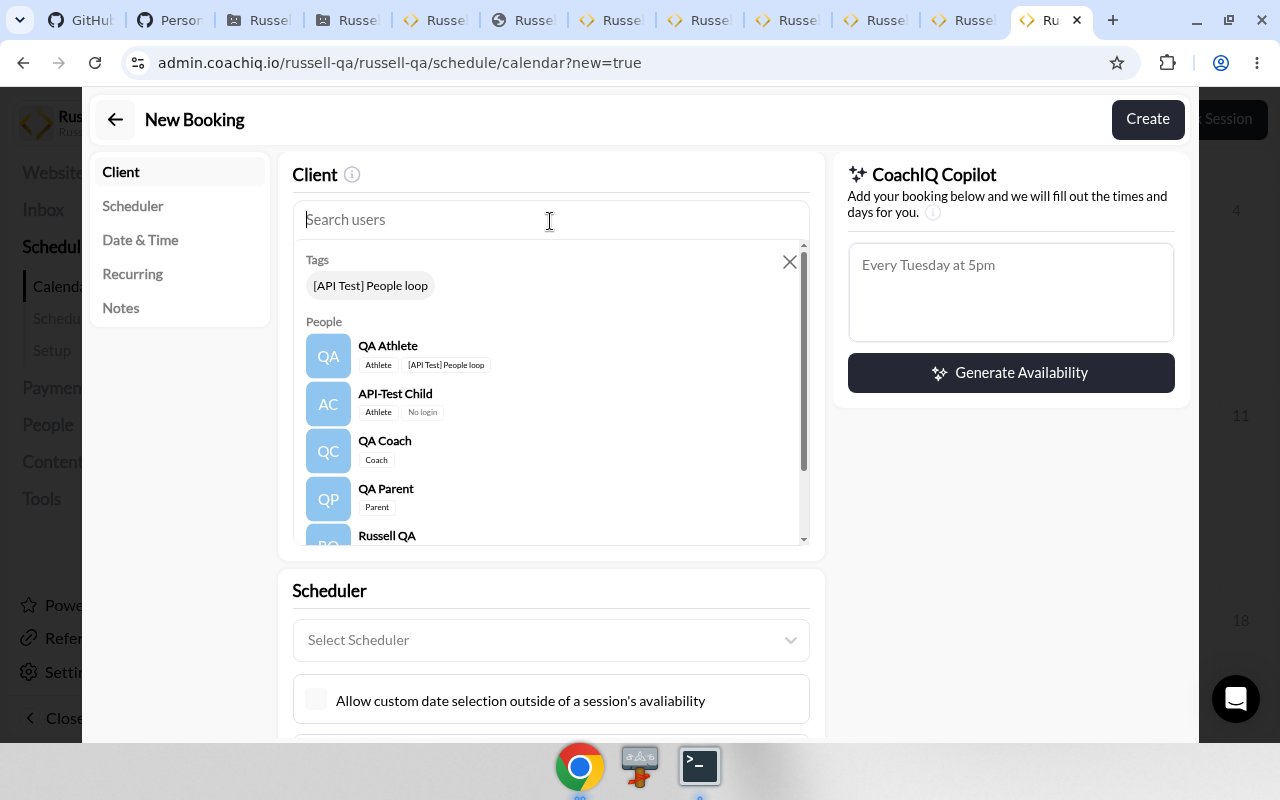
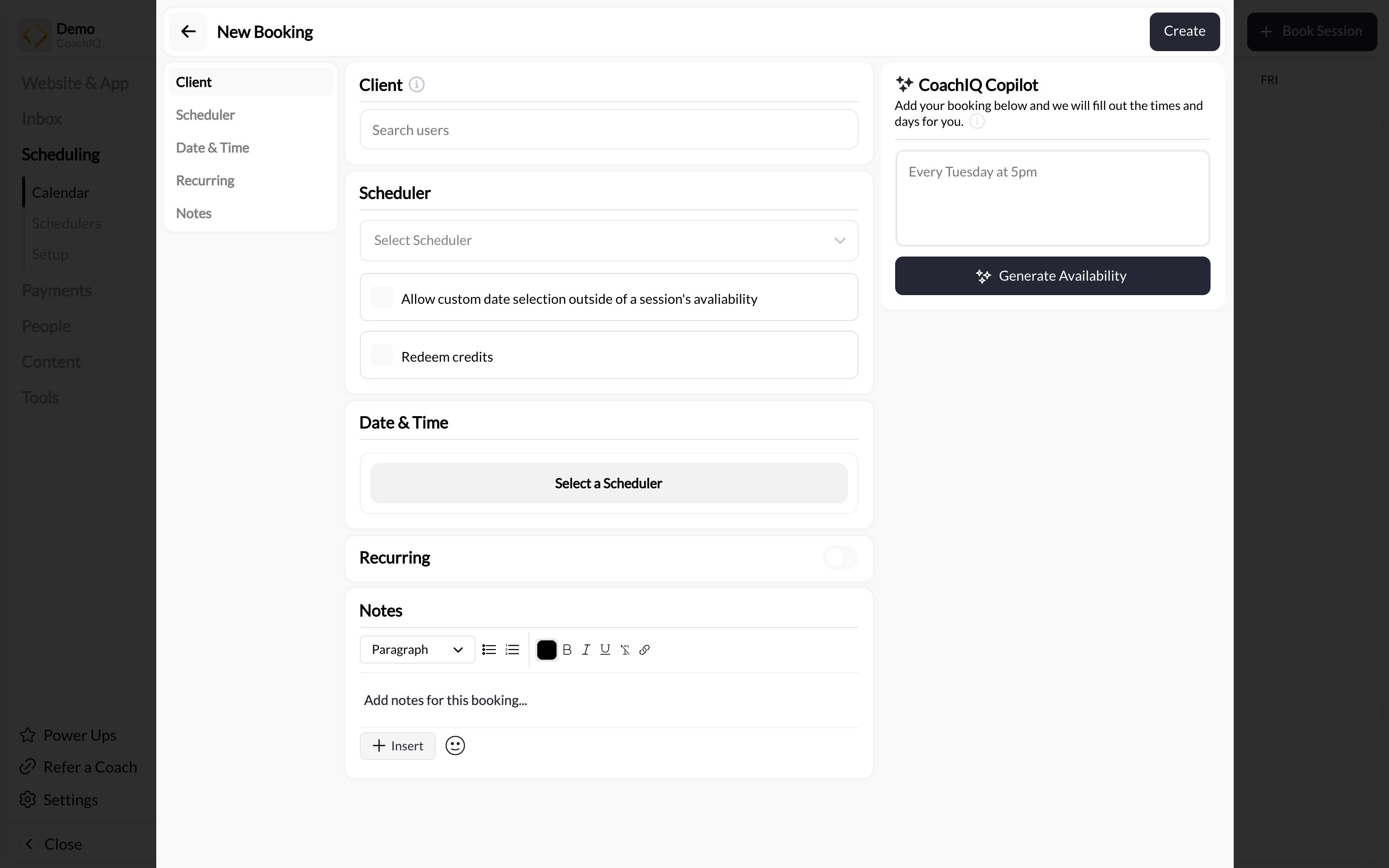
The Booking Builder has four main sections you’ll complete in order:
Manual Booking Pn
1

Select the client

Search for and select the athlete you’re booking for.How to find clients:
  • Search by name: Start typing athlete/parent name
  • Search by email: Type their email address
What you’ll see:
  • Client name
  • Email address
  • Associated tags
  • Profile picture (if set)
Select the athlete by clicking on their name.
Can’t find the client? They may not be in your system yet. Go to People → Clients → Add Client to create their profile first.
2

Choose the scheduler

Select which type of session you’re booking.The dropdown shows all your active schedulers with:
  • Scheduler name
  • Duration (e.g., “60 min”)
  • Pricing (e.g., “$75.00” or “1 Credit”)
Two important checkboxes appear after selecting a scheduler:

Allow custom date selection

When checked: You can book the athlete at ANY date/time, even outside your normal availability.When unchecked: You can only book within your published availability windows.Use case:
  • Checked → Special accommodation outside normal hours
  • Unchecked → Standard booking within your schedule

Redeem credits

When checked: Booking will consume athlete’s credits (if scheduler is credit-based).When unchecked: Booking won’t consume credits—useful for comp sessions or when you want to manually handle credit deduction later.Important: Only appears if the selected scheduler accepts credits.Default: Usually checked (credits will be consumed as normal).
Credit availability: If athlete doesn’t have enough credits and “Redeem credits” is checked, the booking will fail. Either uncheck the box (comp session) or add credits to athlete’s account first.
3

Select date and time

Choose when this session will occur.What you’ll see depends on the checkboxes:
When “Allow custom date selection” is unchecked:
  • Calendar shows only available dates (dates with open slots appear clickable)
  • Select a date
  • Choose from available time slots
  • Duration options: 15 min, 30 min, 60 min, or custom
This ensures you’re booking within your normal schedule and availability rules.
Duration presets:
  • Click 15, 30, or 60 for quick duration selection
  • Or set custom duration for non-standard session lengths
Pro tip: If booking a makeup session, match the duration to the original session they missed.
4

Review and create booking

Before finalizing, review all details:Booking summary shows:
  • Athlete name
  • Scheduler name
  • Date and time
  • Duration
  • Credit consumption status (if applicable)
  • Any warnings or conflicts
If everything looks correct, click “Create” or “Book Session”.
Success! The booking is created instantly. Both you and the athlete receive confirmation notifications.

What happens after booking

Immediate actions

  1. Calendar updated: Booking appears on your calendar immediately
  2. Athlete notification: Athlete receives confirmation via:
    • In-app notification
    • Email (if enabled)
    • SMS (if reminder settings configured)
  3. Credit deduction: If “Redeem credits” was checked, credits are deducted from athlete’s balance
  4. Availability blocked: That time slot is now unavailable for other bookings (unless double-booking is enabled)

Athlete receives

The athlete gets a booking confirmation that includes:
  • Session date and time
  • Session type (scheduler name)
  • Duration
  • Location (if set on scheduler)
  • Your contact information
  • Cancellation policy (if applicable)
  • “Add to Calendar” option
The notification looks identical to a self-booked session—athletes can’t tell if you booked them manually vs. they booked themselves.

Using Copilot for faster booking

CoachIQ Copilot can speed up the booking process by interpreting natural language:
1

Access Copilot

In the Booking Builder, look for the “CoachIQ Copilot” panel on the right side.
Copilot Ui Pn
2

Describe the booking

Type a natural language description:Examples:
  • “Every Tuesday at 5pm”
  • “Next Monday at 3pm”
  • “Fridays at 10am for 4 weeks”
Copilot works best for recurring patterns, but can also handle single bookings.
3

Generate and review

Click “Generate Availability” and Copilot will:
  • Interpret your description
  • Auto-fill date/time fields
  • Suggest booking pattern
Review the auto-filled fields to ensure accuracy, then proceed with booking.
Copilot tip: Be specific with times. “5pm” is better than “evening.” “Next Tuesday” is better than “soon.”

Common manual booking scenarios

Situation: Athlete canceled last-minute due to illness. You want to give them a free makeup session.Process:
  1. Open Booking Builder
  2. Select athlete
  3. Choose same scheduler as original session
  4. Uncheck “Redeem credits” (so they’re not charged twice)
  5. Select new date/time
  6. Create booking
Result: Athlete gets makeup session without double credit deduction.
Situation: High-value client prefers you schedule their weekly sessions rather than them self-booking.Process:
  1. Open Booking Builder
  2. Select VIP athlete
  3. Choose their preferred scheduler
  4. Leave “Redeem credits” checked (normal credit consumption)
  5. Select their preferred day/time
  6. Create booking
Pro tip: For weekly standing appointments, use recurring booking instead (covered in Article #19).
Situation: Athlete calls asking if you have availability today at 4pm.Process:
  1. Check calendar for conflicts at 4pm
  2. If available, open Booking Builder
  3. Search for athlete by phone number or email
  4. Select appropriate scheduler
  5. Choose today’s date, 4pm time
  6. Create booking
Result: Instant booking, athlete gets confirmation notification before they hang up.
Situation: Regular athlete needs session Tuesday 7am, but you’re normally only available 9am-5pm.Process:
  1. Open Booking Builder
  2. Select athlete
  3. Choose scheduler
  4. Check “Allow custom date selection”
  5. Select Tuesday, manually enter 7:00 AM
  6. Verify no conflicts on calendar
  7. Create booking
Result: One-time exception without changing your normal availability for all athletes.
Situation: You want to give new athlete a free trial session, but your scheduler normally charges 1 credit.Process:
  1. Open Booking Builder
  2. Select athlete
  3. Choose the credit-based scheduler
  4. Uncheck “Redeem credits”
  5. Select date/time
  6. Create booking
Result: Athlete gets booked but doesn’t lose any credits. Session appears as normal booking on calendar.
Situation: Athlete accidentally booked wrong scheduler. You need to correct it.Process:
  1. Cancel the incorrect booking (Article #21)
  2. Open Booking Builder
  3. Select athlete
  4. Choose correct scheduler
  5. Check “Redeem credits” if the original booking refunded credits
  6. Book at the same or corrected time
  7. Communicate the fix to athlete
Result: Athlete is now in correct session type without credit loss.

Troubleshooting manual booking issues

Possible causes:
  • Missing required field (client, scheduler, or date/time)
  • Athlete doesn’t have sufficient credits (if “Redeem credits” checked)
  • Selected time conflicts with another booking (if double-booking disabled)
  • Selected scheduler is inactive
How to fix:
  1. Verify all fields are completed
  2. Check athlete’s credit balance (People → Client profile)
  3. Verify no calendar conflicts at selected time
  4. Confirm scheduler is Active status
  5. Try unchecking “Redeem credits” to isolate credit issue
Possible causes:
  • Athlete’s notification settings disabled
  • Email in spam folder
  • Incorrect contact information in athlete profile
  • System notification delay
How to fix:
  1. Verify booking appears on YOUR calendar
  2. Check athlete’s profile has correct email/phone
  3. Ask athlete to check spam/junk folder
  4. Manually send them confirmation (screenshot or message)
  5. Have athlete check notification settings in their account
Possible causes:
  • “Redeem credits” checkbox was unchecked
  • Athlete credit balance wasn’t refreshed after booking
How to fix:
  1. Check booking details to verify credit redemption setting
  2. View athlete’s credit transaction history
  3. If credits weren’t deducted but should have been:
    • Go to athlete’s profile
    • Manually deduct appropriate credits
    • Add note explaining the manual adjustment
Situation: Accidentally checked “Allow custom date selection” and created booking at impossible time.How to fix:
  1. Delete the incorrect booking
  2. Create new booking WITHOUT “Allow custom date selection” checked
  3. Notify athlete of time change
  4. Double-check calendar for actual availability
Prevention: Only check “Allow custom date selection” when intentionally making an exception.

Manual booking best practices

Verify Before Booking

Always check your calendar for conflicts before manually booking, especially when using custom date selection. Double-booking yourself causes major problems.

Communicate Clearly

If manually booking for someone else, confirm the date/time with them before creating the booking. Prevents confusion and reschedules.

Document Special Cases

For comp sessions or exceptions, add a note in the booking details or athlete profile explaining why normal rules were bypassed.

Consistent Credit Handling

Decide on your policy: Do makeup sessions consume credits? Are trials always free? Be consistent so athletes know what to expect.