

Where to find this: Scheduling → Calendar → Click any booking
Check in from the calendar
1
Click a booking on the calendar
Open your calendar and click on any scheduled session. The booking details modal appears showing all participants.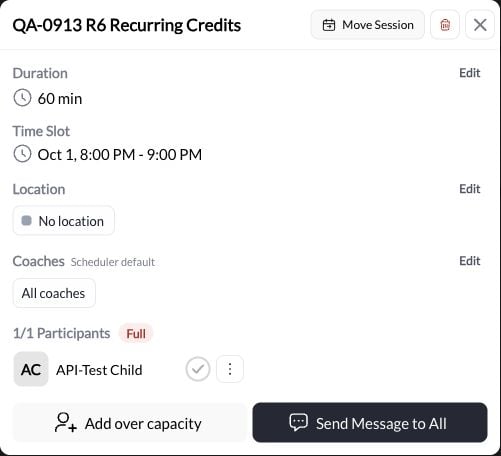
2
Click the checkmark next to each athlete
Each participant has a circle next to their name. Click it to mark them as checked in.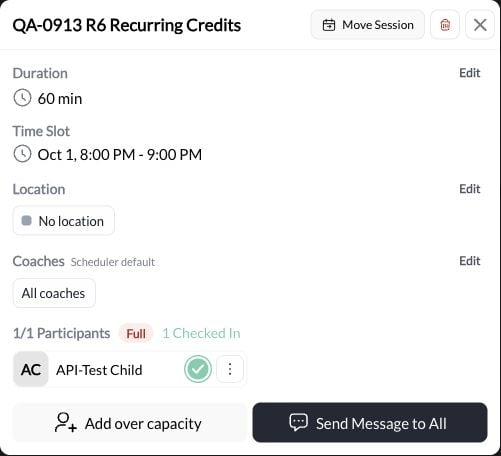
- Gray circle = Not checked in
- Green checkmark = Checked in
Check in a recurring occurrence
Open the participant’s three-dot menu and choose View/Edit Booking. In Occurrences, select the date and click Check In. Check that you selected the date the athlete attended, rather than another date in the series.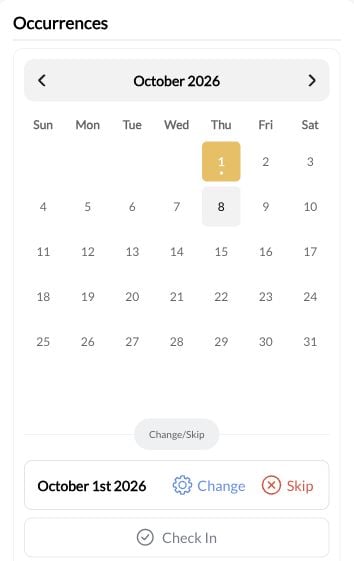
View check-in data
Calendar list view
Switch to List and review the Check-In column.Client profile
Open People → the athlete’s profile → Bookings to review the booking’s check-in timestamp. A blank check-in is an unrecorded arrival, not proof of a no-show. Confirm attendance with the coach before using it in follow-up or reporting.Common questions
Can I check in multiple athletes at once?
Can I check in multiple athletes at once?
Not currently. Check in each athlete individually by clicking their checkmark.
Can I undo a check-in?
Can I undo a check-in?
Yes. Click the green checkmark again to remove the check-in status.
Does check-in affect credits?
Does check-in affect credits?
No. Check-in is purely for attendance tracking. Checking in does not collect payment, deduct a credit, or refund a no-show. Review the booking’s credit and payment records separately.
Who can check in athletes?
Who can check in athletes?
Any coach or admin with calendar access can check in athletes.
Can athletes check themselves in?
Can athletes check themselves in?
Not currently. Only coaches and admins can mark athletes as checked in.