

Where to find this: Scheduling → Calendar → Click any booking
Editing a booking
On Scheduling → Calendar, click a session. The click view shows Duration, Time Slot, Location, Coaches, resources, and participants. Duration, Location, and Coaches each have Edit. Time Slot does not; to change the date or time, use Move Session in the header (below). You can also add a coach or a resource to this one occurrence from the click view without opening the scheduler. When a session hands out one resource per booking from a pool, use Change Resource in an athlete’s three-dot menu to switch theirs; see Change a booked lesson’s resource. Use Add Participants to add an athlete, or Add over capacity when the session is full. Send Message to All opens participant messaging.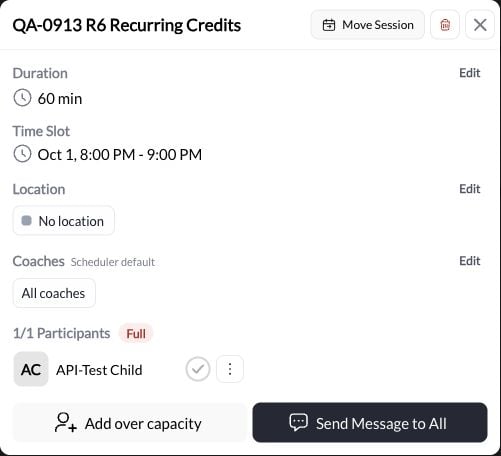
Edit duration from the calendar
1
Click Edit next to Duration
On the session click view, Duration shows the current length (for example 60 min). Click Edit.
2
Edit Duration
That opens Edit Duration. The field is Duration in minutes.Helper: the end time is named, and the change does not change the session date or start time.
3
Save Duration or Cancel
Notify participants starts off. Turn it on only if you want to notify booked athletes, choose the available channels, and review the message. Click Save Duration to save, or Cancel to leave it unchanged.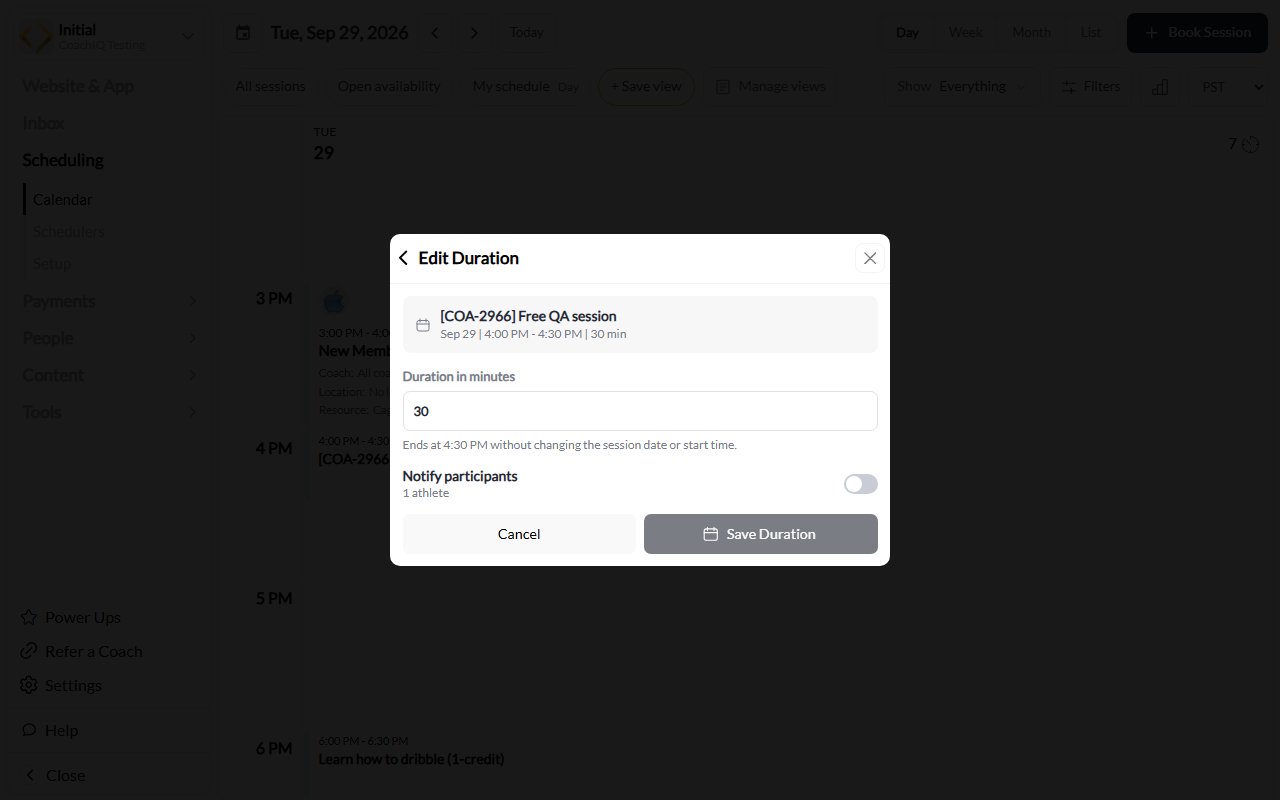
Change a session location
From the calendar session details, choose Edit beside Location, then select the new location. If the location changes and athletes are booked, review Notify participants before choosing Save Location. The dialog shows the booked-athlete count and a suggested message. Choose Announcement, SMS, In-app message, or Email, or turn notification off. The change and its selected notifications happen only after a successful save. Choosing the same location or editing a session with no bookings saves without that notification step.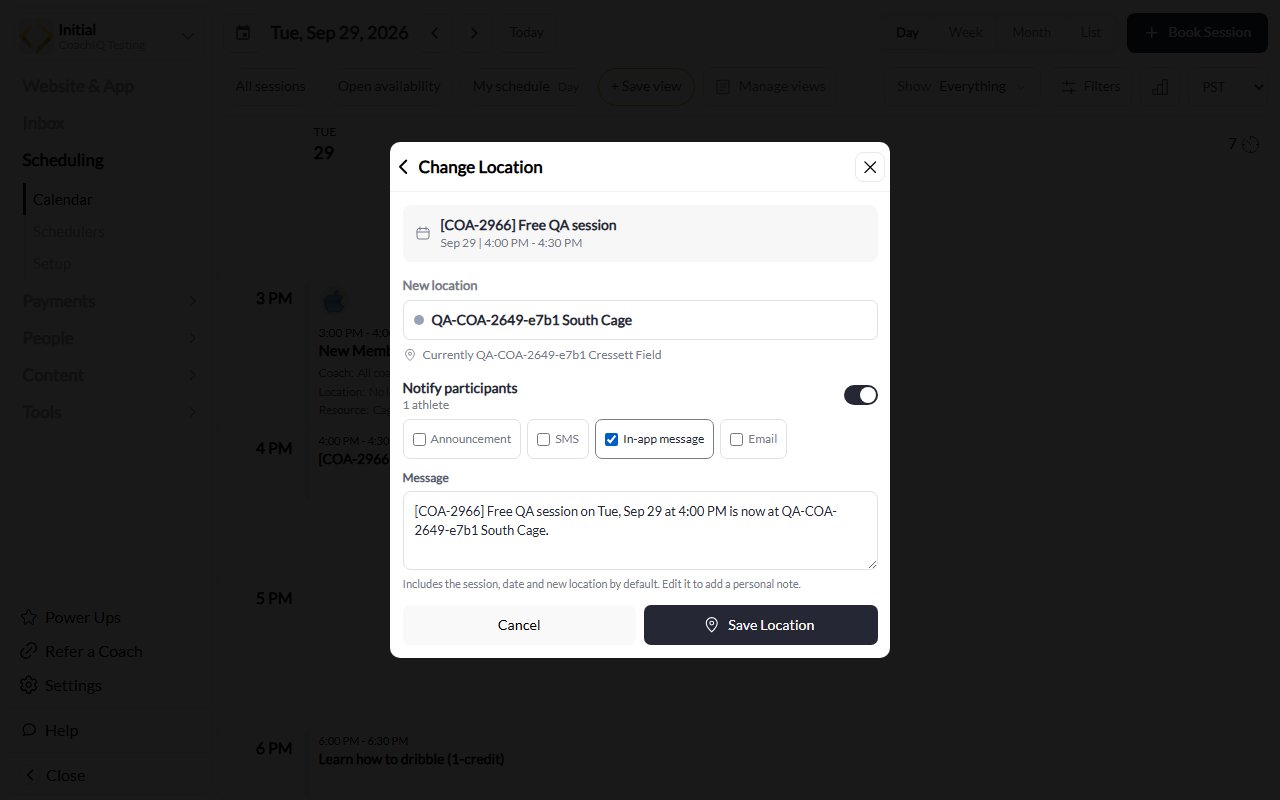
Test session showing notification choices before saving a new location.
Which edits send messages
Your own New Booking automations can still run when a booking is rescheduled. Turning off this dialog’s notifications does not disable those automations. These steps describe the admin web calendar; do not assume the mobile app or a connected tool shows the same notification dialog.
Move an entire session
Use Move Session when the whole occurrence has to change date or time: a coach is sick, the facility is closed, a practice shifts from Tuesday to Wednesday. It moves the occurrence with everything attached to it in one action, instead of rebooking each athlete. Where to find this: Scheduling → Calendar → click the sessionWhat moves with the session
- Every participant booking on that occurrence
- The assigned coach or coaches
- The attached resources
Move the session
1
Open the session
Go to Scheduling → Calendar and click the session you want to move. Move Session is in the header of the click view, next to the red trash icon that opens Cancel Session.
2
Click Move Session
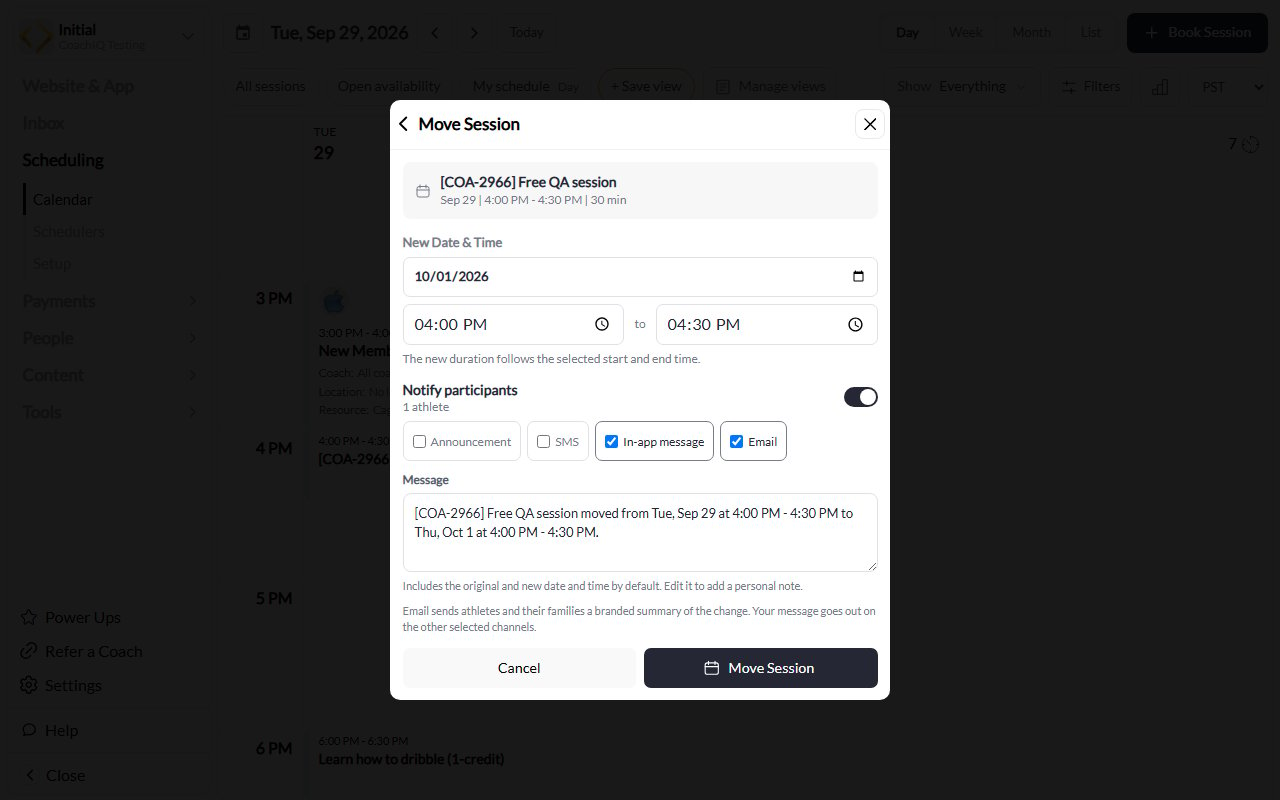
The Move Session dialog opens with the current date and time shown.
3
Set New Date & Time
Pick the new date and review the start and end times under New Date & Time. Confirm that the resulting duration is what you intend.Moving a session does not check the new time against your availability template, so confirm the coach and any resources are actually free before you move it.
4
Choose how to notify participants
Notify participants is on by default, with In-app pre-checked. Review the channels, including the optional Email summary for athletes and their families, or turn notification off. The message is prefilled with the original and new date/time; edit it to add a personal note.
5
Confirm
Click Move Session. The occurrence and all its bookings appear at the new time immediately; the old time is freed.
After a successful save, notifications follow the channels you selected. Turning Notify participants off skips this step’s notifications.
Moving one athlete, not the whole session
Move Session moves every participant in that occurrence. To change one athlete’s reservation, use the three-dot menu next to that athlete and choose View/Edit Booking to review its rescheduling options. The Email [athlete] about this change choice starts unchecked. If the new service or length requires a different payment, follow canceling and rebooking with the correct payment or credit handling. For one date of a recurring booking, use Change in the Occurrences view instead. You can move a booking into any time the booking builder offers, including on days when another booking for the same coach shifts the start times. If the new time was closed with Cancel Session, you’re asked Reopen canceled time? first; Reopen and move reopens it and moves the booking. Reschedule on a canceled booking offers Notify participants, so you can send the family a confirmation for the new time.Drag-and-drop rescheduling
For quick rescheduling directly on the calendar:1
Switch to Week or Day view
Use the view toggles at the top of your calendar to switch to Week or Day view.
2
Drag the booking
Click and hold the booking you want to move, then drag it to the new time slot.
3
Release to confirm
Drop the session on the desired time, review any warnings or confirmation, and verify the saved result. Treat this as a change to the occurrence, including its participants; use the individual booking editor when only one athlete is moving.
What athletes see
Booking confirmations can include a rescheduling link when athlete self-rescheduling is enabled. Check your notification settings and the booking recipient when troubleshooting delivery: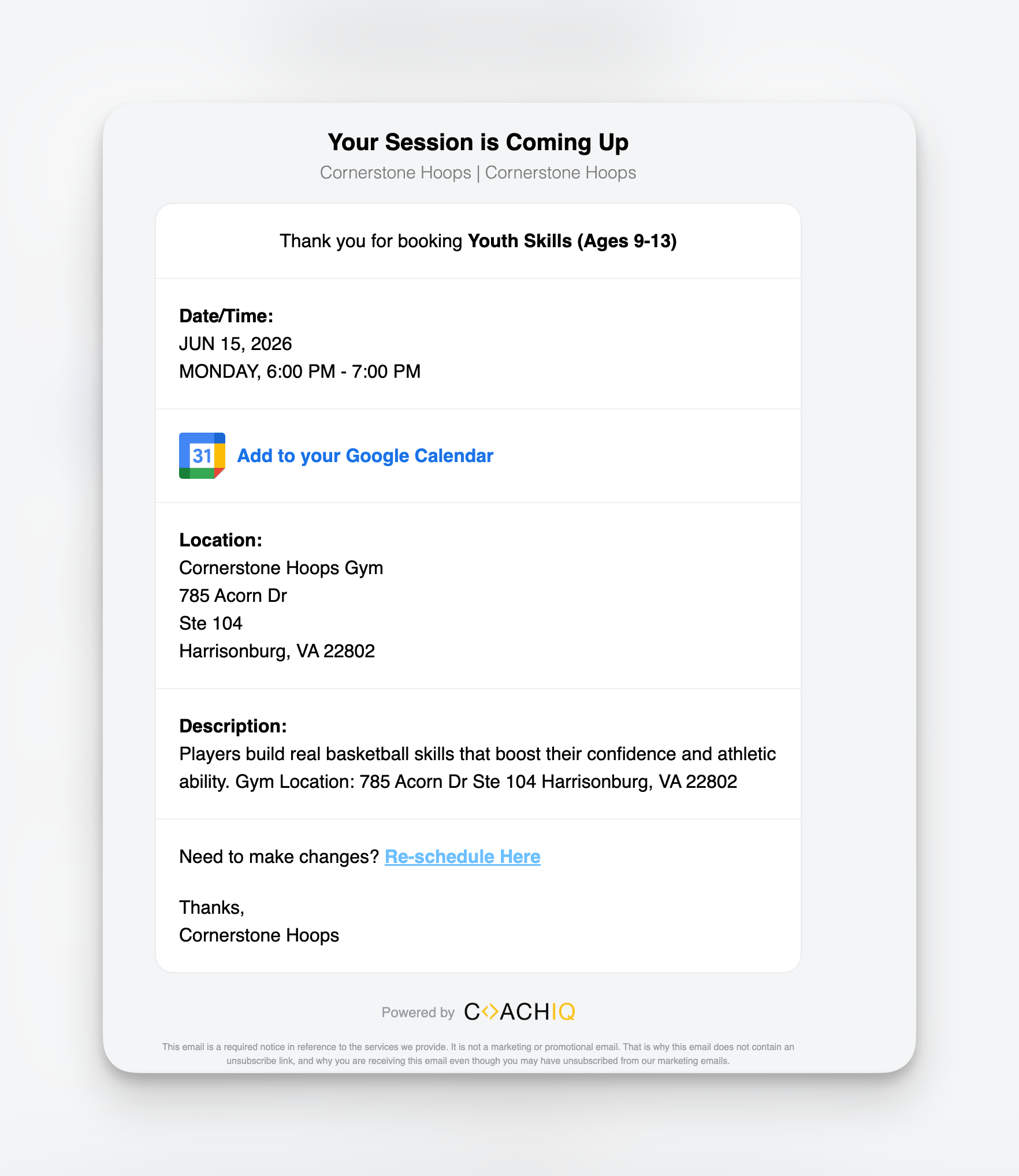
The email athletes receive when a session is booked. The 'Re-schedule Here' link lets them move the session themselves when self-rescheduling is enabled.
[session name] moved from [day, date] at [start - end] to [day, date] at [start - end].
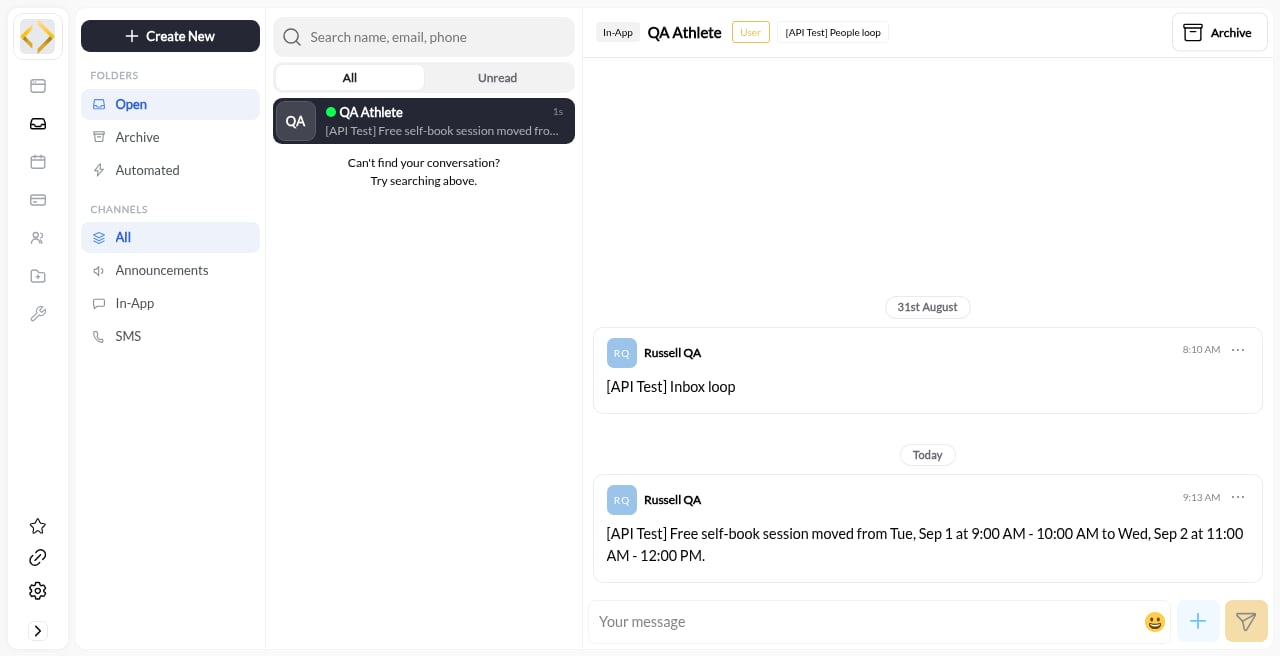
- Selected notifications — When enabled, communicate the original and new details through the channels you chose
- Portal update — The updated session appears in their Athlete Portal immediately
- Calendar sync — Check the connected Google calendar if you use Google Calendar sync