

Some screens and older articles still call your app the Athlete Portal. It’s the same thing.
The App page
Website & App › App shows your app at a glance.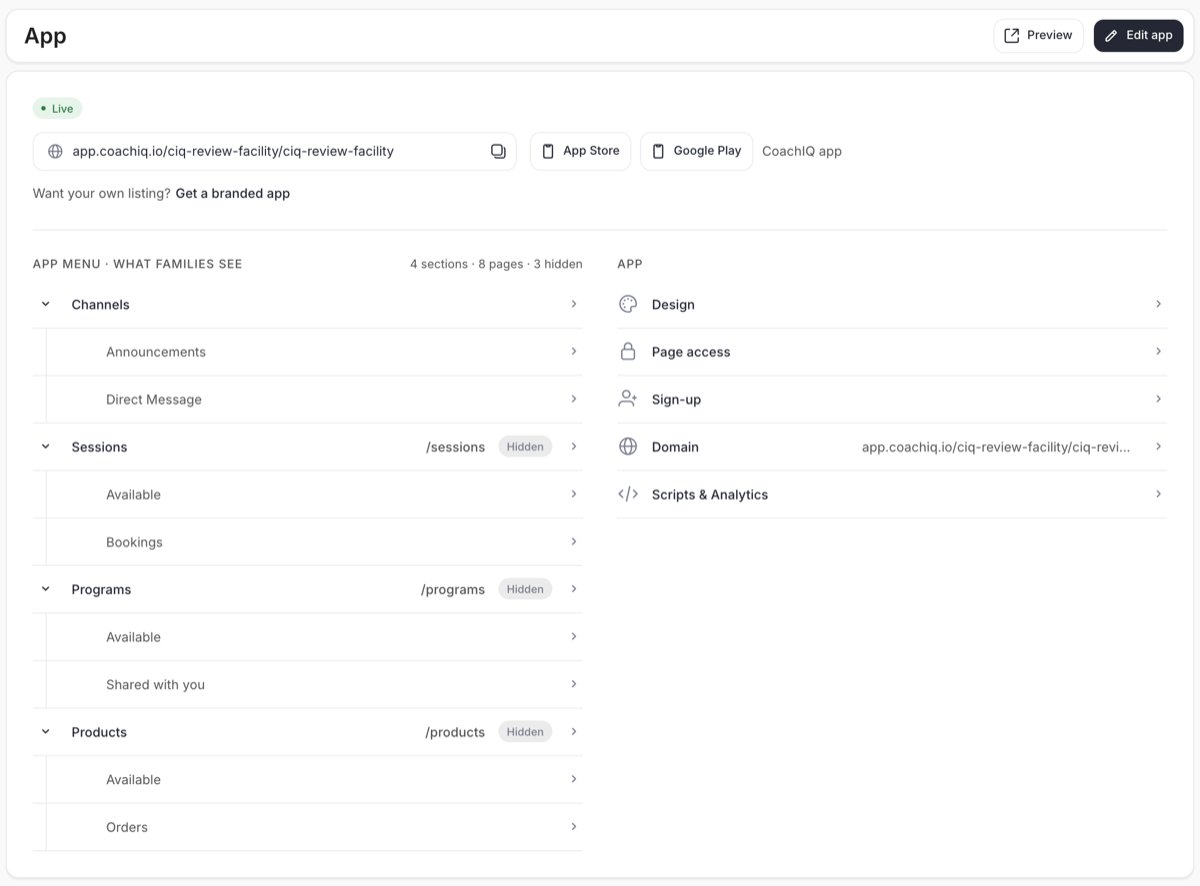
- Live and your app’s address. Click the copy button to copy the link to send to families or put on your website.
- App Store and Google Play open the store page families download from. If you have a branded app, these are your own listings. Otherwise they’re the CoachIQ app’s listings, marked CoachIQ app, with Get a branded app under them.
- App menu · What families see lists the menu in the order families see it, with each page’s web address and a Hidden label on pages that are turned off. Click any row to open that part of the App builder.
- App lists the app’s settings: Design, Page access, Sign-up, Domain and Scripts & Analytics. Each one opens in the right place.
- Preview opens your app as families see it. Edit app opens the App builder.
What’s in your app
Your app’s menu has four sections. You choose which ones families see.
Families also have Settings, where they manage their profile, family members, calendar and billing. See Bookings, billing and orders.
You can rename the sections and their pages, change their web addresses and hide them in Menu & Links. You can make pages open only for paying members with Page access.
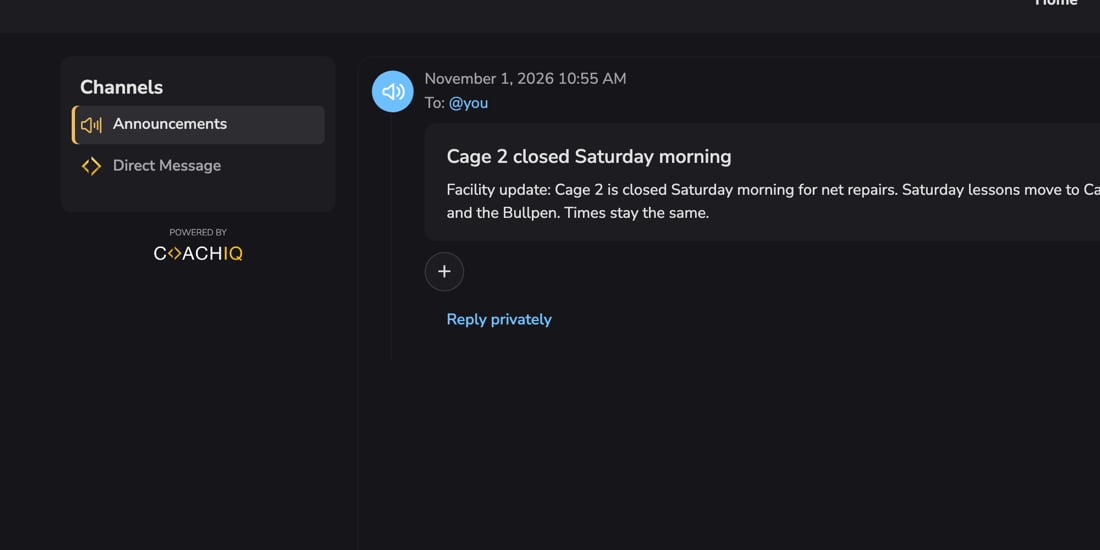
Where families use it
- On the web: your app’s address, shown on the App page. It works on phones and computers, and you can put it on your own domain (see Menu & Links › Domains).
- On their phone: the CoachIQ app from the App Store or Google Play, or your own branded app.
Changes to the iPhone and Android apps reach families with an app update from the App Store or Google Play. Changes on the web reach them straight away.
How families join
- You add them. Add athletes and parents in People › Clients, or import a list. They set a password the first time they sign in. See Add and edit clients.
- They sign up. New families create an account from your app’s or your website’s sign-in, with the fields you choose in Sign-up & Profile. Click Sign-up on the App page to open those settings.
What families can and can’t see
Families see only their own information: their bookings, credits, purchases and messages, and those of the children they manage (see Family accounts). They never see other families’ details or bookings and can’t message other families. Only accepted members of your business get your announcements and can message your staff. Someone who isn’t a member, or who you’ve removed, sees the join card instead of your members’ menus and announcements.Common questions
How do I send families the link to my app?
How do I send families the link to my app?
Copy the address from Website & App › App with the copy button, or send them the App Store and Google Play links from the same page.
A page I set up isn't showing in my app
A page I set up isn't showing in my app
Check three things: the page is turned on in Menu & Links (no Hidden label on the App page), the page is Active in the App builder and you clicked Update, and the family has access if the page is behind Page access.
Do athletes get logged out when CoachIQ updates?
Do athletes get logged out when CoachIQ updates?
No. If an update lands while someone is using the app, they’re signed back in when it finishes. Anyone who still ends up logged out should update the app from the App Store or Google Play and sign in once.
What happens when an athlete asks to delete their account?
What happens when an athlete asks to delete their account?
Athletes can request deletion from inside the mobile app. The request arrives in your Inbox as a message from them; nothing is deleted automatically. Confirm with the athlete, then remove them from their profile. See Block or remove an athlete.
Related articles
App builder
Edit your app’s pages and settings
How clients sign in
Sign-in, sign-up and the join card
Bookings, billing and orders
What families see after they book or buy
Branded app
Your own listing in the App Store and Google Play