

Before you start
- Create the products that should unlock the pages in Payments › Products. Memberships and one-time products both work.
- Make sure the pages you want to lock are showing in Menu & Links. The paywall stands in front of a page; it can’t show a page that’s hidden.
Set up page access
1
Choose the pages to lock
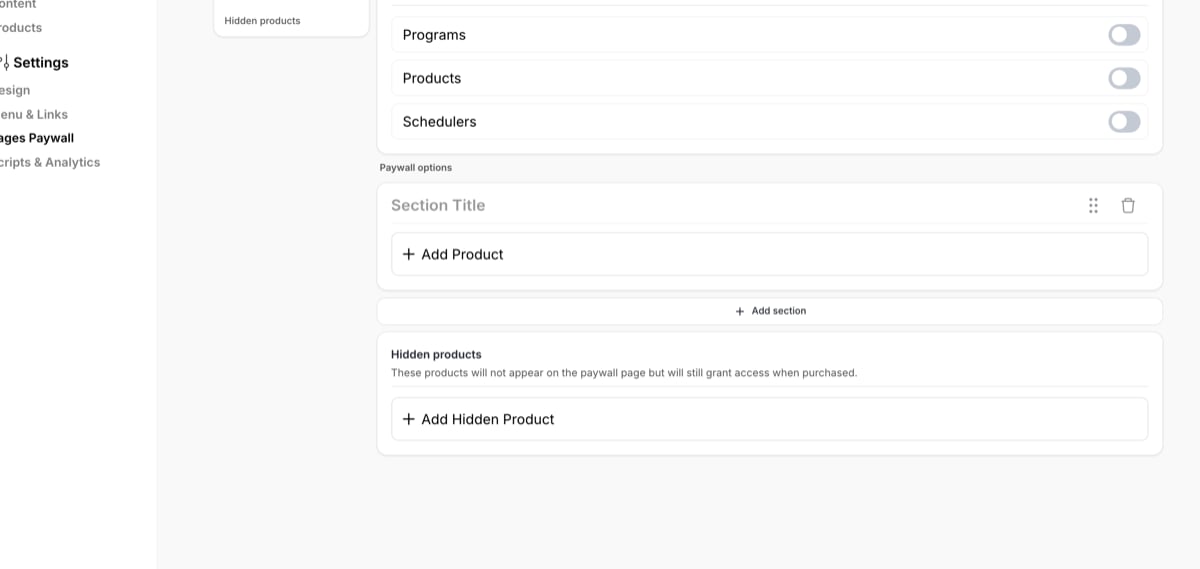
Under Paywalled pages, turn on Programs, Products, Schedulers (your Schedule page) or any mix.
2
Add the products that unlock them
Under Paywall options, click Add Product and pick one or more products. Buying any one of them unlocks the locked pages. Use Add section to group the options under headings, such as “Monthly” and “Season pass”. Families see these sections on the paywall page.
3
Turn it on
Switch on Active at the top and click Update. The paywall applies straight away.
What families see
A family without a qualifying product who opens a locked page sees the paywall: your products with their prices and descriptions, and buttons to buy them. Visitors who aren’t signed in see the same paywall page, with a link to sign in, so a member can sign in and go straight in. Families get access as soon as their purchase goes through, and keep it while the product is active. A membership counts while it’s active or trialing. When it ends or its payment fails, the page locks again until it’s paid.The paywall only covers the pages themselves. A scheduler a family reaches through a form, a website button or a direct link stays bookable, and a program you shared directly with an athlete stays open. To charge for one scheduler, attach a product to it instead. See Attach products to schedulers.
How paywalls work for parents and children
When the Schedulers page is locked, access is checked for the whole family:- The parent holds the product. The parent can open the Schedule page and book any of their children.
- A child holds the product. The parent can open the Schedule page and book that child.
- Siblings don’t share access. Each booking is checked for the athlete it’s for. One child’s product never lets the parent book a sibling who doesn’t have it. When a booking is refused for that reason, the message links to your membership options.
- Archived purchases don’t count. If you archive the qualifying product on a client’s profile, it stops unlocking the page.
Hidden products
Hidden products unlock the paywall in exactly the same way, but don’t show on the paywall page. Families can’t find or buy them there. Use them for:- Grandfathered pricing. You raise your membership from $49 to $69. Move the $49 product to hidden products: current members keep their rate and access, and new families only see $69.
- Invite-only access. A travel team or a tryout group gets a product only you hand out.
- Free or discounted access for staff, scholarship athletes or sponsors, without a $0 option on your public paywall.
- Add it to the client yourself from their profile’s Products. See Client products.
- Send them the product’s link by message, email or text.
Common questions
A family bought the product but the page is still locked
A family bought the product but the page is still locked
Check the purchase on their profile: it must be active (not canceled, ended or archived) and be one of the products on the paywall, visible or hidden. Then ask them to refresh, or sign out and back in.
Can I lock one program instead of the whole Programs page?
Can I lock one program instead of the whole Programs page?
Not with the paywall; it works on whole pages. To limit one program, use the program’s own sharing and access settings. See Programs page.
Can I lock different pages behind different products?
Can I lock different pages behind different products?
No. Every product on the paywall unlocks every locked page. For different levels, attach products to individual schedulers, or share programs with chosen athletes.
Does the paywall work in the mobile app?
Does the paywall work in the mobile app?
Yes. Locked pages are locked on the web and in the iPhone and Android apps. Whether a family can buy inside the mobile app depends on their app version; if they can’t, they buy on the web and come back.
How do I remove the paywall for a while?
How do I remove the paywall for a while?
Switch off Active and click Update. Your pages, products and sections stay set up for when you turn it back on.
Related articles
Products overview
How products work and where families find them
Product builder
Create memberships and one-time products
Menu & Links
Show or hide your app’s pages
Family accounts
Parents, children and who holds what