

Where to find this: Website & App › App, click Edit app, then Content in the builder’s left menu. The page is titled Content page in the builder; families see it as Programs unless you rename it.
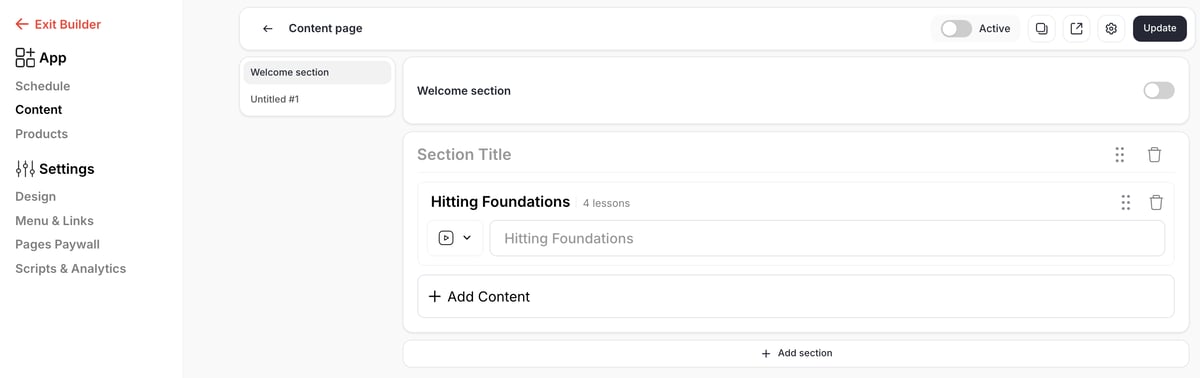
Add programs to the page
1
Open the Content page
In the builder, click Content in the left menu.
2
Click Add Content
Inside a section, click + Add Content. The Programs window lists every program, with its lesson count. Search by name, filter by tag on the left (or Create tag), and switch between list and grid view.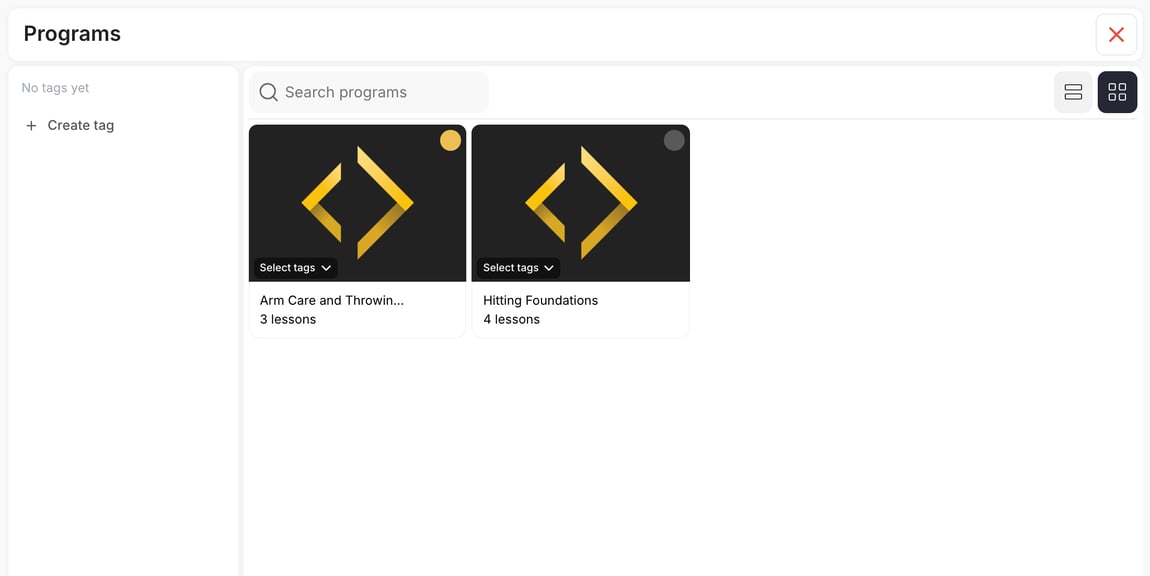
3
Pick programs
Select one or more programs, then click Add Selected. Each one shows as a row with its name and lesson count, and a title box you can change for this page.
4
Save
Click Update at the top right. Nothing changes in your app until you do.
Sections
Sections are the headings families see on the page, such as “Hitting” or “Arm Care”.- Add a section: click + Add section under the last section, then type its name in Section Title.
- Reorder: drag a section or a program row by its handle (the six dots, named “Reorder” plus the section or program name for screen readers). Rows only move from the handle, so the boxes in the row stay easy to click.
- Remove: click the trash icon on a section or a row. This takes it off the page only; the program stays in your library.
- Welcome section: the switch at the top of the page turns on a welcome block above your sections.
Turn the page on or off
The Active switch at the top turns the whole page on or off for families. You can also show or hide it, and change its address, in Menu & Links. To limit the page to paying members, use Pages Paywall.Page settings
Click the gear icon (Page settings) at the top right.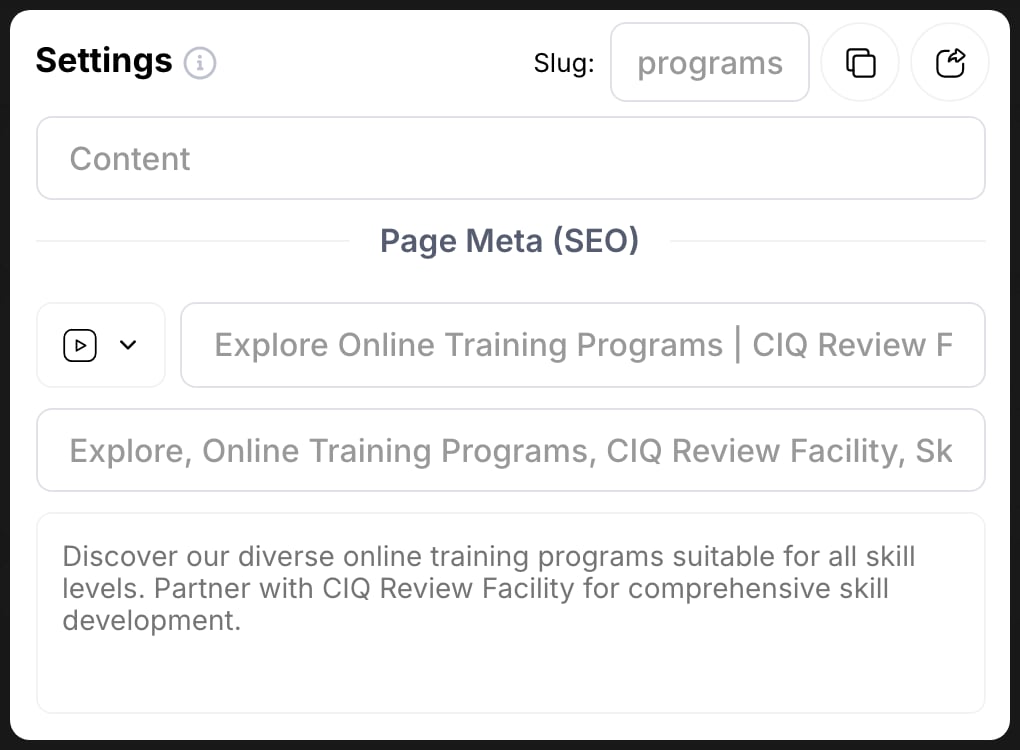
- Page name (the first box): what families see as the page title and in the menu, for example “Training”. Leave it blank to use the default.
- Slug: the end of the page’s web address, for example
/programs. The buttons beside it copy the link and open the page. - Page Meta (SEO): the image, title, keywords and description that show when someone shares a link to the page.
What families see
- Programs and lessons: each program shows its picture, lesson count and progress. A lesson with no slides yet says “This lesson has no content yet.” and still offers Next Lesson. If a lesson can’t load, it says “Couldn’t load this lesson.” with Try again. In the mobile app, these two messages come with the next app update; until then a lesson with no slides can open straight on “Lesson Complete”.
- Buying for another child: a parent who already has a program can buy it for another of their children with Purchase for another child under the program’s title. It shows only when the program offers a family purchase. After paying, the confirmation links back to the program. In the mobile app this button comes with the next app update. See Family accounts.
- Behind a paywall: a visitor who isn’t signed in and opens a paywalled Programs page sees the same paywall a signed-in athlete sees, with its products and a link to sign in.
Common questions
Where do I create or edit a program?
Where do I create or edit a program?
In Content › Programs. The builder only chooses which programs show here and how they’re grouped. See Programs overview.
A family can't see a program. What should I check?
A family can't see a program. What should I check?
- The Content page’s Active switch is on and you clicked Update.
- Programs isn’t hidden in Menu & Links.
- The program is on this page, in a section.
- The family has access: a private program must be shared with them, and a paid one bought. See Sharing programs.
- If the page is paywalled, they hold a paywall product. See Pages Paywall.
Can I change a program's picture here?
Can I change a program's picture here?
No. The picture comes from the program. Change it in the program builder.
Does removing a program from this page delete it?
Does removing a program from this page delete it?
No. It only comes off this page. The program stays in your library, and access you’ve already given doesn’t change.