

Where to find this: Client Profile → Products tab
What it shows
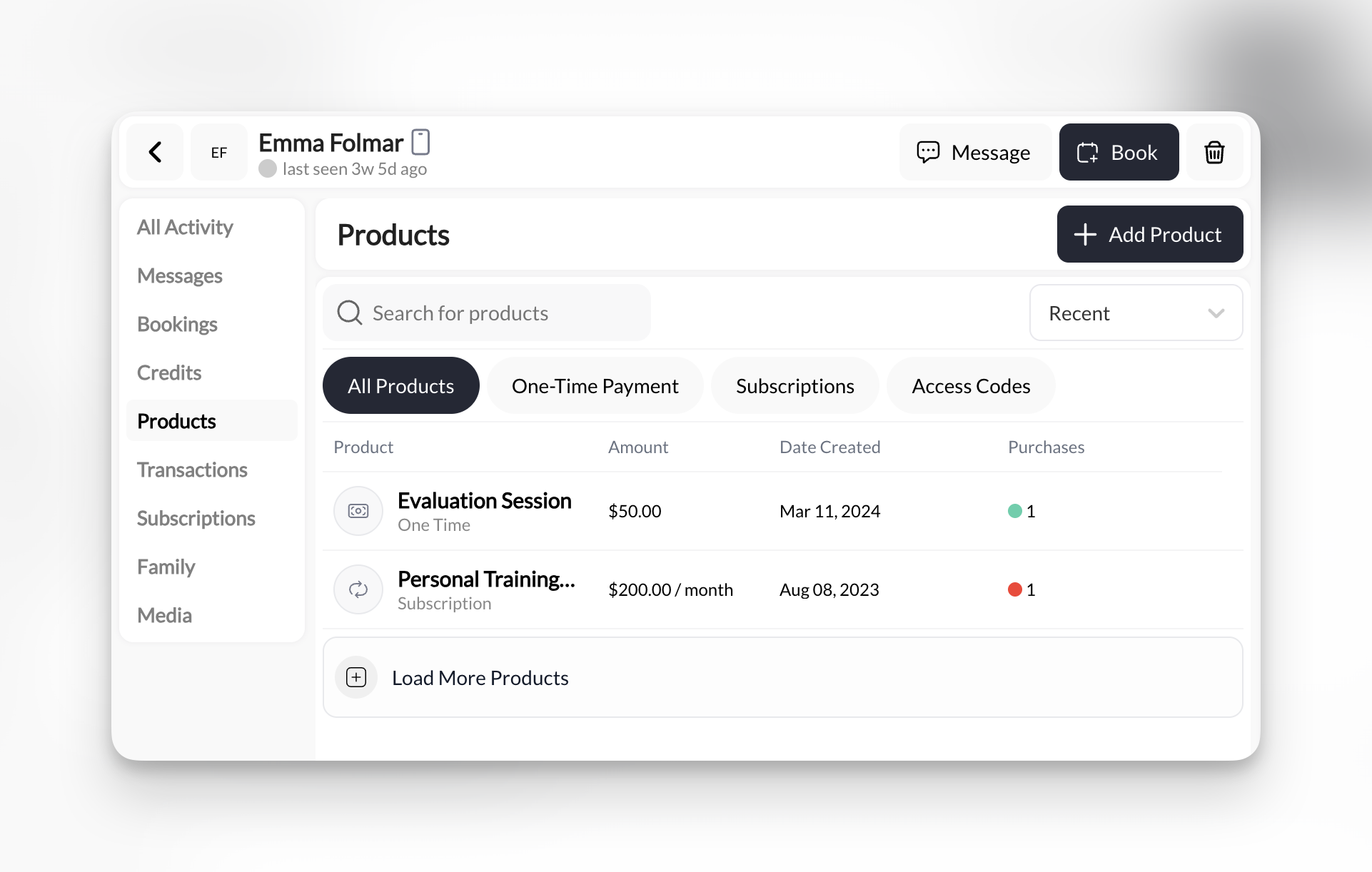
Every product this client has ever purchased:- 📦 One-Time Payments - Single purchase products (e.g., “Elite Class Trial Session”)
- 🔄 Subscriptions - Recurring memberships (e.g., “Month to Month Rising Stars Membership”)
- 🔑 Access Codes - Digital access products (e.g., program unlock codes)
- Product name
- Product type badge (Subscription / One-Time)
- Amount (e.g., “$10.00” or “$125.00/month”)
- Date created (when they purchased)
- Purchase count indicator (● 1 = one purchase)
Filter tabs
Narrow the view to specific product types:
Sort dropdown: Change from “Recent” to other sorting options (if available)
Manually adding products
Give a client a product they didn’t buy through checkout, and record how (or whether) you were paid:1
Click + Add Product
Top-right corner of the Products tab.
2
Search for product
Type product name in the search bar.
3
Select product
Click the product you want to grant them. The Configure Purchases step opens.
4
Configure the purchase
Configure Purchases shows the product and price, then asks:
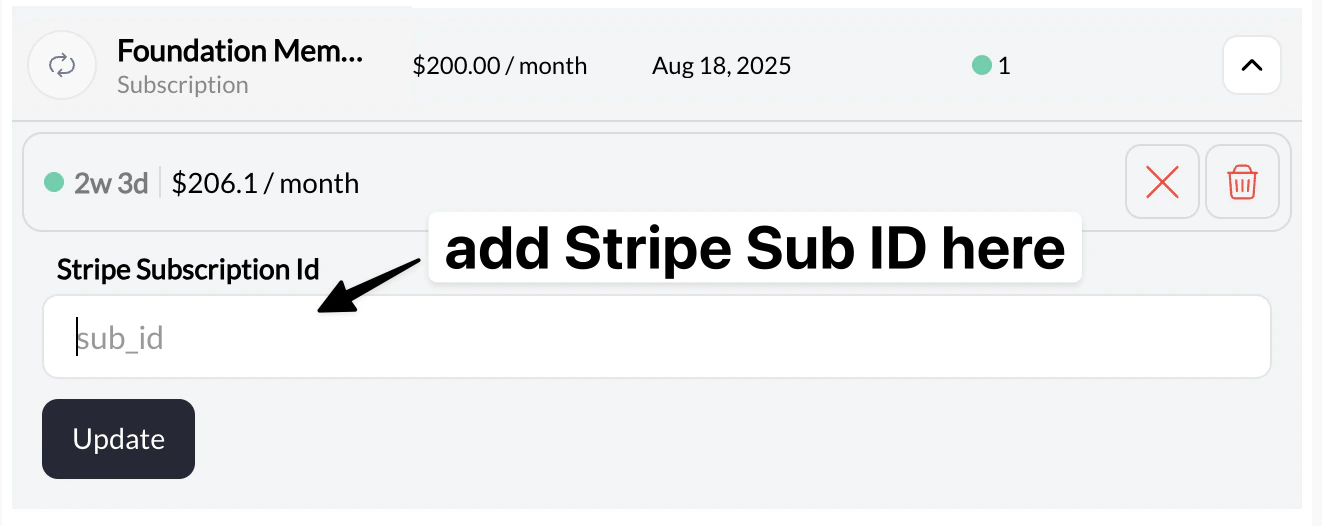
- Stripe Subscription ID (optional) - for a subscription product, paste the athlete’s existing Stripe subscription ID to link the purchase to real billing, so renewals and credits follow Stripe. Leave blank for a complimentary grant.
- Credits - Award now or Award upon cycle renew, for credit-bearing products. Without a Stripe Subscription ID, renewal credits can’t follow a billing cycle, and the help text under the option says what will happen.
- How the purchase was collected - record offline money: Cash, Check or Other, and whether it is paid or still Collection pending. Use this when a family paid you in person or by check, so the roster and the client’s entitlements match reality without the payment going through Stripe.
- Amount - appears when you mark the purchase paid by Cash, Check or Other. It’s prefilled with the product price; change it if you collected a different amount.
5
Confirm
Client now has access to that product (appears in their Products tab).
No card is charged when you manually add products. CoachIQ never initiates a charge from this screen; it either links an existing Stripe subscription or records what you collected yourself. Use this for:
- Complimentary memberships
- Staff/family member access
- Makeup sessions after issues
- Trial period access
- Cash, check, or bank-transfer payments taken outside CoachIQ
Recording cash, check and other payments
When a purchase is marked paid by Cash, Check or Other, the Amount you confirm is what CoachIQ records:- In Payments → Transactions the purchase shows as Cash · Paid, Check · Paid or Other · Paid with that amount, and it counts toward Revenue.
- To correct the amount later, open the purchase from the client’s Products tab (pencil icon), change Amount and save.
- Switching the purchase back to Collection pending sets the amount to $0 until you mark it paid again.
Cancel a membership
Use Cancel membership on the client’s purchase to choose At end of billing period or Immediately. Check the resulting end date or status before removing the purchase. A membership still billing cannot be removed first, and cancellation does not refund past payments. Full cancellation steps. When one subscription covers several athletes, use the shared family membership guide for linking, renewal credits, and removing one child without ending the others’ memberships.Archiving a client’s product
When a membership has ended or the wrong product was added, Archive the product from the client’s Products tab. Archiving:- Removes the product’s remaining credits, so the athlete can no longer book on it
- Keeps the purchase history on the profile, so past sessions and payments still read correctly
- Leaves your catalog product and every other client untouched
Archive replaces the old dead end where a credit-bearing product with used credits could not be removed and the profile said to contact Support. If you only want to stop the credits and keep the product showing as active, use the credit toggle instead; see Turning off a product’s credits.
Common uses
What memberships do they have?
What memberships do they have?
- Click Subscriptions filter tab
- Look for products with “Active” status
- Check amount to see monthly billing
Did they buy the trial session?
Did they buy the trial session?
- Click One-Time Payment filter tab
- Look for trial product name (e.g., “Elite Class Trial Session”)
- Check date created to see when
Giving them free access to a new program
Giving them free access to a new program
- Click + Add Product
- Search for the program product
- Select and confirm
How many times have they purchased this?
How many times have they purchased this?
Look at the purchase count indicator (●):
- ● 1 = Purchased once
- ● 2 = Purchased twice (or resubscribed)
Where to manage each part
Use the purchase for access and membership actions, and the matching payment record for money already collected:Think of Products tab as “What they own”, not “How they paid”. For payment details, use Transactions tab.
An empty Products tab does not prove billing has stopped. Check Payment Methods → Active Subscriptions for records marked Not on a purchase. Manage unmatched subscriptions.
Empty products tab?
If you see no products, this client has:- Never purchased anything
- Only booked free sessions (no paid products)
- Paid for sessions directly without products
- Manually add a product to give them access
- Wait until they purchase something through checkout
- Check if they’re using a different account (Family tab)
Pro tips
Recent sort default: Products tab sorts by “Date Created” newest first. If looking for something from a year ago, scroll or use search. Product vs Transaction difference:- Products tab = What they have access to
- Transactions tab = Financial record of payments