

Where to find this: Client Profile → Credits tab
What it shows
Complete credit transaction history organized by credit type: Credit tabs you’ll see:- Logs - Every credit transaction (all types combined)
- Master Credits - Universal credits that work for any scheduler
- [Product Name] Credits - Credits from specific packages (e.g., “Hybrid Rising Stars/Elite 5 Credit Package”)
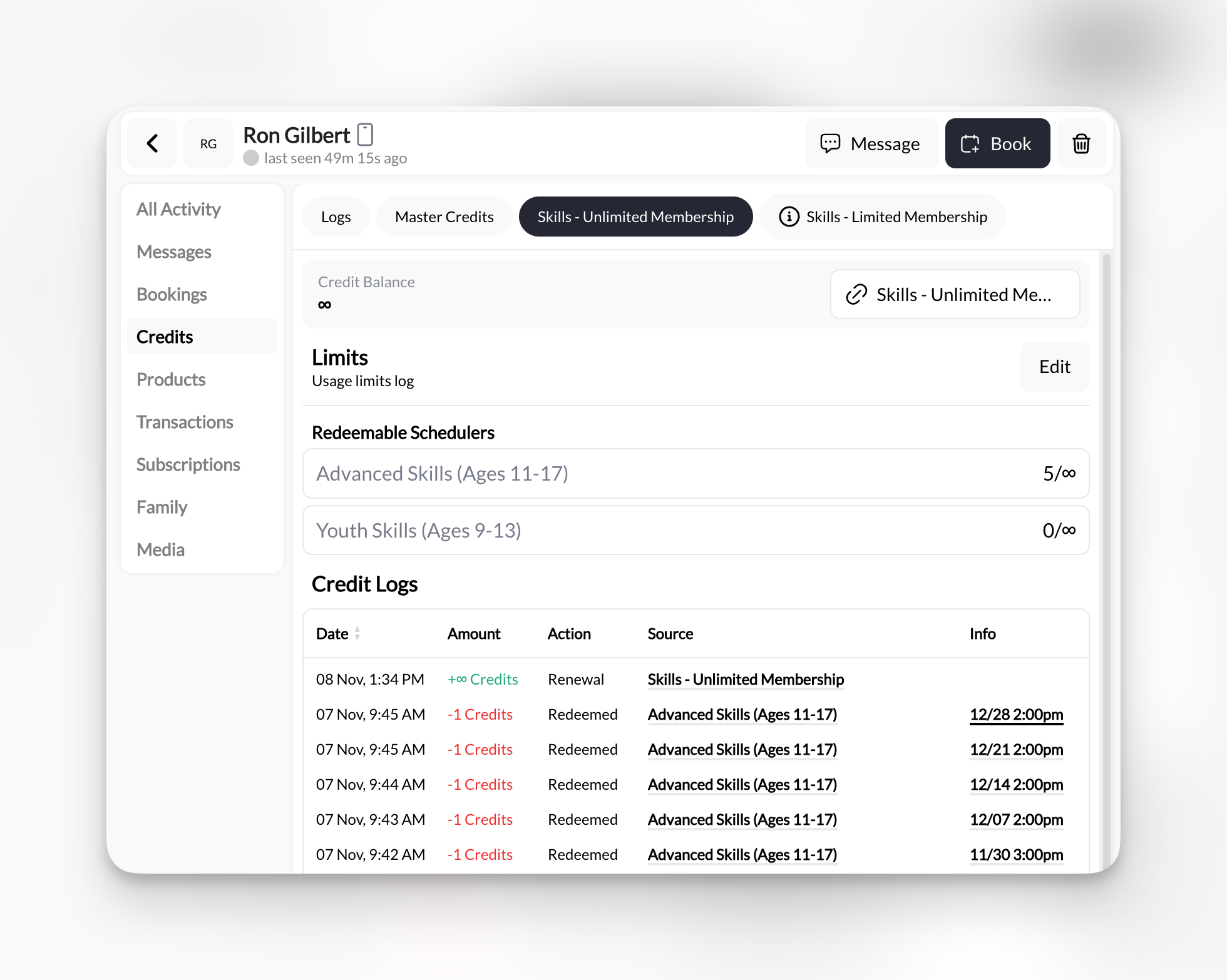
Number of tabs varies based on what credit products this client has purchased. New client might only have “Logs” and “Master Credits.”
Reading the transaction log
Each credit transaction shows: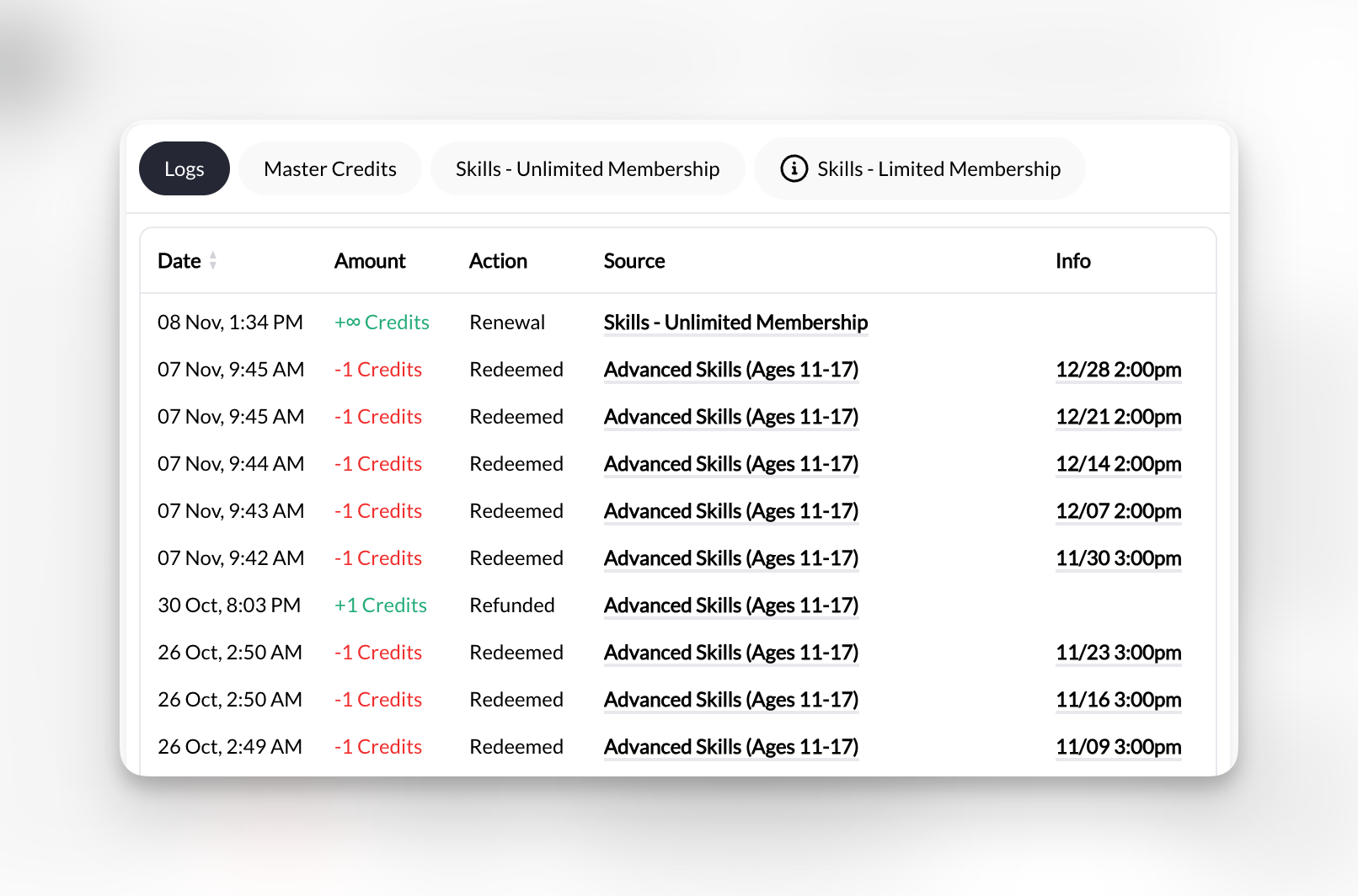
Credit transaction types explained
- Redeemed
- Purchased
- Set by
- Renewal
- Expiration
Action: Client used a credit to book a sessionShows:
-1 Credits (red)Source: Session name (e.g., “Rising Stars Class”)When you see this: Every time they book a credit-based sessionCredit renewals and expirations
For a membership billed through Stripe, the Credit Renewals and Credit Expirations dates match the membership’s billing date. A membership set to cancel at the end of its period shows no renewal row, and its expiration date matches the cancel date. Memberships added without a Stripe subscription renew the day after, when the overnight run adds the credits. The expiration warning on a credit pack counts only credits whose date has passed. Credits used for bookings are not described as expired. When a booking paid with credits is canceled and the credit is returned, it goes back to the pack that paid for it and keeps that pack’s expiration date.When a membership is inactive
If a membership has ended or is otherwise inactive, its credit tab reads “Membership inactive. The balance is kept but can’t be spent.” Credits Redeemable shows 0, matching what the athlete sees in Billing. The balance comes back into use if the membership becomes active again. This is separate from the credit-use toggle described in Turning off a product’s credits.Checking current balance
Quick balance check:- Click the credit tab you want (Master Credits, or a specific product)
- Look at the top of the transaction list—most recent transaction shows running balance
- Add up green (+) and red (-) entries if you need to verify
Common uses
Do they have enough credits for today's session?
Do they have enough credits for today's session?
- Click appropriate credit tab (Master or product-specific)
- Check most recent balance
- If balance ≥ 1, they can book
Why did their credits disappear?
Why did their credits disappear?
Look for Expiration entries in red:
- Check Source column—which product expired?
- Check Info column—shows expiration date
- Scroll up to see when credits were originally purchased
They claim they never used a credit—verify it
They claim they never used a credit—verify it
- Go to Logs tab (shows all credit types)
- Filter mentally or scroll to find Redeemed entries
- Check Source column—shows which session
- Cross-reference with Bookings tab to confirm attendance
Manually adding credits (makeup, promotion, gift)
Manually adding credits (makeup, promotion, gift)
- Open the Master Credits tab, or the tab for the product whose credits you want to change
- Enter the new total balance (this sets the balance; it doesn’t add to it)
- Click Update Redeemable Credits
Turning off a product’s credits
Each product-specific credit tab has a toggle that controls whether that product’s credits count toward the athlete’s spendable balance. Use it to move an athlete off an old plan without deleting anything. When you need it:- The athlete moved to a new membership and the old one should stop granting bookings
- A coupon zeroed out a membership and left a $0 product on the account that keeps renewing credits
- You granted the wrong credit product and they’ve already booked with it
Turning credits off overrides everything else: even if the underlying purchase or Stripe subscription is still active, the athlete can’t spend these credits until you turn them back on. Nothing is granted, deducted, or erased either way.
1
Open the product's credit tab
Client Profile → Credits → click the tab for the product (not Logs or Master Credits).
2
Switch credit use off
Use the toggle on that tab to deactivate the credits. The balance stays visible but is no longer redeemable.
3
Add the replacement, if any
Grant the new product from the Products tab. The athlete books from the new credits only.
If the old product is a paid Stripe subscription, turning off its credits doesn’t stop billing. Cancel the subscription as well; see Managing subscriptions.
Master Credits vs Product Credits
Master Credits:- Work for ANY scheduler you create
- Most flexible
- Typically sold as “10-Pack Universal Credits”
- ONLY work for schedulers linked to that product
- Useful for tiered membership levels
- Client might have Master Credits AND Elite Credits separately
Empty credits tab?
If you see no transactions, this client has:- Never purchased credits
- Never been manually granted credits
- Only paid cash/card for sessions (not credit-based)