

What visitors see
An embedded form lets visitors complete registration on your website. Select a CoachIQ form for the section; its required fields and connected payment or booking steps still apply. Configure those steps in the Form Builder, then publish the website page and check the embedded flow.- File uploads: image and video upload questions show on the standard Form section. If an upload fails, the visitor sees a message under that file, and their other answers and files are kept so they can try again.
- Required fields: if Continue or Submit fails, the cursor moves to the first field that needs fixing.
- Sign-in step: when a form asks visitors to sign in, the step explains why it opened. If the form’s Custom URL is empty, visitors see the normal thank-you message after submitting.
- Builder preview: an embedded form previews the sign-in step and the questions separately, the way the live site shows them. Optional questions don’t show a required star.
CoachIQ: Form Section Guide
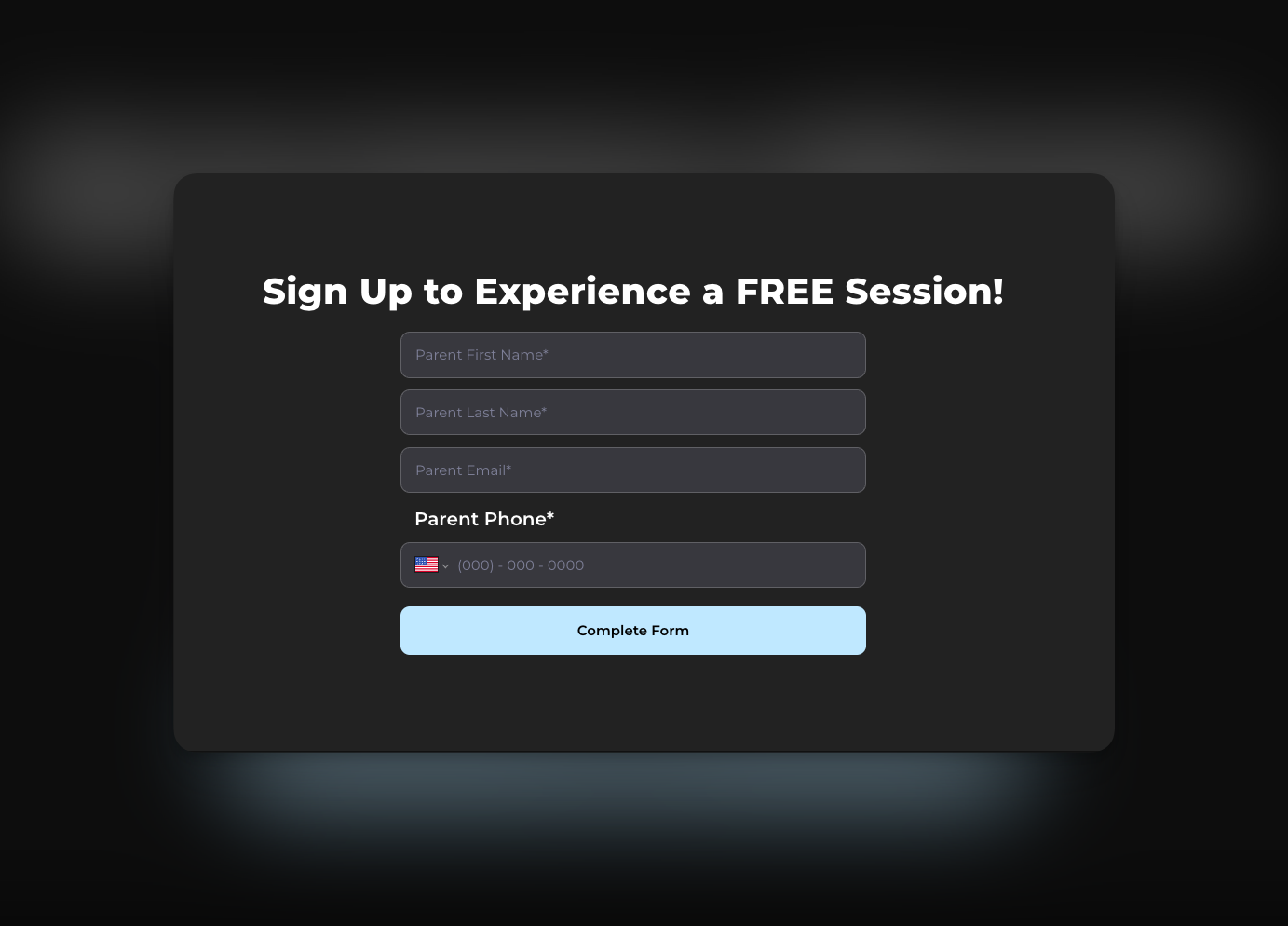
How to Use the Form Section
Step 1: Add a Subheading
- Navigate to your form section.
- Add a subheading by clicking on Add Subheading. This helps organize your form and provides context to users.
Step 2: Select or Create a Form
- To select a form, click on
Select Form. Choose from the list of previously created forms. - To create a new form, ensure you first save and publish your current site to avoid losing any edits. Then, click
Create New Form.
Step 3: Save and Publish
- Click on Website Form to populate the form on your site.
- Once your form is set, click
Publishto make the changes live. - You can now view your live site to see the form in action.
Note: Always save your site before creating a new form to prevent any data loss from recent edits.
Tips and Best Practices
- Organize Forms with Clear Subheadings: Use subheadings to categorize forms, making them intuitive for users to navigate.
- Regularly Save and Publish: Frequently save your progress to avoid data loss and ensure your site is up-to-date.
- Test Forms Before Going Live: Preview your forms to ensure functionality and user-friendliness.
Frequently Asked Questions
Q: How can I ensure my changes are saved before creating a new form? A: Always clickSave and Publish before initiating the creation of a new form. This process secures your recent edits.
Q: What should I do if my form does not appear on the live site? A: Double-check that you have published your changes. If issues persist, contact support for assistance.