

What you’ll accomplish
Learn how to monitor athlete credit balances, grant credits manually, interpret credit logs, troubleshoot common credit issues, and efficiently manage credits across your athlete base. This guide covers your daily credit operations and common management scenarios.- Credit-issuing products already created (Setting Up Credit-Based Sessions)
- Understanding of credit types (Credit System Overview)
- Athletes or test accounts have purchased credit packages or subscriptions
Understanding the athlete credit interface
When you open an athlete’s profile and navigate to the Credits section, you’ll see their complete credit ecosystem organized into tabs.The credit tab system
Each credit source gets its own tab:- Master Credits Tab
- Product-Specific Tabs
- Universal credits usable for ANY scheduler
- Total credits available (no restrictions)
- Note: “These credits can be used for any session and have no restrictions”
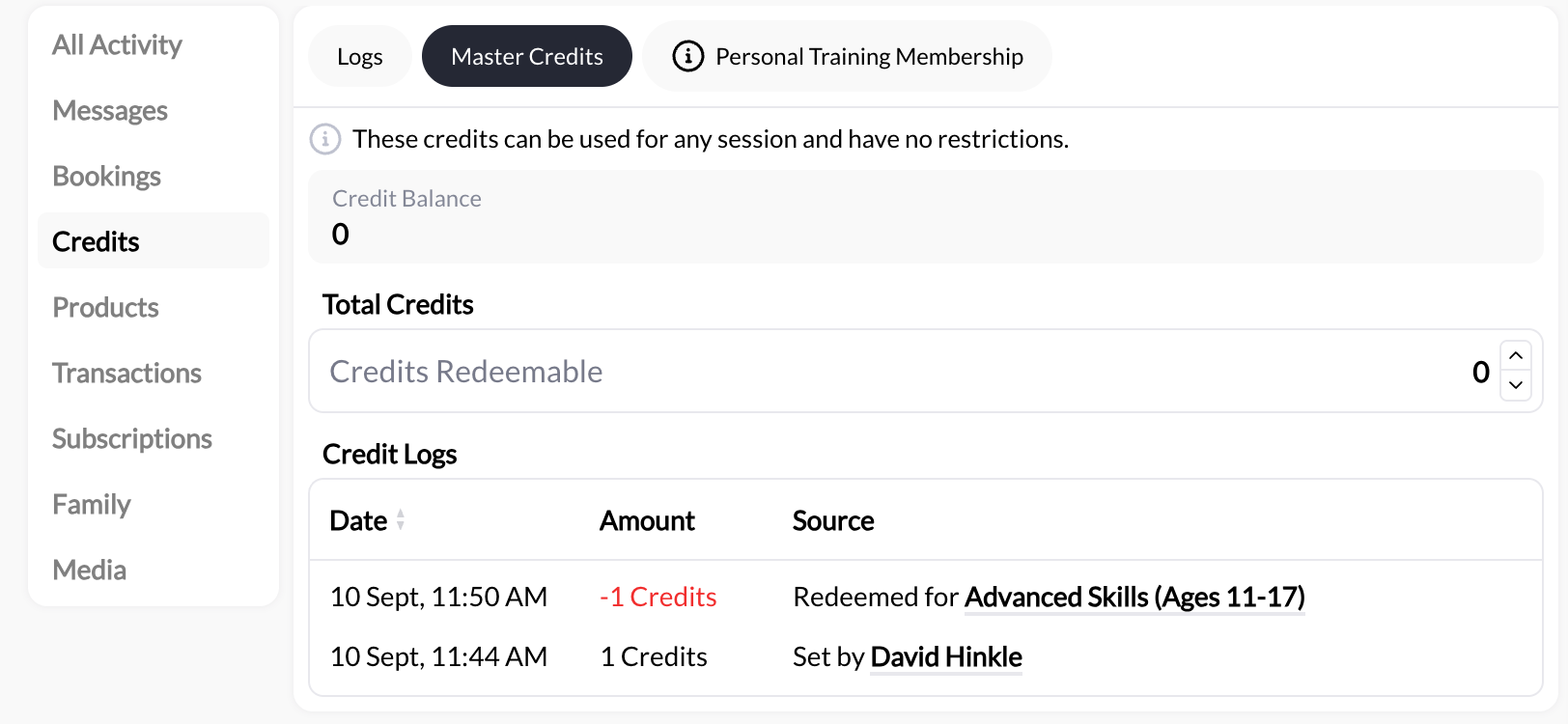
- Compensating athletes for issues
- Promotional credits (referral bonuses)
- Make-good credits (cancelled sessions)
- Trial credits for new athletes
- Credits that work everywhere
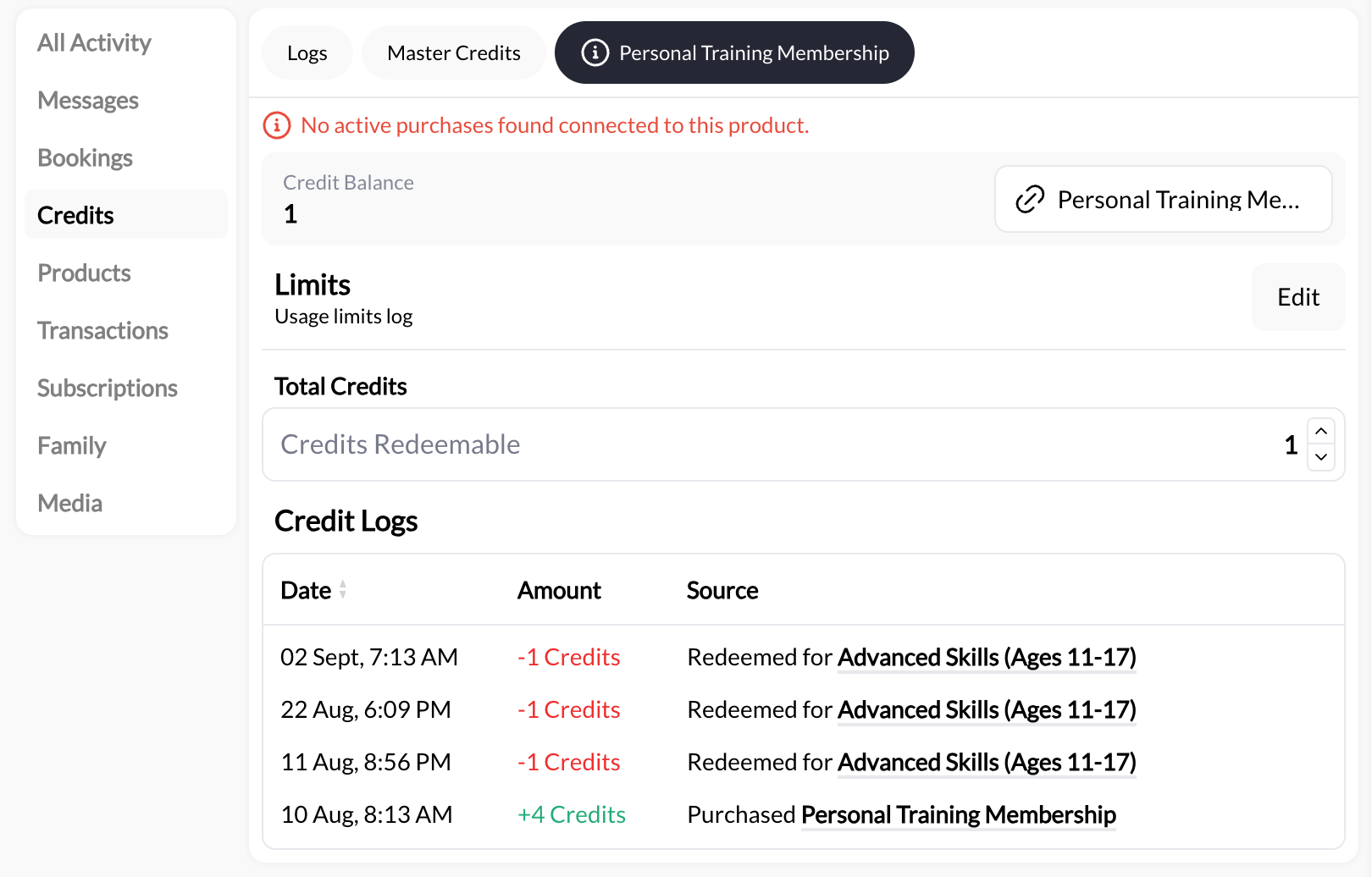
Reading credit balances and notation
Understanding what you’re looking at when you check an athlete’s credits.Credit balance display meanings
Finite Credits (5, 10, 20, etc.)
Finite Credits (5, 10, 20, etc.)
- Decreases by 1 (or scheduler credit cost) per booking
- Does not renew automatically
- Athlete must purchase more when depleted
Unlimited Credits (∞)
Unlimited Credits (∞)
- Does not decrease to zero
- Resets at next billing cycle (monthly/weekly/yearly)
- Active only while subscription active on Stripe
Usage Tracking (3/∞)
Usage Tracking (3/∞)
- Tracks usage per scheduler for subscription credits
- Shows how frequently athlete books each session type
- Resets at subscription renewal
Expiration Tracking (0/5)
Expiration Tracking (0/5)
Understanding credit logs
Credit logs provide a complete transaction history for each athlete’s credits. Every credit movement is tracked.What credit logs show
Location: Athlete Profile → Credits → [Credit Tab] → Credit Logs section Logged events:- Credit Purchases
- Credit Redemptions
- Manual Credit Grants
- Credit Expirations
Manual credit operations
How to manually grant credits to athletes outside of product purchases.Granting Master Credits
Use Master Credits when you want to give credits that work for ANY scheduler.Navigate to athlete profile
Open Master Credits tab
Adjust credit amount
Save and verify
When to grant Master Credits
Common use cases:Make-good credits (cancelled sessions)
Make-good credits (cancelled sessions)
Referral bonuses
Referral bonuses
Trial credits for new athletes
Trial credits for new athletes
Promotional campaigns
Promotional campaigns
Fixing credit errors
Fixing credit errors
Granting product-specific credits
For adding credits tied to specific products/subscriptions.When to use product-specific vs Master Credits
- Use Master Credits When...
- Use Product-Specific Credits When...
✅ Flexibility needed - Athlete should be able to use for ANY scheduler
✅ Trial credits - New athletes sampling your services
✅ Make-goods - Compensating for service issuesBottom line: Master Credits are simpler and more flexible for most manual operations
Adding product-specific credits
Navigate to athlete profile
Select product-specific tab
Manually add product to athlete (if needed)
- Open the Products tab and click + Add Product
- Search for and select the product
- In Configure Purchases, fill in what applies:
- Stripe Subscription ID (optional) to link a subscription product to an existing Stripe subscription so renewals drive the credits
- Credits: Award now or Award upon cycle renew
- How the purchase was collected, if you took payment outside CoachIQ: cash, check, or other, and whether it is paid or still being collected
Adjust credit balance
- Locate the credit balance
- Enter new total (remember: this SETS the total)
- Save changes by pressing Update Redeemable Credits
- Staff/family complimentary access
- Long-term sponsorships
- Special VIP arrangements
Bulk credit operations
Managing credits for multiple athletes at once.Bulk credit grants
Scenario: You want to give 1 free credit to all active athletes for a promotion Current limitation: CoachIQ may not have built-in bulk credit grants Workaround options:- Option 1: Use Automations
- Option 2: Manual Individual Grants
- Option 3: Create Promotional Product
Action: Grant 1 Master CreditSetup:
- Dashboard → Tools → Automations → Create New
- Set trigger (tag-based)
- Set action: Add credits
- Activate automation
Troubleshooting credit issues
Common problems and solutions.Issue: Athlete says credits aren’t showing in app
Troubleshooting checklist:Verify credits exist in coach dashboard
Check subscription status (if subscription credits)
Verify product is linked to schedulers
- Athlete’s credit tab → “Redeemable Schedulers” list
- Is the scheduler they want listed there?
Ask athlete to refresh app/logout
- Log out of mobile app completely
- Log back in
- Check if credits now visible
Verify athlete is logged into correct account
Using credit logs for troubleshooting
Common scenarios where logs help:Athlete: 'I should have more credits'
- When credits were purchased
- When/where credits were redeemed
- Current accurate balance
Athlete: 'Can I get a refund?'
- Purchase date and amount
- How many credits used vs unused
- Calculate fair refund amount
Disputed booking charges
- Whether booking used credits or charged card
- Which session the credit was redeemed for
- Timeline of credit usage
Subscription renewal issues
- Last credit renewal date
- Whether credits refreshed after payment
- If subscription is still active
Tips for efficient credit management
Document Your Policies
- Credit expiration rules
- Refund policy
- Transfer policy
- Make-good credit policy
- Website FAQ page
- Product purchase confirmation emails
- Athlete portal welcome message
Use Credit Logs as Proof
- Open athlete’s credit logs
- Screenshot relevant transactions
- Annotate if needed
- Share with athlete
Standardize Communications
- Low-balance reminder
- Expiration warning (30 days, 7 days)
- Credit purchase confirmation
- Renewal celebration
Common questions
Can I delete credit logs?
Can I delete credit logs?
- Remove credits from athlete’s balance (sets to 0)
- Turn the product’s credits off from its credit tab (keeps the history, stops redemption)
- Archive the product from their Products tab, which removes remaining credits and keeps the purchase history
- Issue refunds via Stripe
- Erase credit log history
- Hide specific transactions
What happens to credits if I delete athlete account?
What happens to credits if I delete athlete account?
- Screenshot credit balances and logs if needed for records
- Process any pending refunds
- Confirm athlete has no outstanding credits they’re owed
Can athlete see their own credit logs?
Can athlete see their own credit logs?
- Credit Balance
- Credit Renewals date
- Credit Expirations tracking
- Redeemable Sessions list
- Credit Logs with transaction history
How do I track total outstanding credit liability?
How do I track total outstanding credit liability?
- Sum all athlete credit balances across all athletes
- Multiply by your average session value
- Result = total outstanding liability
- 50 athletes × 5 average credits each = 250 total outstanding credits
- 250 credits × 11,250 liability
Should I offer store credit or refunds?
Should I offer store credit or refunds?
- ✅ Retains revenue
- ✅ Keeps athlete engaged
- ✅ Simpler than refunds
- ❌ Athlete may feel trapped
- ❌ Some jurisdictions require cash refunds
- ✅ Athlete satisfaction
- ✅ Legal compliance
- ✅ Builds goodwill
- ❌ Lose revenue
- ❌ Credit card fees often non-refundable
- Within 7 days of purchase: Full cash refund
- After 7 days but unused: Store credit or partial refund (minus processing fees)
- Credits partially used: Pro-rated refund only