

The limits you can set
A booking has to pass every limit that applies.
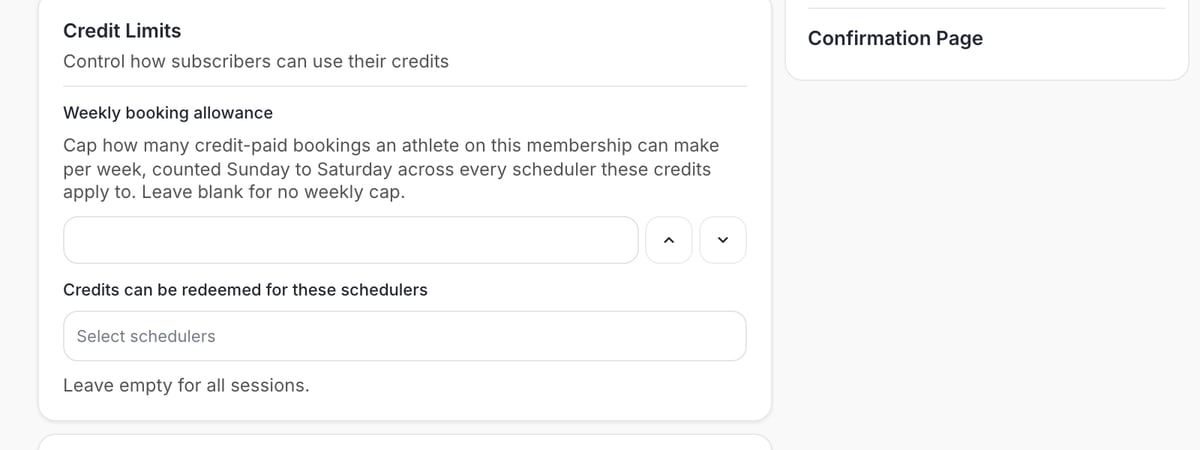
Choose which schedulers accept the credits
Open the product, go to Credit Limits, and pick schedulers under Credits can be redeemed for these schedulers.- Leave it empty and the credits work on every scheduler that takes credits.
- Pick one or more and the credits work only there. Other schedulers tell the client they have no usable credits.
Cap credits per scheduler
After you pick a scheduler, set how many of the product’s credits can be used there.- On a membership, the cap resets each billing cycle. Example: an 8-credit membership with a cap of 4 on private lessons and 4 on group training.
- On a pack, the cap is per purchase. A client with two purchases of the same pack can use twice the cap.
Set a weekly booking allowance
Weekly booking allowance caps how many credit-paid bookings a client can make in a week, counted Sunday to Saturday by session date, across every scheduler the credits apply to. Leave it blank for no weekly cap. Use it for “2 sessions a week” memberships.- Every session in a repeating booking counts in its own week. A new series that would go over the allowance in any week isn’t created.
- A canceled booking frees its spot in that week.
- The allowance counts against whoever owns the credits. With a family balance owned by a parent, all the children’s bookings from it count together.
- Bookings paid by card don’t count.
Why a client can’t book with credits
Work through these in order. Open the client’s profile and the Credits tab as you go.1
Do they have credits for this scheduler?
Check the product’s Credits can be redeemed for these schedulers list. If the list isn’t empty and this scheduler isn’t on it, the credits don’t work here. Add the scheduler to the product, or give a Master Credit for a one-off.
2
Is the membership active?
If the membership behind the credits is past due, canceled, or ended, its credits are paused. The Credits tab says “Membership inactive” and Credits Redeemable shows 0. They come back when a payment goes through. See Failed payments.
3
Are the credits on the right account?
With Buyer ownership, a parent’s purchase is on the parent’s account and covers their children. With Managed athlete, it’s on one child’s account and can’t pay for a sibling. See Who owns the credits.
4
Do they have enough?
A 2-credit session needs 2 credits. Credits aren’t split across bookings.
5
Have the credits expired, or is the session after their expiry?
With Sessions must occur by expiration on, the session date has to fall before the credits expire. See Product builder: Credits.
6
Has a limit been reached?
Check the per-scheduler cap and the weekly booking allowance on the product, and the scheduler’s per-athlete daily and weekly limits. The client’s message names the limit.
7
Did you pause the product's credits?
On the Credits tab you can turn off credit use for one product. See Turning off a product’s credits.