

Open Settings → Stripe, or Settings → Connections → Stripe → Manage.

Connect your account

1

Open Stripe settings as an Admin

Choose the correct CoachIQ organization. Only Admins can connect or disconnect Stripe; Coach-role staff see guidance to ask an administrator.
2

Choose Connect Stripe

Sign in to the Stripe account you want to use, or create one through Stripe’s flow. If you have several accounts, check the business before authorizing.
3

Authorize and return to CoachIQ

Complete the Stripe flow and return to the integration page. Check the business name, masked account ID, and live/test label.

Check account health
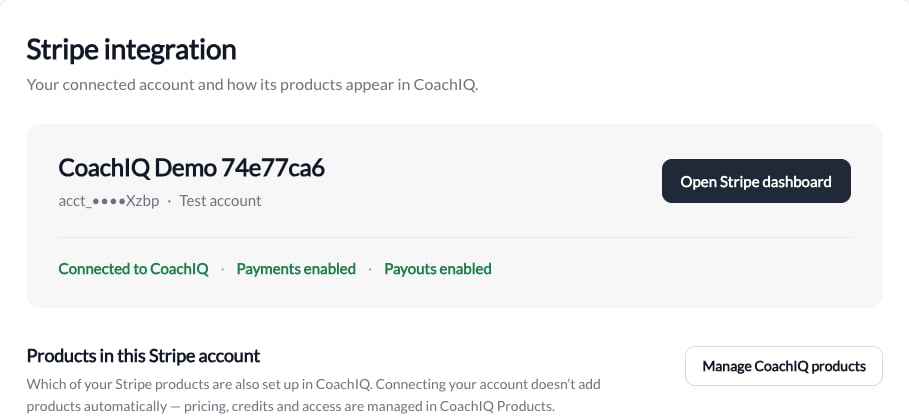
Stripe test account showing separate connection, payment, and payout status
This example shows a Test account. Check your own account label before accepting live payments. The account card separates Connected to CoachIQ, Payments enabled/paused, and Payouts enabled/paused. A connected account is not necessarily ready to take payments or receive payouts. If Stripe needs more information, use Review in Stripe and follow its requirements. A verification notice does not mean you should reconnect. If account status is unavailable, retry instead of treating the account as healthy or disconnected. Open Stripe dashboard opens the connected account. The live/test label identifies the connected environment; switching a view in Stripe’s dashboard does not switch CoachIQ’s payment environment.

Understand product relationships

Products in this Stripe account shows Stripe products, pricing, and their relationship to CoachIQ. Use Previous/Next for longer lists. Connecting Stripe does not automatically add all Stripe products to CoachIQ. Use Manage CoachIQ products to open Payments → Products for product setup, prices, credits, and access. Matching is based on saved Stripe identifiers, not matching product names. The old Products/Invoices tabs and import button in Stripe settings have been replaced by this view. Manage invoices in the appropriate billing area or Stripe dashboard.

Disconnect

Disconnect Stripe is at the bottom of the page and requires confirmation. Disconnecting does not cancel existing Stripe subscriptions or delete your CoachIQ product setup. If the attempt fails, the confirmation shows the error with Try again and Keep connected; the connection remains intact. See Disconnect Stripe. Demo Stripe connections managed by CoachIQ cannot be disconnected here.